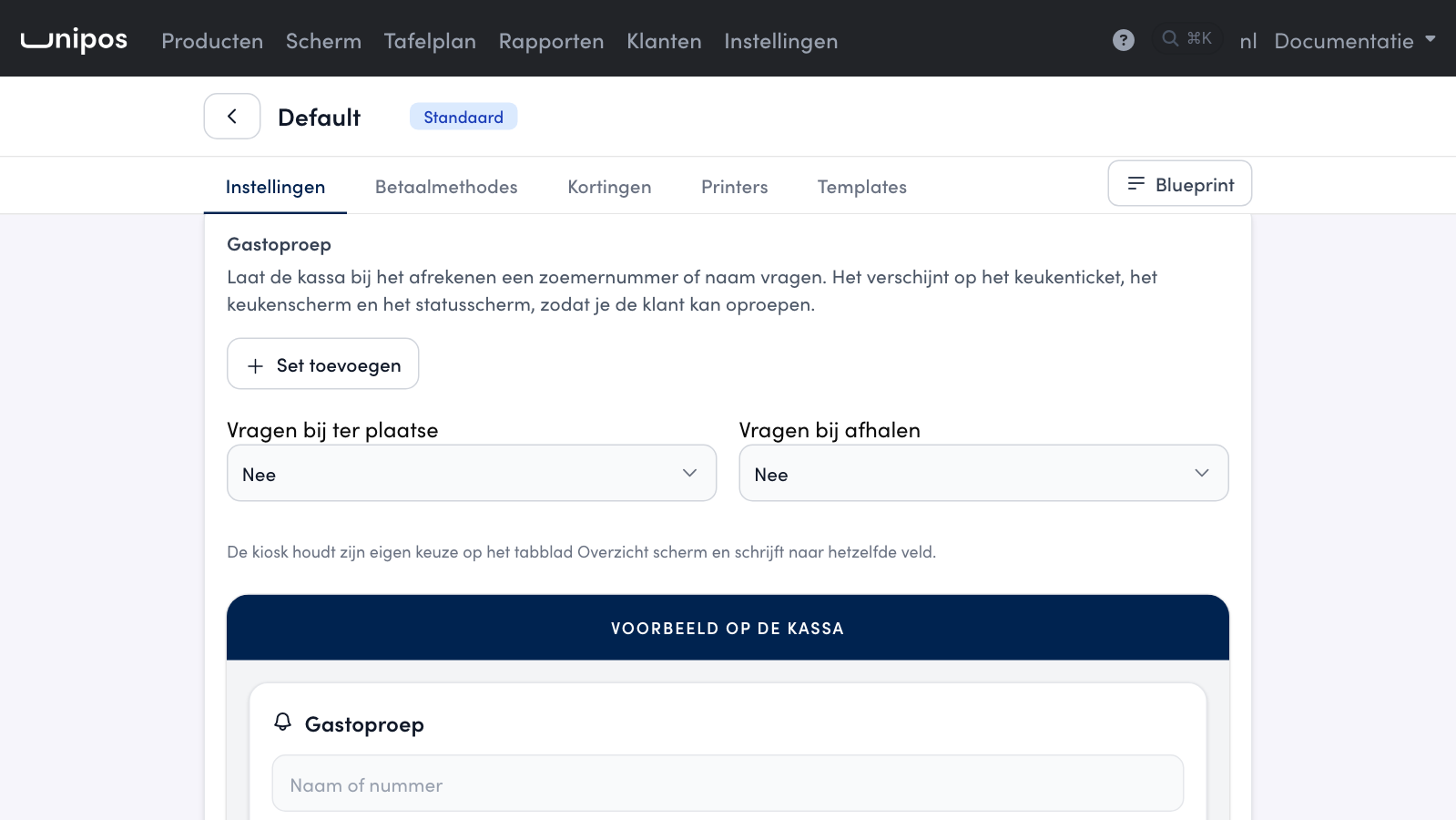
A chip shop hands the customer a numbered buzzer and calls that number when the order is ready. The guest notifier does the same, as a fixed field on the sale. You set per POS configuration whether the till asks for it, and which numbers or names the staff member can pick.
Setting it up#
In the management page, open Settings and then Kassa configuratie.
Open your configuration. On the Settings tab, find the Guest notifier card.
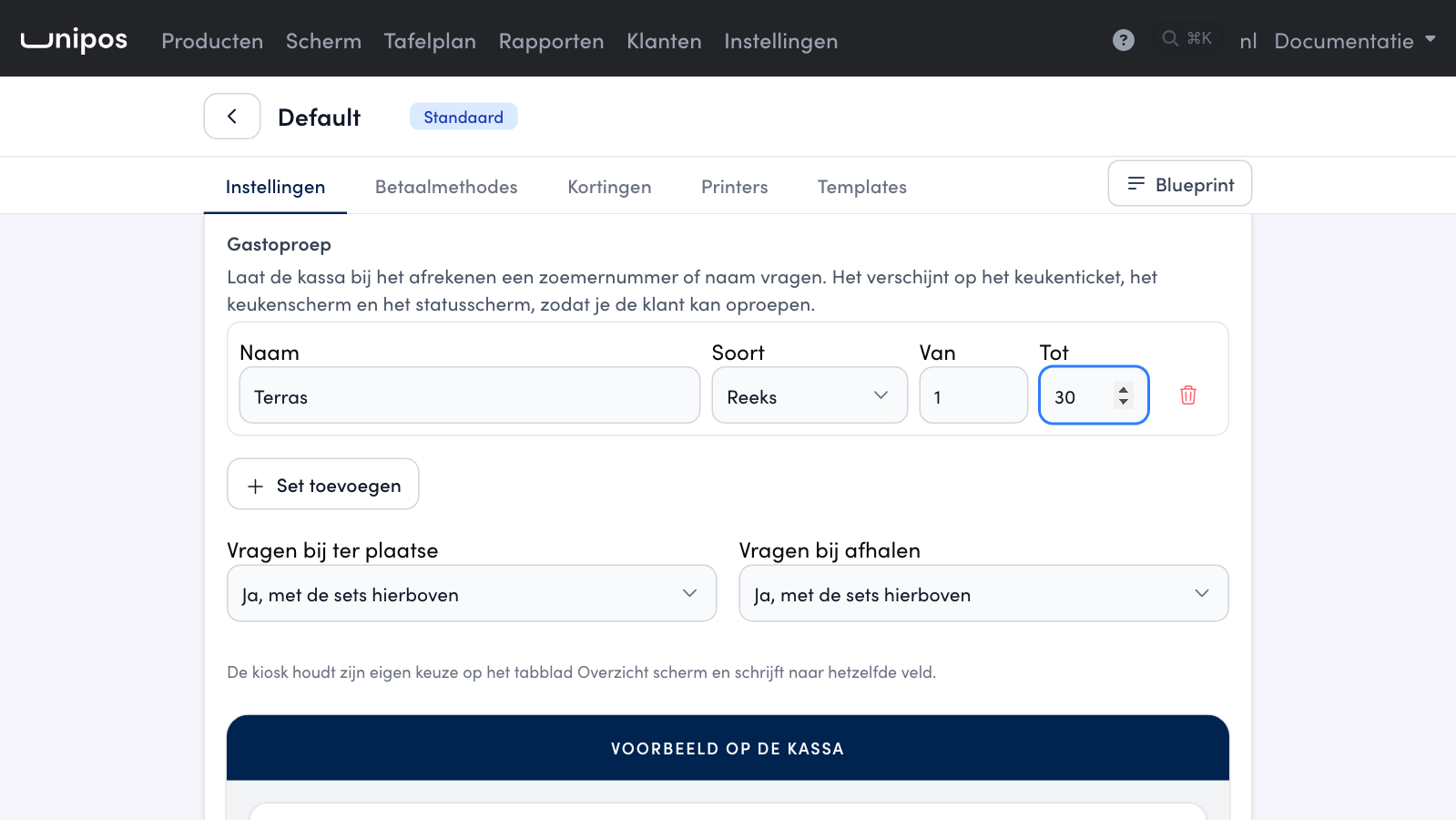
Click Add set and enter for example Terrace under Name.
Under Type, choose Range and fill in From and Until, for example 1 to 30. If you choose Custom names, type the names separated by commas, for example Red, Blue, Green.
Under Ask for on-site orders and Ask for takeaway orders, choose what the till does.
Click Save.
For both choices you have three options:
No: the till asks nothing. This is the default.
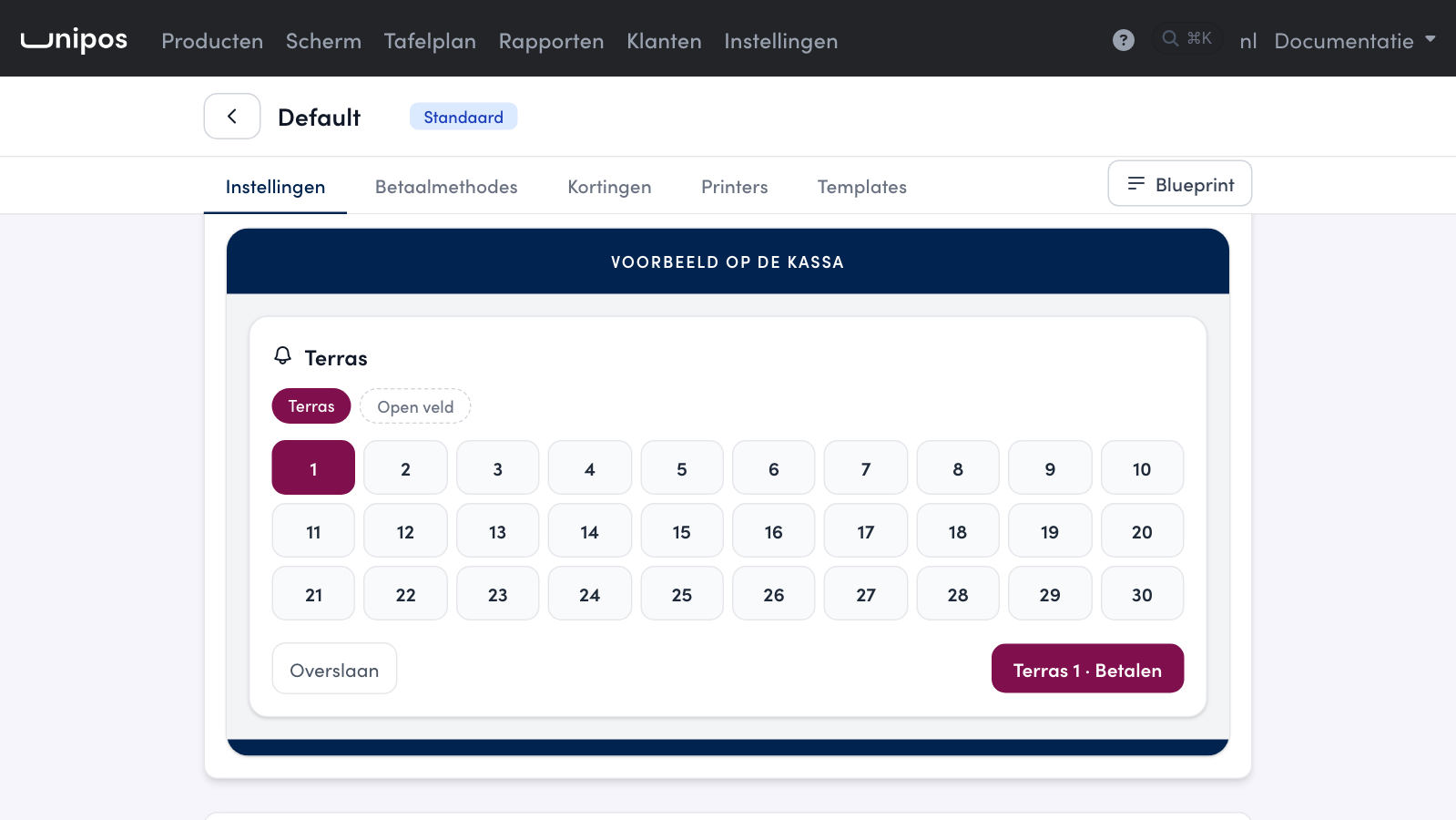
Yes, with the sets above: the staff member taps a tile, or types a name or number. If you have not made a set yet, the till only asks for an open field.
Yes, an open field only: the staff member always types a name or number.
Below the card, Preview on the cash register shows what the question looks like on the till. The preview follows what you fill in right away.
On the till#
When you send or check out a direct sale, the till asks for a guest notifier. How staff pick, change or release a buzzer is in Giving an order a buzzer or a name.
Where the guest notifier shows up#
On the kitchen ticket the till prints.
On the kitchen display: a bar with a bell at the top of the card, with the guest notifier instead of the order number.
On the status screen: the guest notifier as the title. A ready order with a guest notifier turns dark red instead of green.
A table order keeps the table name. An order from the kiosk or the webshop keeps its own reference, for example the customer's name and time.

Tip
Use short names for your sets, like Terrace or Colour. They show as a tab on the till and before the number on the kitchen display.
Frequently asked questions
Do kiosk and webshop orders get a guest notifier too?
No. Those orders are called with their own reference, for example the customer's name and time. A second field would show the same name twice.
Does the till ask for a guest notifier on table orders?
No. The guest notifier is for direct sales, on-site and takeaway. A table order uses the table name.
How many numbers or names can I use?
A range goes up to 999. You can make up to 20 sets, for example a range of numbers and a set of colours, and choose per set between a range and custom names.
What happens if the staff member picks nothing?
With Skip the sale continues without a guest notifier. The kitchen display and the status screen then keep showing the order number.