You build your whole menu in the Get started now guide: Product management for products and categories, Variations and variation groups for the choices on a product, and Combo menus for fixed menus at a single price. Everything you set up there appears automatically on Unipos PLUS. This page builds on that with what is specific to the POS.
What the till should do with a product, such as creating a membership or printing a kitchen message, is set on the Kassafuncties card. See Setting up till functions on a product.
Products with an open price#
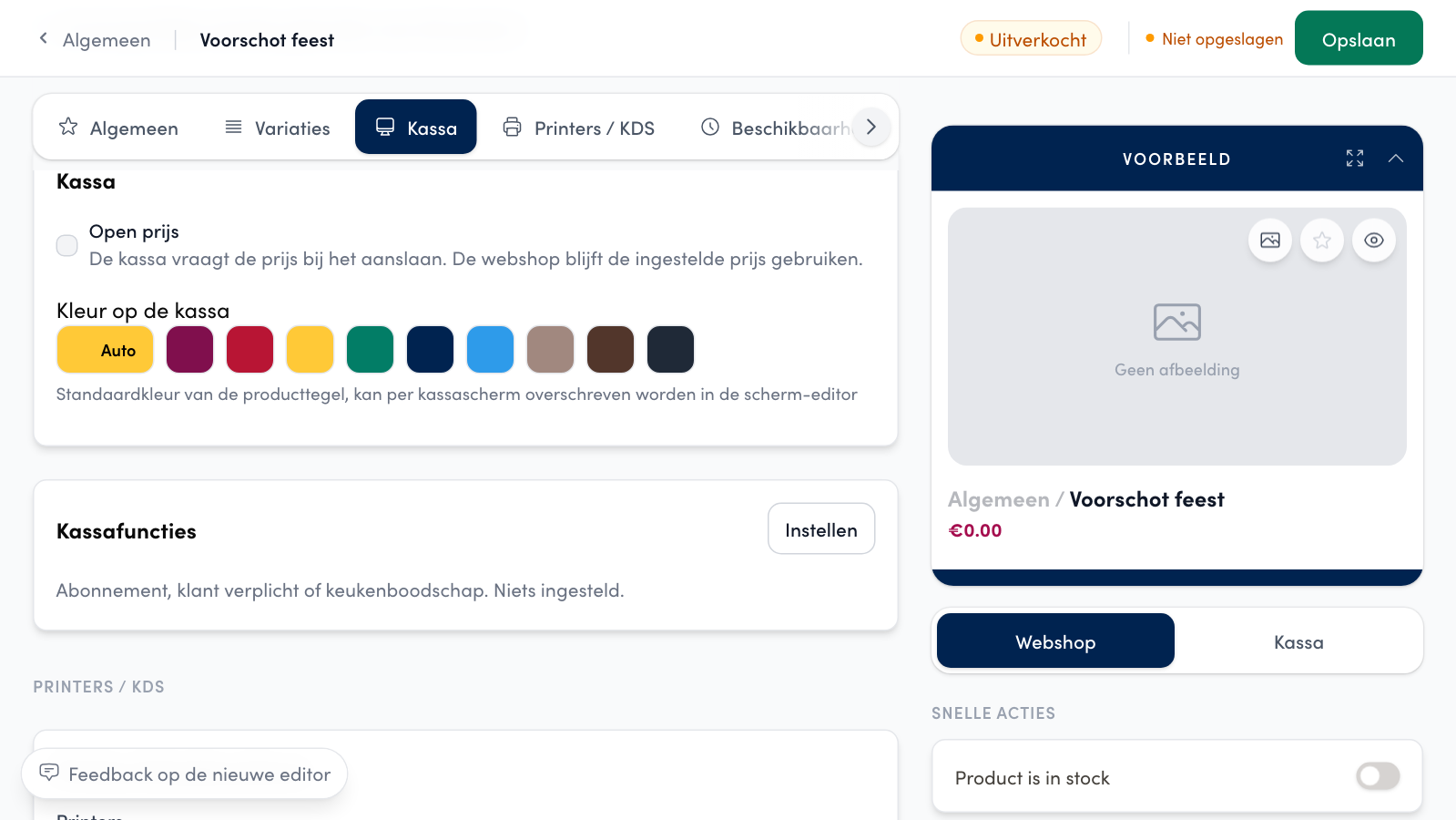
Some products have no fixed POS price, for example a bag of sweets or a Miscellaneous product. On the product sheet, tick Open price (Open prijs): the POS then asks for the price when you ring the product up.
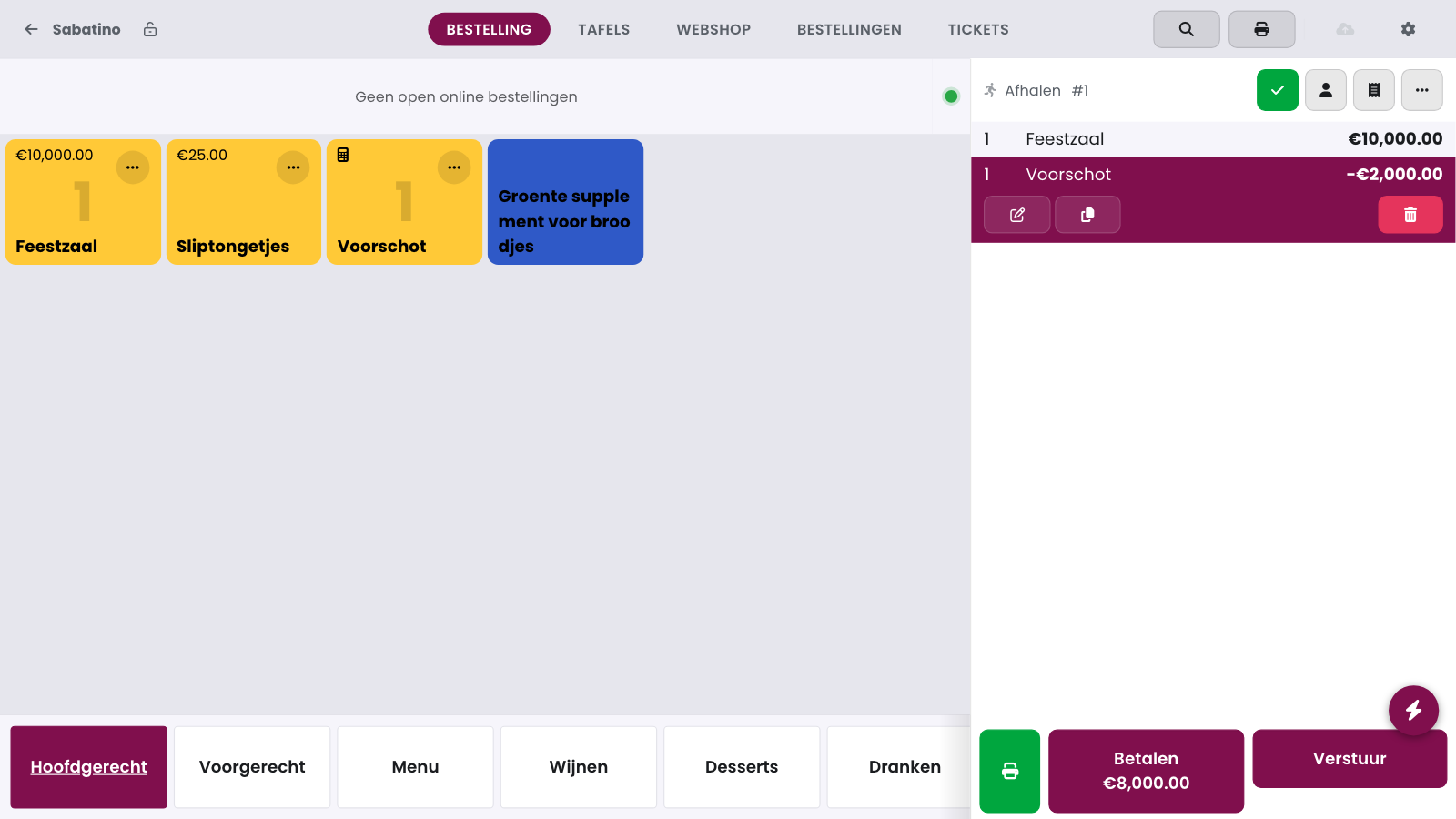
On the POS, the product shows a calculator symbol instead of a price.
When you ring it up, the numeric keypad appears straight away: the cashier types the price and confirms. If you close the window without entering a price, nothing is added.
If you enter a quantity first, the price per piece follows.
Entering the price here is the sale itself, not a discount: the cashier does not need discount rights for it.
The webshop simply keeps using the fixed price from the product sheet. Open price is not available for weighed products (per kg) and combo menus.
Deducting a deposit from the final bill#
Received a deposit invoice for a party that takes place later? This is how you deduct it correctly from the final bill. A party hall is booked two years ahead and the customer pays a deposit of 2,000 euro at the booking, with an invoice. On the day itself you settle the party on the POS and that deposit has to come off the total. The POS needs to know how much of those 2,000 euro falls under 12 % and how much under 21 % VAT: the VAT on the deposit was already paid with the invoice, so the deduction carries the same rate.
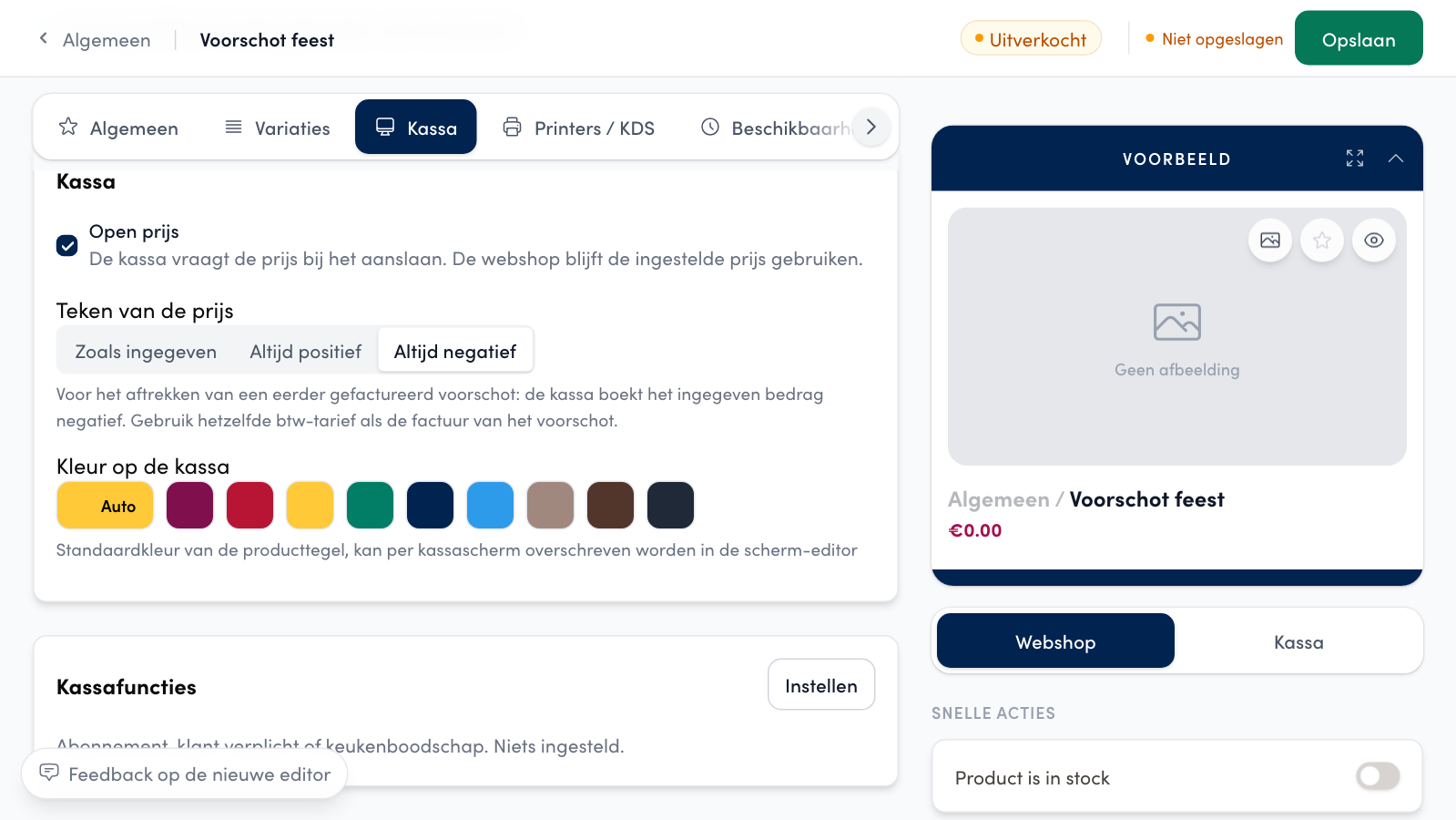
You do this with a product with Open price (Open prijs) whose Price sign (Teken van de prijs) you set to Always negative. The cashier types the amount of the deposit and the POS books it as negative, with the product's VAT rate. If the invoice carries two rates, create one deposit product per rate, for example Deposit 12 % for the food and Deposit 21 % for the drinks.
Creating the deposit product#
On the management page, go to Products and create a new product, or open an existing one.
On the Productinformatie card, give it the VAT rate of the deposit invoice.
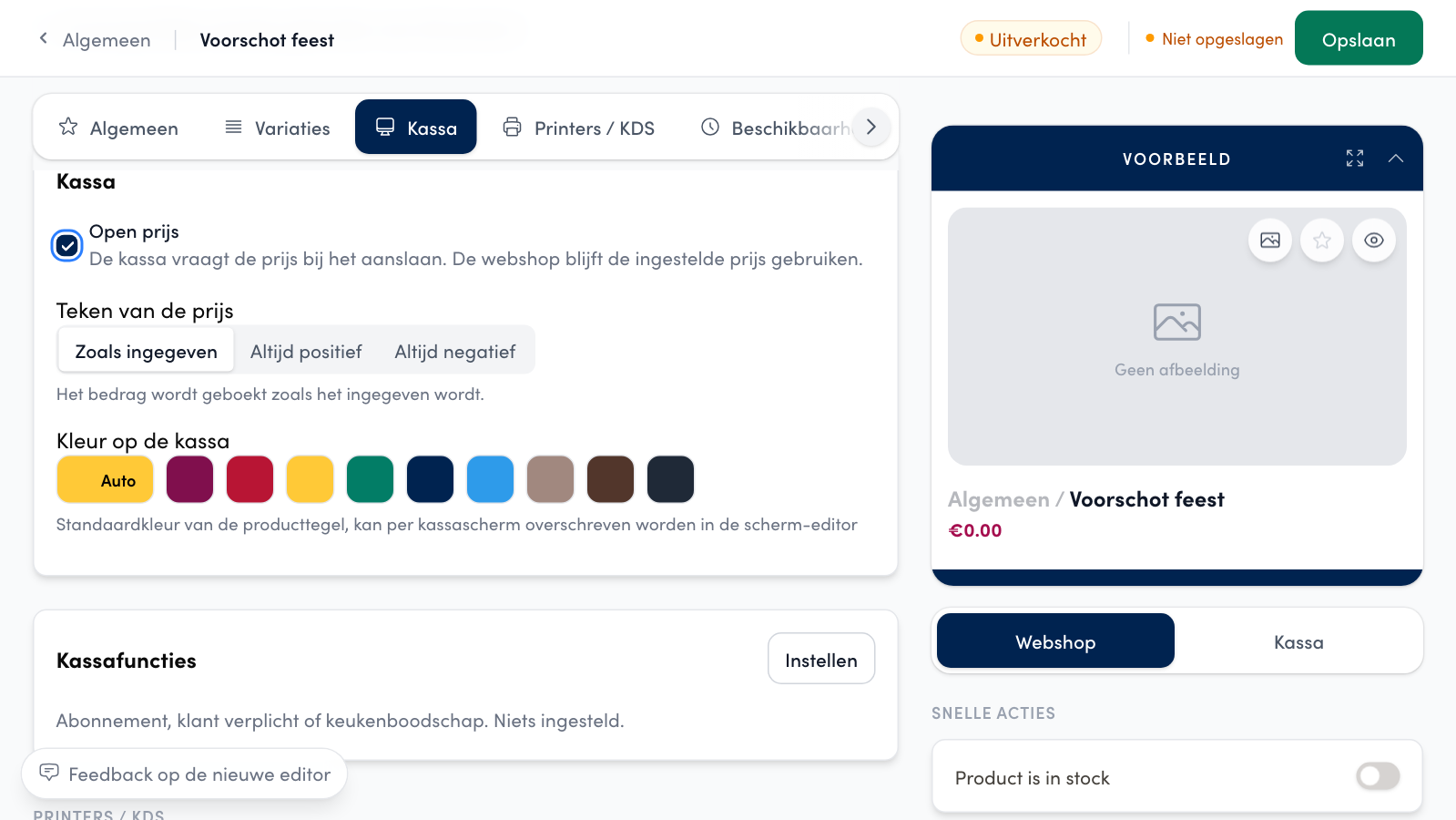
Open the Kassa card and tick Open price.
Under Price sign, choose Always negative.
Click Save.
On the POS#
On the day of the party you ring up the party and deduct the deposit:
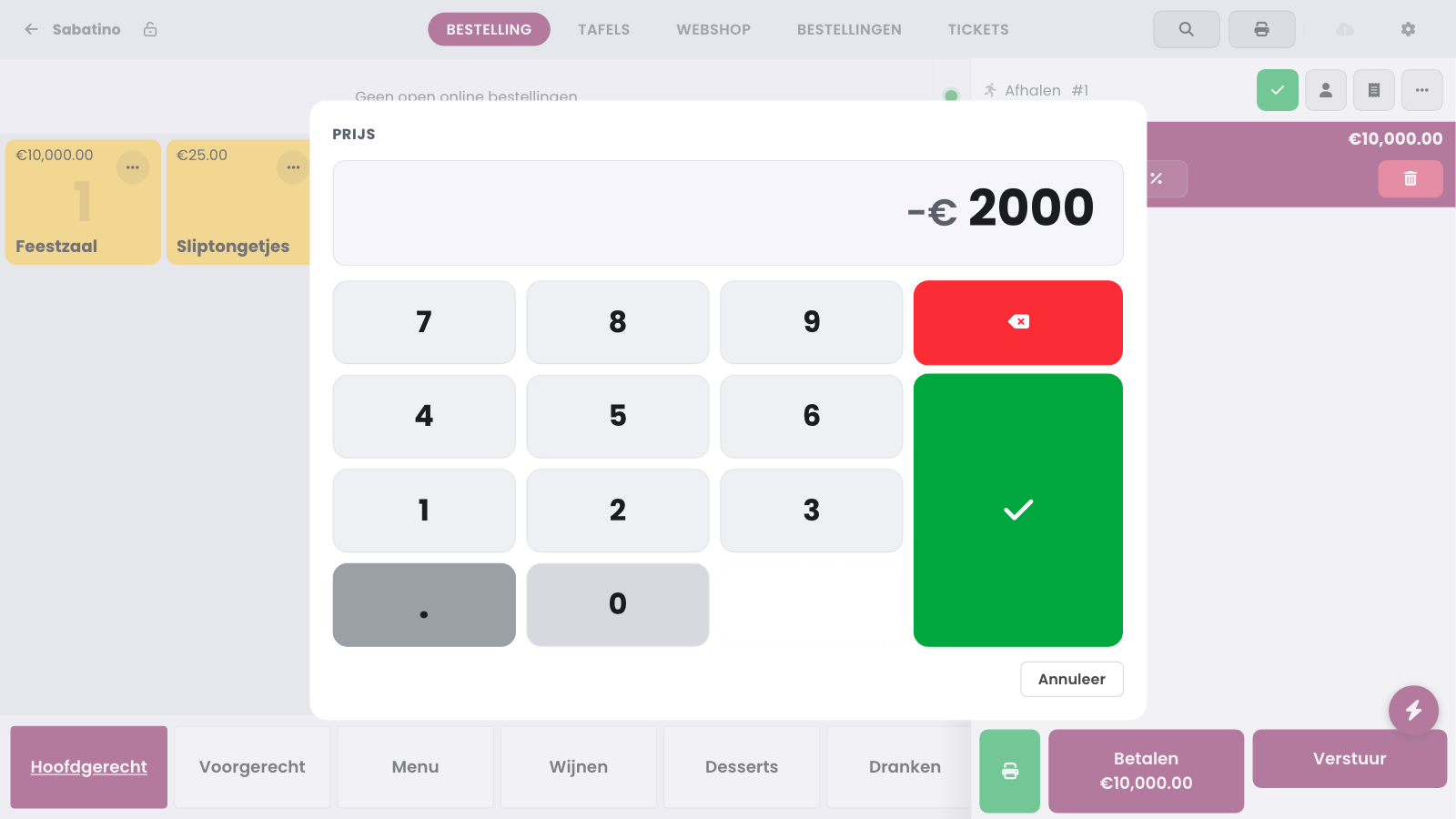
Tap the tile of the deposit product. The price screen shows -€ and has no minus key: every amount you type is booked as negative.
Type the amount of the deposit, for example 2000, and confirm with the green tick.
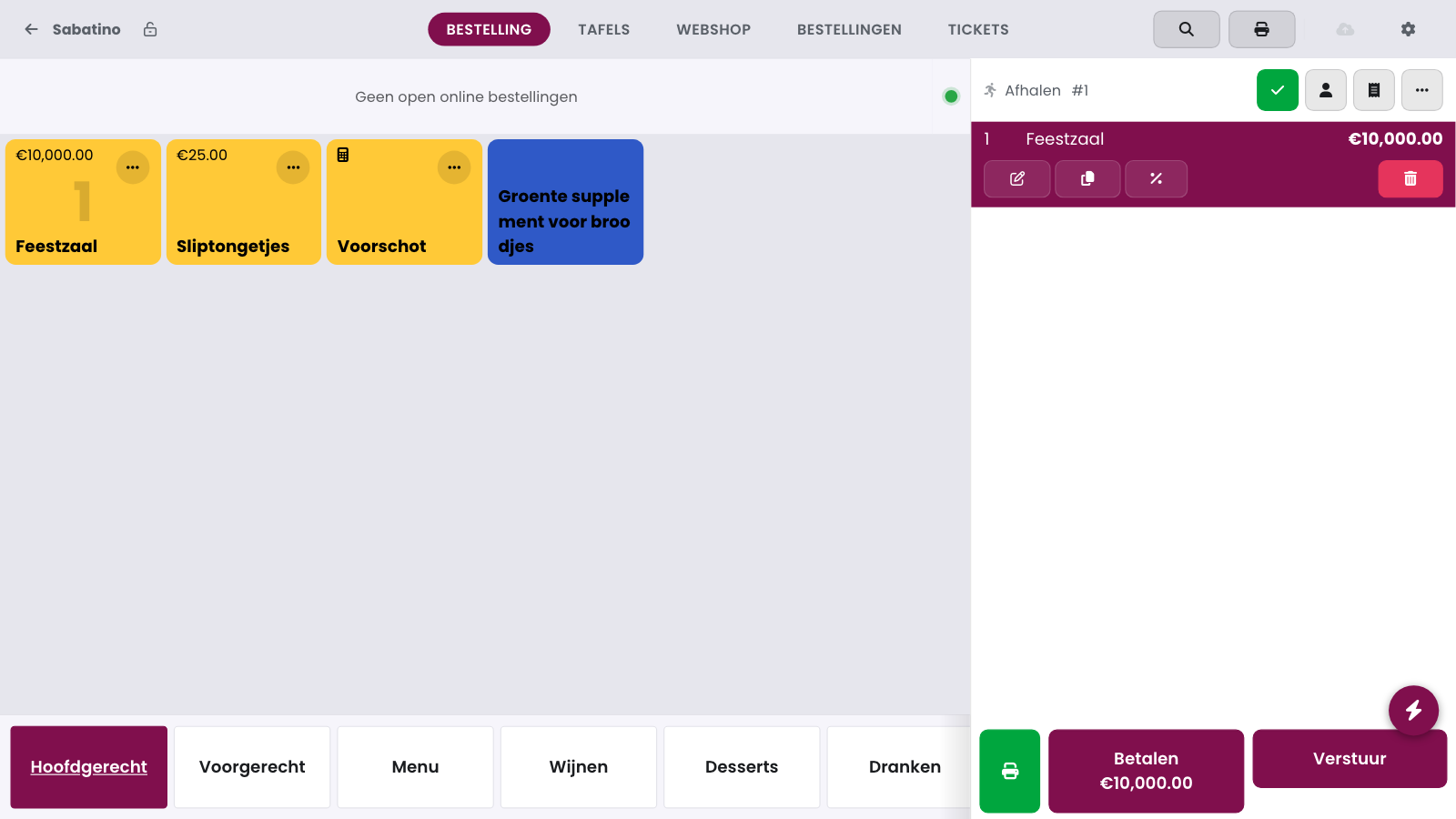
The order panel shows a line of -2,000.00 euro. If the deposit covers two rates, repeat this with the second deposit product.
Settle the balance as usual.
On the receipt and in the reports#
The deposit sits on the receipt as a line of -2,000.00 euro and the customer pays the balance. On a POS with GKS, Unipos PLUS reports the deduction to the tax authorities as a refund of the deposit, not as a correction of a sold line. In the Z report it counts among the refunds. A receipt holding only a deposit prints as a refund.
The three options of Price sign#
As entered (Zoals ingegeven): the POS books the amount as the cashier types it. This is the setting of every open-price product you already had. On a POS with GKS the price screen has no minus key; on a POS without GKS the cashier can type a negative amount.
Always positive (Altijd positief): the POS does not accept a negative amount, not even on a POS without GKS.
Always negative (Altijd negatief): the POS always books the amount as negative. Use this only for a deposit.
The sign only applies on the POS. The webshop keeps using the fixed price from the product sheet.
Good to know
The VAT on the deposit was already paid with the invoice. That is why the deduction carries the same VAT rate as the invoice: only the VAT on the balance remains on the final bill.
Warning
First update every till of your business to the latest version of Unipos PLUS before you set a product to Always negative. A till on an older version does not know the setting and does not book the deposit correctly. See Updating Unipos PLUS.
Optional variations on the POS#
For each variation group, you choose the Display on POS (Weergave op kassa):
Popup when adding: the cashier sees the choices straight away when ringing up the product, just like your customer on the webshop.
Side panel (optional): optional variations do not block the sale. Unipos PLUS shows them in a column next to the receipt, so the cashier can still tick options on or off afterwards and adjust quantities.
Ideal for questions that should not hold up the flow, such as the salt or sauce with the Tub of chips (Bakje friet) from the example in Variations and variation groups.
Frequently asked questions
Can I give a discount on the line of a deposit?
No. The line is the deposit itself, not a sold line, so the discount button is not there. A discount on the whole order leaves the line untouched. If the amount is wrong, delete the line and ring up the deposit again.
Can't I just enter the deposit as a discount?
No. A discount belongs to a sold line and follows the VAT of that line. A deposit was already invoiced and paid, with its own VAT rate. That is why you deduct it with a deposit product at the rate of the invoice.
The cashier does see a minus key on the price screen. How come?
On a POS without GKS, a product set to As entered has a minus key, so the cashier can type a negative amount. On a POS with GKS, and with Always positive or Always negative, there is no minus key.