A tip is money your customer gives on top of the bill. It is not a sale: the POS registers the tip next to the payment, without VAT and outside your turnover. Every tip is for someone, by default the employee who opened the order. So you see per employee what came in, what was paid out and what is still due.
Setting it up#
Switch tips on for your POS. In the management page, open Settings and click Cash register configuration. Open your configuration and stay on the Settings tab. At the bottom of the Bestellen card (ordering) you find Fooi op het betaalscherm (tip on the payment screen). Switch it on, choose the two options below it and click Save at the bottom. The setting applies to every POS with this configuration.

Fooi op het betaalscherm: the POS shows the Tip button at checkout and Add tip on a closed receipt.
Fooi gaat naar (the tip goes to): who gets a tip by default, Medewerker die de bestelling opende (the employee who opened the order) or Medewerker die afrekent (the employee who charges). On the POS you can still pick someone else for each tip.
Fooien verdelen (pooling tips): with Niet verdelen every employee keeps the tips in their name. Gelijk over de medewerkers met een shift splits the day's tips equally among everyone who had a shift that day, Volgens gewerkte uren by the hours each employee clocked. A tip pool must be provided for in your work rules.
The same three choices are also on the POS: tap the gear at the top right, choose Configuration and scroll to Tips. There they are called No tips or Ask for a tip, Who gets a tip (Order waiter or Cashier) and Tip pooling (None, Equal or By hours). What you choose on the POS also lands in your configuration in the management page.

Who may register and pay out tips#
In the management page, open Settings, click Team and open a team member. In the Sale group there are two switches:
Mag fooi registreren (may register tips, on by default): the employee sees the Tip button at checkout and Add tip on a receipt.
Mag fooien uitbetalen (may pay out tips, off by default): the employee may pay tips out of the cash drawer. Every payout is registered as a cash movement. Team members with the administrator role always may.
Read more about team members and their rights in Managing cashiers.
A tip on the payment screen#
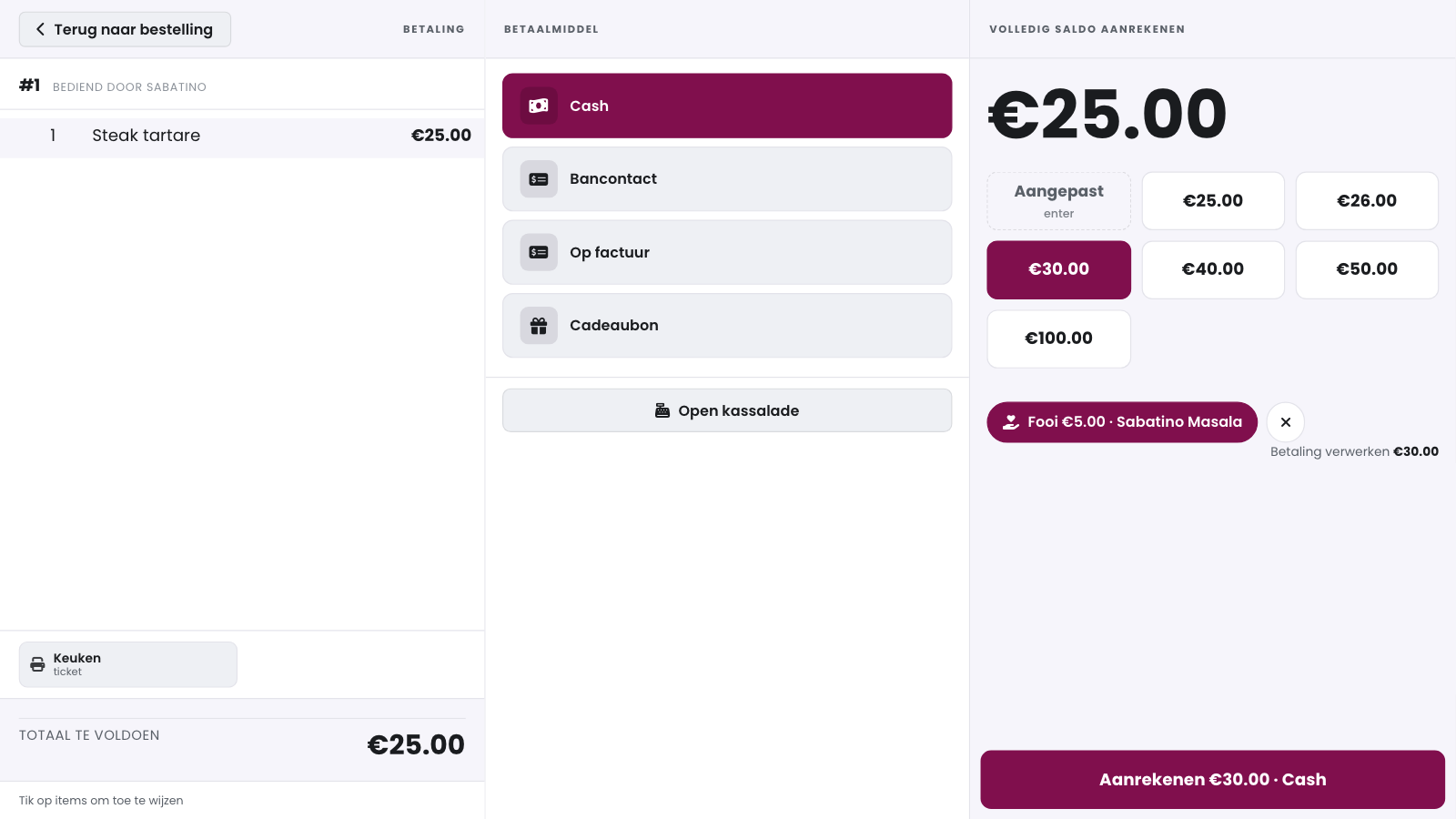
Choose the payment method and tap Tip. The POS suggests amounts: rounding up to the next round amounts and 5, 10 and 15 percent. Tap a suggestion or type an amount yourself. Under For, the employee who gets the tip is already selected. Tap a colleague to give the tip to someone else, or Everyone (pool) for a tip that is not for one person. Confirm with the green tick.
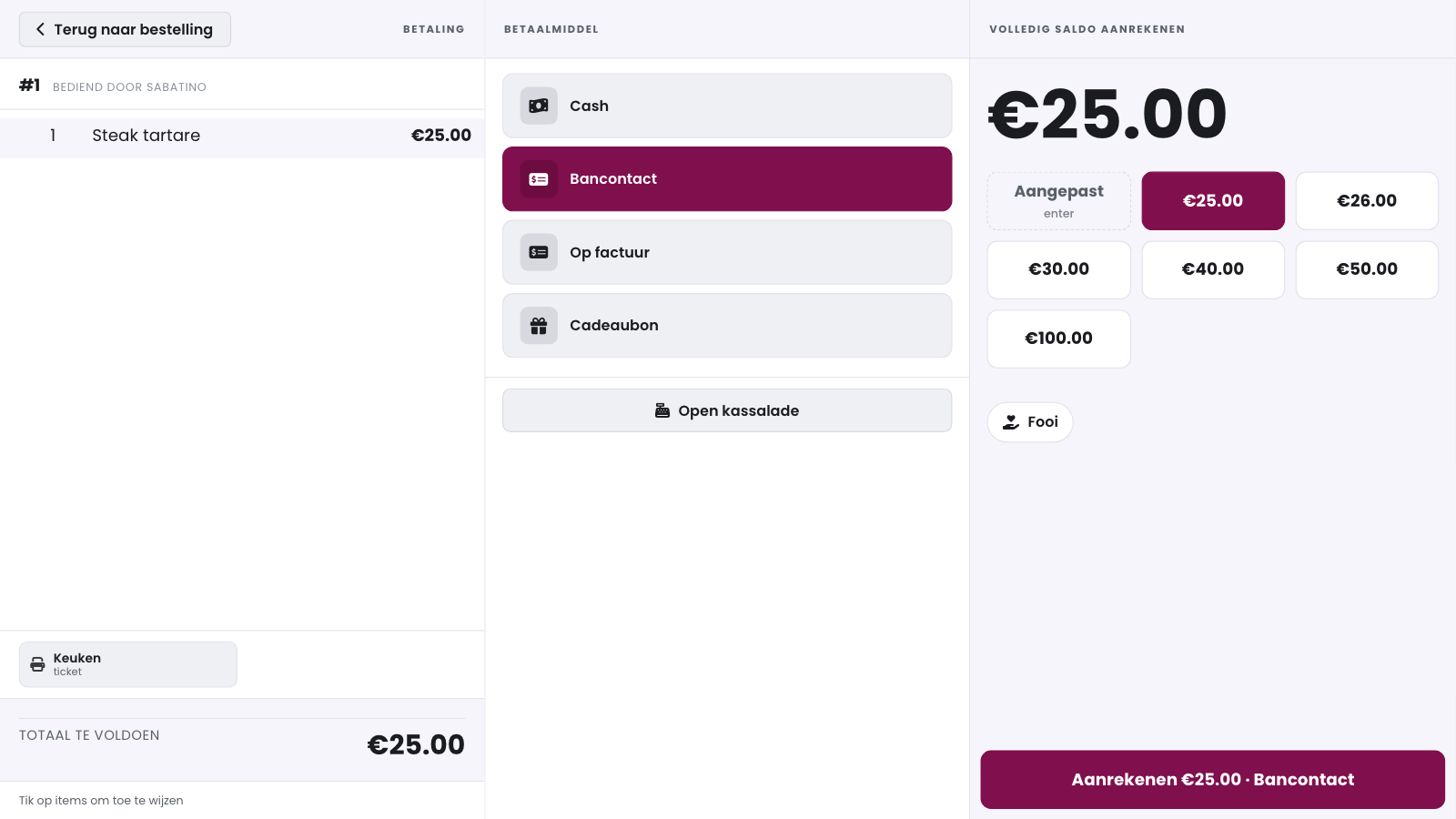
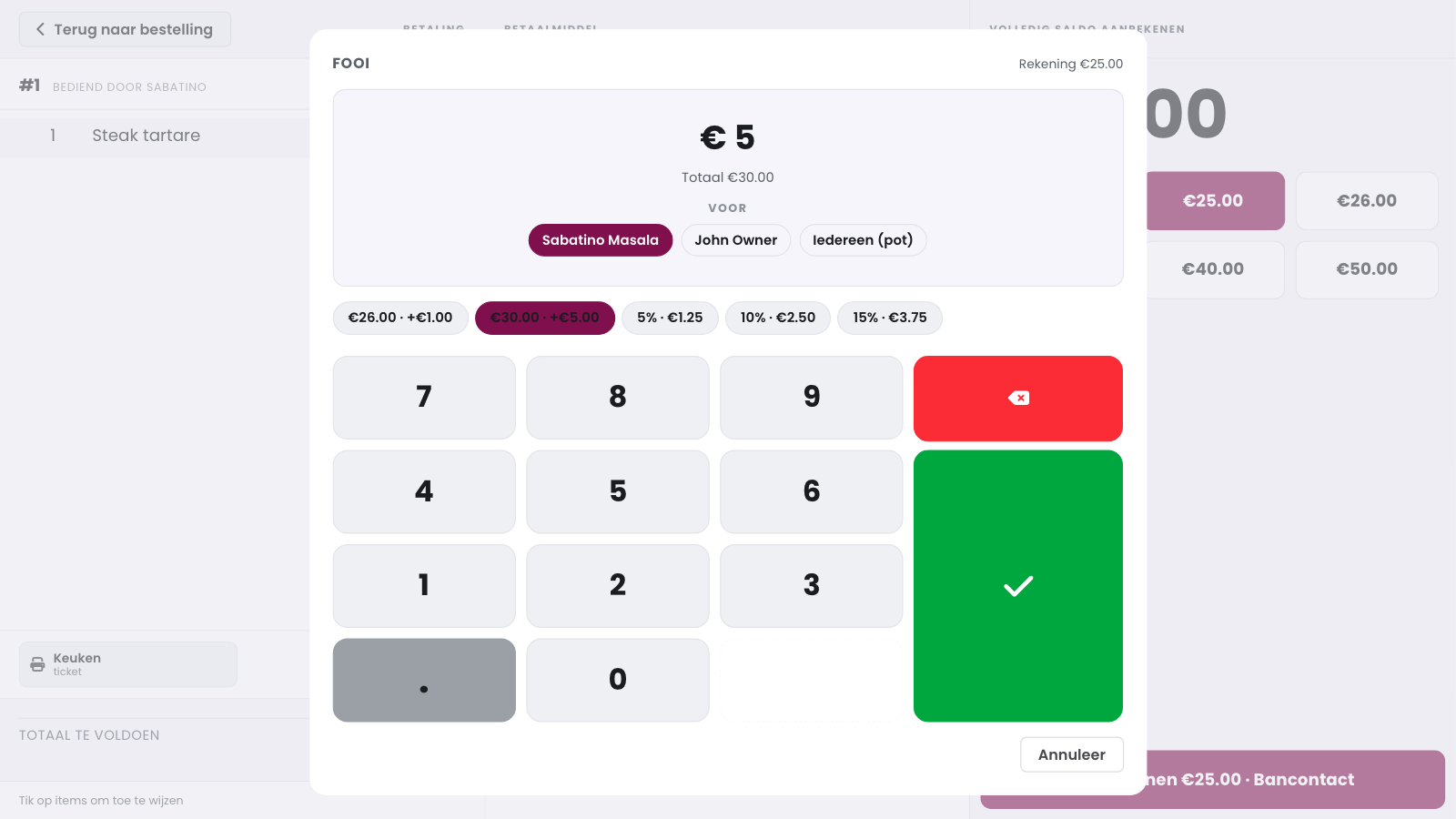
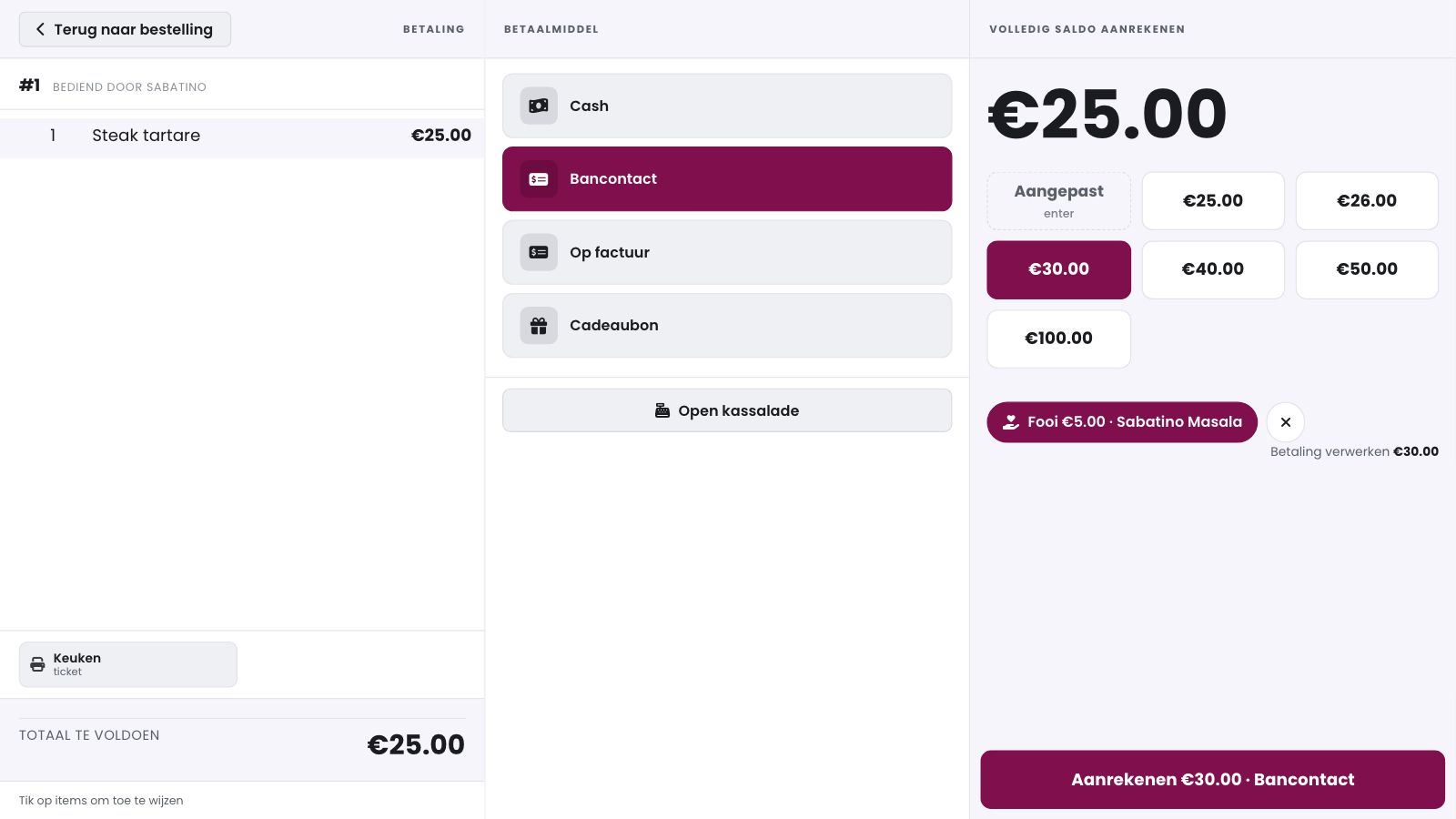
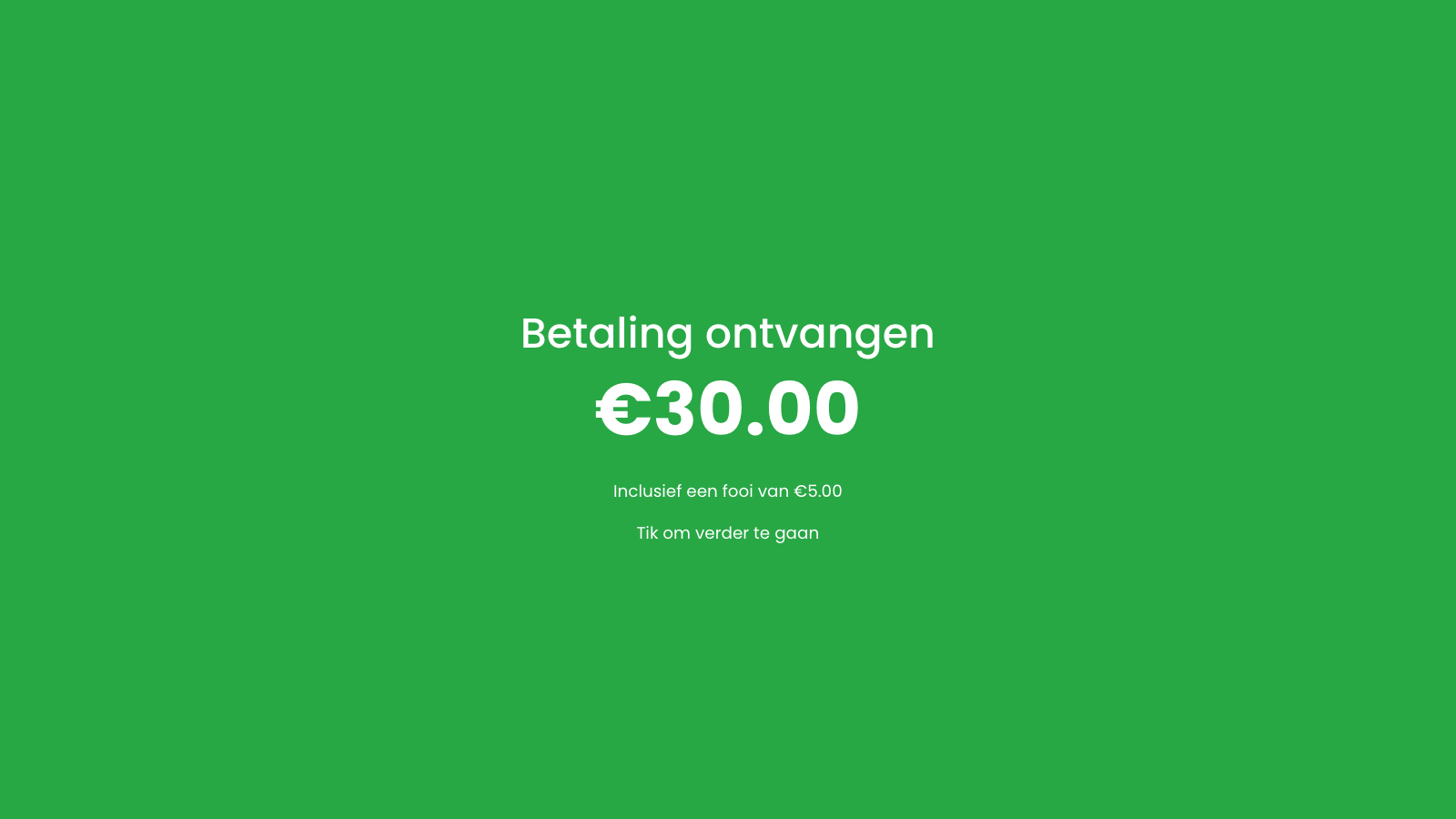
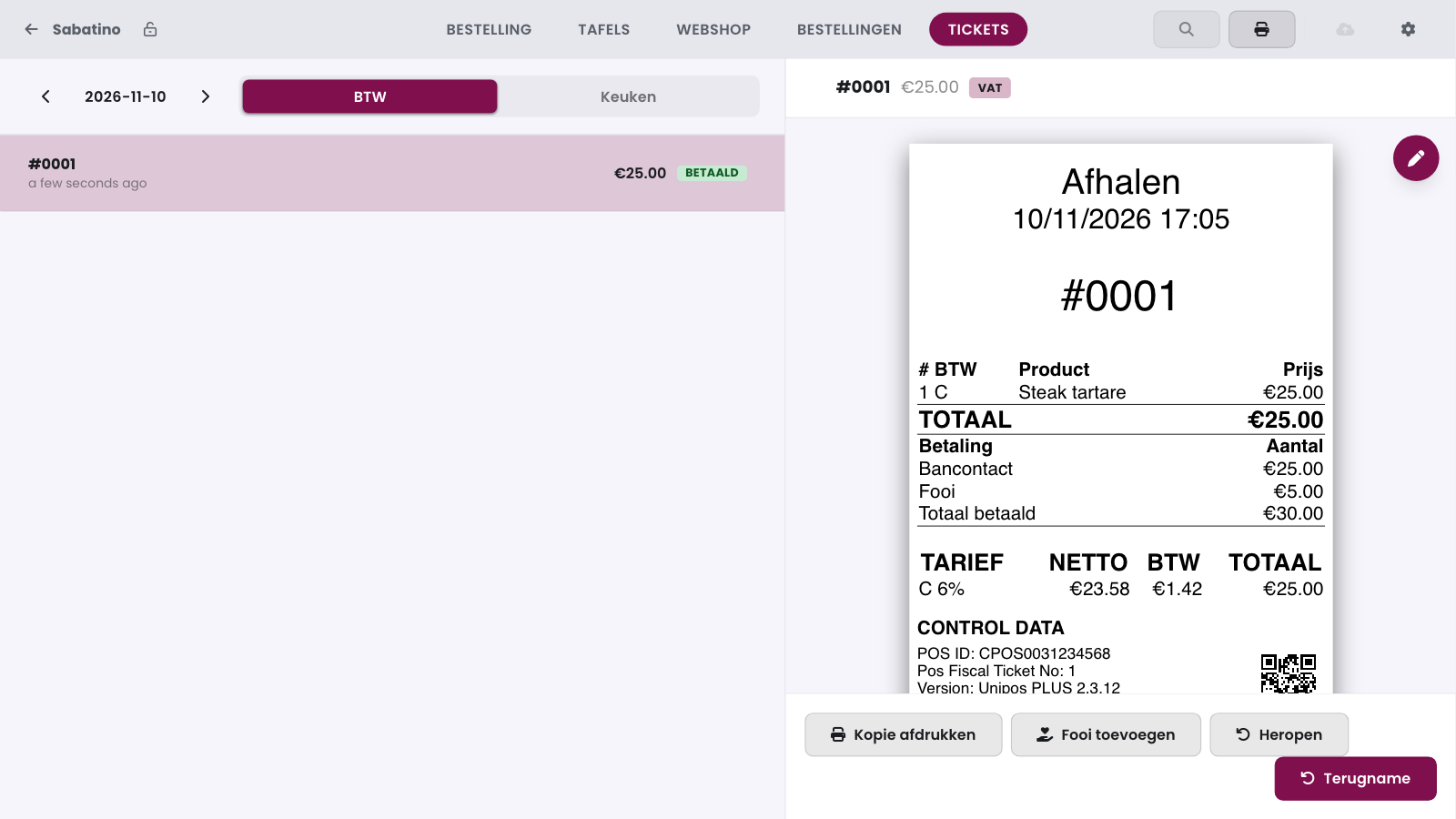
The payment screen now shows Tip €5.00 · Sabatino Masala, with a cross to remove the tip before you charge, and Charge shows the total with the tip. After charging, the Received payment screen shows what your customer gave, with Including a tip of ... below it. On the VAT receipt the tip appears as Tip under the payment, and Total paid includes it.
If your customer pays cash and gives more than the bill, the POS offers next to the Tip button to keep the change as the tip, for example Keep €5.00 change as tip. Tap it and the change becomes the tip. On cash, the POS rounds the total with the tip to 5 cents.
A tip belongs to the bill you give it on: if you then choose another amount that does not cover the bill plus the tip, the tip is dropped. A tip is only possible on a sale, never on a refund. If your customer gives less than the bill plus the tip, that amount pays the bill first.
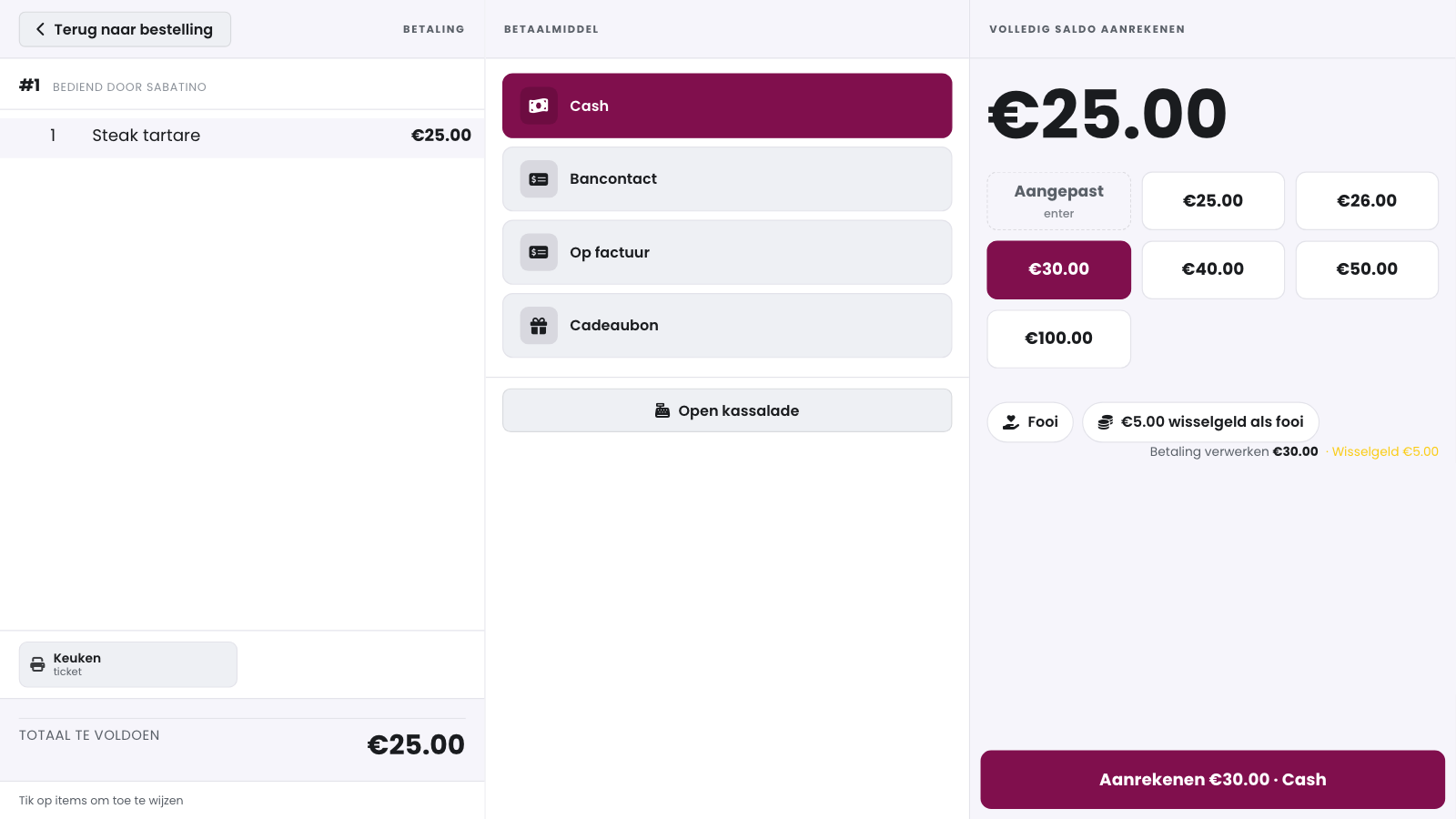
A tip of more than 40 percent of the bill and more than 2 euros first asks for confirmation under Large tip. If the amount is wrong, tap Change amount.

Warning
After charging you can no longer remove a tip: the sale is signed. Check the amount before you confirm.
Asking for a tip at checkout#
Your POS can ask your customer for a tip before you charge, with buttons you choose yourself. You switch the question on per payment method, for example only for Bancontact.
Setting up the buttons#
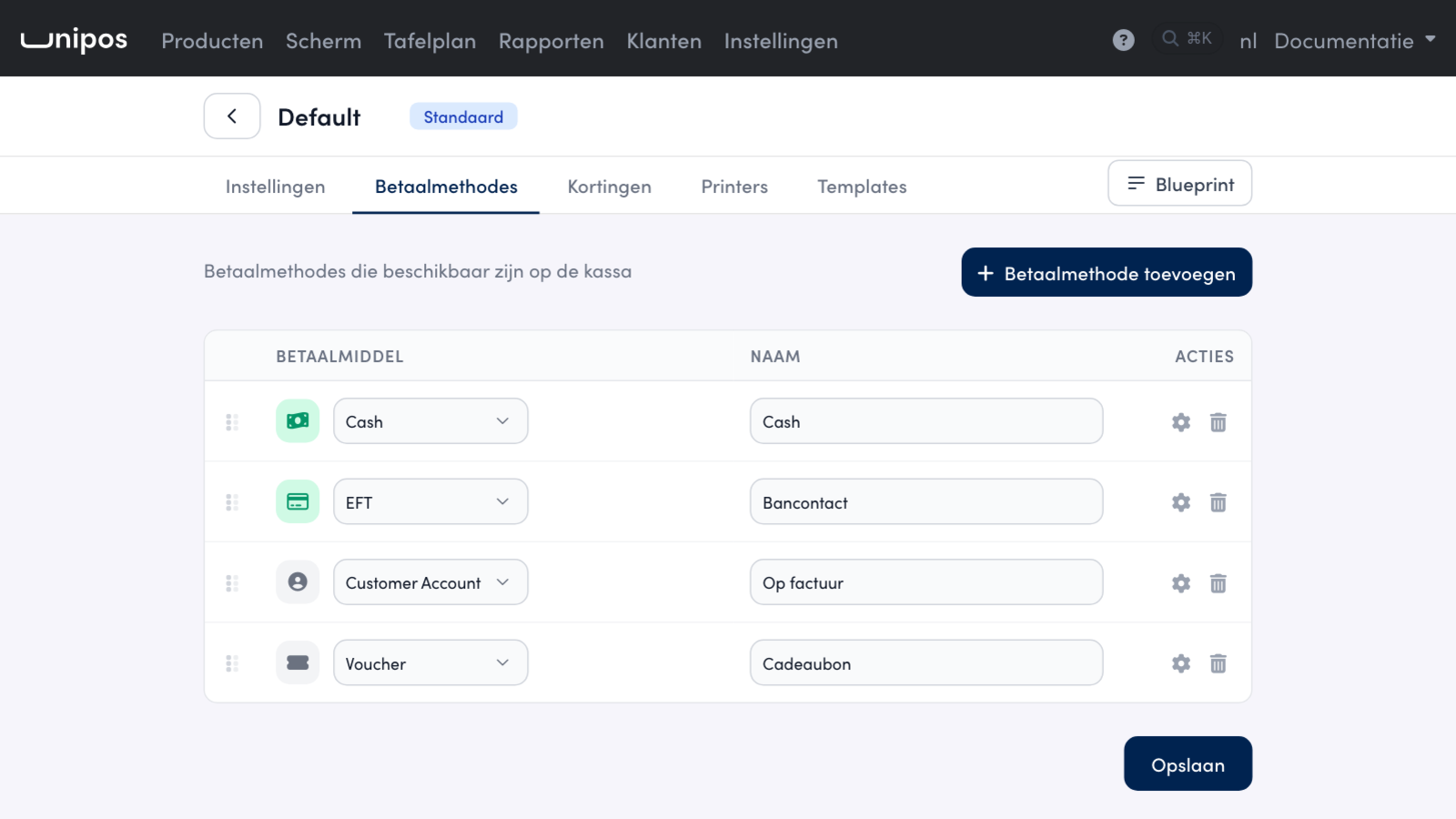
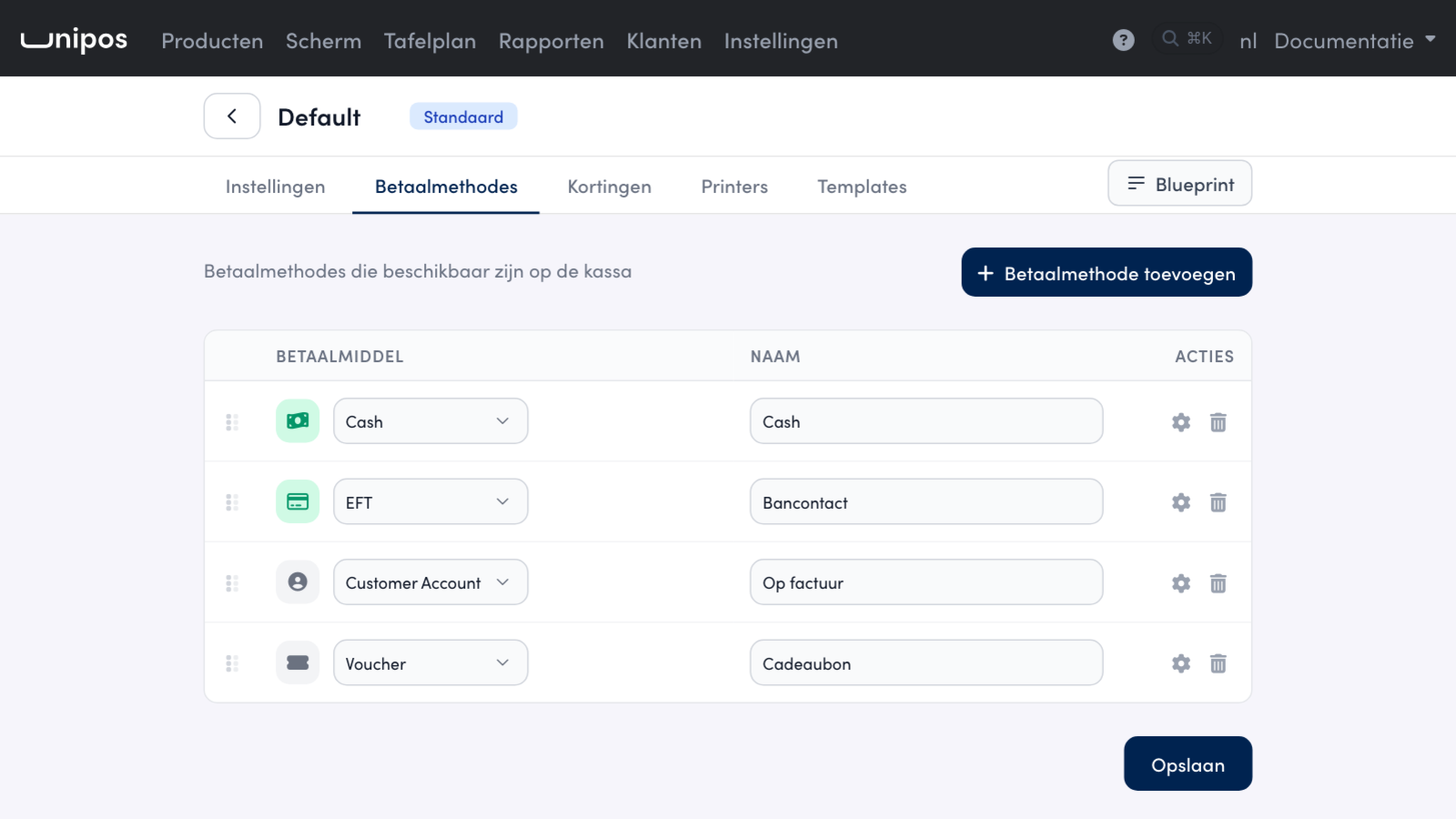
In the management page, go to Settings, Cash register configuration, open your configuration and click the Payment methods tab.
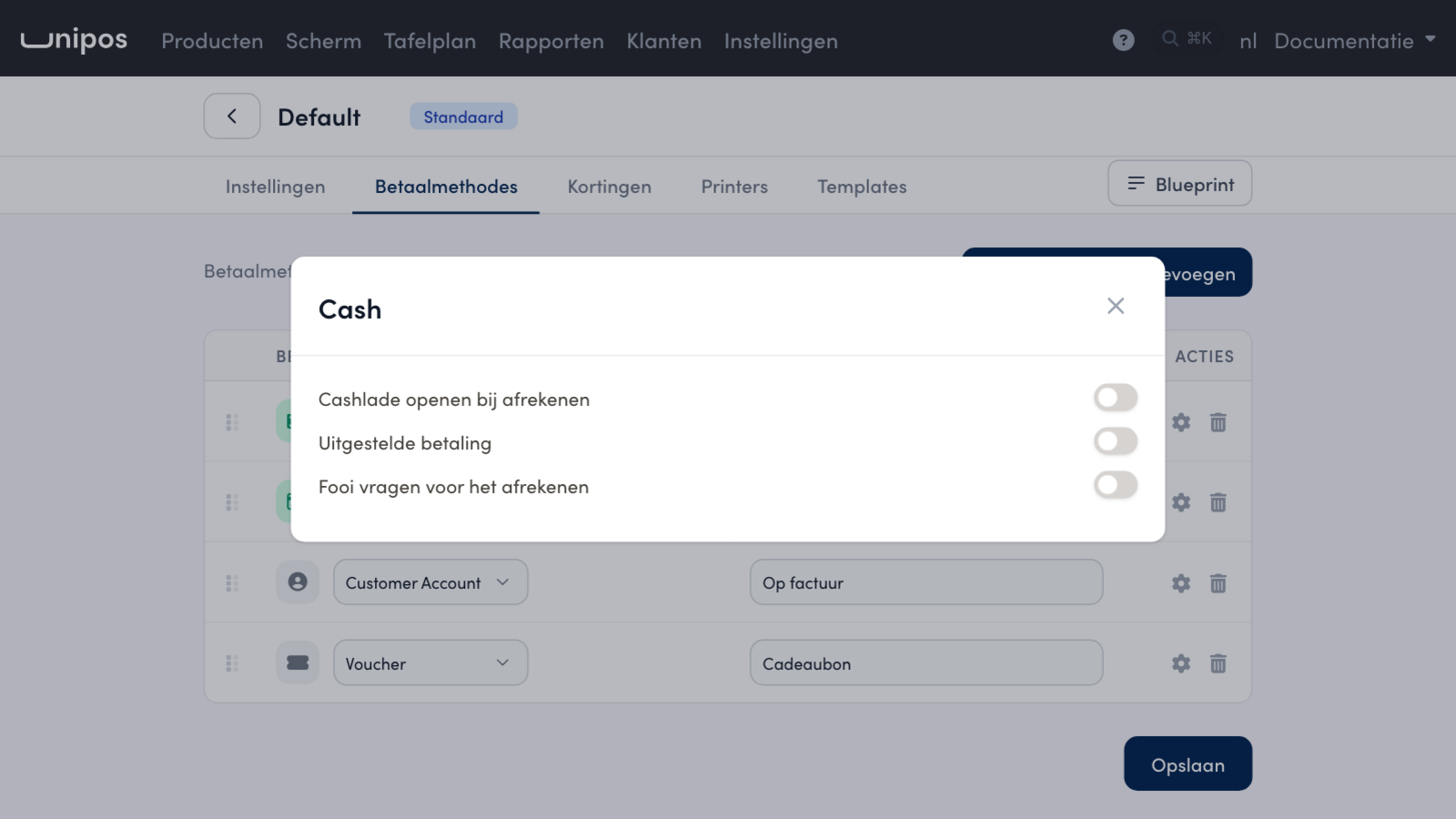
Click the gear next to the payment method.
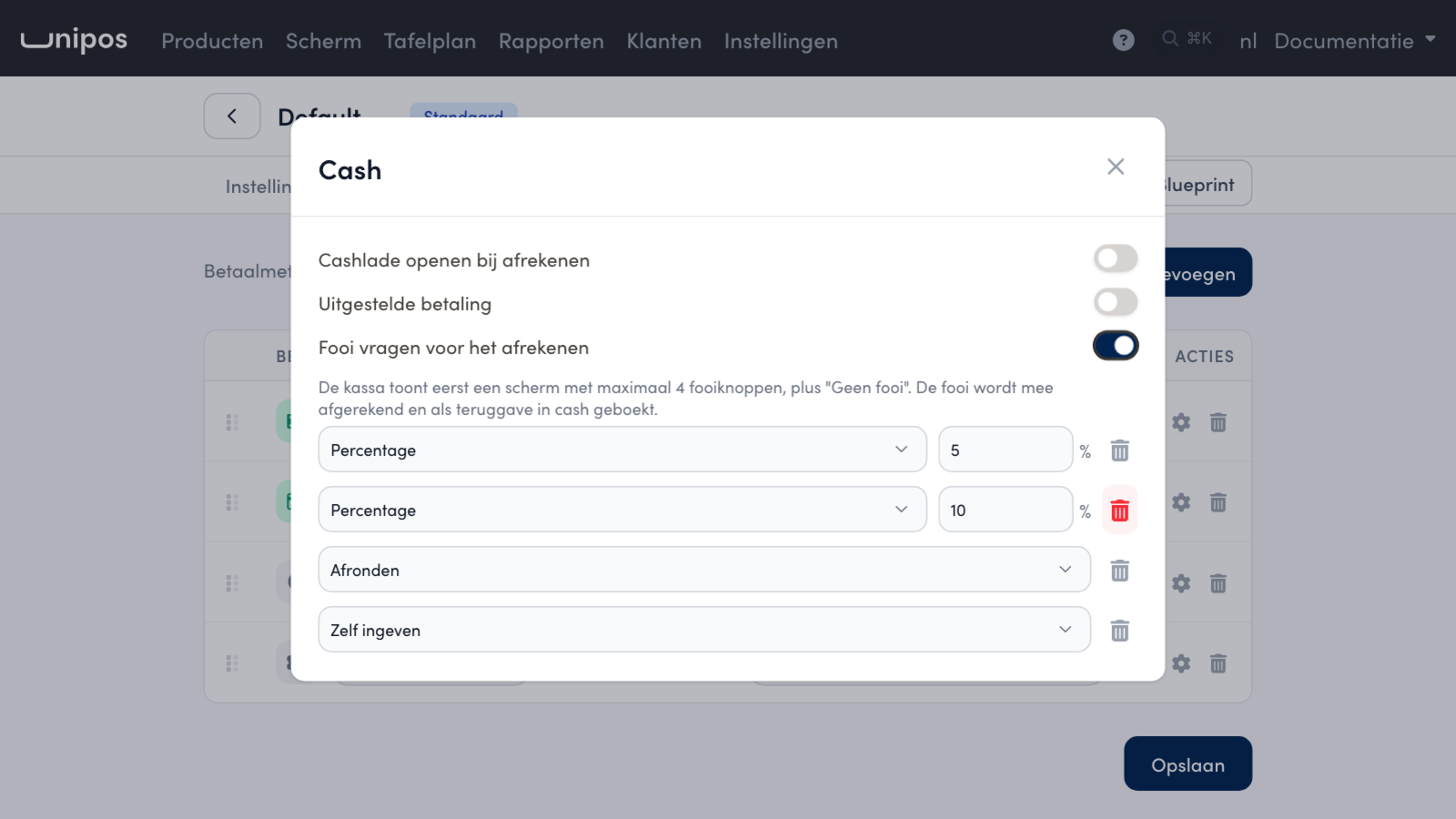
Switch on Ask for a tip before charging. Four buttons are ready straight away: 5%, 10%, Round off (round up) and Custom.
Adjust the buttons: choose Percentage, Round off or Custom for each button, enter the percentage or remove a button with the bin icon. Add tip button adds one, up to four.
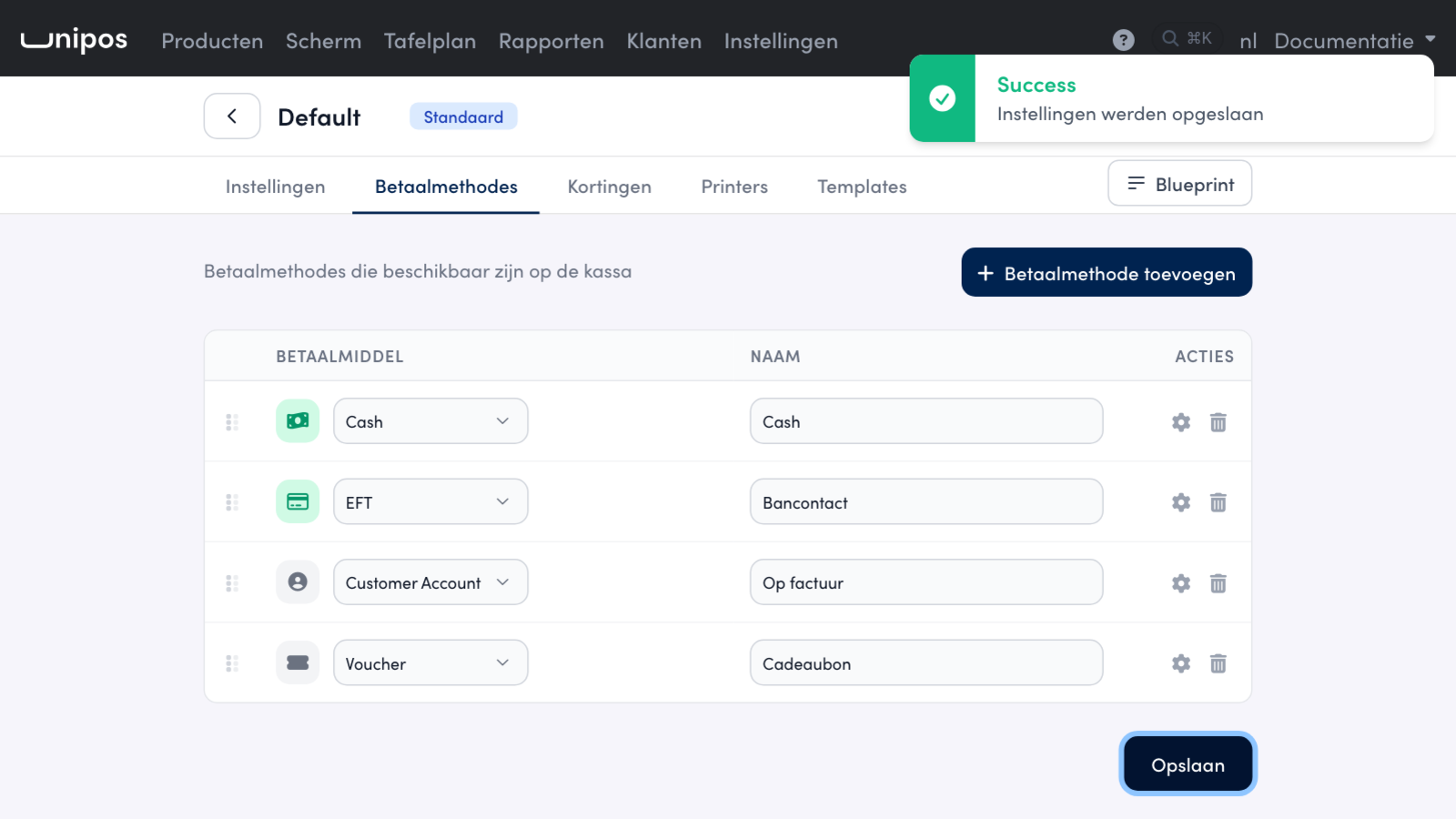
Close the window and click Save.
Tip
Do not switch the tip question on for App to app: the MultiSafepay app already asks for a tip itself.
At the till#
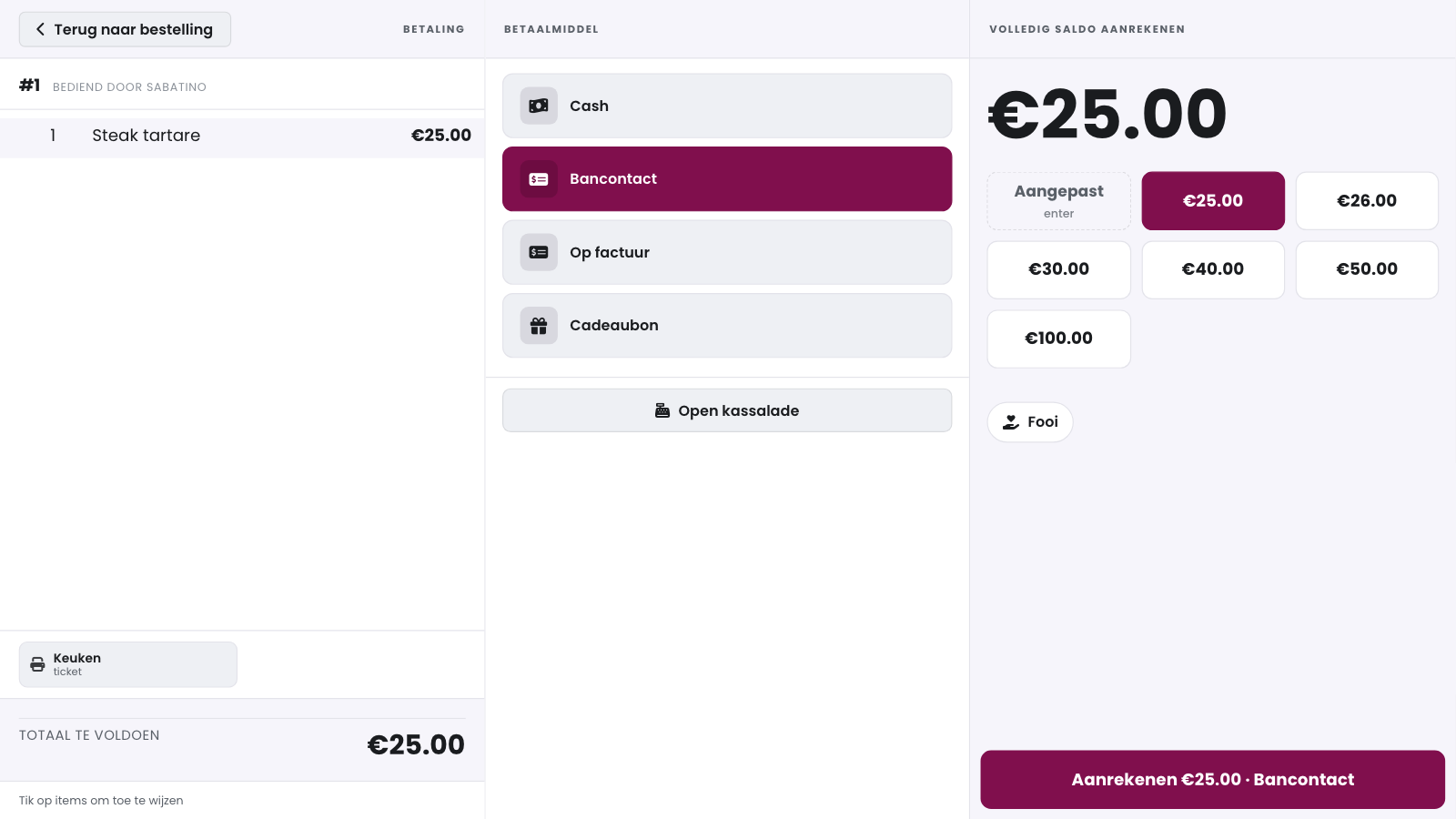
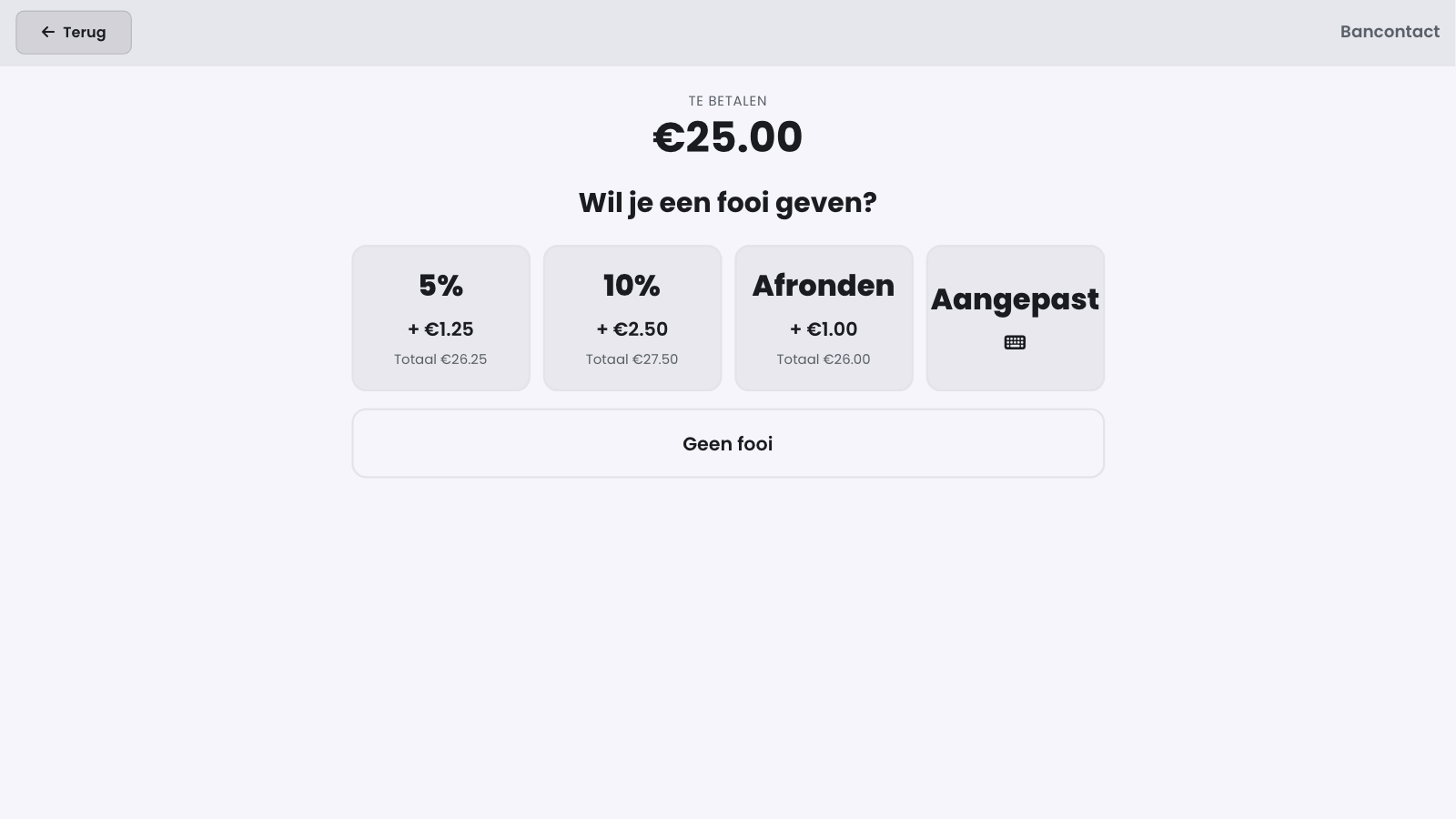
When you charge with that payment method, the POS first asks full screen Would you like to add a tip?. The amount is at the top under Amount due. Every button shows the tip and the new total:
a percentage of the amount due;
Round up: up to the next whole euro (85 euros becomes 86 euros);
Custom: you type the total including the tip, and the POS shows the tip below it;
No tip: you charge without a tip.
Back returns to the payment screen without charging anything.
The question only appears when you charge the full amount. On a refund or a partial payment, for example a split bill, the POS does not ask for a tip.
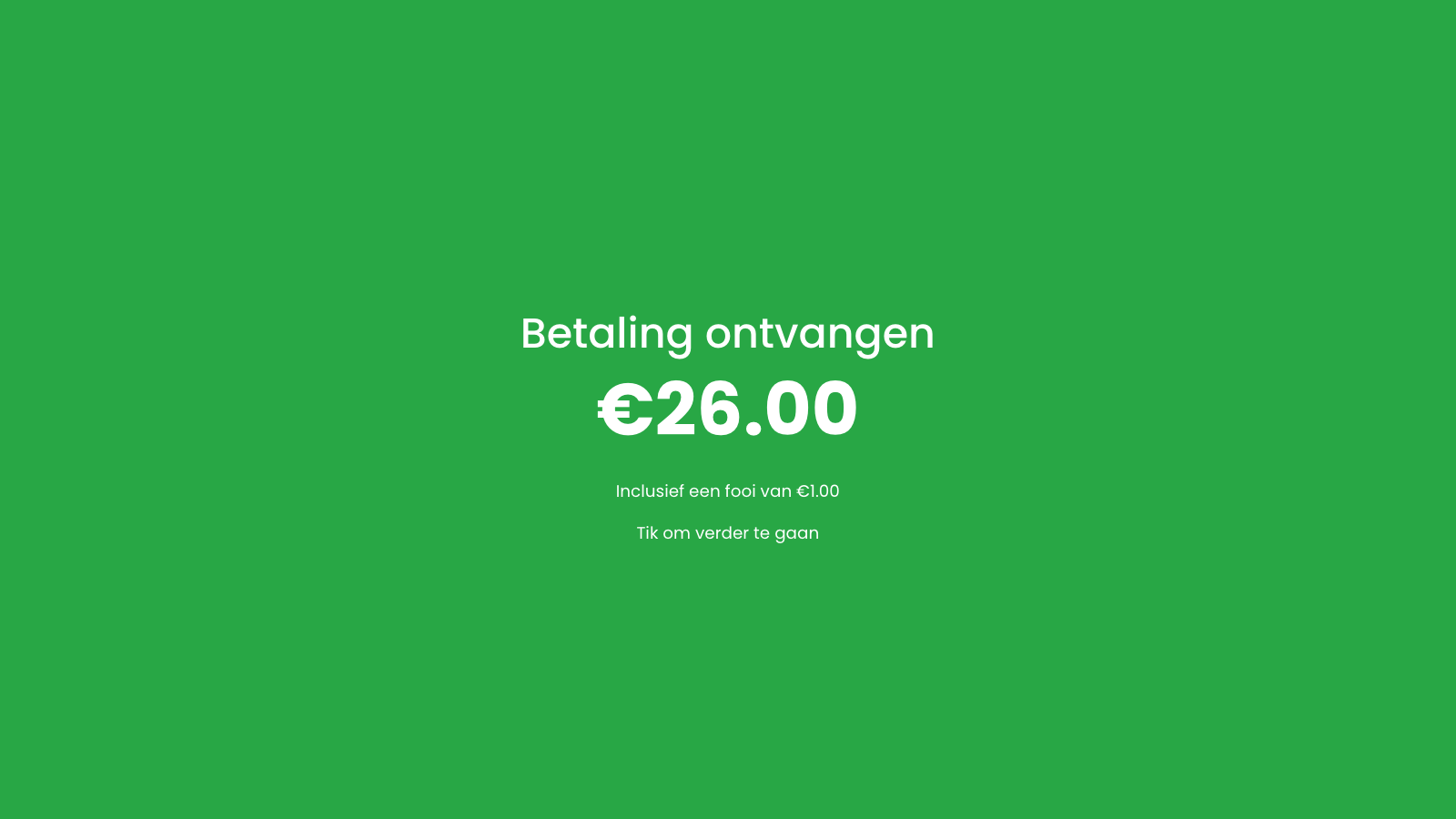
If you choose a tip, the POS charges straight away. The tip goes to the employee set by Fooi gaat naar, and the end screen shows Including a tip of .... If a tip is already on the payment screen via the Tip button, the POS skips the question.
Adding a tip to a closed receipt#
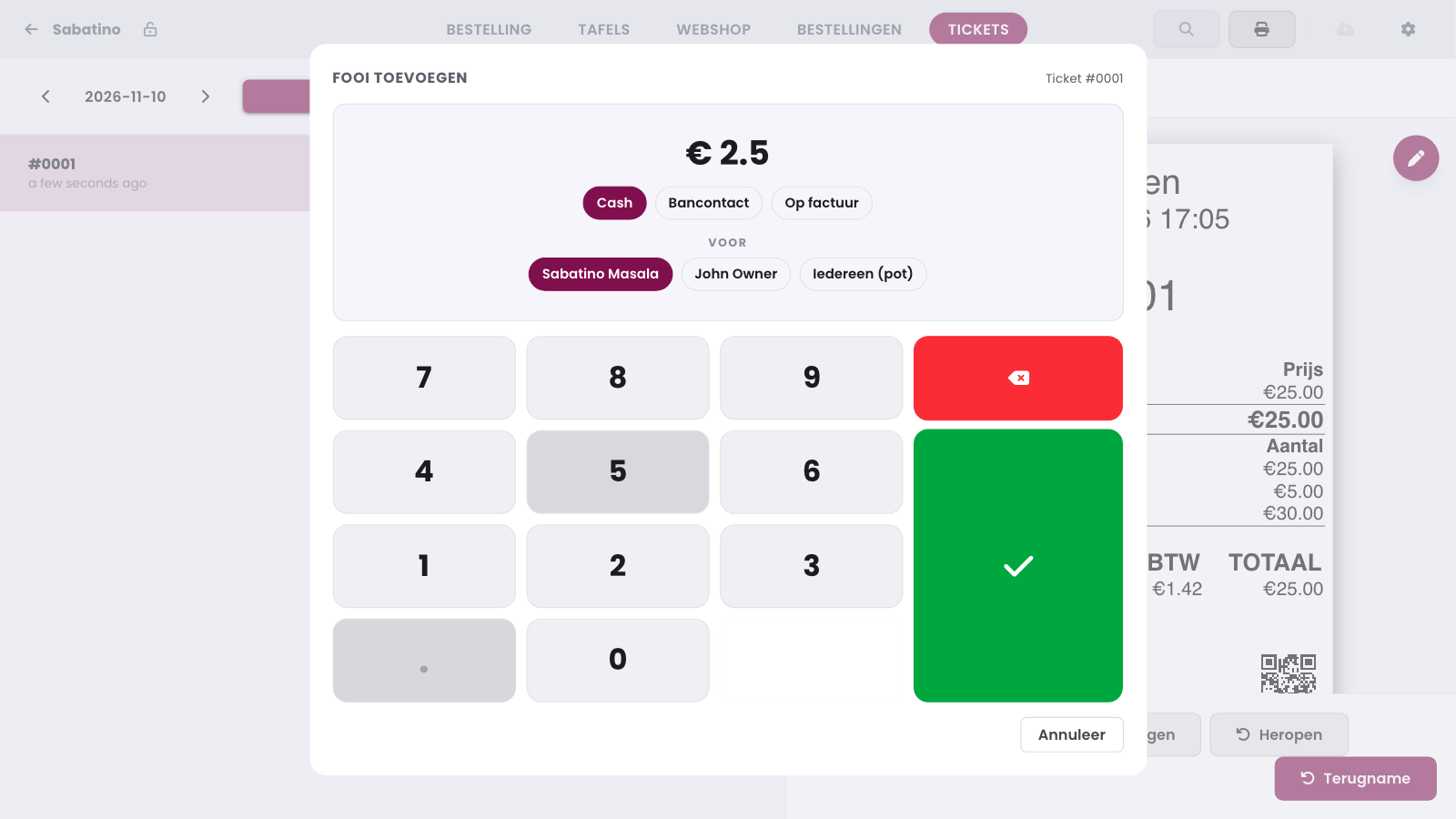
If your customer only leaves a tip after checkout, add it to the receipt. Open Receipts, choose the receipt and tap Add tip. Type the amount, choose the payment method you received the tip with and who it is for, and confirm with the tick. The sale itself stays as it is: the POS books the tip as a money movement linked to the receipt. Afterwards Tips added: ... appears next to the button.
Payment methods that go through a linked payment terminal or the wallet, and the gift card, cannot be chosen here. You cannot add a tip to a refund.
Paying out tips#
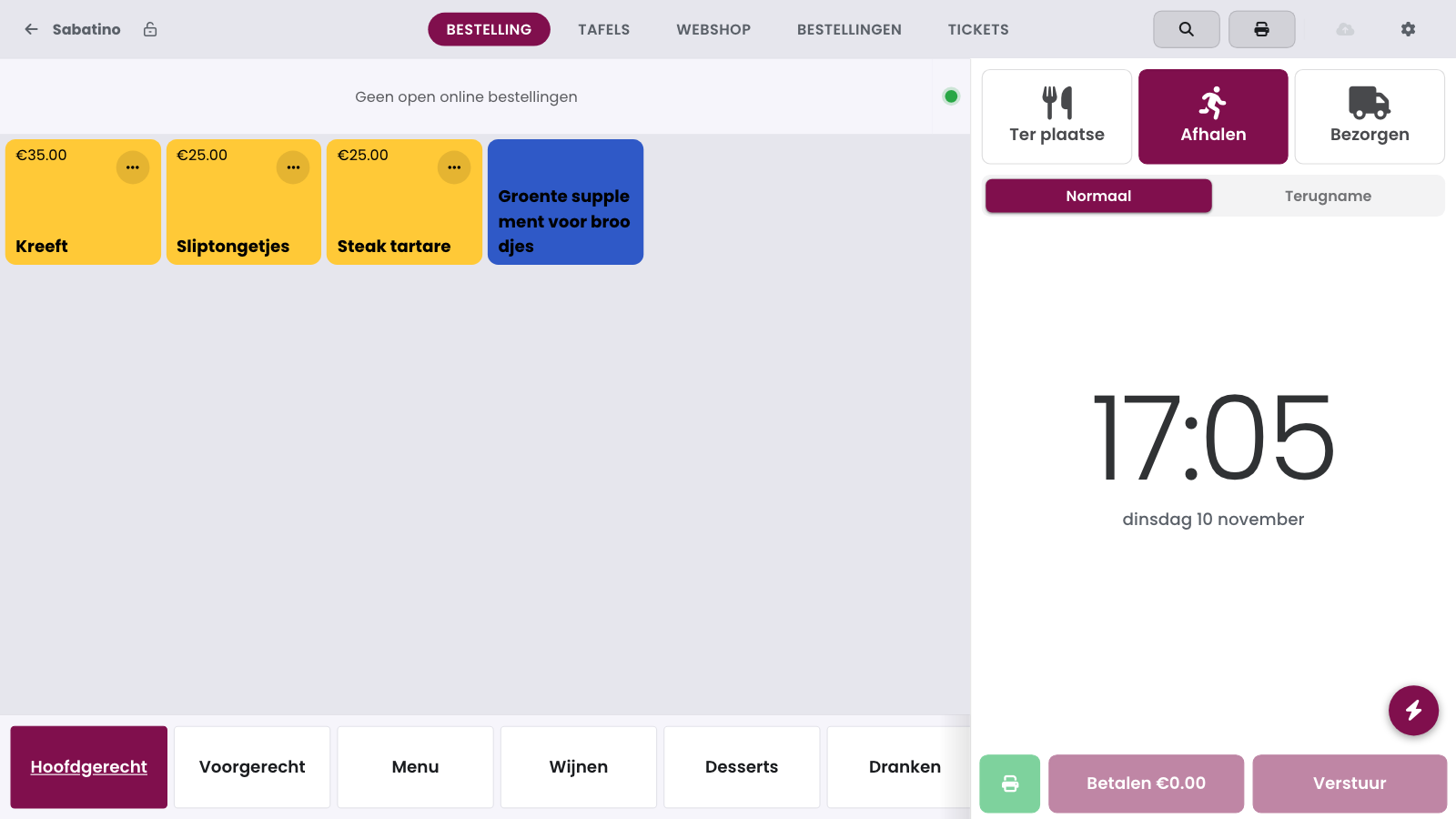
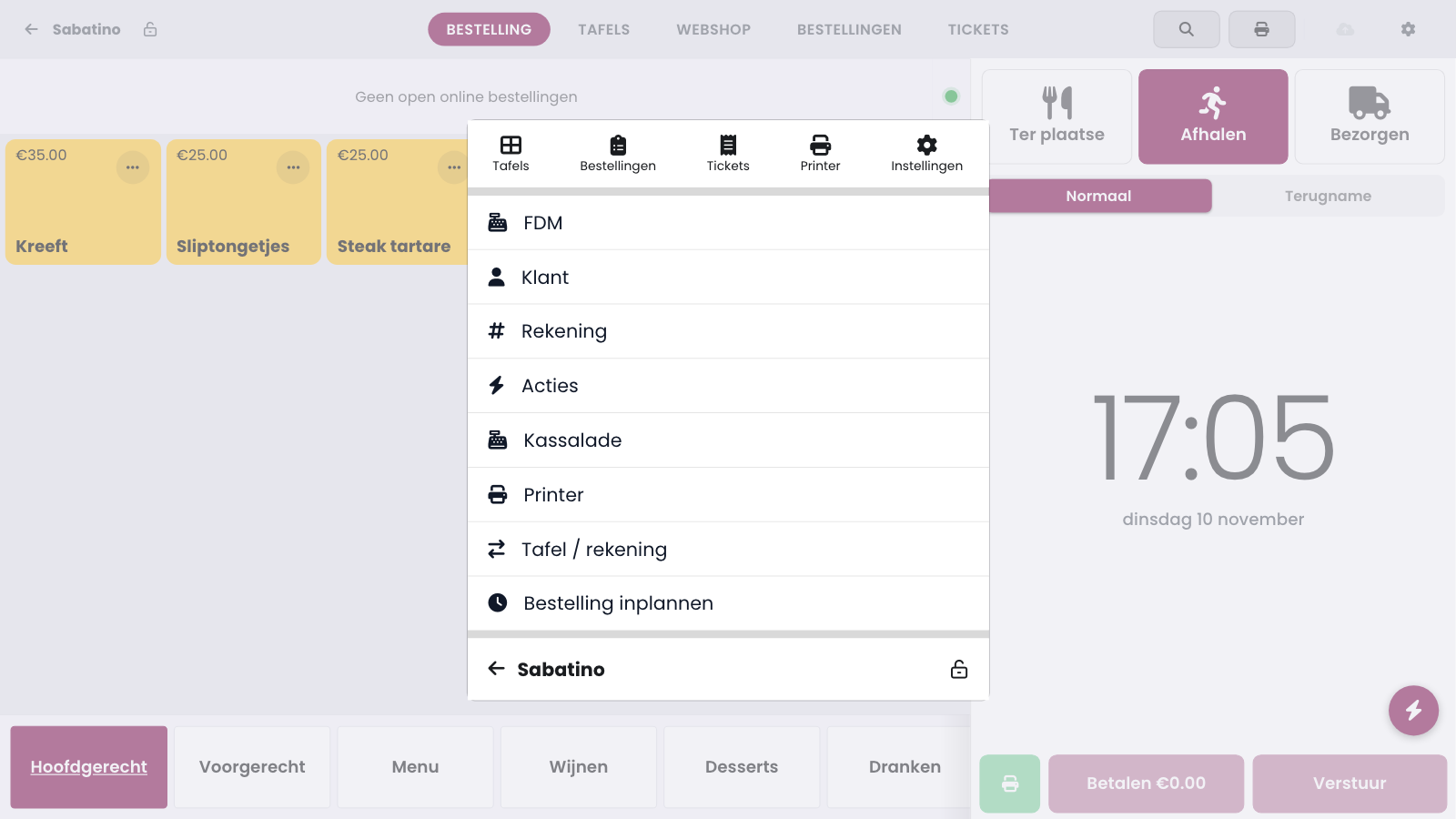
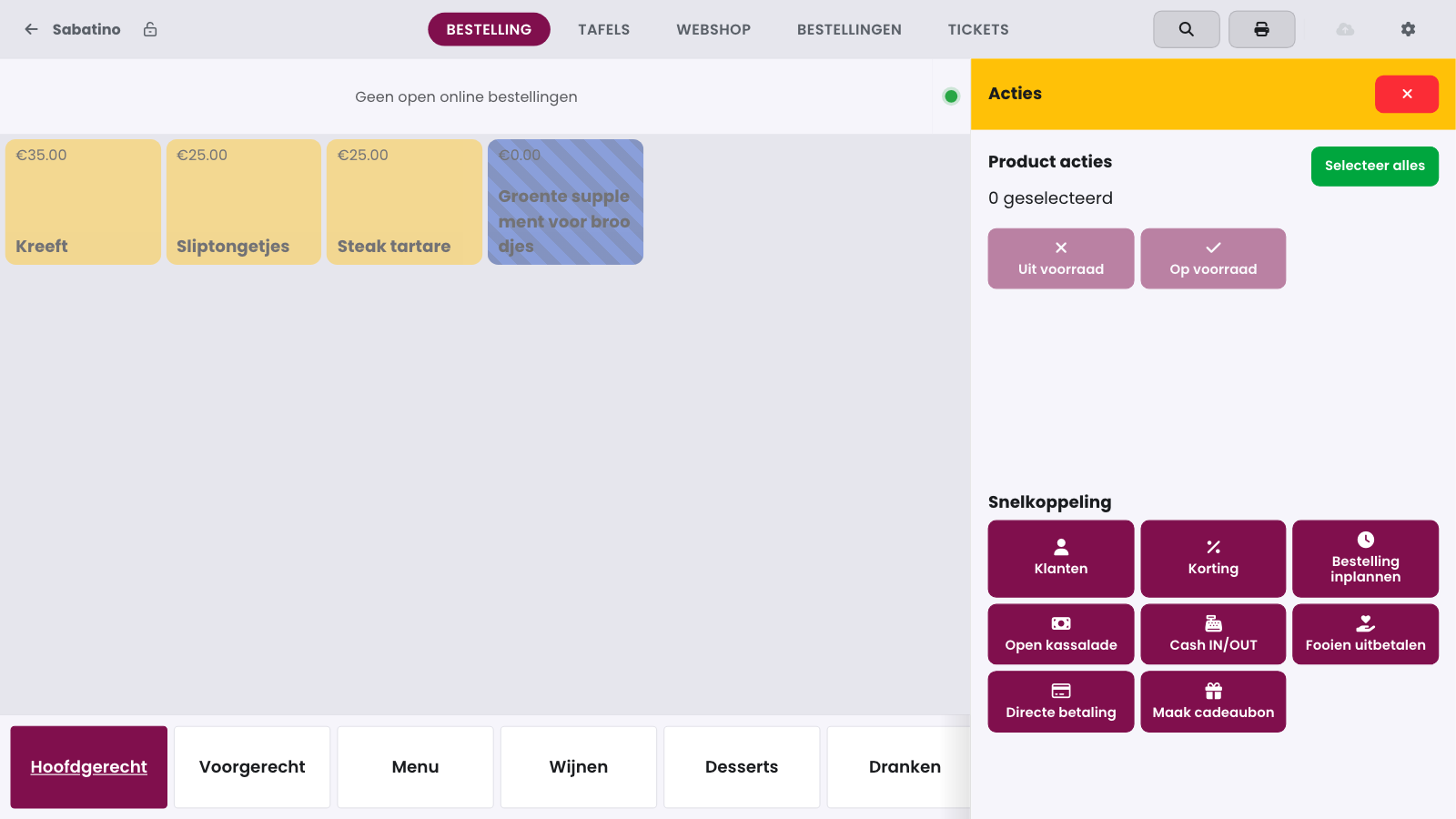
An employee with Mag fooien uitbetalen pays the tips out of the cash drawer. Tap the lightning button at the bottom right of the order panel and choose Actions. Then tap Pay out tips. The POS shows today's tips of all your tills: per employee the Share, what was already Paid out and what is still Due. Tap Pay out: the amount still due is already filled in, and you cannot pay out more than that. Confirm with the tick and take the money out of the drawer.
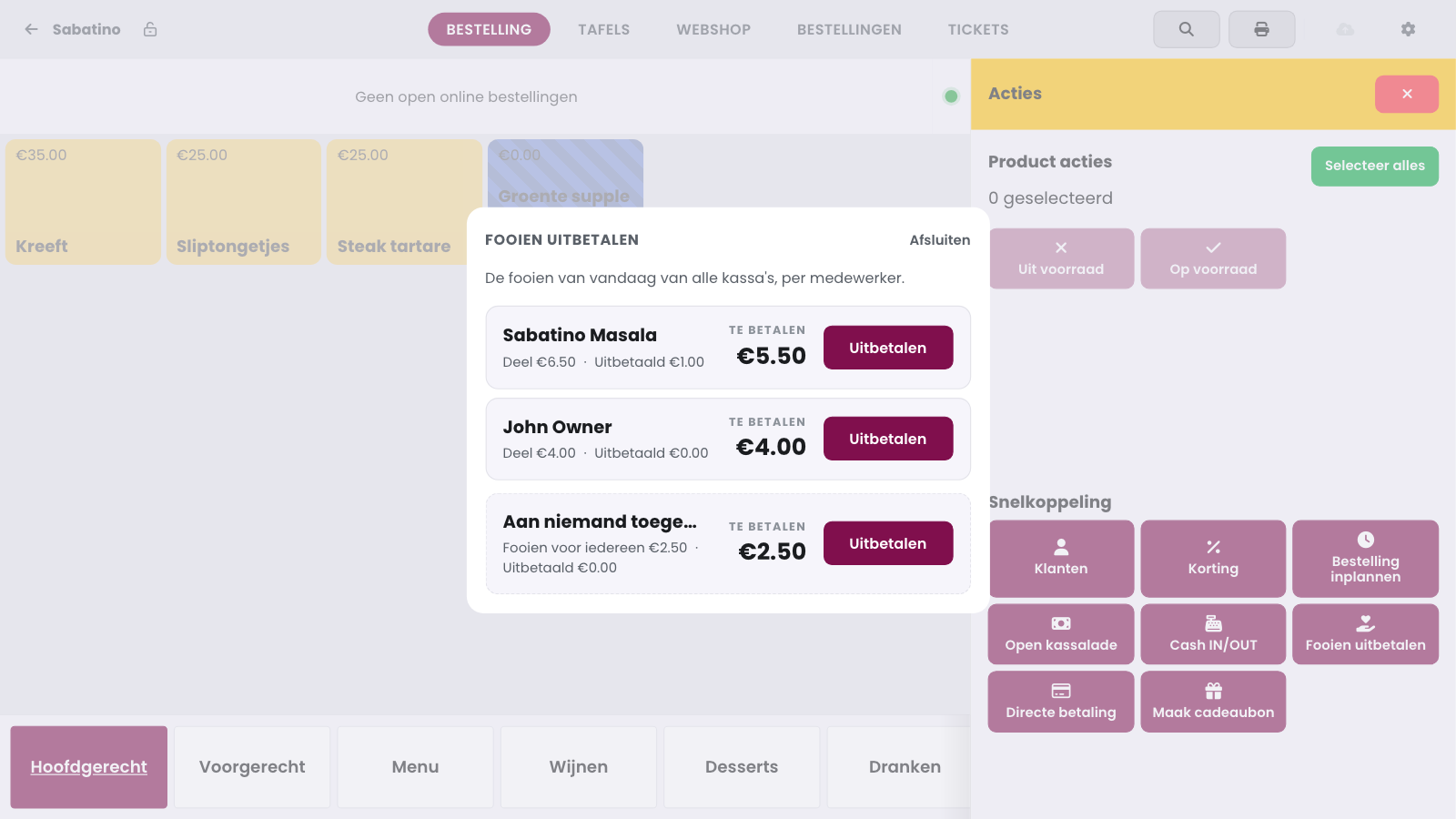
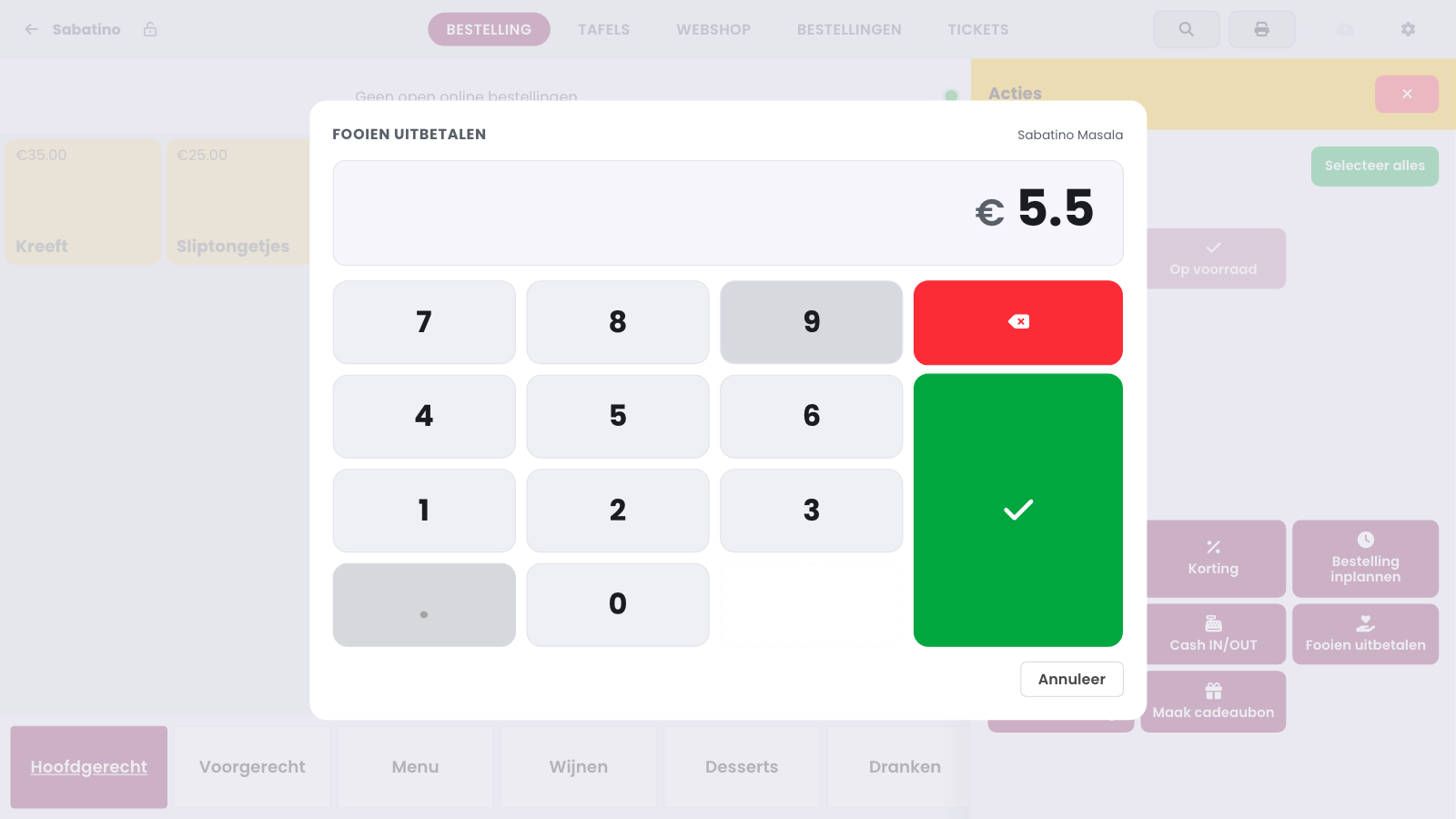
Tips without an employee, such as a tip for Everyone (pool) or a tip from your webshop, are on the Not assigned to anyone row. If you do not pool tips, whoever taps Pay out there pays out that amount and shares it with the team themselves. With a tip pool that money is part of everyone's share and the row does not appear.
Without internet the POS only shows the tips rung up on this till today. If tip pooling is on, you can only pay out once the connection is back: the POS needs to know who gets how much.
The Fooien report#
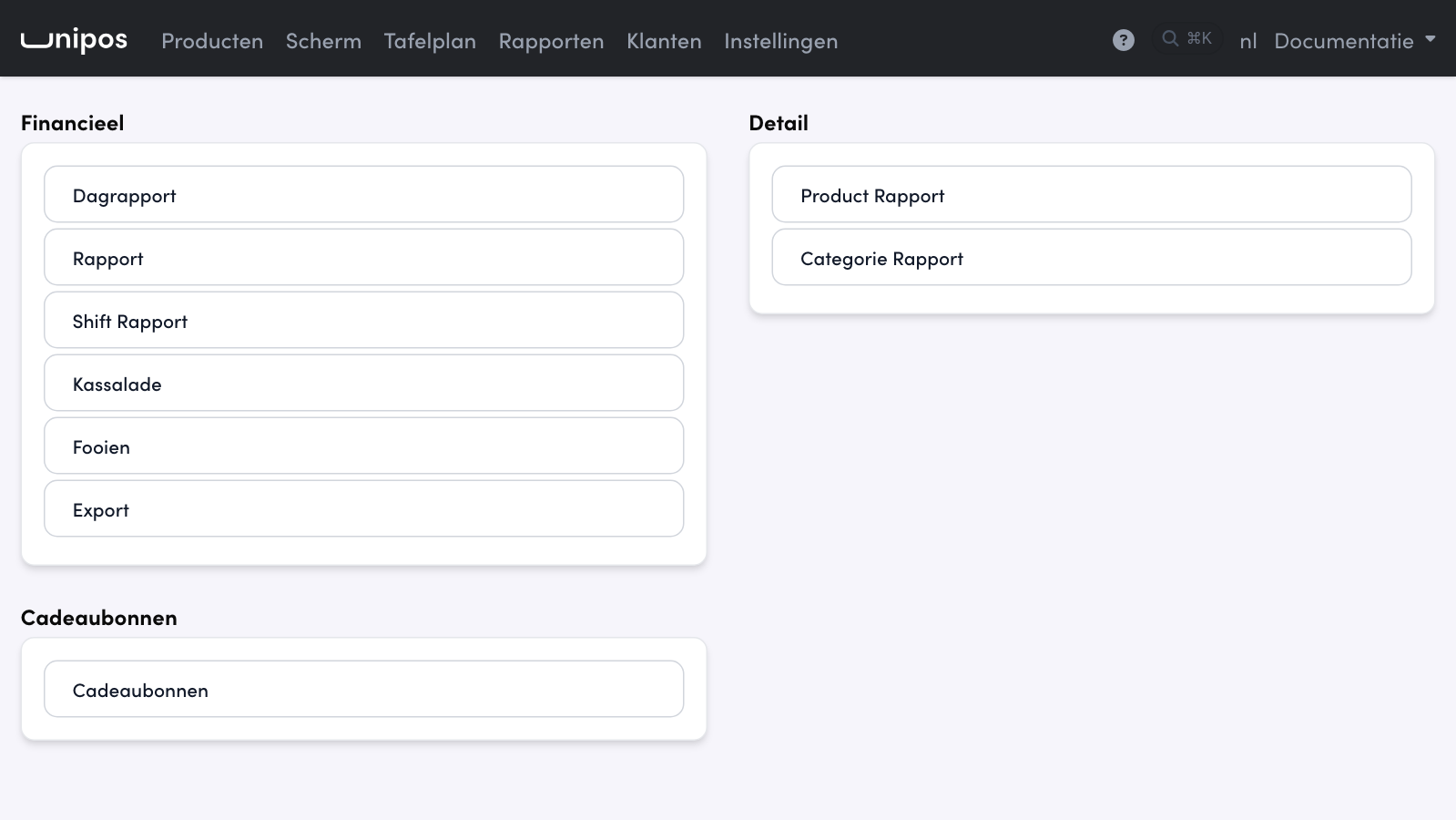
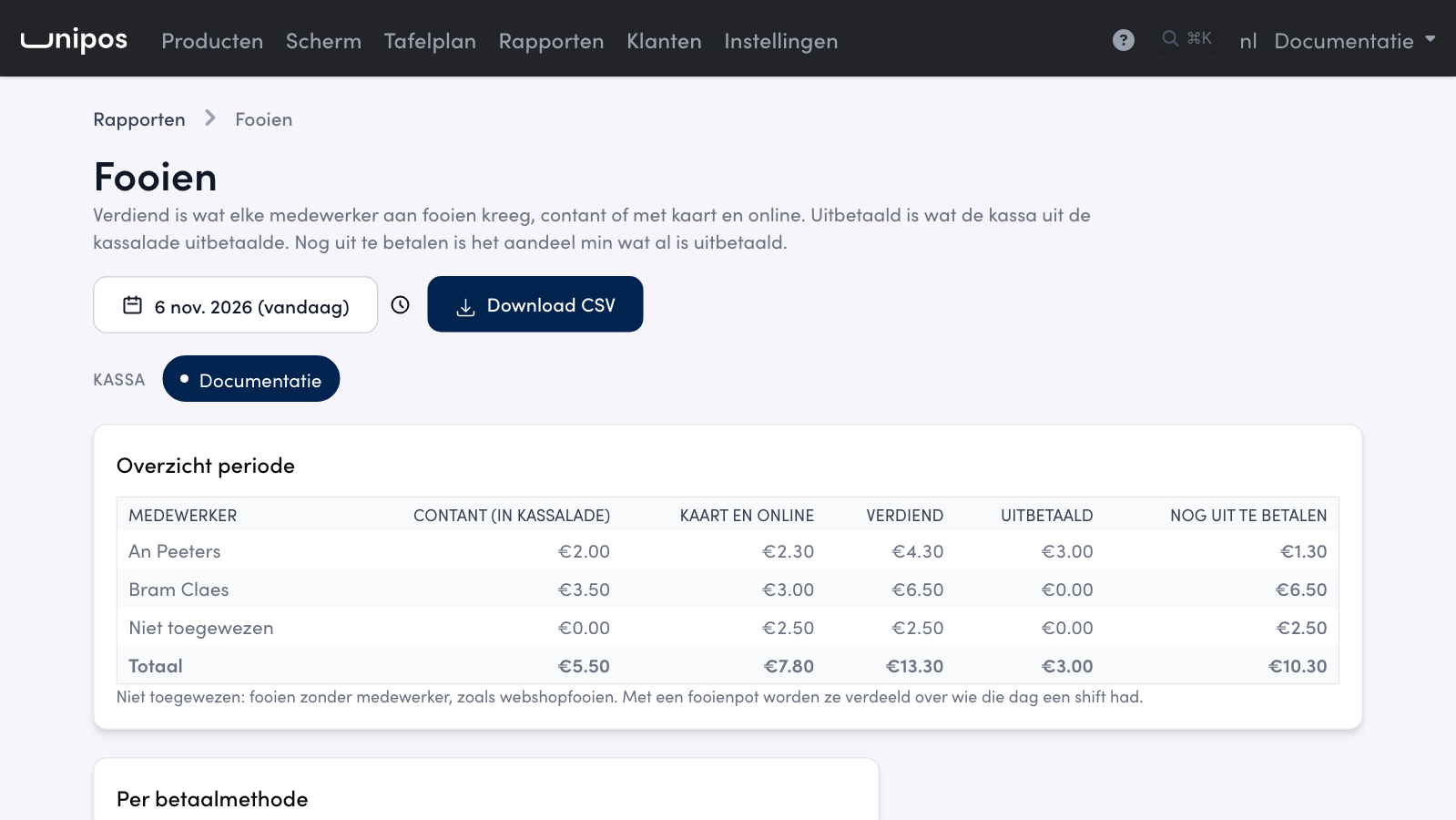
You follow up tips in the management page. Open Rapporten (reports) and click Fooien (tips). Without a period the report shows the current day. With the buttons under Kassa you add your other POS locations.
The columns#
Contant (in kassalade): tips you received in cash. That money is in your cash drawer.
Kaart en online: tips you received by card or online. That money is in your bank account.
Verdiend (earned): cash plus card and online.
Aandeel (share): the share of the tip pool. This column only appears when you pool tips; a blue bar above the table then says how.
Uitbetaald (paid out): what the POS already paid out of the cash drawer to that employee.
Nog uit te betalen (still due): the share minus what was already paid out. Cash tips also stay open until you pay them out.
Niet toegewezen (not assigned) are tips without an employee, such as webshop tips. If you pool tips, that tip goes into the pool. Under the table is Per betaalmethode, showing per payment method whether the money is in the cash drawer. Below that, every day gets its own card with the same figures and a Dagtotaal (day total). With Download CSV you get the figures per day and per employee as a file.
Tip
Did your customer leave a tip in the webshop and is it also on the POS receipt of that order? Then it only counts once.
Tips in the cash drawer and the day report#
In Rapporten, Kassalade (cash drawer) you see what tips did to your drawer. Contante fooien (in kassalade) are tips on cash payments. Fooi achteraf (contant) is a tip you received later in cash on a closed receipt. Fooi uitbetaald is money you gave out of the drawer to an employee. In the list they appear as Fooi ontvangen (tip received) and Fooi uitbetaald (tip paid out), with who the tip is for in the Details column.

In Rapporten, Dagrapport (day report) every payment method shows waarvan ... fooi (of which ... tip). Totaal ontvangen (total received) includes the tips, but Omzet (turnover) and BTW (VAT) stay the bill without the tip. So your till matches what your customer paid, without booking tips as turnover. If you open a receipt, the tip is shown under the payment as + € 2,00 fooi and in the footer as Fooi (geen omzet) (tip, no turnover), with Totaal ontvangen below it.

Warning
A tip is not turnover and is outside VAT. Your accounting link does not book it, so your card receipts at the bank are higher than the card payments in your accounts. Agree with your accountant on how to process the tips you pay out to your team.
Frequently asked questions
Why do I not see the Tip button on the POS?
Fooi op het betaalscherm is off in your POS configuration, the employee lacks Mag fooi registreren, or the POS has not fetched the new setting yet. Sign in again on the POS and check in Health that it has a connection.
Does a tip count towards my turnover or my VAT?
No. The POS registers a tip next to the payment, without VAT. You see it separately on the receipt, in the day report (waarvan ... fooi) and in the Fooien report.
The tip is under a different employee than the one who charged.
The tip goes to whoever gets it according to Fooi gaat naar, by default the employee who opened the order, or to whoever you chose under For. The receipt itself stays in the name of the one who charged.
Nog uit te betalen is negative.
More was paid out than that employee's share, for example because the tip pool still changed through a tip added afterwards. The POS never pays out a negative amount.