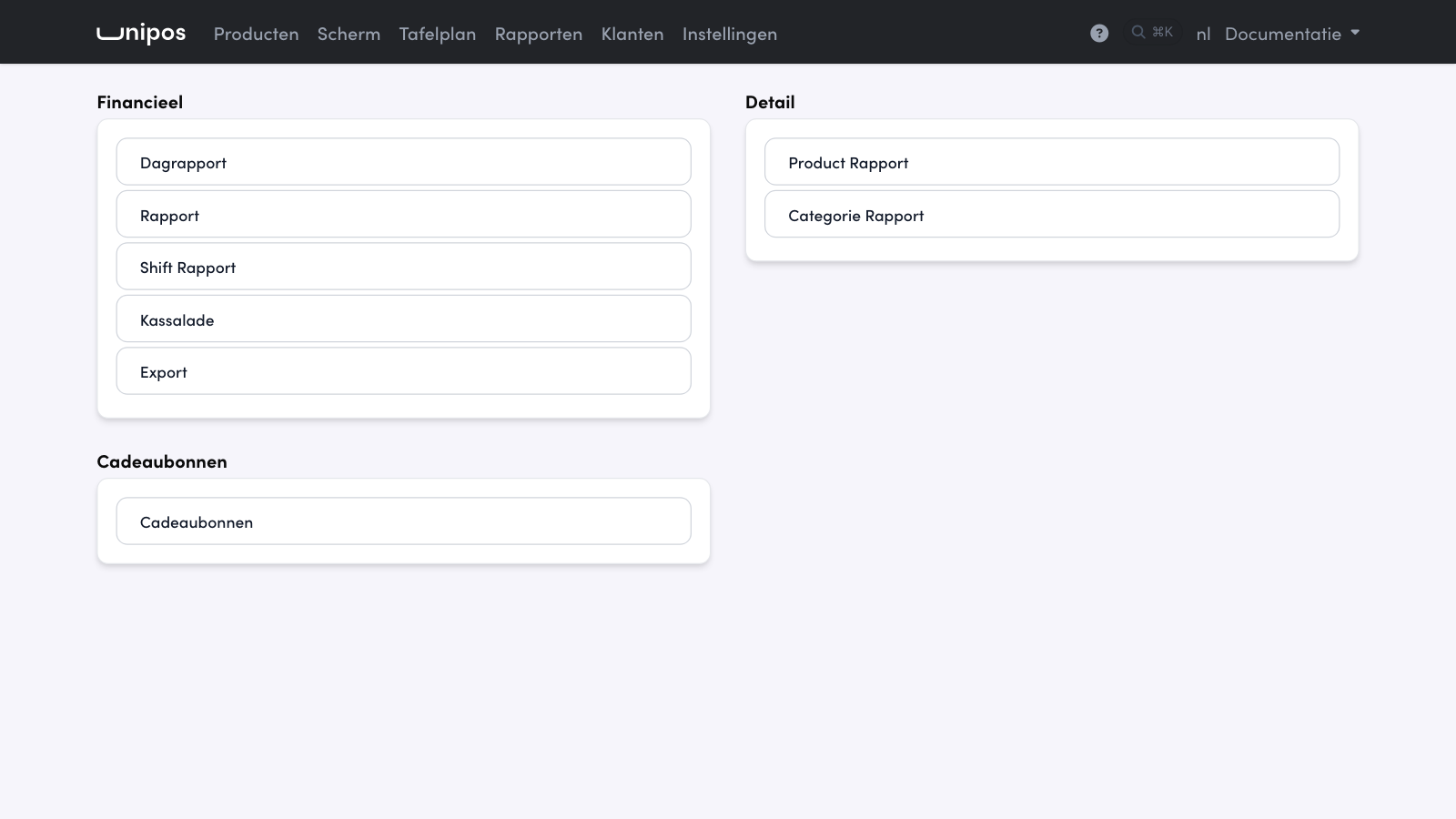
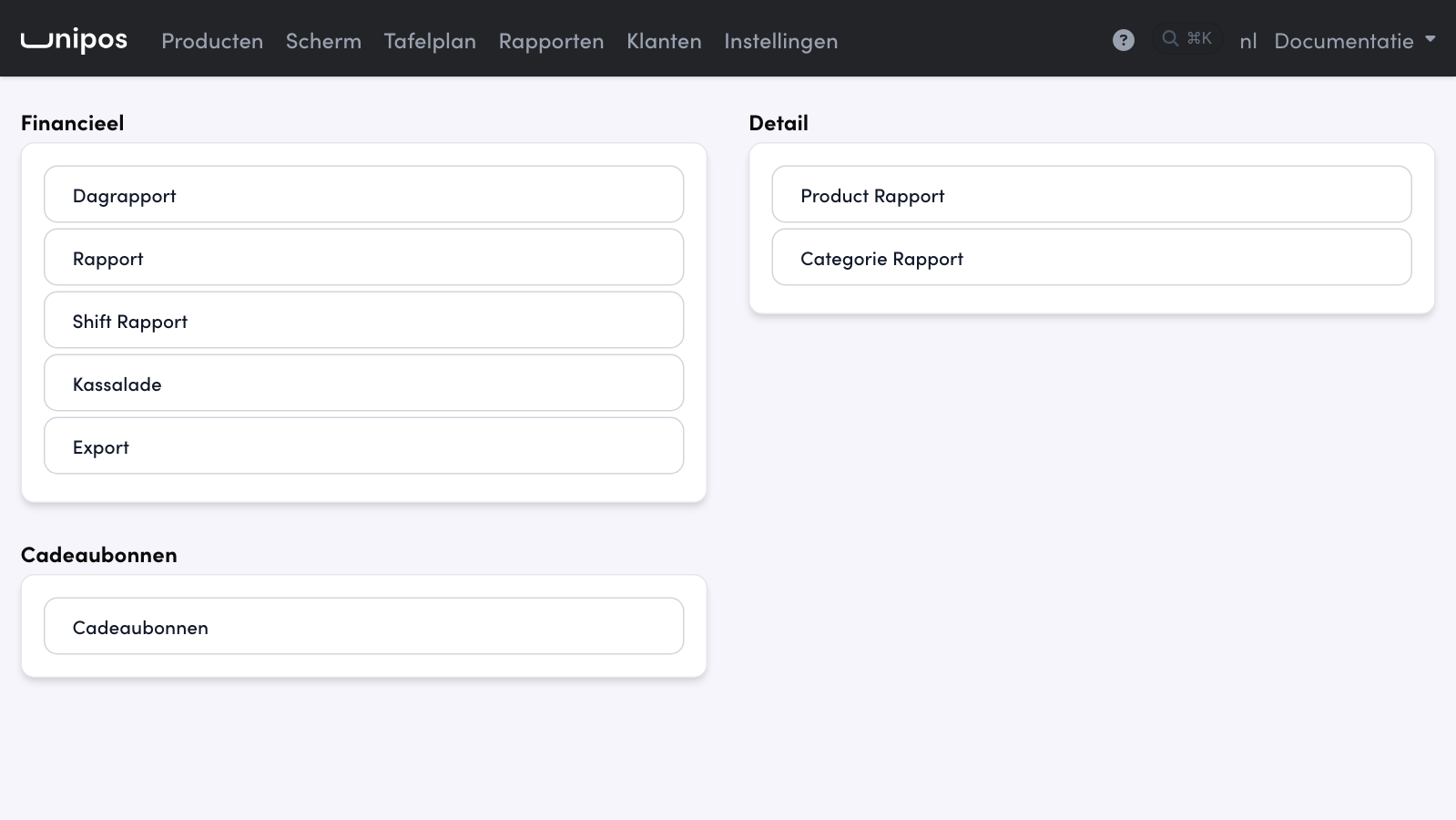
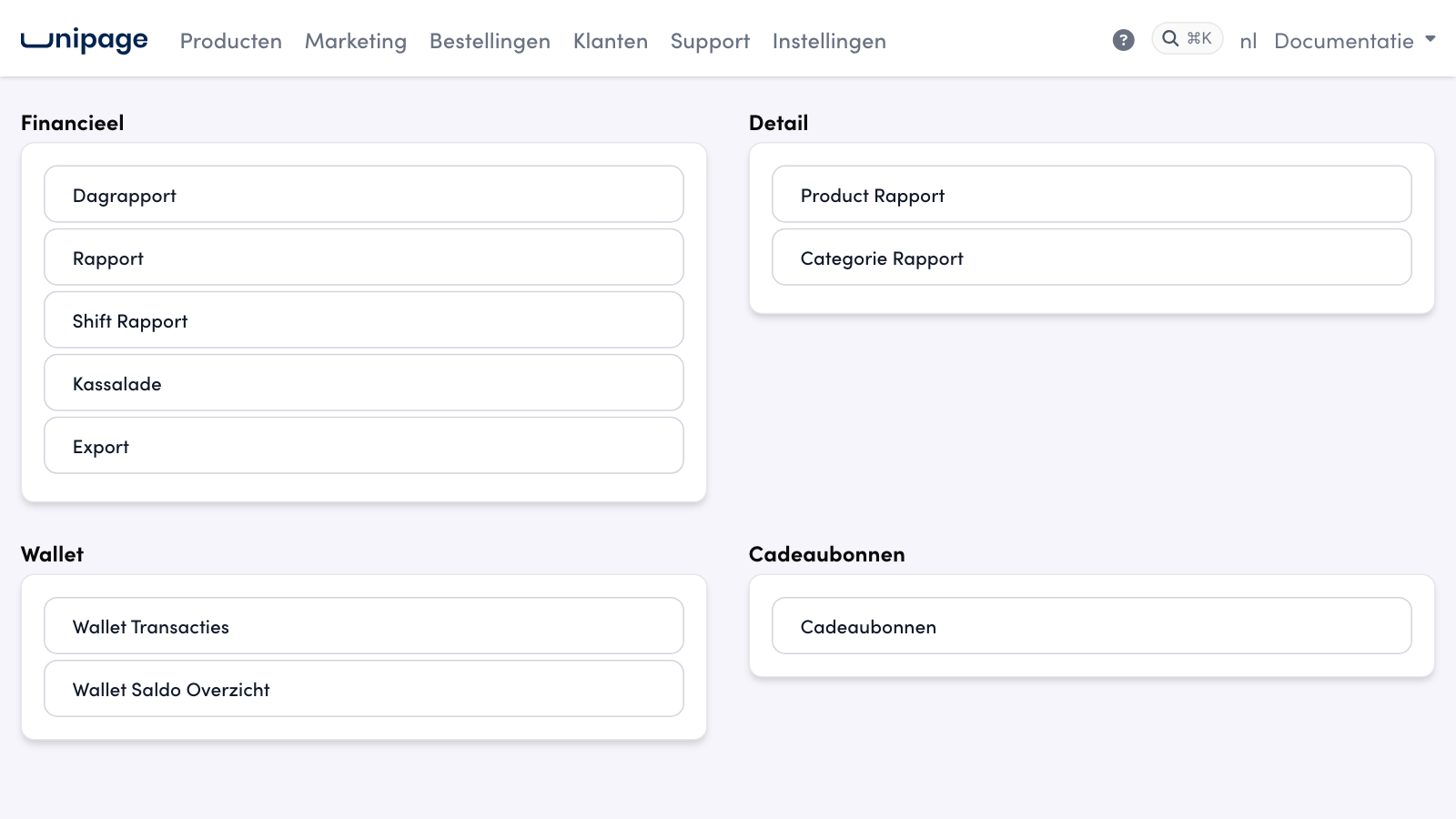
You can find all your POS figures on the management page under Reports (Rapporten). The page is divided into Financial (Day Report, Report, Hourly report, Shift Report, Cash drawer and Export), Detail (Product Report and Category Report), Wallet and Gift vouchers, with the Historical Data Export at the bottom. You can download every report for your accountant.
Choosing a period and your POS systems#
Every report starts with a period. The Day Report shows the day itself and lets you pick another day with the date button. The other reports open a list with Today, Yesterday, Last 7 days, Last 30 days, This month, Last month, This quarter, Last quarter, This year and Last year, or Other for a free start and end date with times.
Do you close after midnight? Then go to Settings (Instellingen), Reporting (Rapportage) and set the time from which a new day starts (The day starts at). All reports follow this setting, so sales after midnight count towards the previous day.
Do you have several POS businesses, for example two locations? Then a list of your POS systems appears at the top of the Day Report, the Report, the Product Report and the Export: tick the ones you want to add together.
Day Report#
The totals of a single day, the way you hand them to your accountant:
Day total and breakdown: the gross turnover before discount, the discounts and the turnover including VAT.
VAT per rate: for each VAT rate, the taxable amount and the VAT due, with the step From gross turnover to taxable amount written out.
Payments: what you received per payment method.
Per employee: for each colleague the tickets, the discounts, the turnover and what they received per payment method.
With Print you open a printable version, which you can also save as a PDF. With Download excel you get the figures as a file.
Per employee#
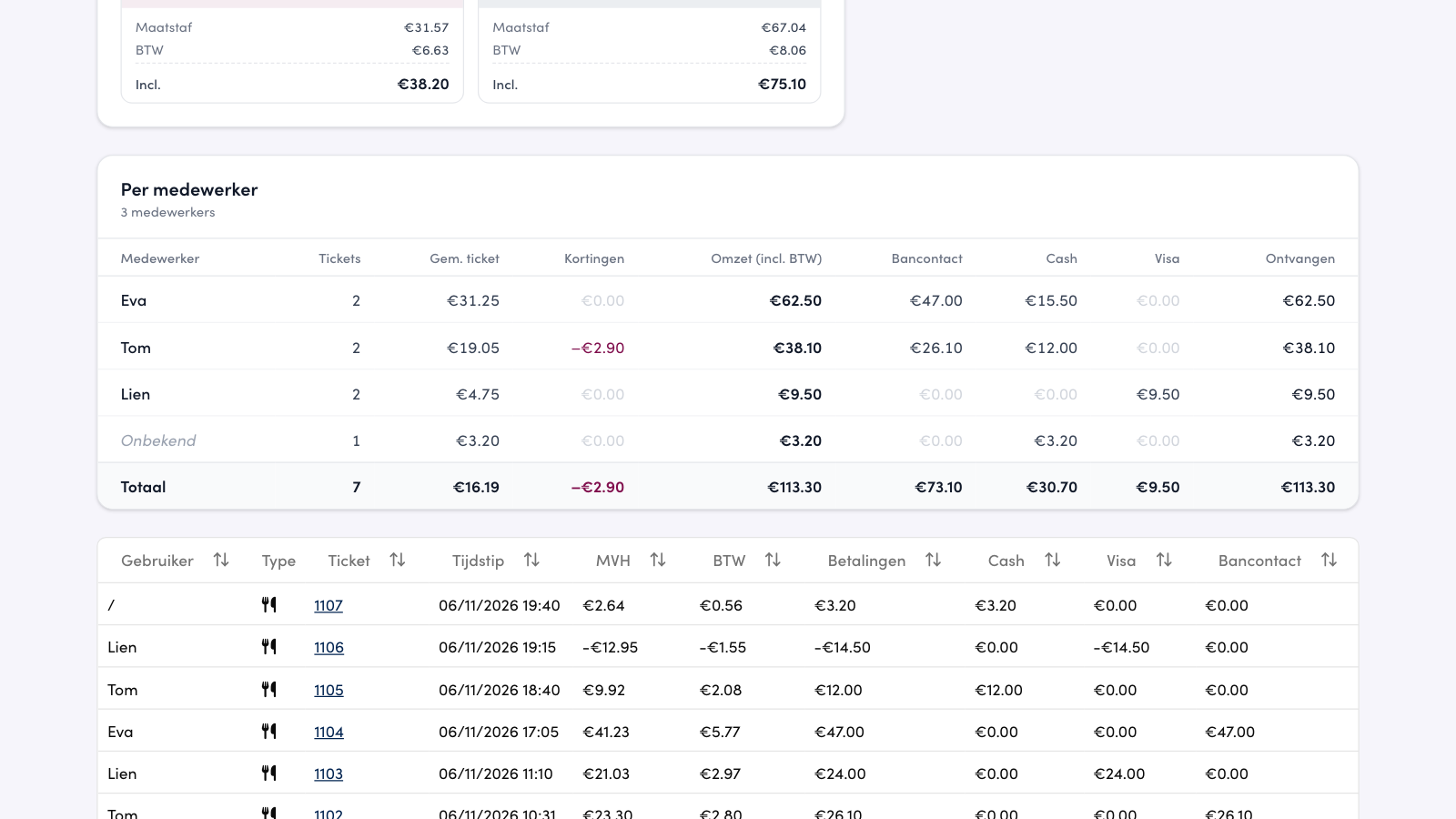
Below the day report cards is the Per employee table, with one row per colleague who closed tickets that day: the number of Tickets, the average per ticket (Avg. ticket), the Discounts given, the Turnover (incl. VAT), what that colleague received per payment method and, under Received, the total of those. The payment methods follow the same order as the Payments card. Rows run from the highest to the lowest turnover; from two rows on, a Total row closes the table.
A refund counts as a ticket and is deducted from that colleague's turnover. Tickets for which the POS passed no staff member are listed at the bottom as Unknown; that row does not count towards the number of employees above the table. The table groups on the name the POS sends along: two colleagues with the same name end up in one row.
The printout via Print contains the same table, between Payments and Transactions, without the Avg. ticket and Received columns. The detail of a shift (Shift Report) does not show the table: all tickets there already belong to one colleague.
Report: the period overview#
The same insight over a longer period, by default the current month, and across several POS systems at once. Besides the summary, the VAT breakdown and the payments, you see a Daily overview with the turnover, the VAT and the number of receipts per day. With Show days without turnover you also see your closing days. Download excel gives you the overview as a file. This overview is calculated every night and runs up to and including yesterday; for today's figures, use the Day Report.
Between Payments and Daily overview you find the same Per employee table as on the day report, with the number of employees as its subtitle: one row per colleague over the whole period and across all ticked POS systems. What the columns mean is under Per employee. Tickets counts returns too, so it can be higher than the number of receipts in the summary; Discounts are the discounts given on that colleague's tickets. Tips are not in it: what each employee received in tips is in the Fooien report, see Tips. In Download excel one column per colleague is added: Medewerker: name (omzet incl. BTW). That way you compare colleagues over a week or a month without opening every day report.

Hourly report#
If Hourly report is in your list, you see the number of receipts, the turnover, the discount, the average per receipt and the share of the daily turnover per hour, with the busiest hour highlighted. Switch to Per category or Per product to see what sells at which hour. The hourly figures run up to and including yesterday. Handy for matching your staff planning and your preparations to how busy it gets.
Shift Report#
Per staff member, the shifts in the chosen period, with Name, Start and End. Click Detail and you get all the receipts of that shift in the same layout as the day report, with an Overview and the Details per receipt line as a file under Downloads. You can read how your team clocks in and out in Sales period and shifts.
Cash drawer#
All cash movements outside of sales: Cash IN, Cash OUT and the drawer declarations (the counted drawer total), each with time, amount and staff member, and on a GKS also the reference of the fiscal module. At the top is a summary with the sum of incoming and outgoing cash and the last declared drawer total. Filter by type to see only the declarations.
Fooien (tips)#
The Fooien report shows per employee the tips they received, in cash or by card and online, what the POS already paid out and what is still due, also with a tip pool. What each column means and how you switch tips on and pay them out is in Tips.
Export#
The export is made for your accountant: choose the period, optionally the POS systems and the payment methods, or a single customer to see only their receipts. You get a list of receipts with what you received per payment method; with Group you add up per payment method, and with Discount included in totals you choose whether the discounts are part of the totals. Download as Excel overview (one row per receipt), Excel details (one row per receipt line) or PDF.
Product Report and Category Report#
The Product Report shows the turnover per product over the chosen period, by default the past week: the Most popular products as Top 10, Top 20 or all products, with quantity, turnover and a pie chart of the share. Tick Products only (no options) to leave out the variations, or Show VAT details for the VAT per product. Click a product and you see its sales Per day or Per hour in a chart.
These figures come from a nightly calculation and run up to and including yesterday; the hourly view comes from the receipts themselves and is limited to one month.
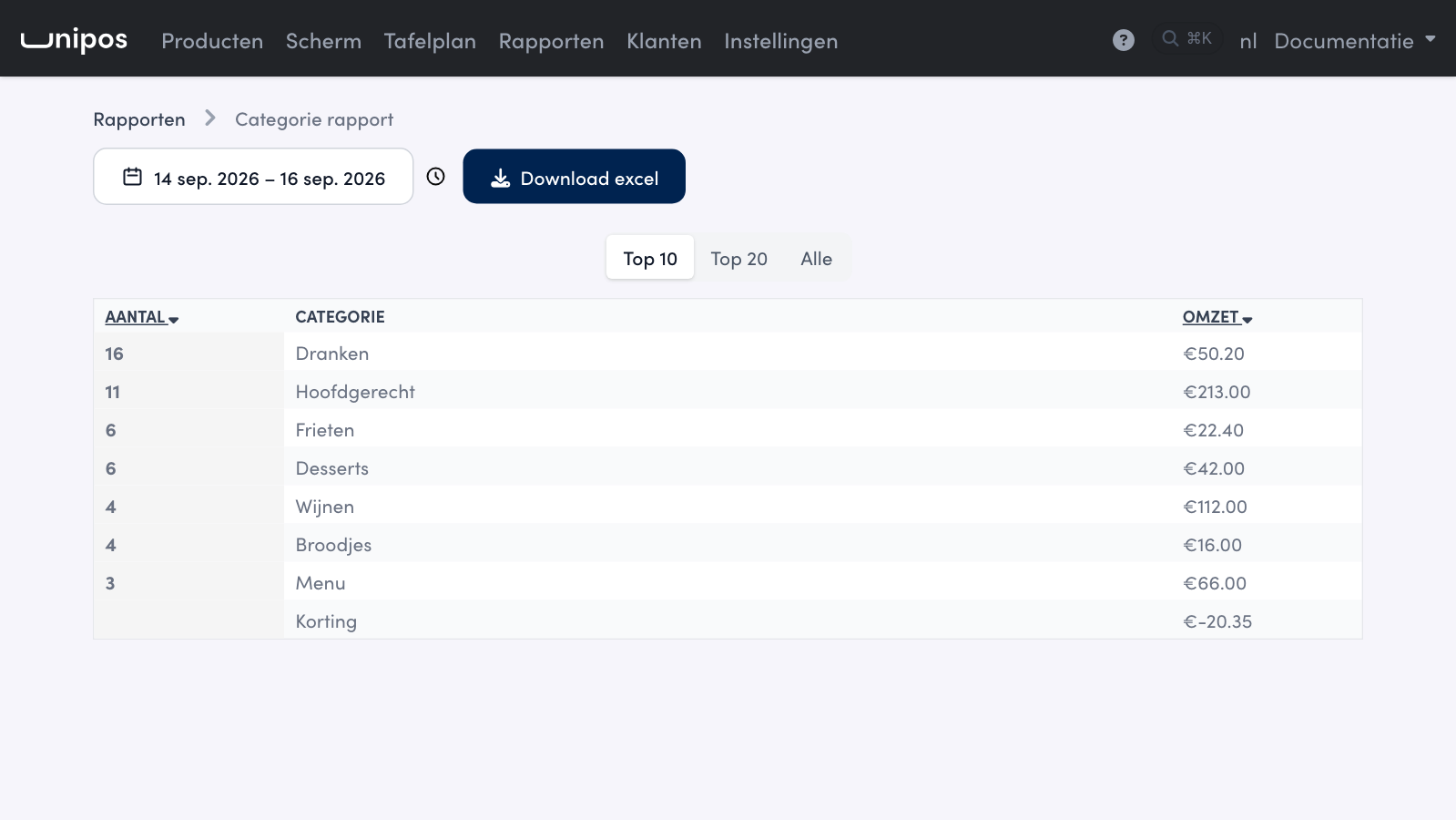
The Category Report gives the same insight per category, straight from the receipts of today or the chosen period.
Downloading#
Both reports have a Download excel button next to the period. You get a csv file with a semicolon as separator, holding the figures of the period you chose at that moment (for the Product Report also of the ticked POS systems); Excel opens it straight into columns. The column headers are in Dutch.
Category Report: one row per category with Categorie, Aantal (quantity), Omzet Excl. BTW (turnover excl. VAT), Omzet Incl. BTW (incl. VAT) and BTW Bedrag (VAT amount). The discounts are grouped in a single Discount row with a negative amount, so the categories themselves stay gross, as on screen.
Product Report: one row per product, type and VAT rate with Product Naam (product name), Categorie, Type (Product or Optie), BTW Percentage, Aantal, Omzet Excl. BTW, Omzet Incl. BTW and BTW Bedrag. The file always holds every row, including the options, even when you chose Top 10 or Products only (no options) on screen.
Wallet reports#
If you work with the customer wallet, you will find two reports under Wallet. You can read about the Gift vouchers report in Gift vouchers.
Wallet Transactions#
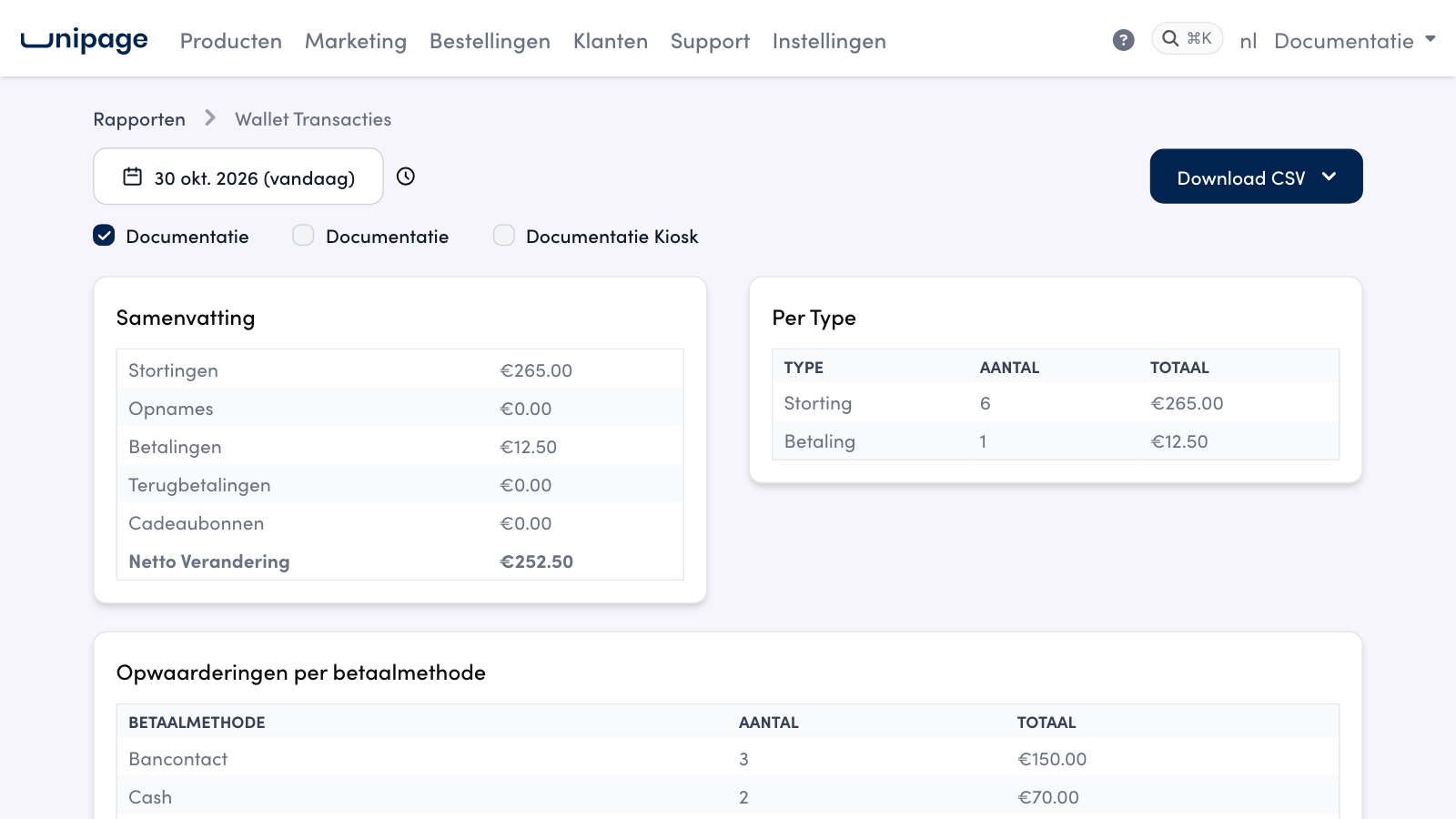
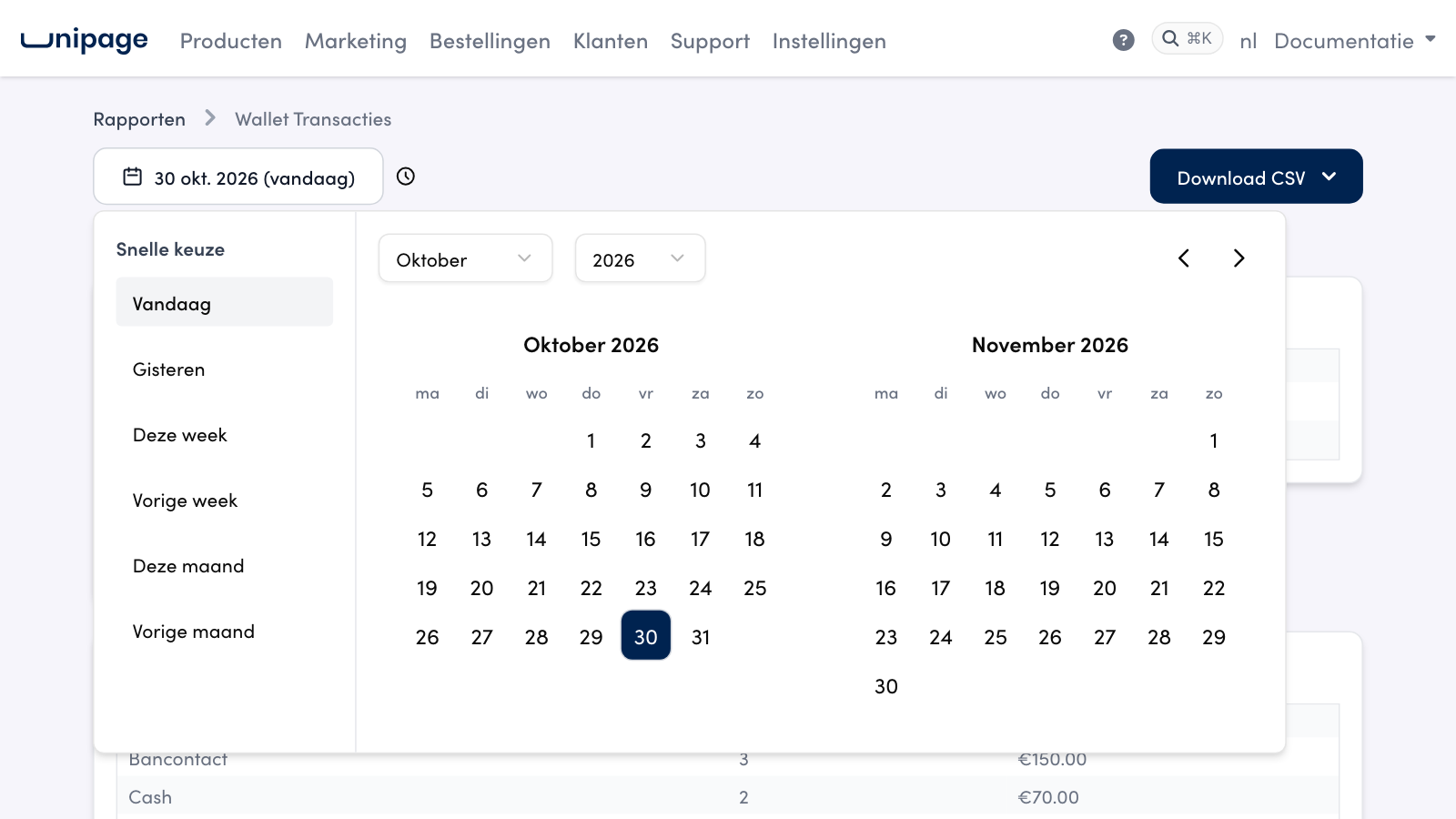
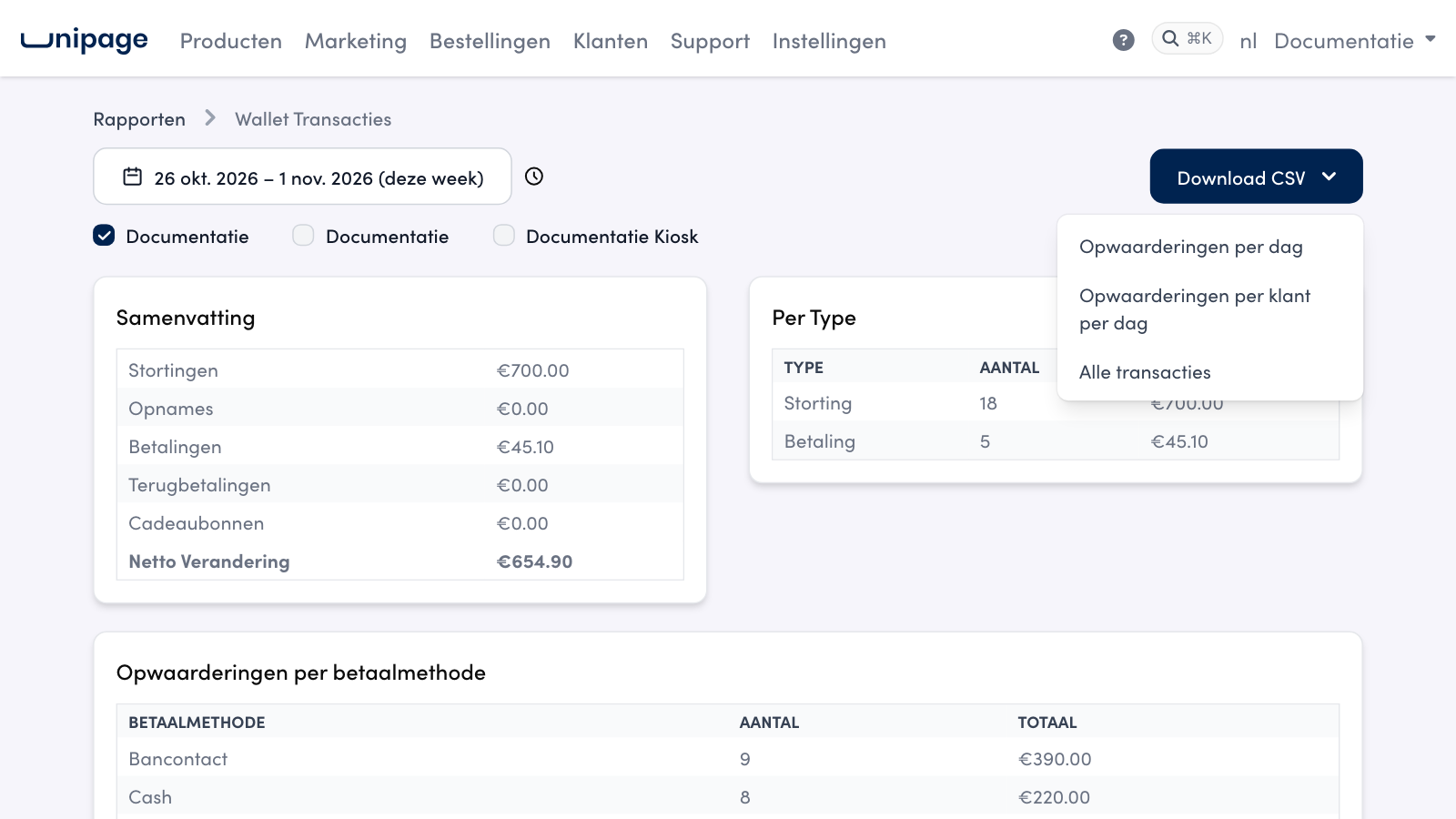
Wallet Transactions opens on today and follows The day starts at. Choose another period with Today, Yesterday, This week, Last week, This month or Last month, or pick days in the calendar yourself; a period is at most 31 days. If you have several POS businesses, tick the ones to include.
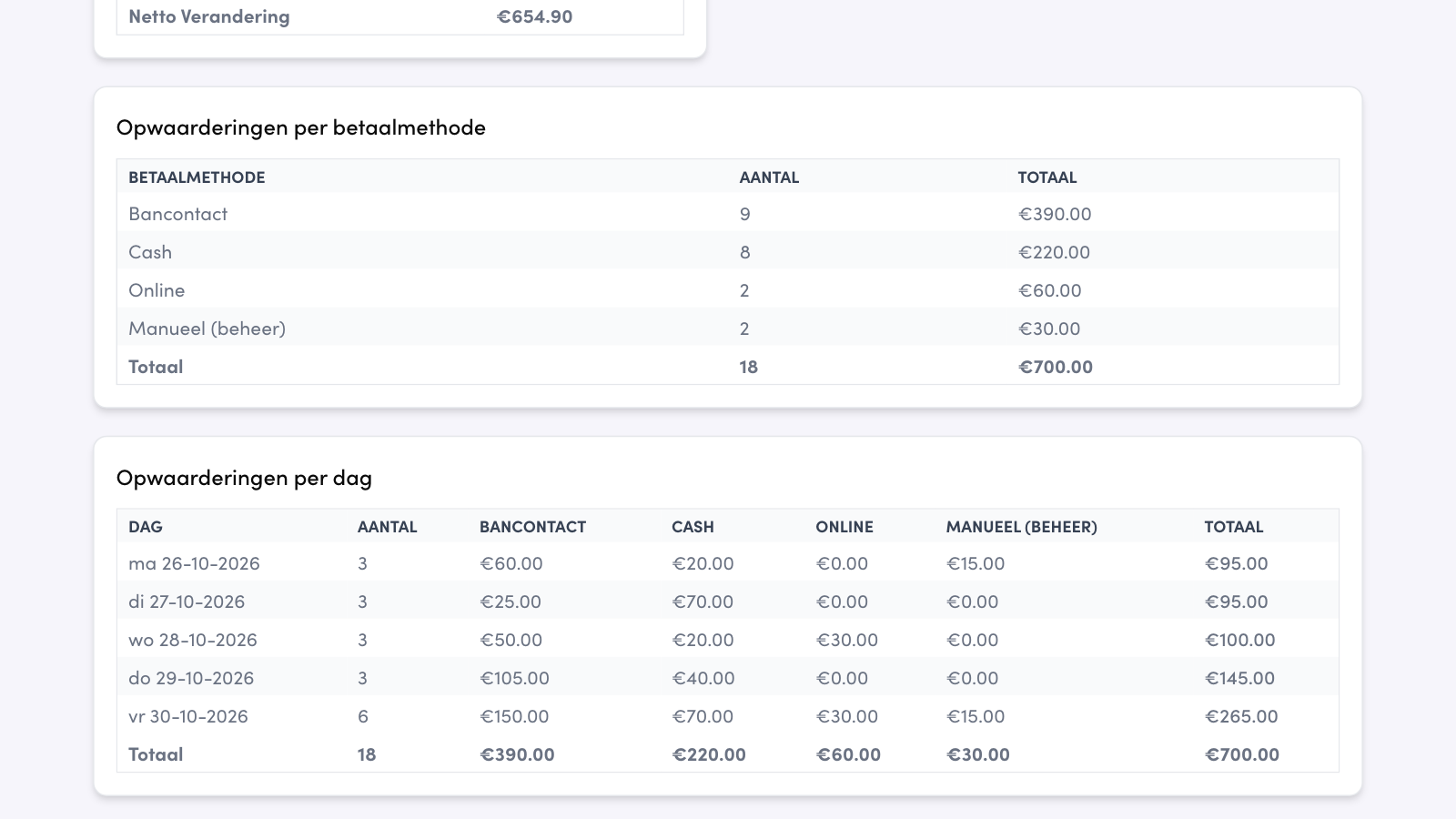
At the top are the Summary (Deposits, Recordings for withdrawals, Payments, Refunds, Gift vouchers and the Net Change) and the counts Per Type. Below that you see the top-ups in three tables:
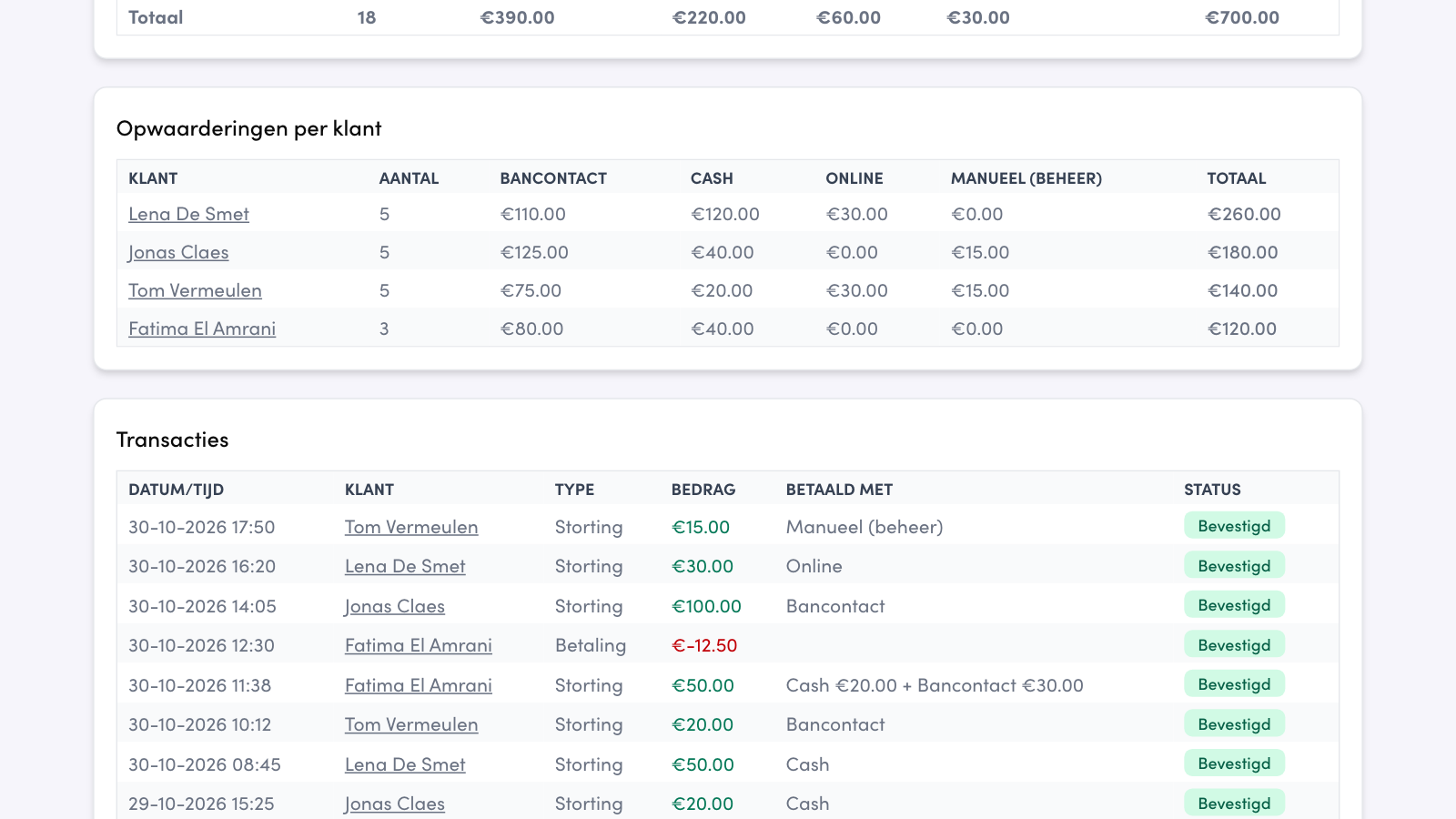
Top-ups per payment method: per payment method the count and the amount, with a Total row.
Top-ups per day: one row per day with a column per payment method; for more than one day a Total row adds up the whole period.
Top-ups per customer: one row per customer with the same columns. Click the name to open the customer profile.
At the bottom are all Transactions with date, customer, type, amount and status (Confirmed or Pending). The Paid with column shows for every top-up how your customer paid: the POS payment method, such as Cash or Bancontact (for a split payment each part, for example Cash €20.00 + Bancontact €30.00), Online, On site or Badge for a top-up through the webshop, and Manual (back office) for a top-up you added yourself with Add transaction. If the POS passed no payment method, it reads Till (unknown).
Good to know
The report only counts wallets holding money. The points of your loyalty programme are not in it, nor in the Net Change. A top-up that is still Pending does count towards the totals.
With Download CSV you choose one of three files, each for the chosen period and the ticked POS businesses:
Top-ups per day: one row per day with a column per payment method and a total row.
Top-ups per customer per day: one row per customer per day, handy to check a day's top-ups with your accountant.
All transactions: every movement of the period, with the Payment method column. The Balance After column is the wallet's current balance, not the balance after that transaction.
The column headers in the files are in English.
Wallet Balance Overview#
The Wallet Balance Overview shows today's position: the Total Balance of all wallets together, the number of Active wallets (wallets with a balance), the Average Balance and, under Top Wallets, the customers with the highest balance, with the date the wallet was created. Here too you tick at the top which POS businesses to include.
Historical Data Export#
Do you want all your POS data for a period in your own hands, for example for an audit or your own analysis? Choose a period and click Start Export. You get a zip with CSV files (semicolon as separator, UTF-8): the receipts, the receipt lines per receipt, the payments and the discounts, plus a README with the explanation. The export runs in the background and can take a few minutes; then Download Export appears.
X and Z reports#
With GKS 2.0, the POS prints your fiscal X and Z reports by itself. On the POS, open the cogwheel and go to the reports:
Choose a sales period from the list, including one from the past, and view the details.
Print the day report for the whole period, or the shift reports for each staff member who worked during that period.
Print the fiscal reports: turnover X and Z for the turnover, and user X and Z per user.
Do you still work with a GKS 1.0 (the black box)? Then you check the reports via the FDM: tap the quick action button with the lightning icon, choose FDM and Manage FDM. Your browser opens a login page (username and password: User), after which you choose the date and the Z-report you want under Financial reports.
History after a takeover#
Selling your business or taking one over? With a takeover the owner of the site changes, but not the business itself: same name, same address, same POS. Unipage records the takeover moment and keeps the data from before that moment with the previous owner. Nothing is deleted or moved.
Your history starts at the takeover moment#
As the new owner you do not see the orders, receipts, Z reports, shifts and cash drawer from before the takeover on the management page. Reports and exports start at the takeover moment. Your customer still sees their own order history in the webshop as usual.
The previous owner's history#
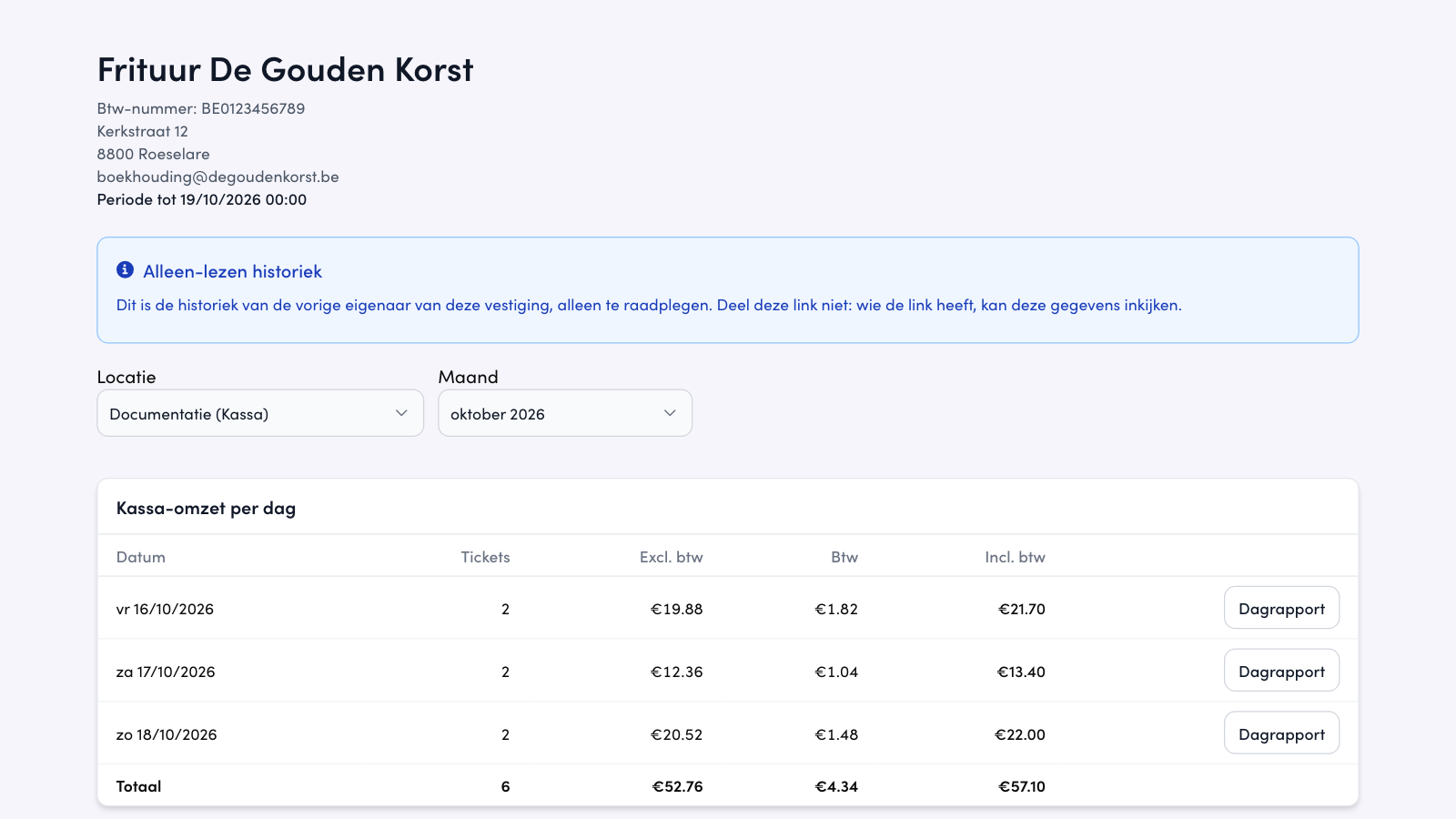
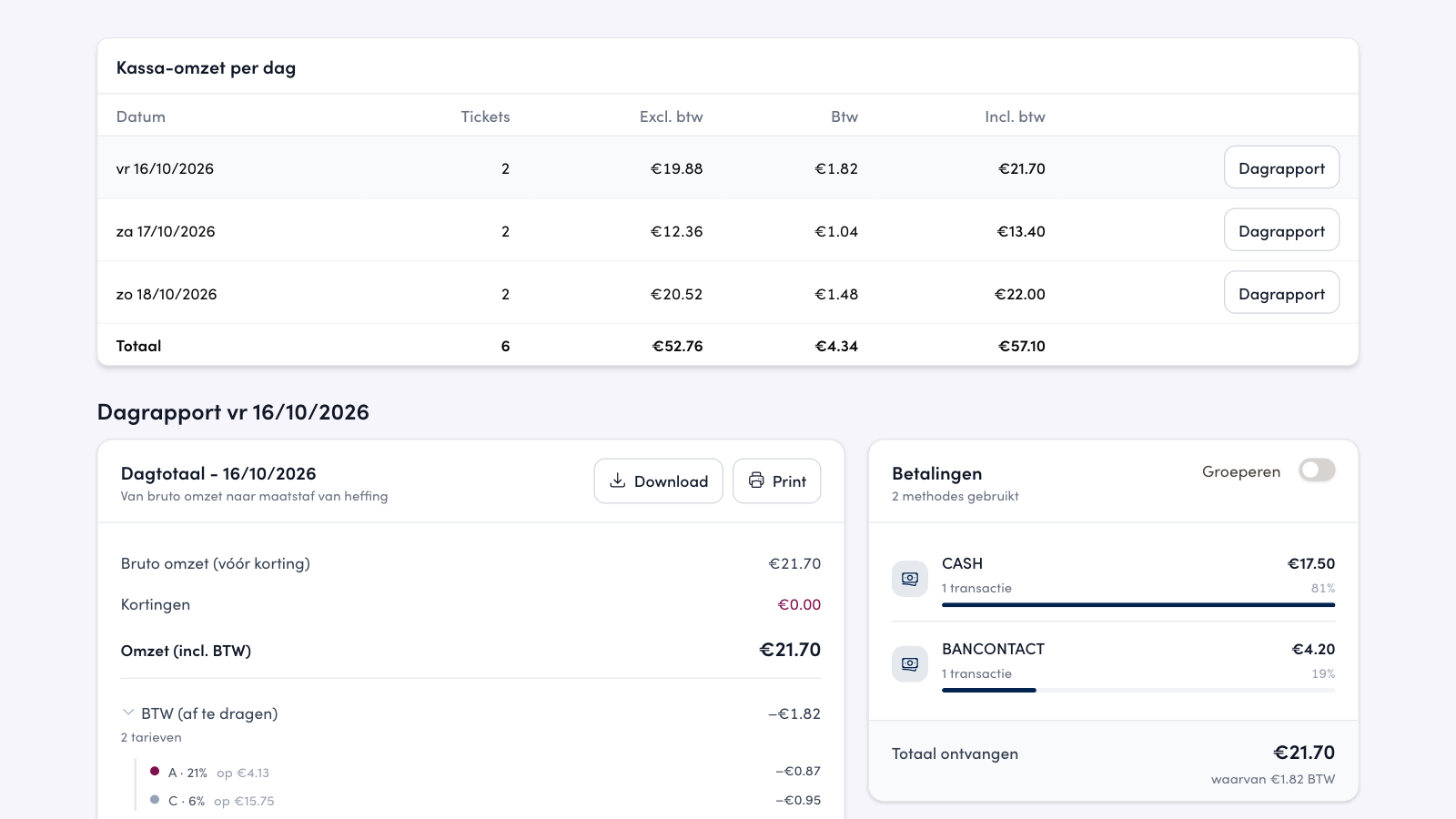
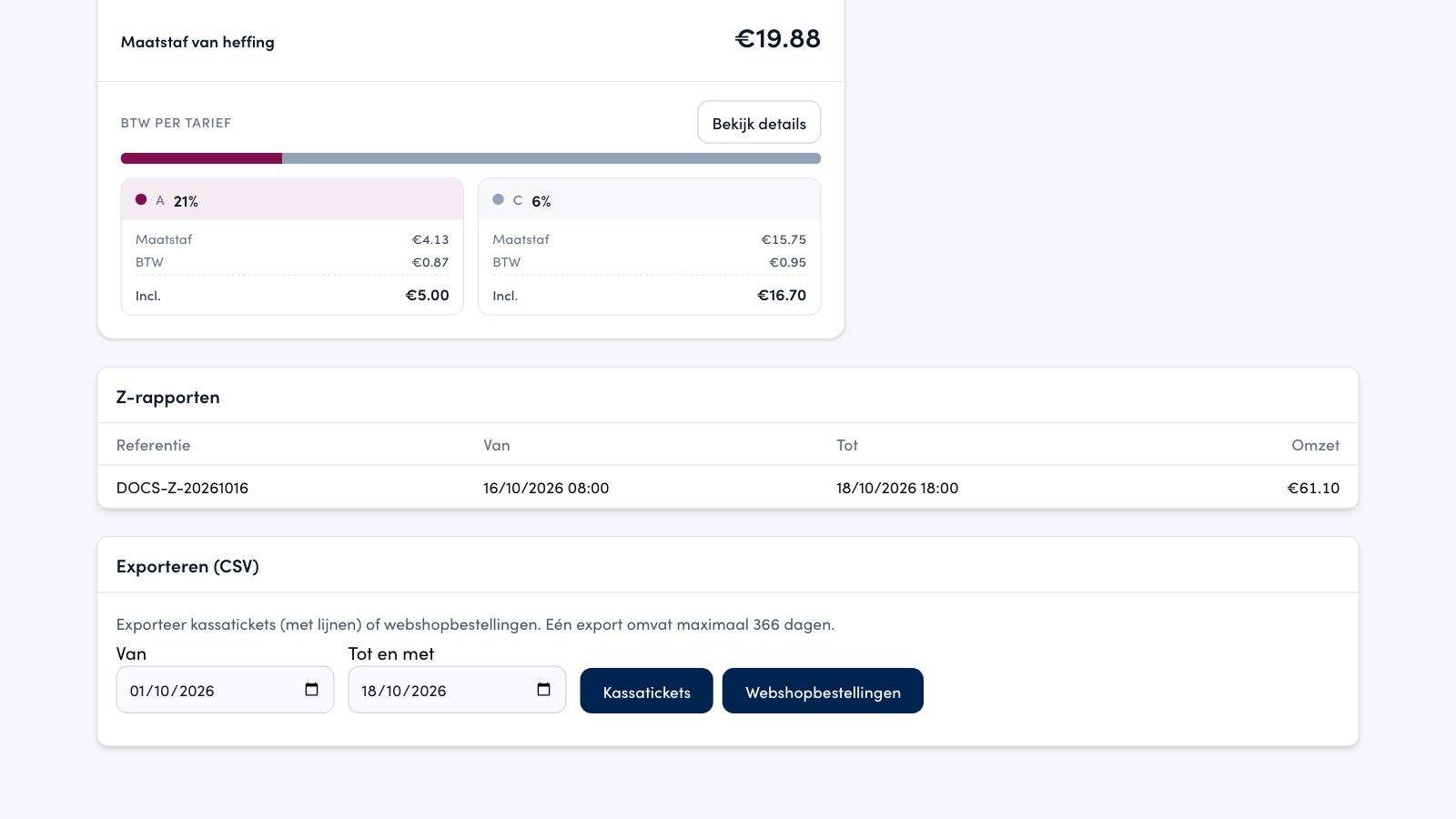
The previous owner receives a link from Unipage. It opens a read-only page, without logging in: the link itself is the key. It holds the company details of that time, the POS turnover per day, the day reports, the Z reports and an export of the receipts and the webshop orders.
Open the link.
Under Location, choose which business you want the figures for. If the site has only one business, that choice is not shown.
Choose the Month.
Next to a day, click Day report for the turnover, the VAT per rate and the payments of that day.
Choose a period and click Kassatickets (receipts) or Webshopbestellingen (webshop orders) to export.
Warning
The history link is personal: anyone with the link can view the tax data and the customer data without logging in. Do not forward it to anyone else.
Good to know#
A takeover falls on a day boundary, midnight by default, so every day belongs entirely to one owner.
An export covers at most 366 days and stays within the previous owner's period.
With a takeover, Unipage pauses the automatic sending to the accounting system (Scrada). Switch it back on once the new owner's accounting is set up, see Accounting.
Frequently asked questions
Why can't I see my old orders any more?
They belong to the previous owner. They are not deleted: the previous owner views them through the history link. If you need them yourself, contact us through the contact form.
Can I view the previous owner's history?
No. That data is for the previous owner only. You see everything from the takeover moment on.
The history link no longer works.
Then the link was replaced or revoked. Ask Unipage for a new link through the contact form.
Why are two colleagues in the same row of Per employee?
The table groups on the name the POS sends along. Colleagues with the same name therefore end up in one row. Give each colleague their own name in your team if you want to see them separately.
Why is there an Unknown row in Per employee?
That row bundles the tickets for which the POS passed no staff member. It is always at the bottom and does not count towards the number of employees above the table.
Why does a top-up say Till (unknown)?
The POS passed no payment method for that top-up. This happens with older top-ups; new top-ups from the POS show the payment method.
Does a top-up that is not confirmed yet count?
Yes. The totals include every top-up of the period, including one that is still Pending.
Can I view a whole year of wallet transactions?
No, the report shows at most 31 days at a time. If you choose a longer period, the page shortens it to 31 days and says so. Download month by month instead.