Sell gift vouchers directly at the POS and accept them later as a means of payment: the POS keeps track of the codes and the turnover for you.
Activating gift vouchers#
The Create Gift Card button only appears on the POS once a payment method of the type Voucher exists. You turn it on in the management page:
Go to POS configuration, open your POS configuration and choose the Payment methods tab.
Click Add payment method and choose Voucher as the means of payment.
Give the payment method a name, for example Gift voucher. You will see this name later on the POS payment screen.
Click Save. The POS picks up the new payment method automatically.
 1Add payment method2Means of payment: Voucher3Name on the payment screenSave
Selling a gift voucher#
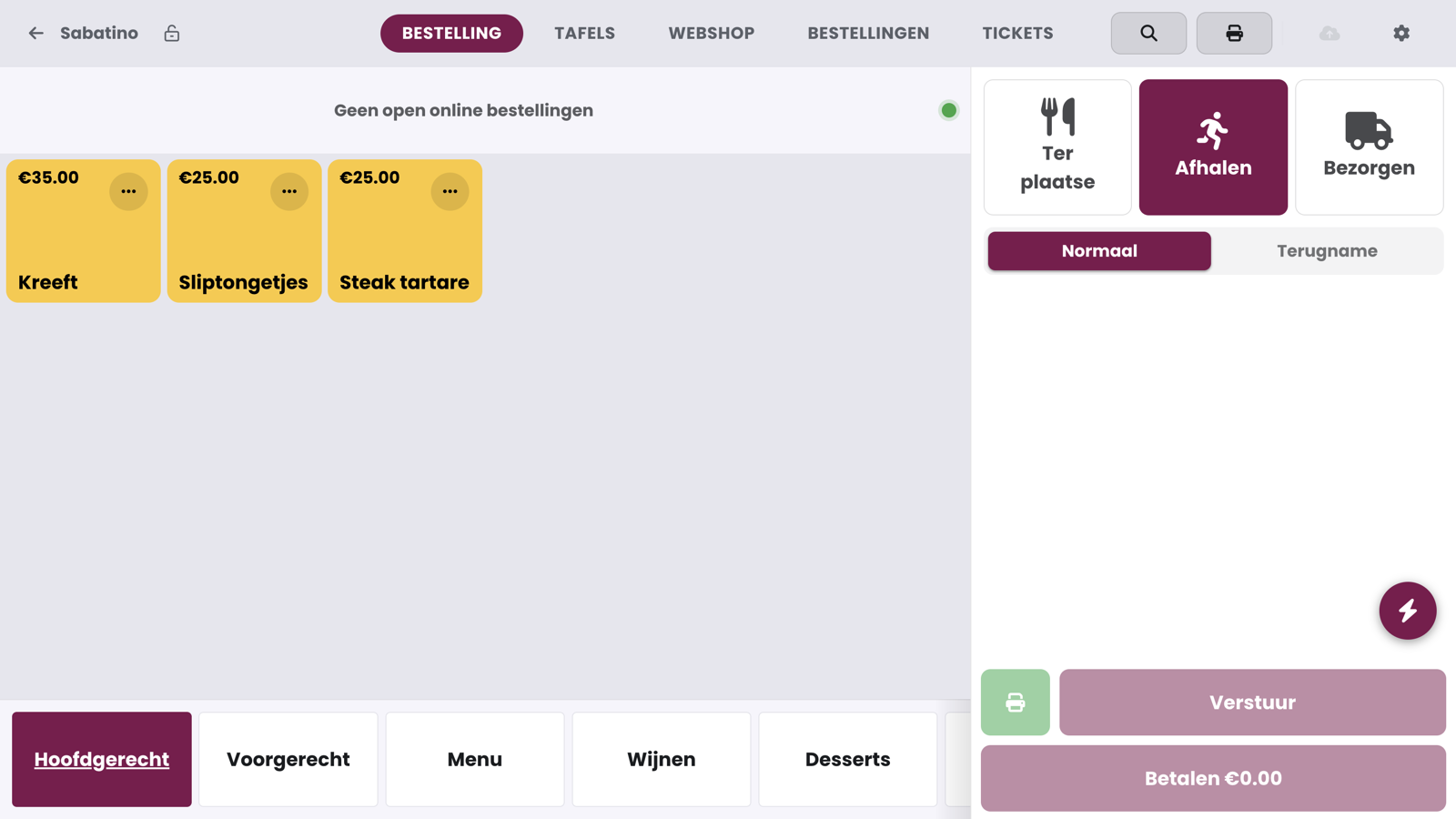
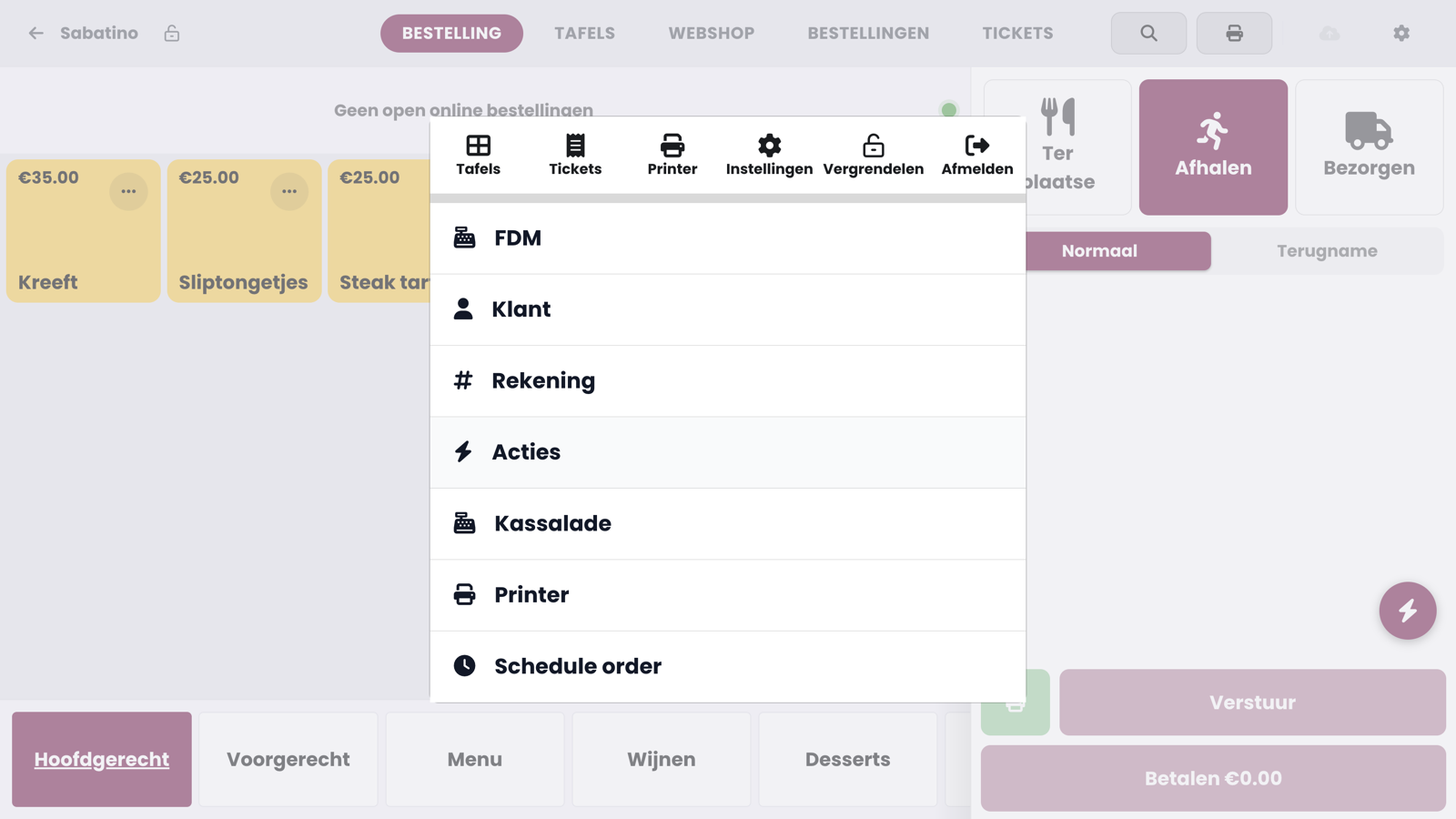
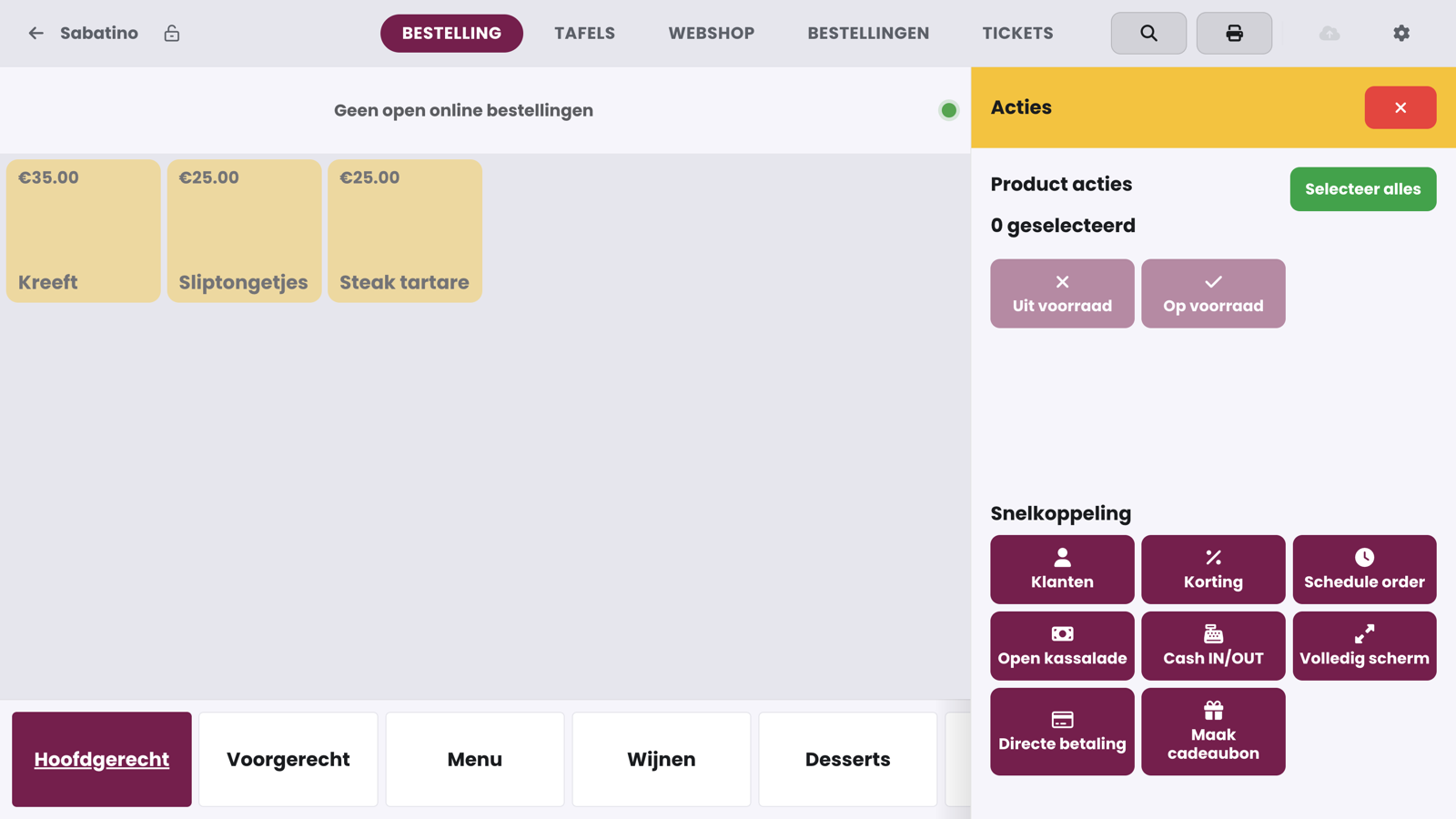
On the POS, tap the lightning bolt and choose Actions, Create Gift Card.
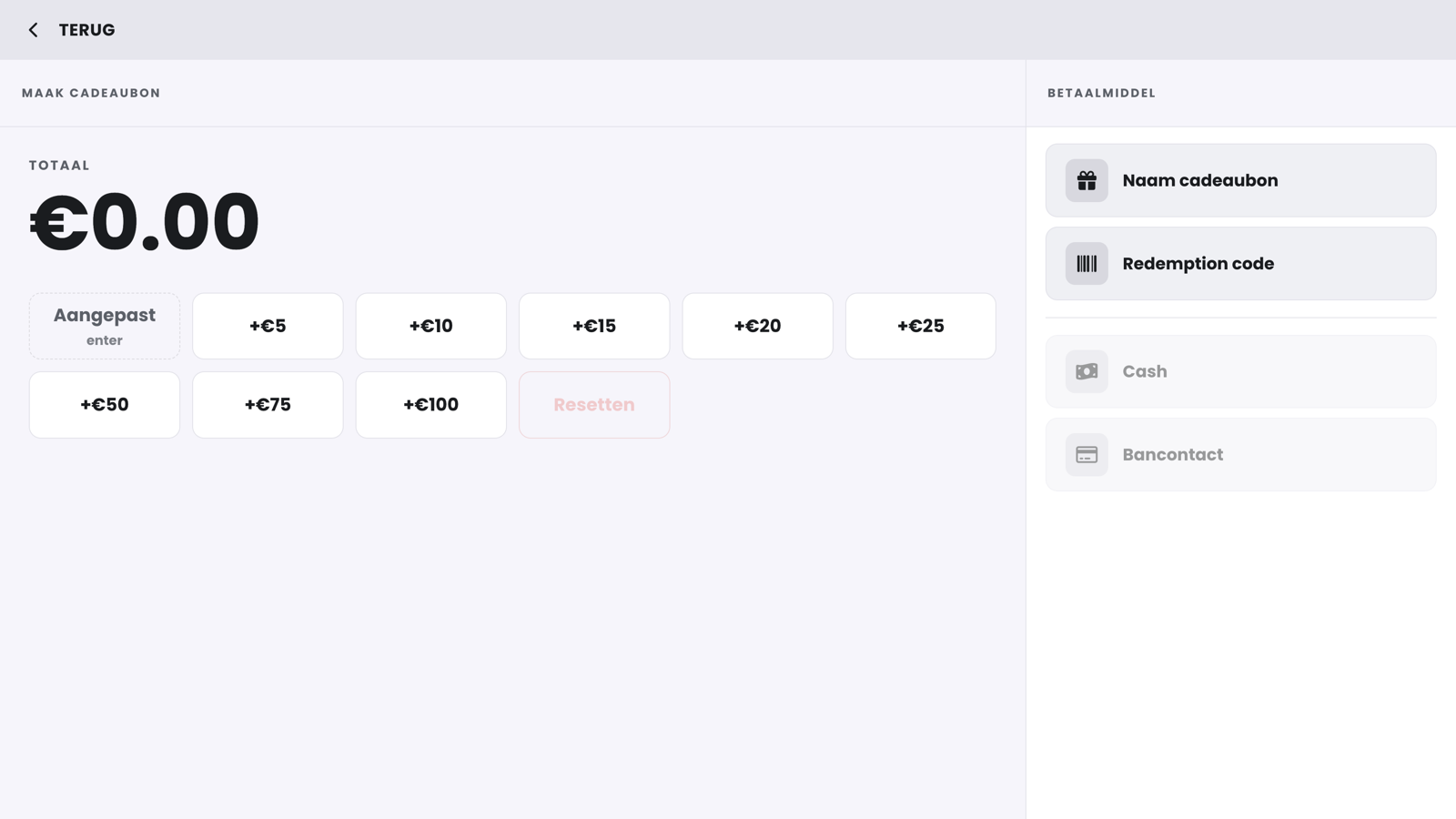
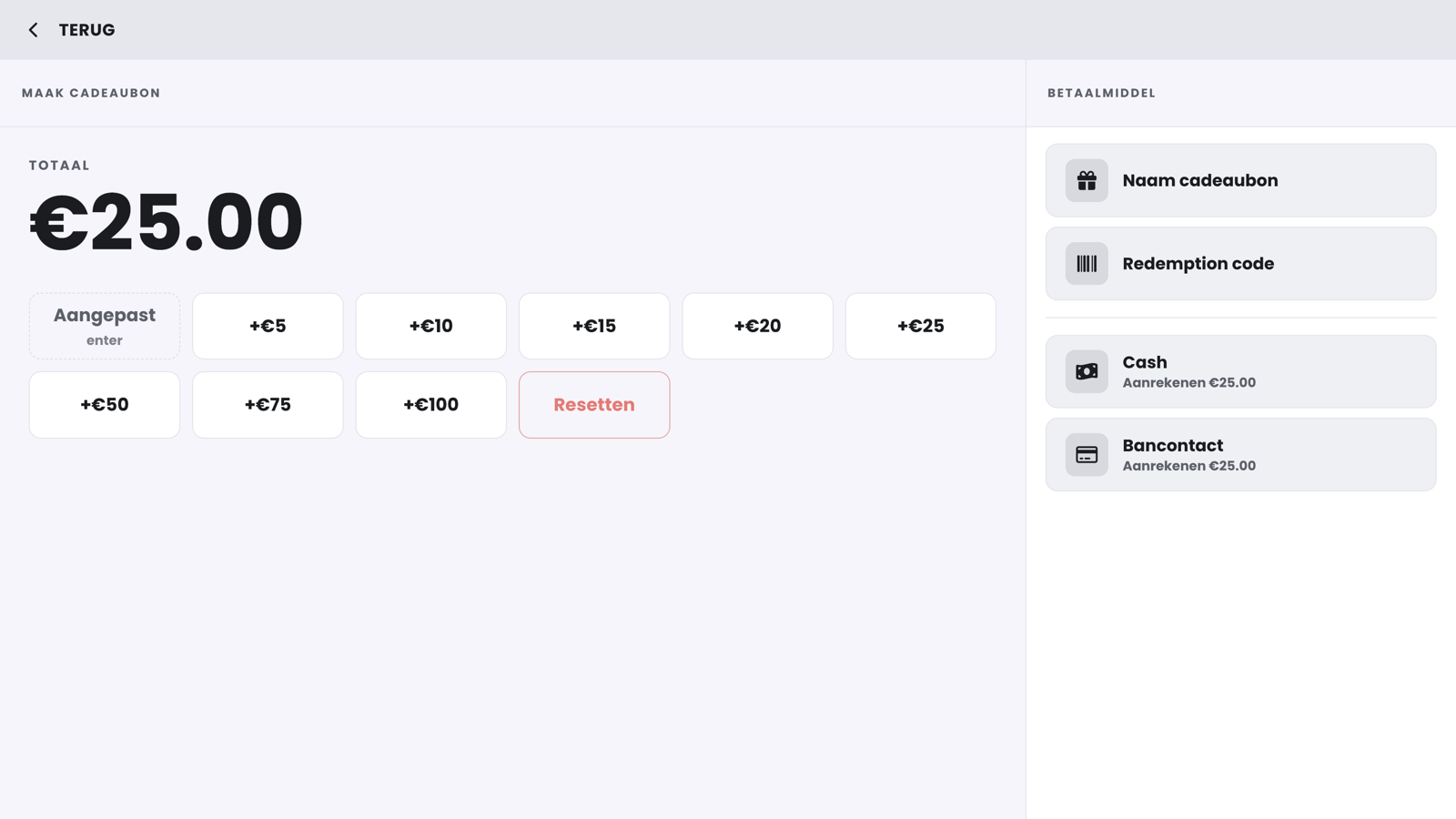
Choose a suggested amount (from 5 to 100 euros) or tap Custom to enter an amount yourself. The amounts add up; use Reset to start again.
Optionally enter a name via Gift card name, for example "Sofie123". Without a name, the POS calls the voucher "Gift voucher" with the date and time of the sale.
Do you want to choose a code yourself (for example the code printed on a physical voucher)? Then tap Redemption code. If you leave it empty, the POS generates a unique code automatically.
Choose the means of payment the customer uses to pay for the voucher, for example Cash or Bancontact.
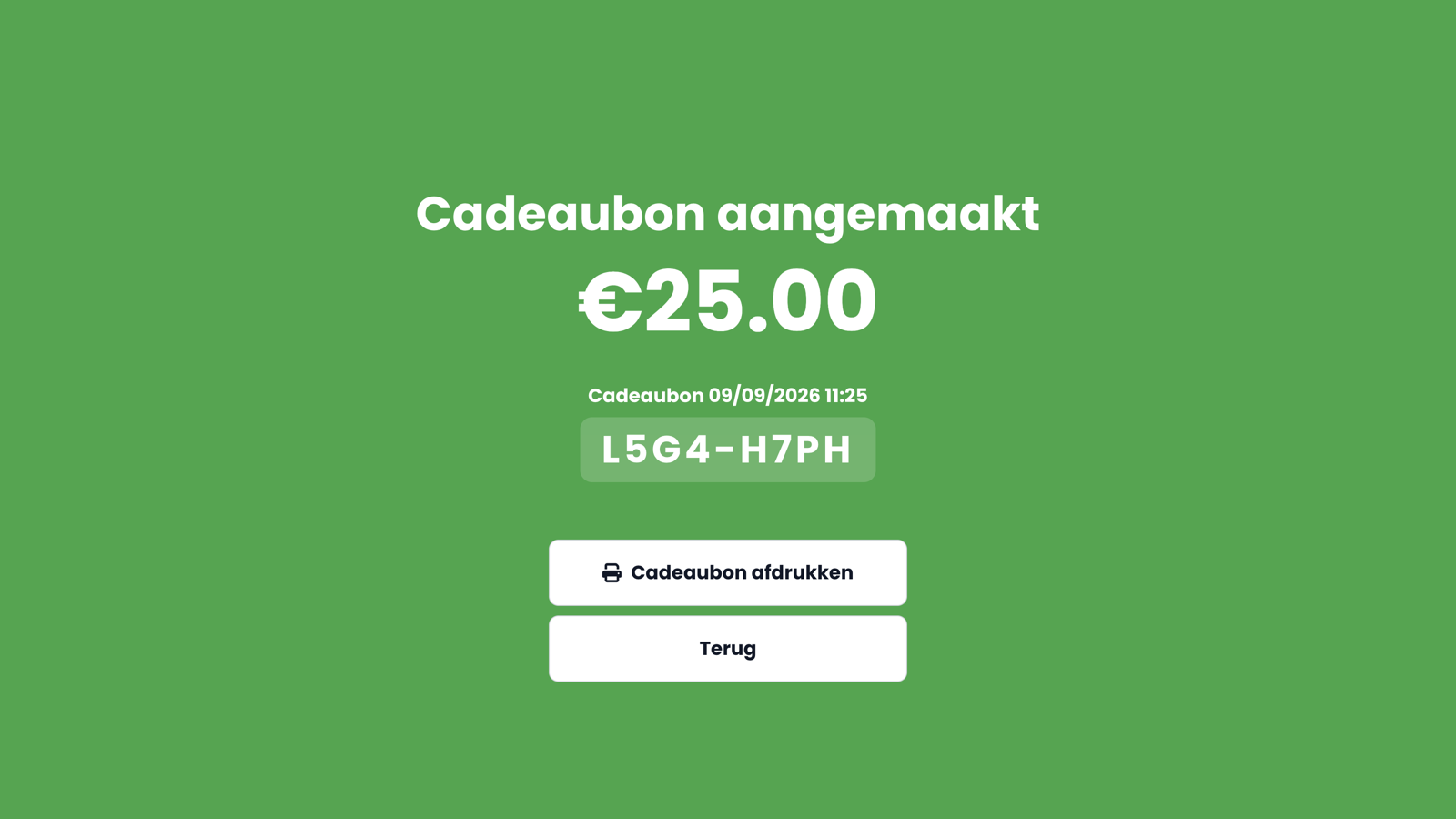
The POS shows the voucher code. Tap Print gift card to print the voucher for your customer, or Go back to return to the POS.
Redeeming a gift voucher#
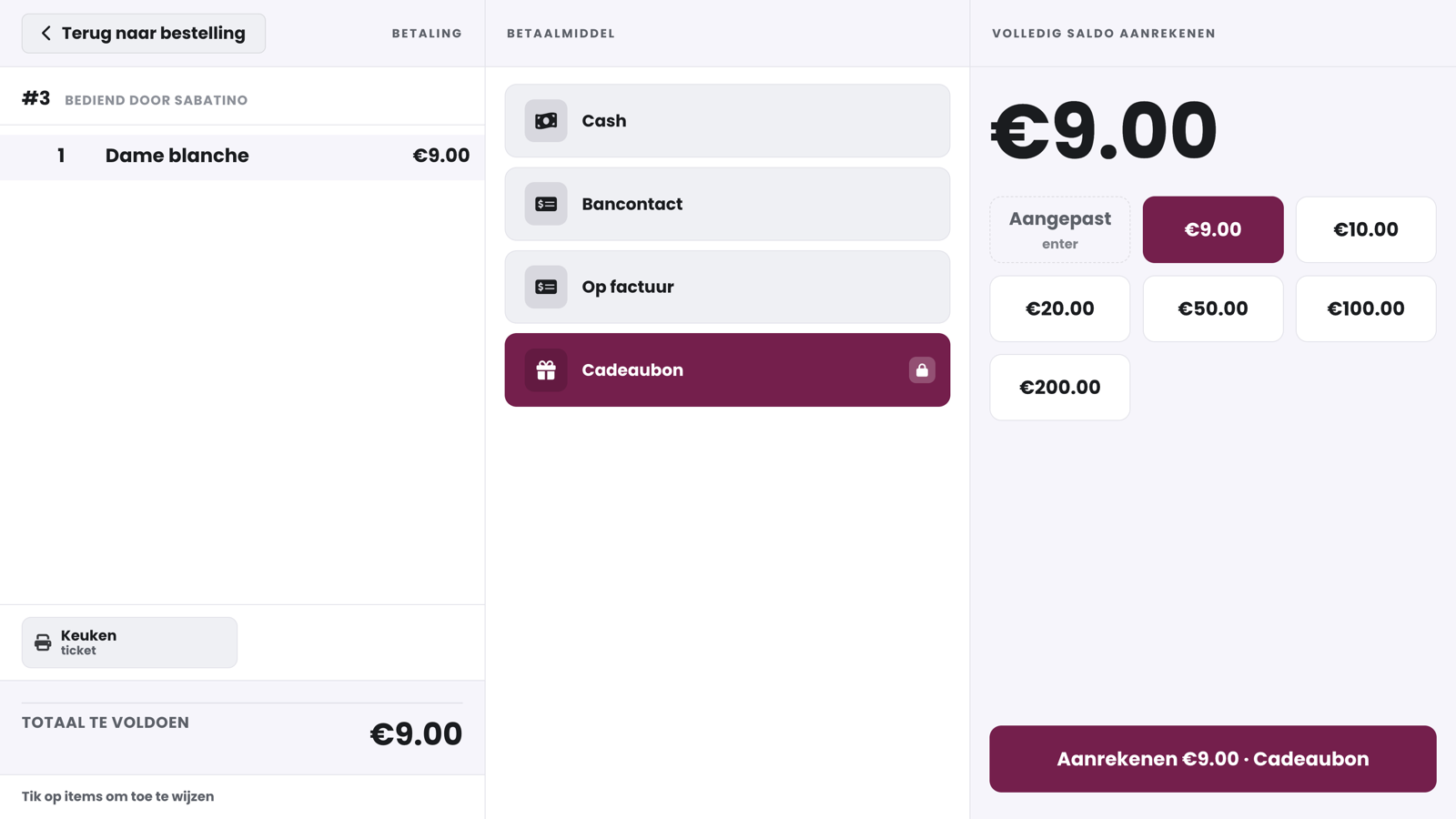
Charge the order as usual and choose the payment method Gift voucher on the payment screen. Then tap Charge.
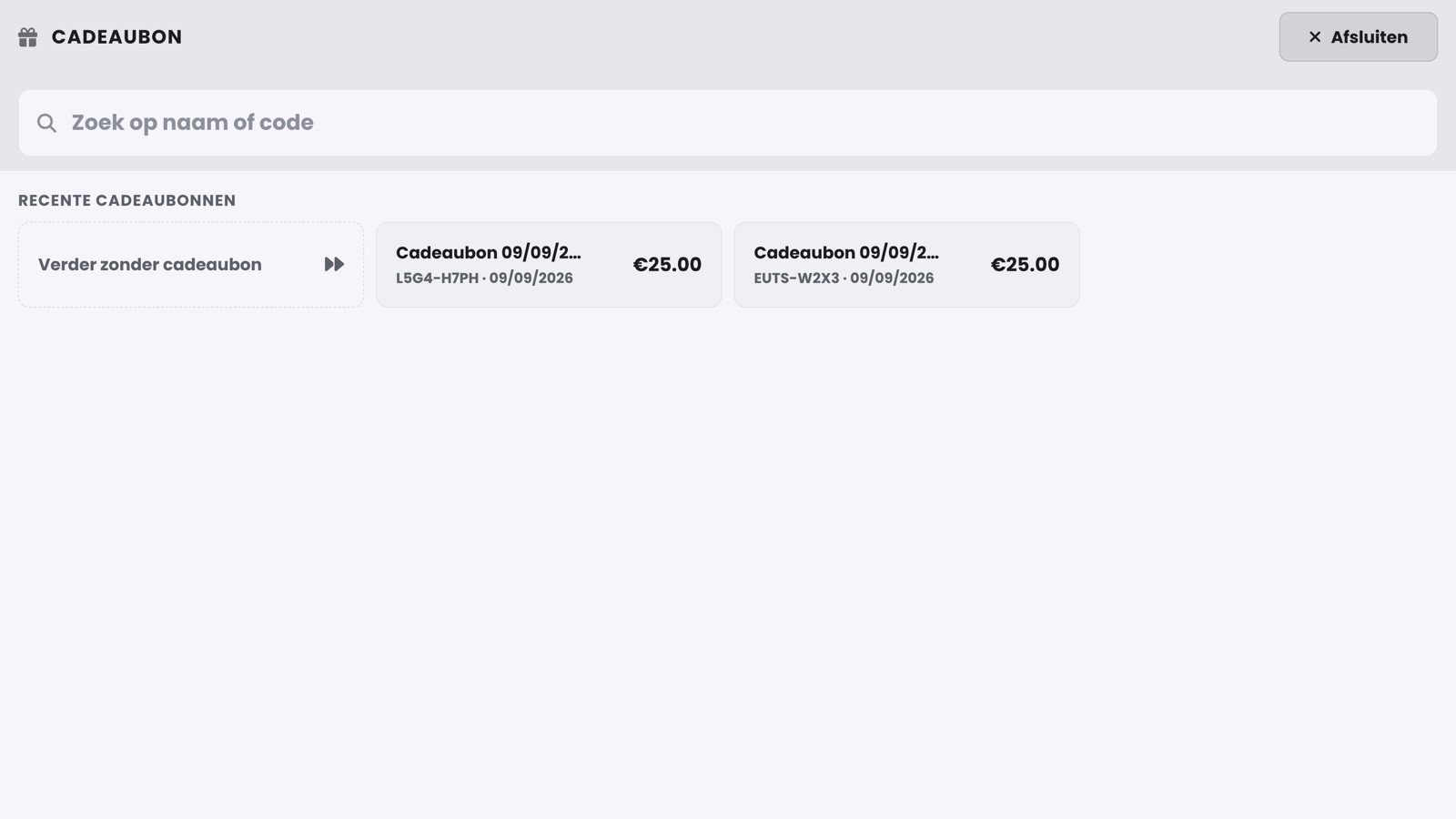
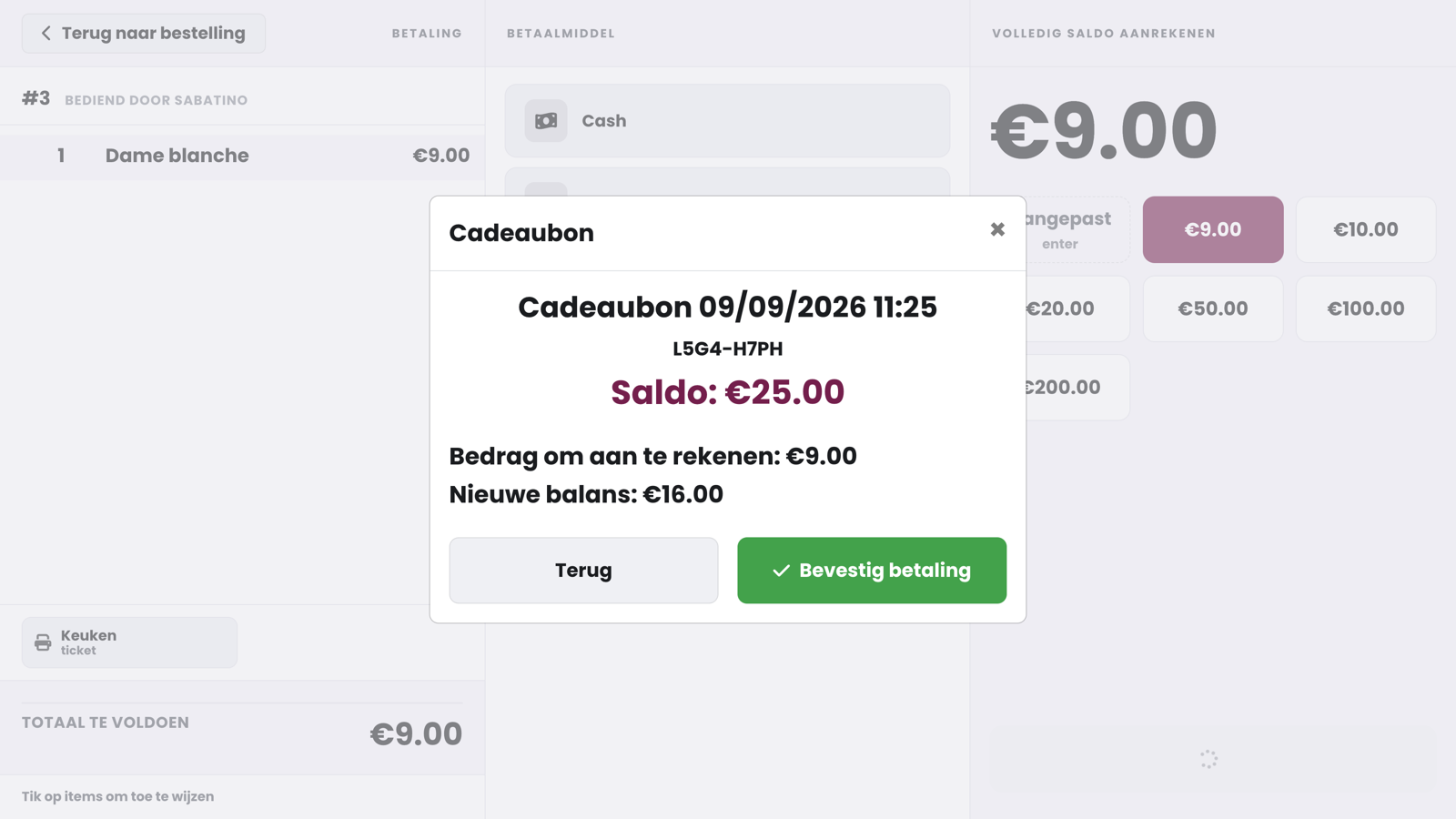
The POS shows the most recent vouchers with their name, code and balance. If you can't find the customer's voucher straight away, search via Search by name or code. Tap the voucher.
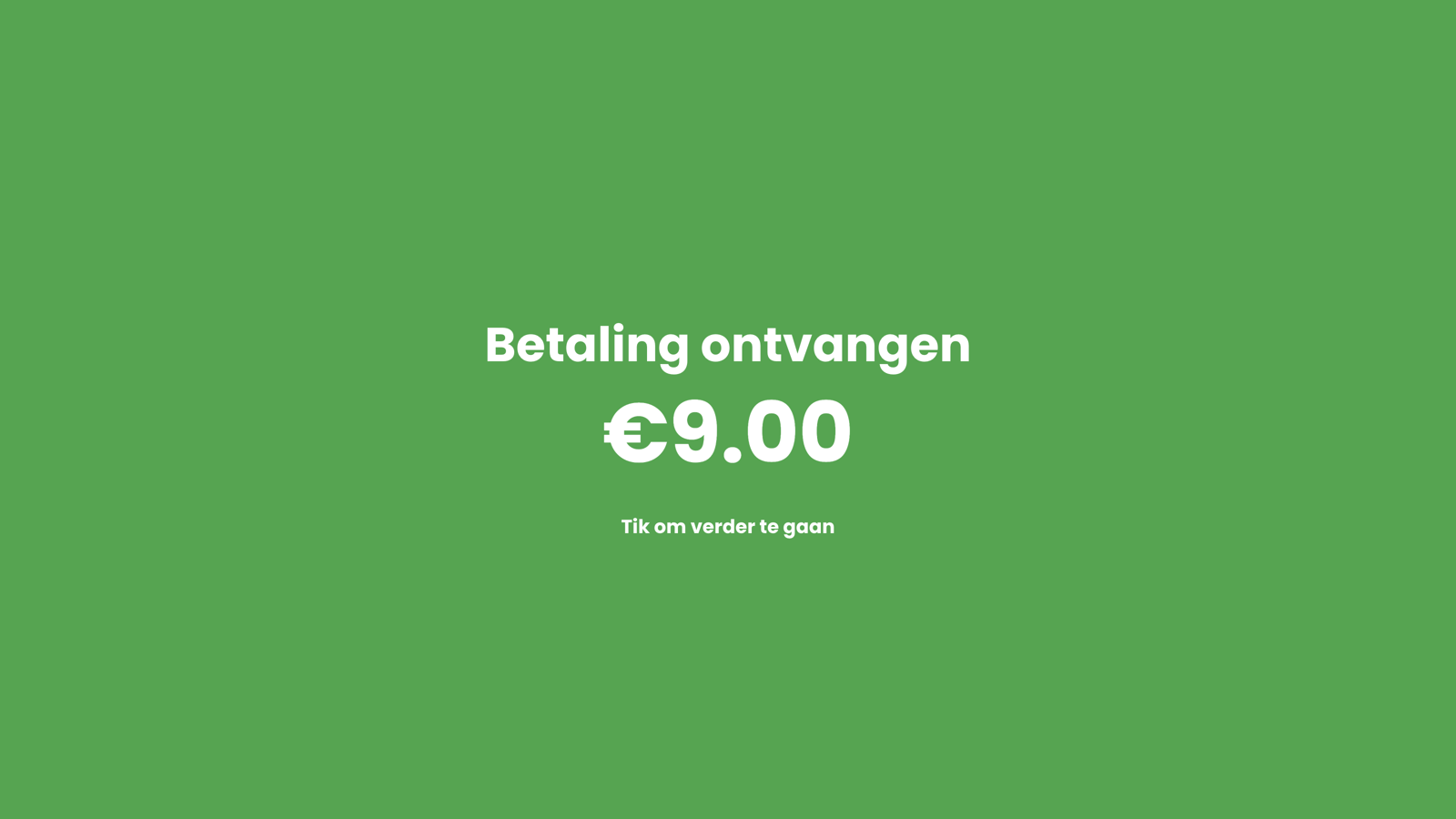
You see the voucher's balance, the amount that will be charged and the new balance. Tap Confirm Payment: the amount is deducted from the voucher's balance.
Good to know when redeeming:
If the balance is not enough, choose the remaining balance: the voucher is used up completely and you charge the remaining amount with another payment method.
When a gift voucher is refunded, the amount goes back to the voucher's balance.
Redeeming requires an internet connection: the balance is kept in the cloud, so the webshop and multiple POS devices can never accept the same voucher twice.
Can't find the voucher in the POS, for example an older paper voucher that was never registered? Then tap Continue without gift card: the payment is booked as a gift voucher without any balance being deducted.
Warning
A gift voucher is a means of payment, not a discount. So never book the amount of a voucher as a discount: a discount lowers your turnover, whereas a gift voucher only becomes turnover when it is used as a payment method. Only if every voucher you sell is later also redeemed as a payment method will your daily turnover and reports be correct.
Registering existing vouchers#
Gift vouchers you sold earlier (outside this feature) can be registered in the management page via Reports, Gift vouchers: choose Add gift voucher, fill in the details (without a code, the system generates one) and save.
Is my turnover still correct?#
Yes. Selling a gift voucher is not turnover yet: your customer pays in advance for a purchase that only follows later. The turnover is recorded when the voucher is redeemed: the full amount of that order then counts as turnover, with the gift voucher as the payment method.
An example: you sell a 50 euro gift voucher today. That 50 euros does not count towards your daily turnover today. If your customer pays for a 60 euro meal with it next month (50 euros with the voucher and 10 euros cash), the full 60 euros counts as turnover at that moment. This way, every euro ends up in your turnover exactly once, at the moment of the actual sale.