The quickest answers to the questions we get asked most about Unipos PLUS. Can't find your question here? Feel free to contact us.
Frequently asked questions
Connecting a CCV terminal to Pluxee, Monizze or Edenred
Do you want to accept meal vouchers on your CCV terminal? Send us the UID number of your account with the relevant issuer via the contact form. You can find that number in your online portal or on your invoices, or request it via their support channels:
The printer no longer prints receipts
First open Health on the POS (cogwheel, Health). Test the printer with Test print, and use the network scan to check straight away whether the IP address has changed. Then go through the basics: is the printer switched on, is there paper in it, and are the printer and the POS on the same network? If a print job is stuck in the queue, delete it or print it again via the print job overview. For the Epson TM-m30 there is also a full reset, see the FAQ in The order app.
The revenue of a user seems to be incorrect
Check that every team member has a unique NISS number (national register number). If two team members use the same NISS number, the system sees them as one and the same user and adds their revenue together under that one user. Change the numbers via Manage cashiers. Warning: the change only applies to new orders from that moment on. Revenue that has already been registered stays with the user it was booked to.
How can I delete or change orders in the reports?
You can't, and that is deliberate. For fiscal reasons, the POS registers every action permanently: every tap on the POS has an audit trail, and if you work with a GKS, every transaction is also signed by the fiscal module. So changing the past or deleting orders from the reports is not possible, not even by Unipage.
What you can do is correct a mistake with a counter-entry. You book the mistake in the negative, and the report shows the net result. In practice:
- Did you enter 3 colas when there should have been 2? Book -1 cola. The sales are correct again net: +3 and -1 makes 2, and both entries stay visible.
- Did you charge a whole receipt wrongly? Refund it. A refund is a counter-entry of the whole receipt, with its own trail in the reports.
This way your figures are correct and the full history stays verifiable: you see both the mistake and the correction.
Why can't I clock in or out on the POS?
If you work with a GKS, every clock-in and clock-out must be signed by the fiscal data module (FDM). If the POS can't reach the FDM, clocking in or out fails. The most common cause: the IP address of the FDM or the POS has changed, for example after replacing the router or changing the network.
Here's how to fix it:
- Open Health on the POS and check the FDM check.
- Check that the POS and the FDM are on the same network. Scan the network again and update the IP address where needed.
- Does the problem keep happening? Contact us and we will look into it live with you.
How do I work with gift cards correctly?
Not as a regular product in your range: use the built-in gift card function. You create a card via the lightning bolt, Actions (Acties), Create Gift Card (Maak cadeaubon), and when it is redeemed, you choose the payment method Gift card (Cadeaubon) on the payment screen. Never apply a card as a discount: your revenue figures are only correct if you use the payment method. You can read the full procedure, from creating to redeeming, in Gift vouchers.
Why don't I see a product on my POS?
The most common causes:
- The product is switched off in your availability, or it is set to forced invisible on the product sheet.
- An active menu plan is hiding the product at the moment.
- You work with stock management and the product is below the minimum stock level.
- The product is not on your personalised screen, or the product visibility in your POS configuration doesn't allow it.
How do I quickly mark something out of stock via the POS?
Open the quick menu with the lightning button at the bottom right of the sales buffer, select one or more products and mark them out of stock. The product is immediately removed from sale everywhere. POS, webshop, kiosk and kitchen screen stay synced live. Available again? Take the same route and mark the product back in stock. If you work with stock levels, see Stock management.
How do I quickly mark something out of stock via the kitchen screen?
You can do that directly on the kitchen screen: open the stock list, tap the product and mark it out of stock. The kitchen screen uses exactly the same system as the POS, so the change applies everywhere straight away and both screens stay synced live.
How do I quickly switch category on the POS?
Tap a category tile at the bottom to switch. Do you have a lot of categories? Tap the active category tile again and a selection window opens with all categories, so you don't have to scroll. See Switching category.
GKS 1.0: how do I connect my mini computer to the fiscal data module?
If you still work with a GKS 1.0 (the black fiscal data module, also known as the black box), it connects to your network via a mini computer. This is what's in the boxes:
- Mini computer: the mini computer itself (3), a European plug (1), a power cable (2) and a mounting bracket.
- USB converter (4).
- Fiscal data module (5) with its communication and power cable (6).
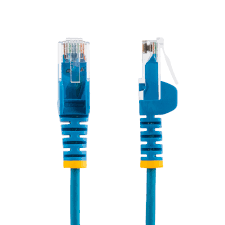
- Network cable (7), the colour may vary.
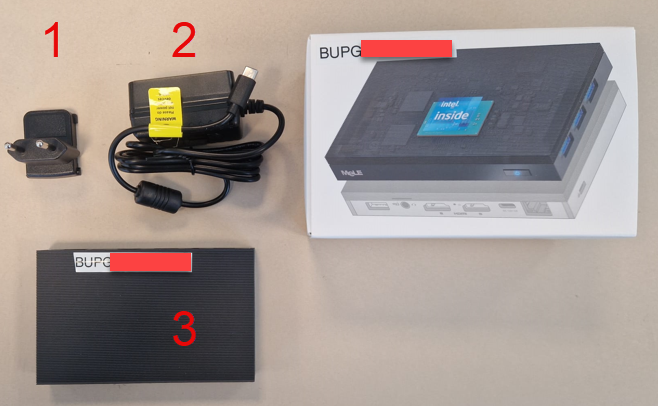
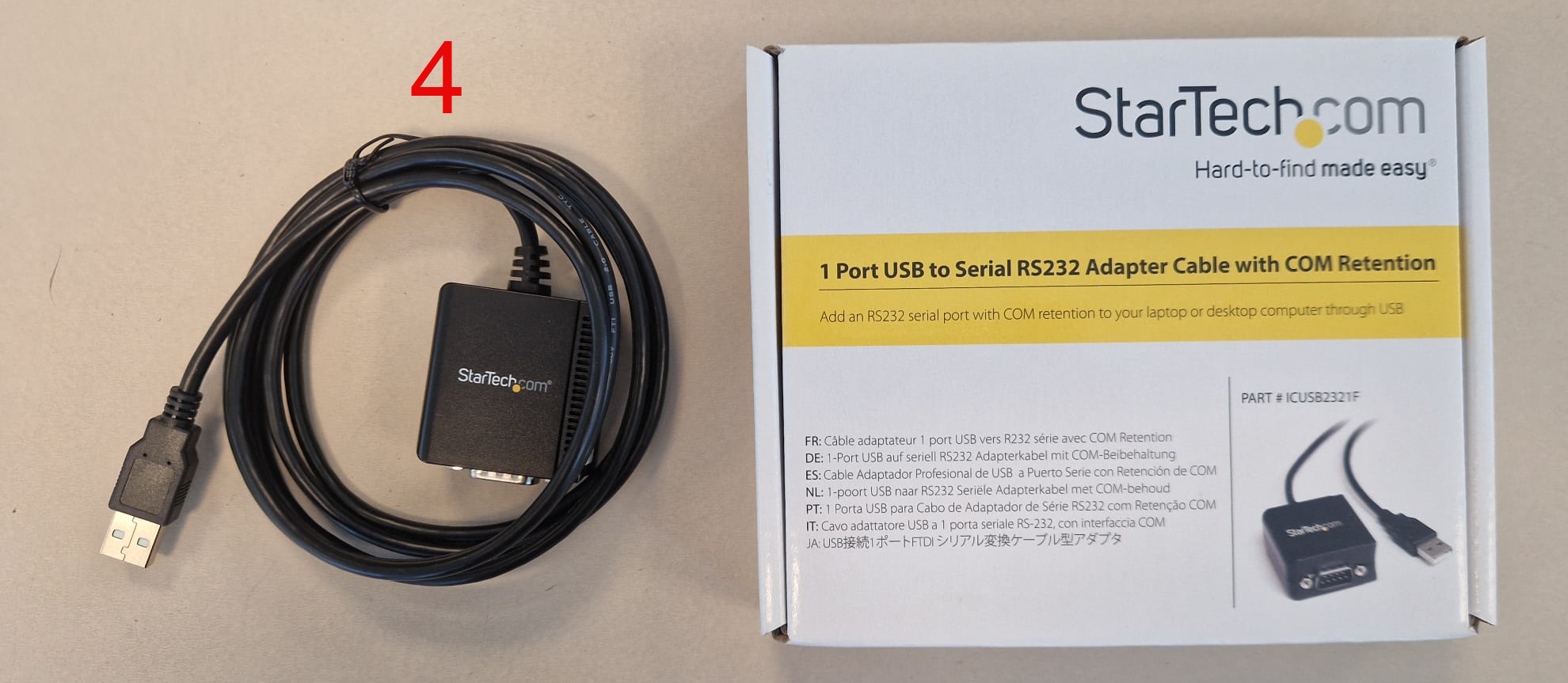
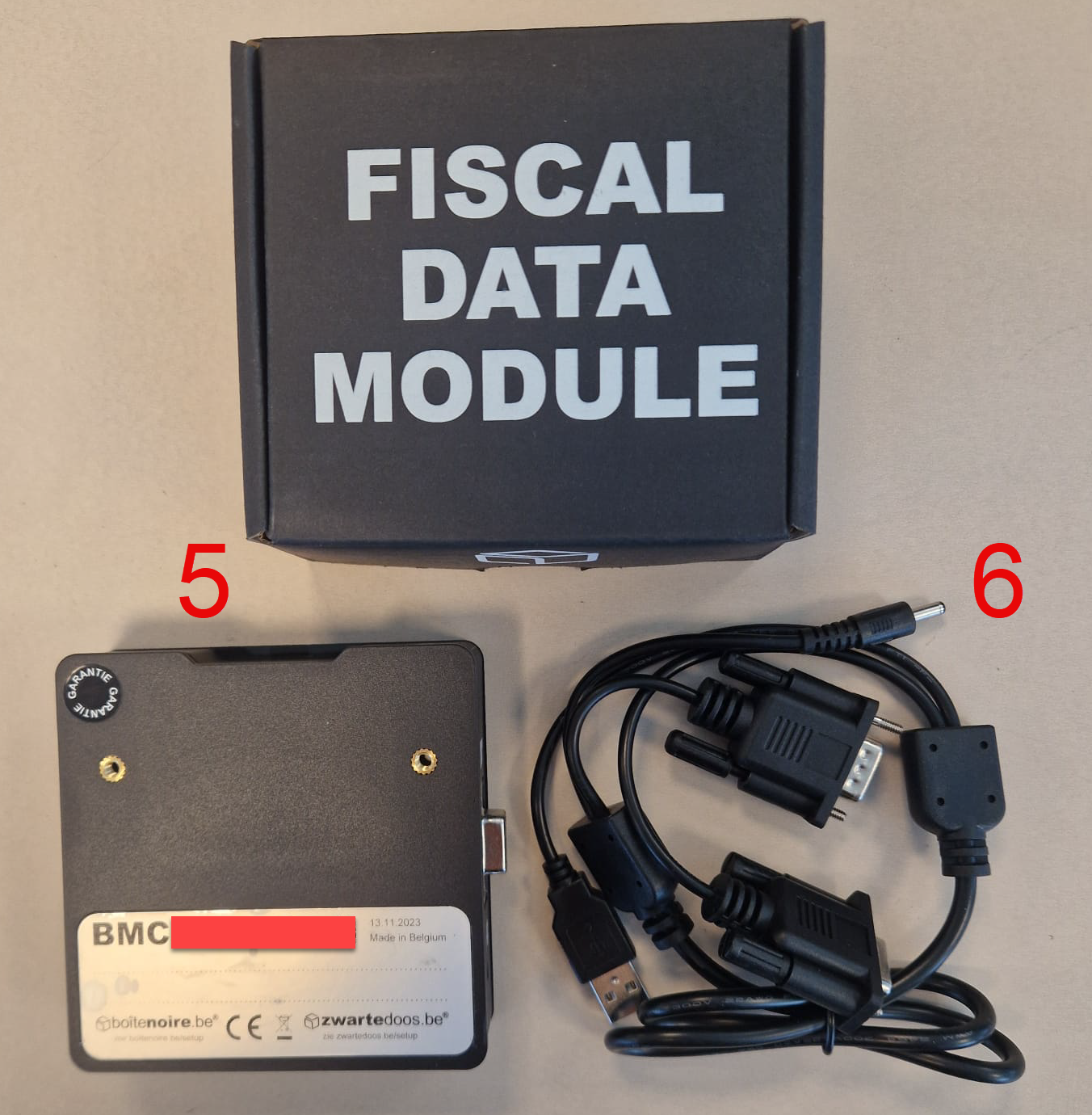
Here's how to connect everything:
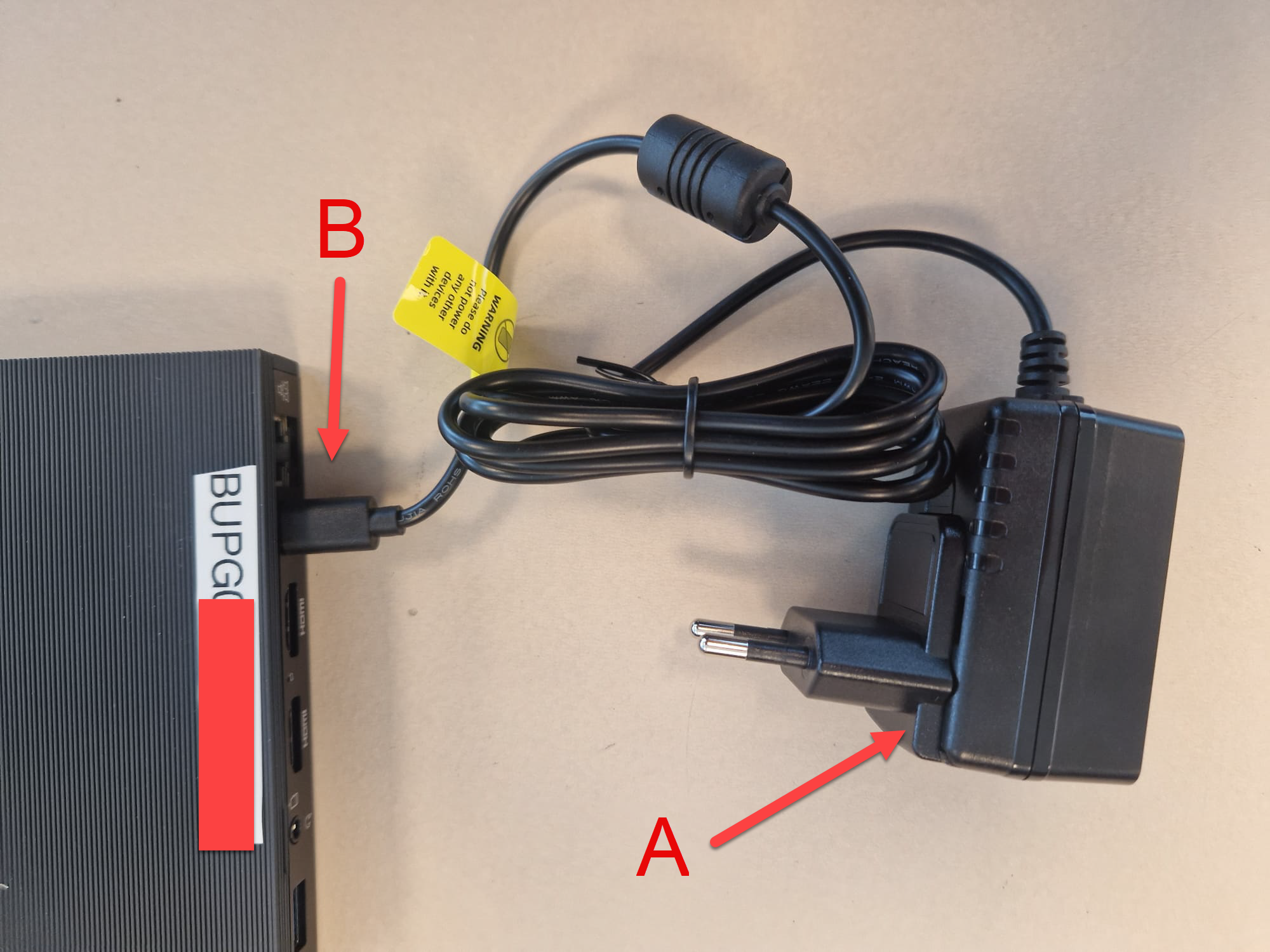
- Put the plug (1) on the power cable (2) and plug that into the mini computer (3).
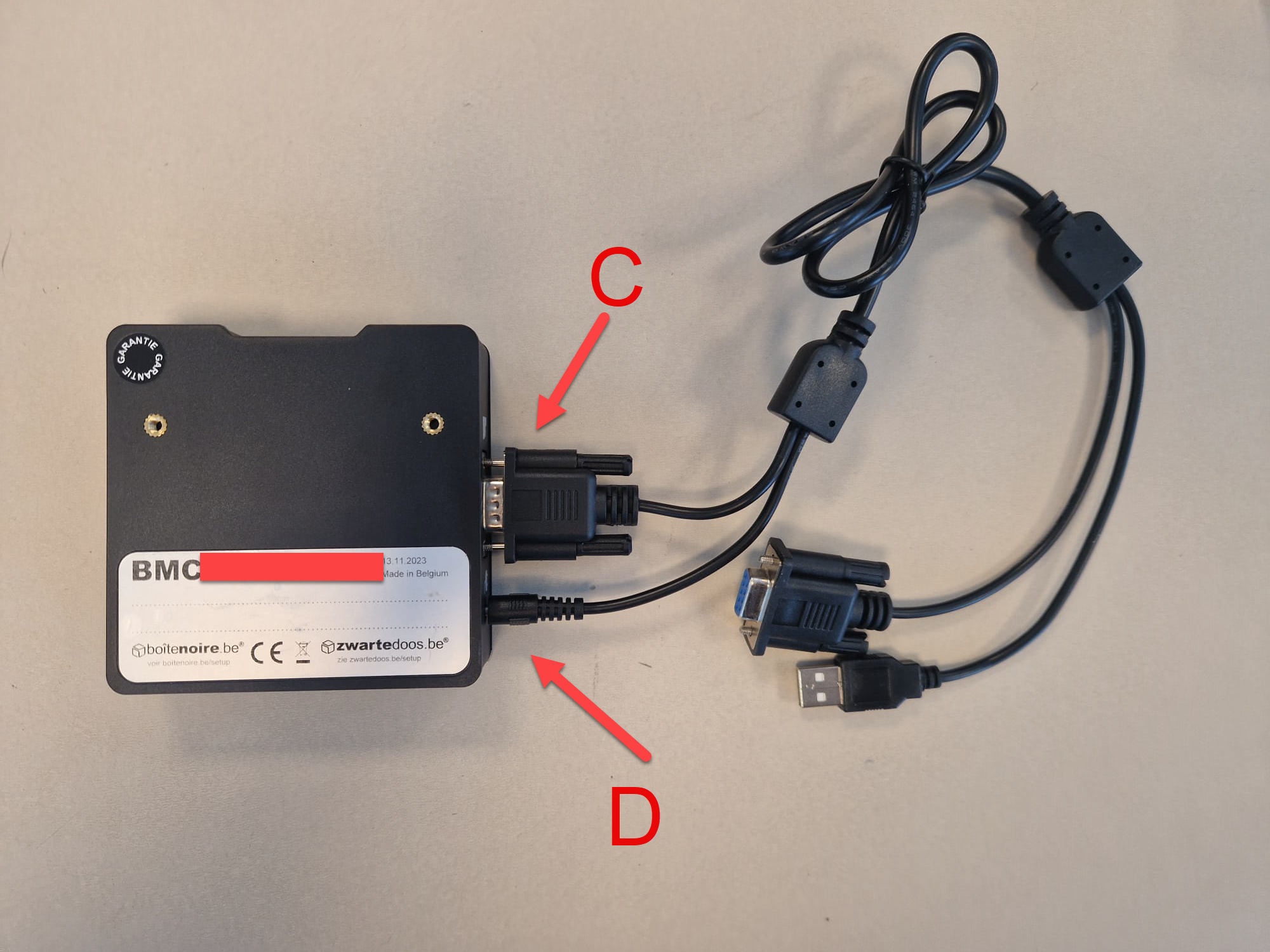
- Plug the communication cable (6) into the communication port of the fiscal data module (5) and carefully tighten the screws by hand. Use the end without the blue inside. Also plug the power cable (6) into the module.
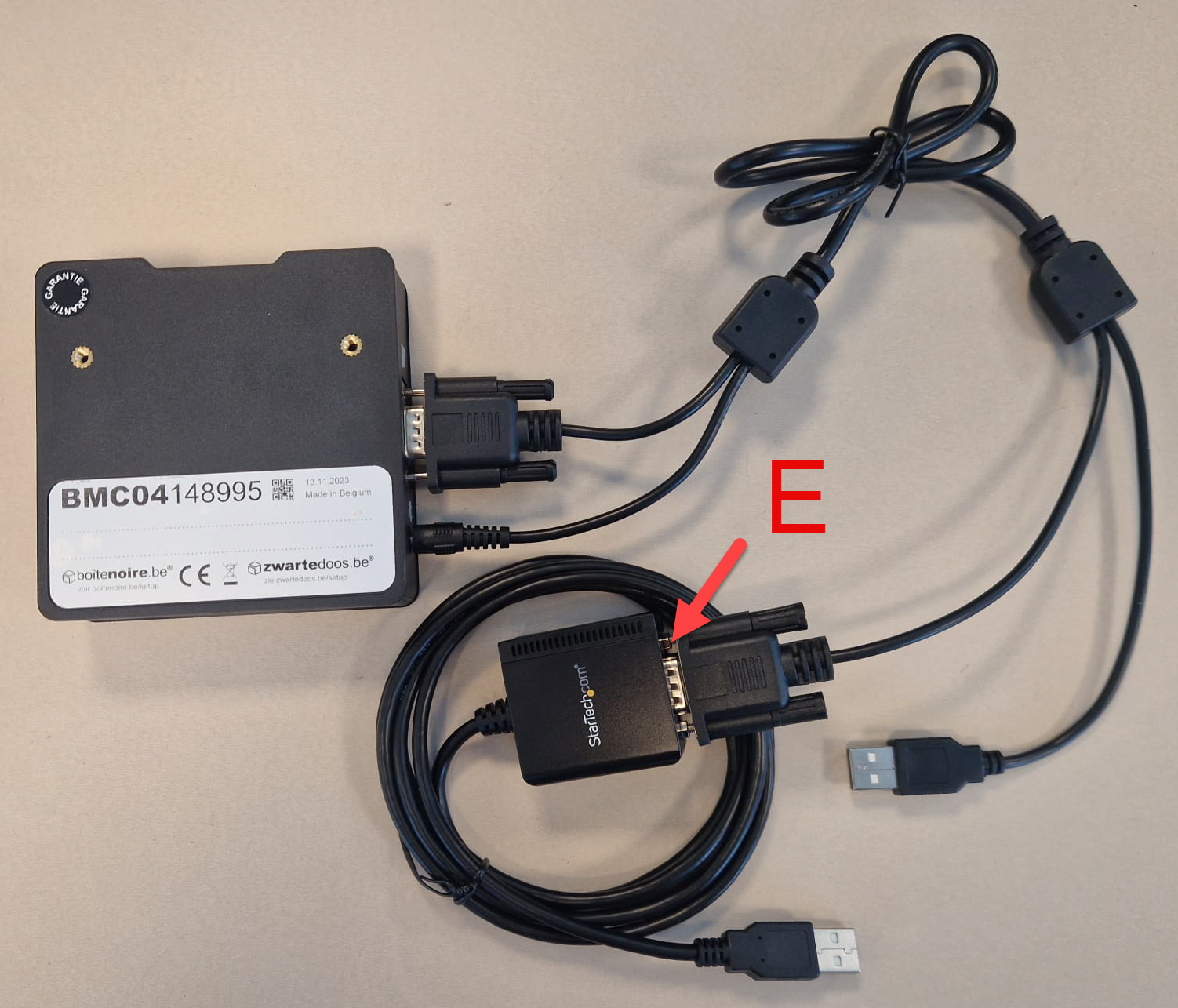
- Connect the other end of the communication cable (with the blue inside) to the USB converter (4).
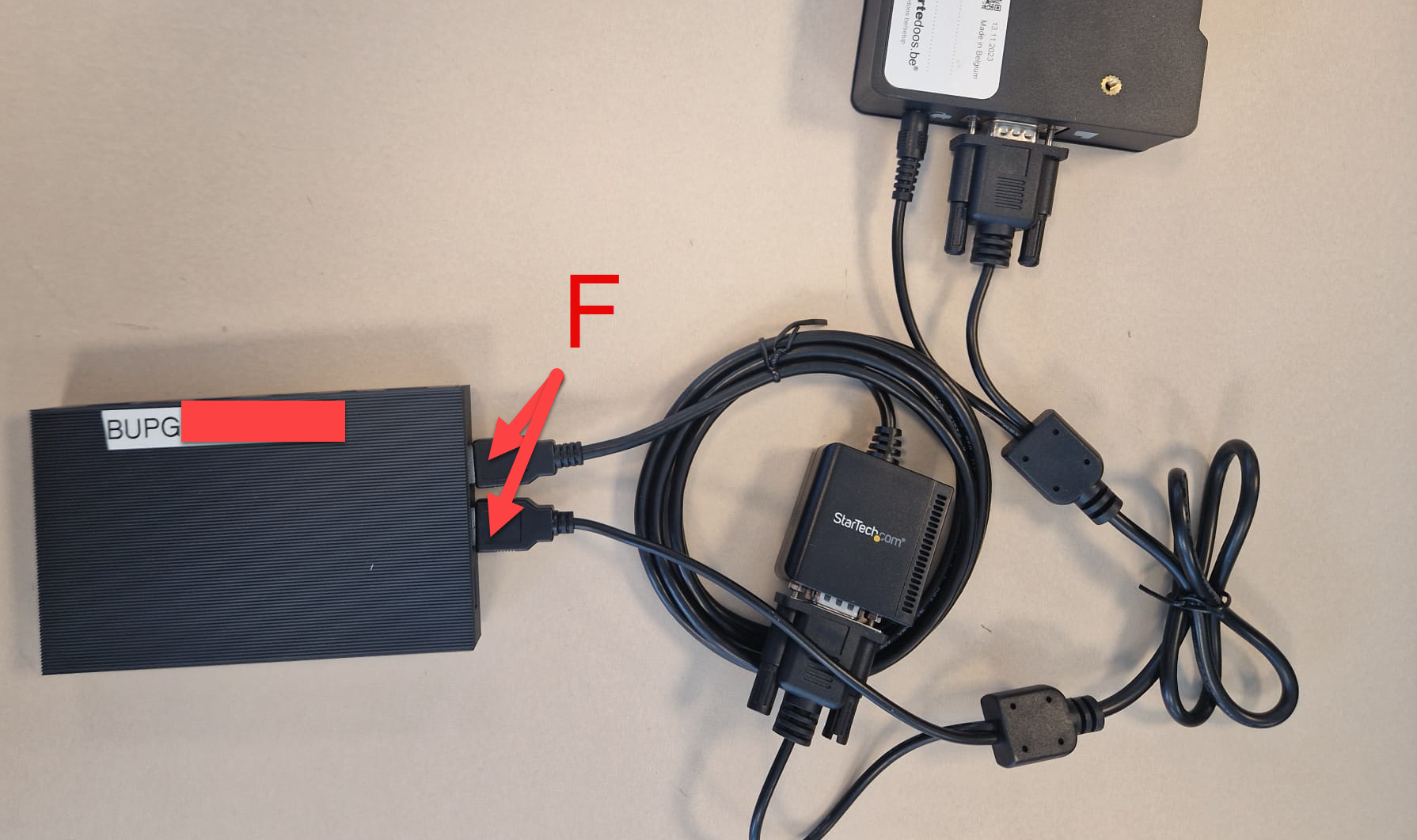
- Plug both USB cables into the mini computer (3).
- Connect the network cable (7) to the mini computer and plug the other end into your router or a network port with internet. This must be the same network as your printer.
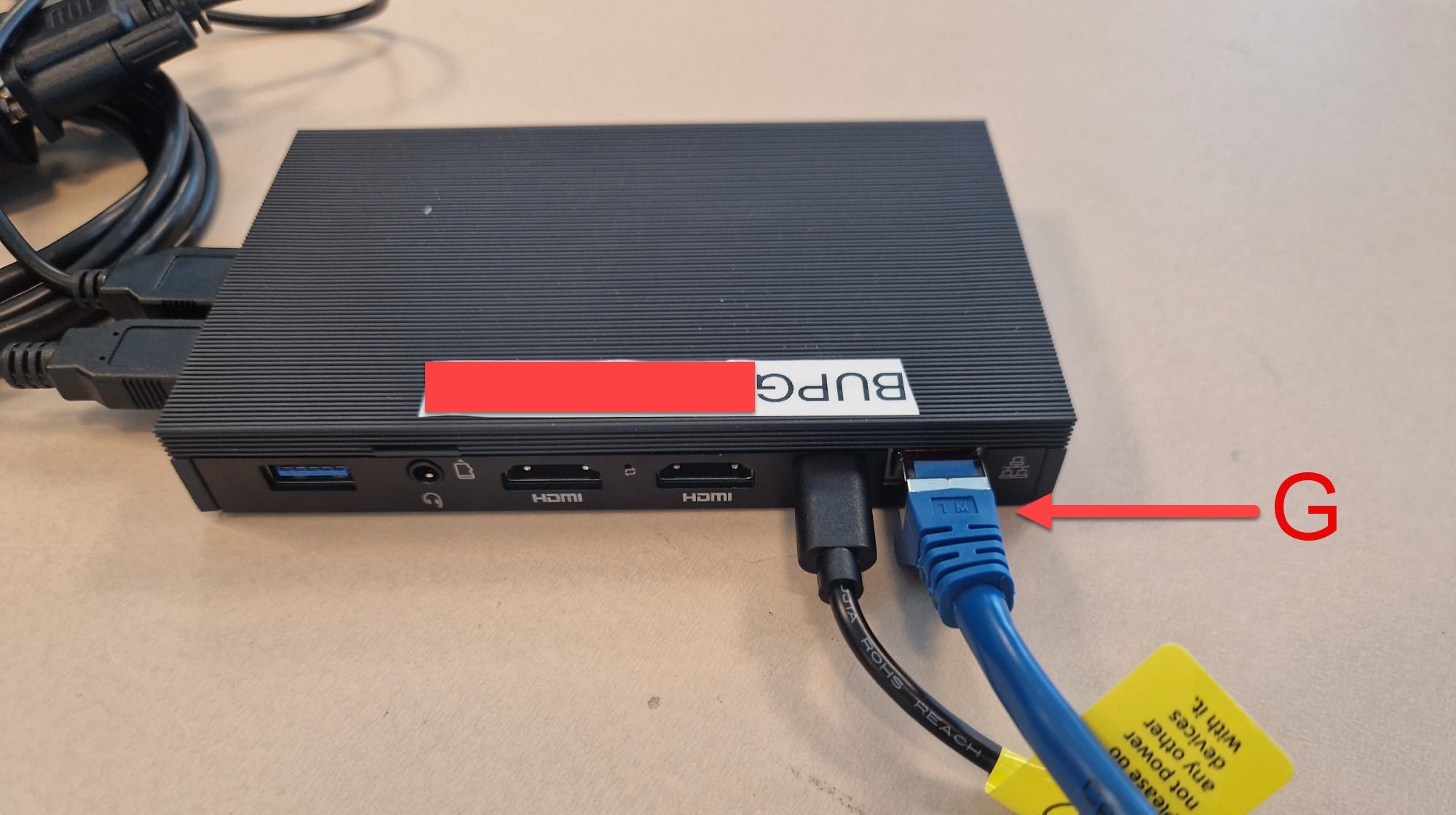
- Plug the plug into the socket. The lights on the fiscal data module come on and the mini computer starts up by itself. If that doesn't happen, briefly press the power button.
Does the POS not see the fiscal module afterwards? See GKS and test the connection via Health.
How do I connect a Mollie payment terminal to my POS or kiosk?
Unipage works with two Mollie terminals: the portable A920 Pro for the POS and the fixed A35 for the kiosk. Here's how to connect one:
- Mollie account: if you don't have one yet, register via the Register now (Registreer nu) link under Settings (Instellingen), Payments (Betalingen) at Mollie. In your Mollie dashboard, credit card payments and POS payments must be enabled.
- Terminal online: connect the terminal to your wifi or via a network cable, on the same network as your POS or kiosk.
- Activate at Mollie: add the terminal in your Mollie dashboard and note the terminal ID that Mollie shows.
- Activate at Unipage: on the management page, open Settings, Payments, click the settings at Mollie, switch on Configure terminal (Terminal configureren) and enter the terminal ID. Save.
At the POS you then use the payment method that automatically sends the amount to the terminal, see Receiving payments. On the kiosk, every payment goes to the terminal automatically. If the connection doesn't work, contact us and we will look into it with you.
How does the loyalty card or loyalty points system work on the POS?
Link the customer to the order: scan the barcode from the app or their customer card, or look them up in the customer selector (searching by mobile number is the quickest). As soon as the order is paid, the loyalty points are added to their balance automatically, and you apply an available reward from the sales buffer. Read more in Loyalty points and loyalty on the POS.