Unipos PLUS can show on a product tile how many pieces you can still sell. This number comes from the stock items you link to the product (see Stock management): the POS divides the stock of each linked stock item by what one sale of the product uses, and shows the lowest number. This way you see at once which tile is almost sold out.
The setting belongs to the tile, not to the product. The same product can show a number on one screen and not on another.
Setting it up per tile#
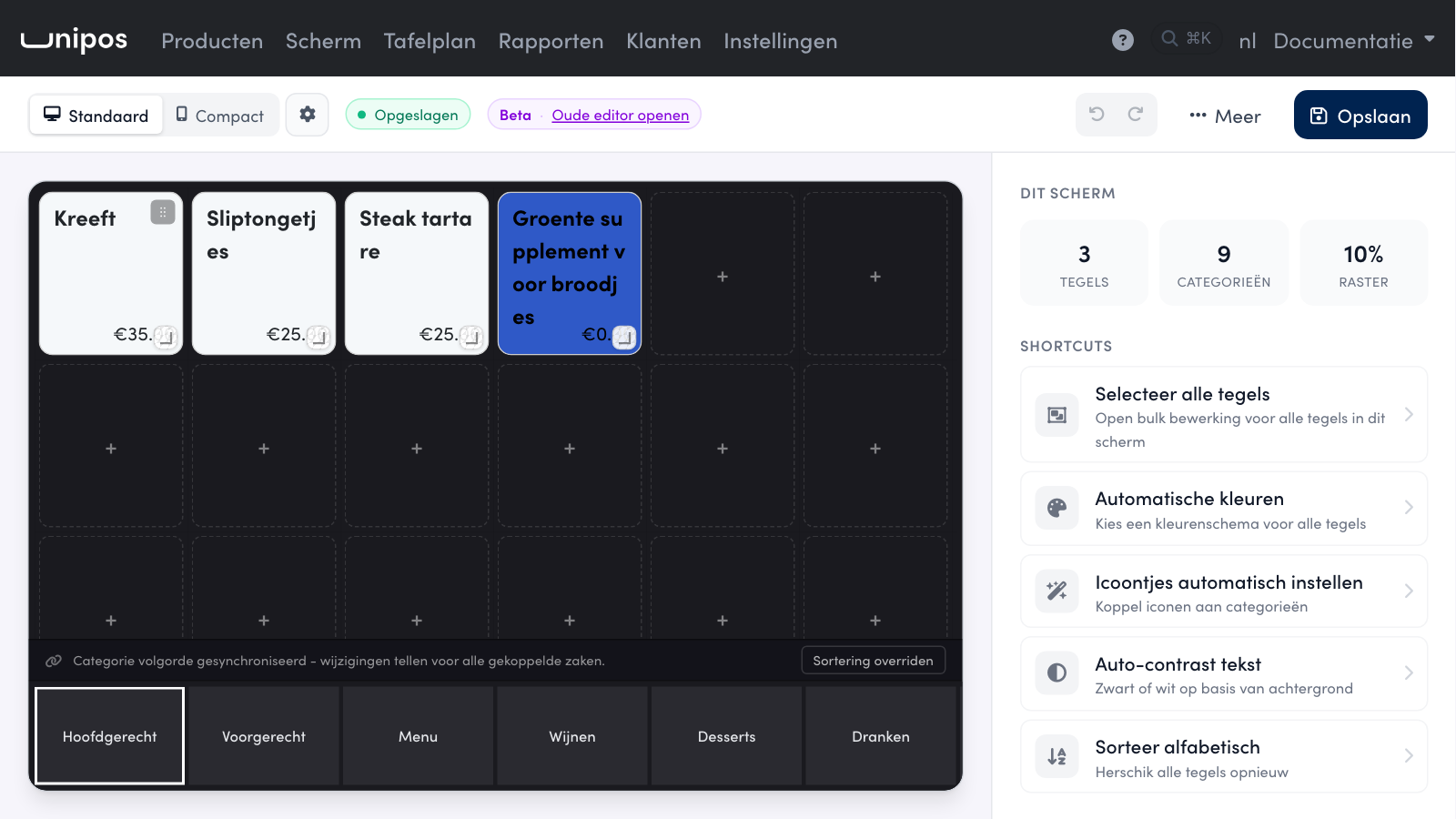
In the management page, open the navigation bar and click Screen (Scherm).
Click the product tile.
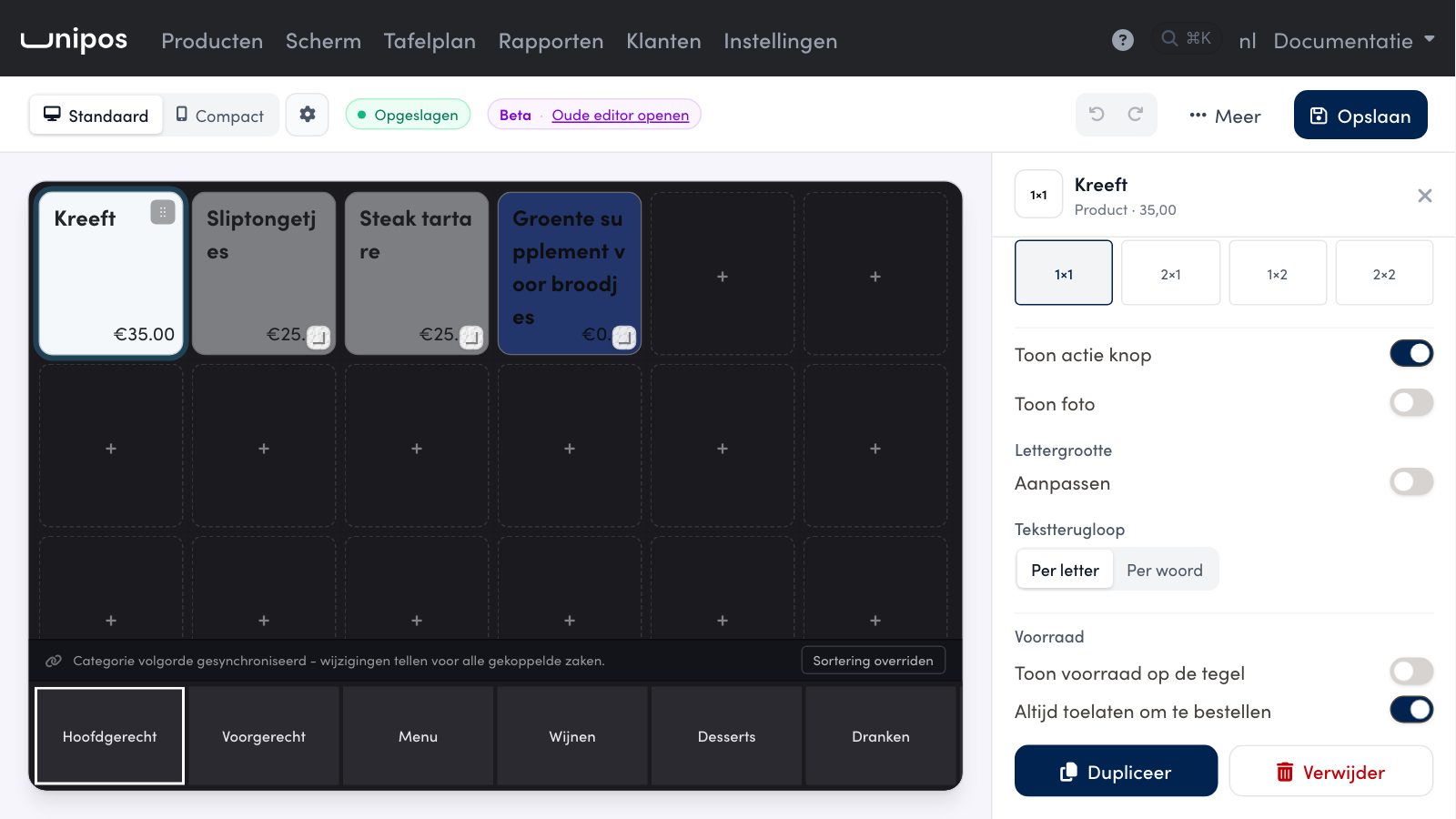
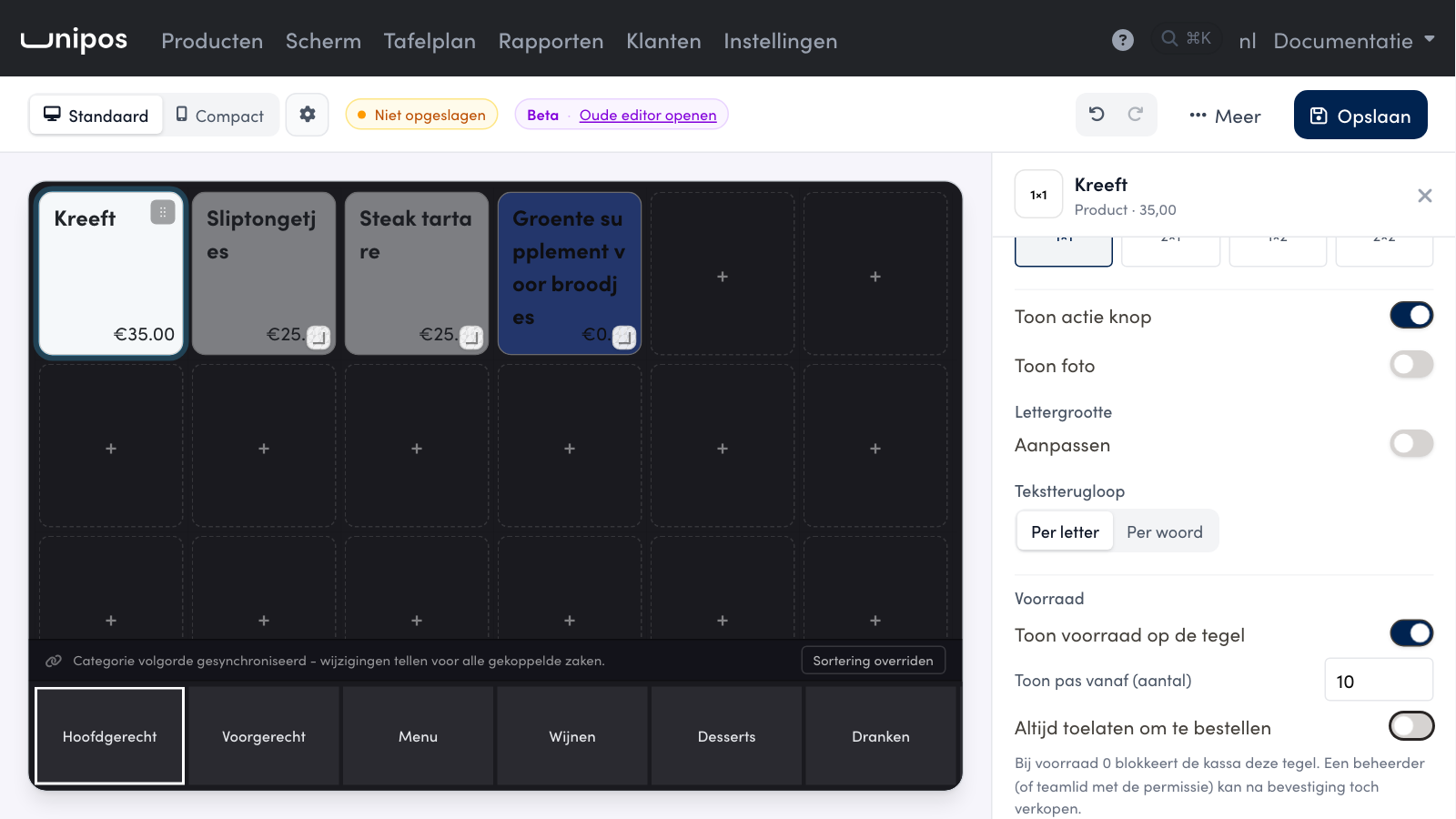
At the bottom on the right, the Stock (Voorraad) section appears. Turn on Show stock on the tile (Toon voorraad op de tegel).
If you want, fill in Only show from (quantity) (Toon pas vanaf (aantal)) and choose whether Always allow ordering (Altijd toelaten om te bestellen) stays on.
At the top, click Save.
Show stock on the tile: the POS shows the number of pieces on the tile.
Only show from (quantity): the number only appears once the stock has dropped to this number. If you enter 10, the tile shows nothing at 25 pieces and does show a number at 10 pieces or fewer. If you leave the field empty (Always (Altijd)), the number is always shown.
Always allow ordering: if this is off, the POS blocks the tile when the stock is 0. An administrator or a team member with the permission can still sell after a confirmation.
The Stock section only appears for a product tile, and only if you use stock management.
Tip
You don't set the safety margin on the tile, but on the stock item itself: open Producten and then Stock, and fill in Minimum stock level (Minimum voorraadniveau) for the stock item. If the stock drops to that level, the product is automatically taken out of sale, even if the number on the tile is still higher.
Who can still sell when the stock runs out#
If Always allow ordering is off, the POS blocks the tile at 0. A team member with the permission May still ring up sold-out products (Mag uitverkochte producten toch aanslaan) sells the product anyway after a confirmation. Team members with the administrator role can always do this.
The permission is off by default. You turn it on per team member via Settings, Team, in the Sale group. You can read more about team members in Managing cashiers.
What a cashier and an admin then see at the till is explained in The stock counter on the till.
Good to know
The number on the tile is a snapshot. Sales on another POS lower the number as soon as those receipts come through. So two POS devices can together sell the last pieces.
Frequently asked questions
Why don't I see the Stock section on a tile?
The section only appears for a product tile and only if you use stock management. Create your stock items via Producten, Stock and link them to your products.
The number does not show on the tile in the POS.
Check that Show stock on the tile is on. If there is a number in Only show from (quantity), the number only appears once the stock has dropped to that number. If you leave the field empty, the POS always shows the number.