The magnifying glass in the navigation bar opens the Search window. Use it to find products and customers, and on a direct sale also tables and tabs. At the top, choose where to search: All, Products, Tables, Tabs or Customers. On a table or tab order, Tables and Tabs are not shown.
Every word counts#
You don't need to type a name correctly in one go. Every word in your search must appear somewhere in the data. The order doesn't matter.
Sabatino finds Sabatino Masala.
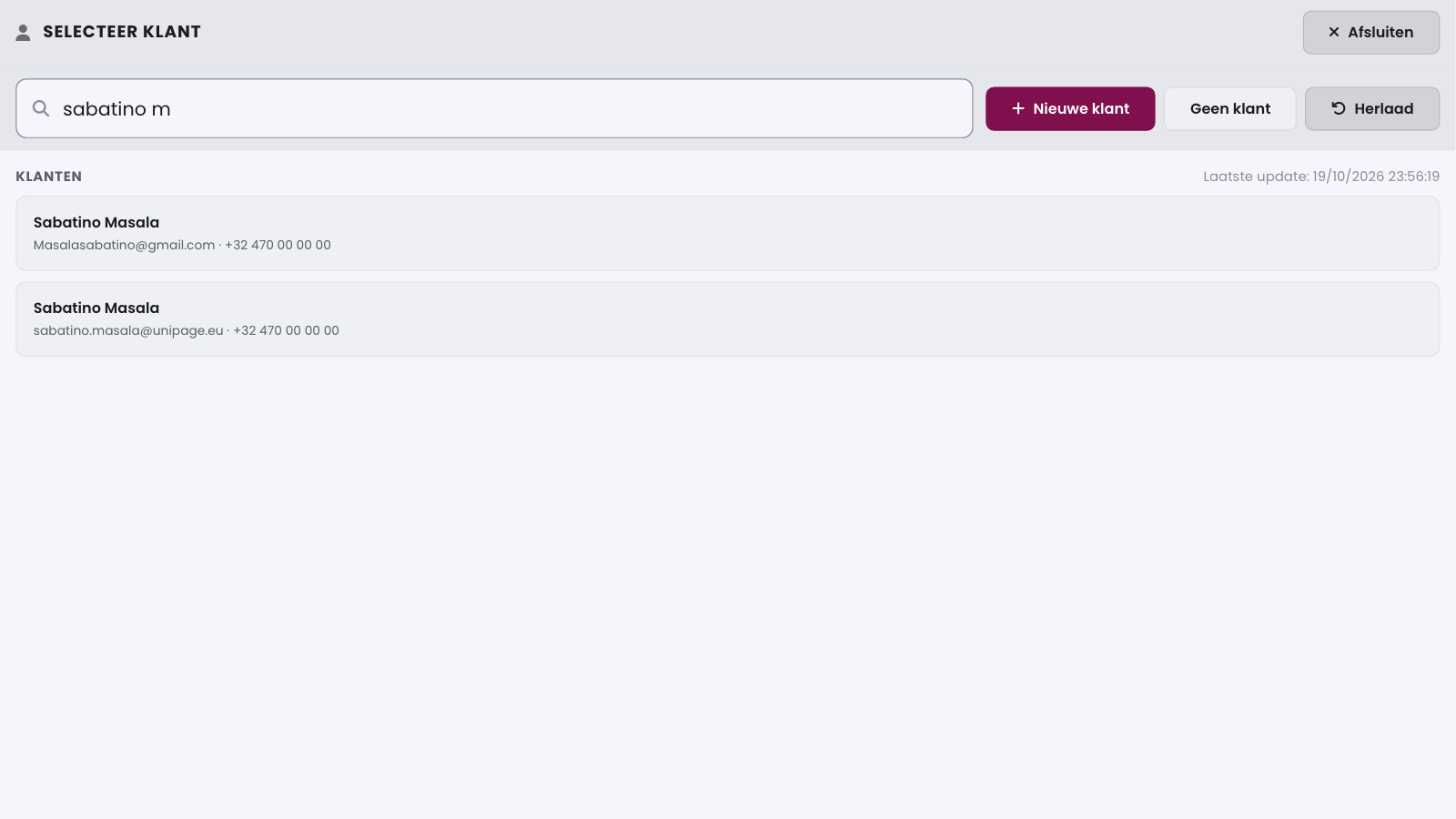
Sabatino M finds them while you're still typing.
masala sabatino finds them too, in reverse order.
sabatinomasala finds them without a space.
0470123456 finds the number 0470 12 34 56.
A word of one or two letters next to other words must be at the start of a word. So sabatino m finds the name Masala, and not every customer with an m somewhere in their e-mail address. A digit can appear in the middle of a number. Capitals and accents don't matter: cafe finds Café.
The best match comes first#
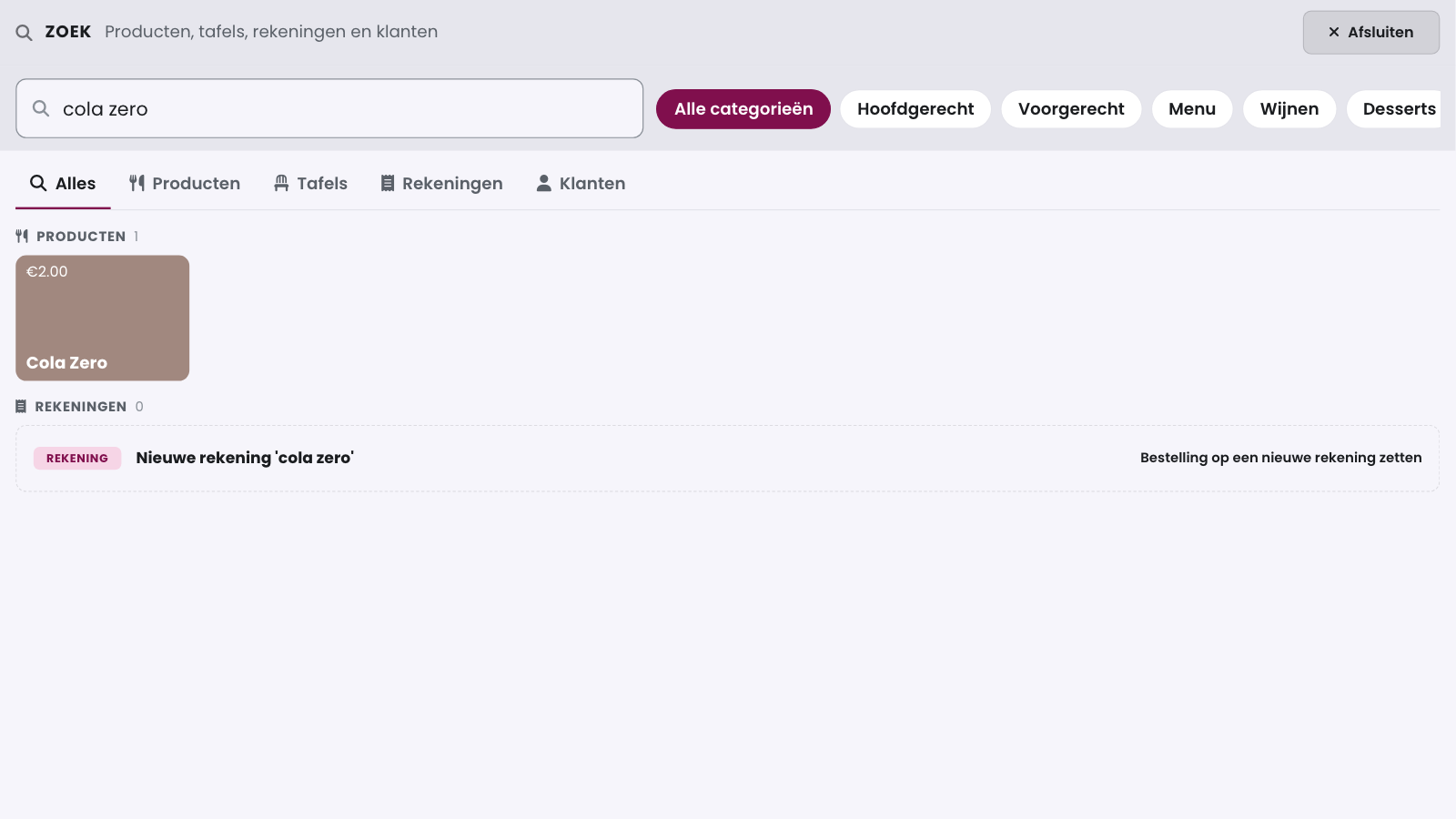
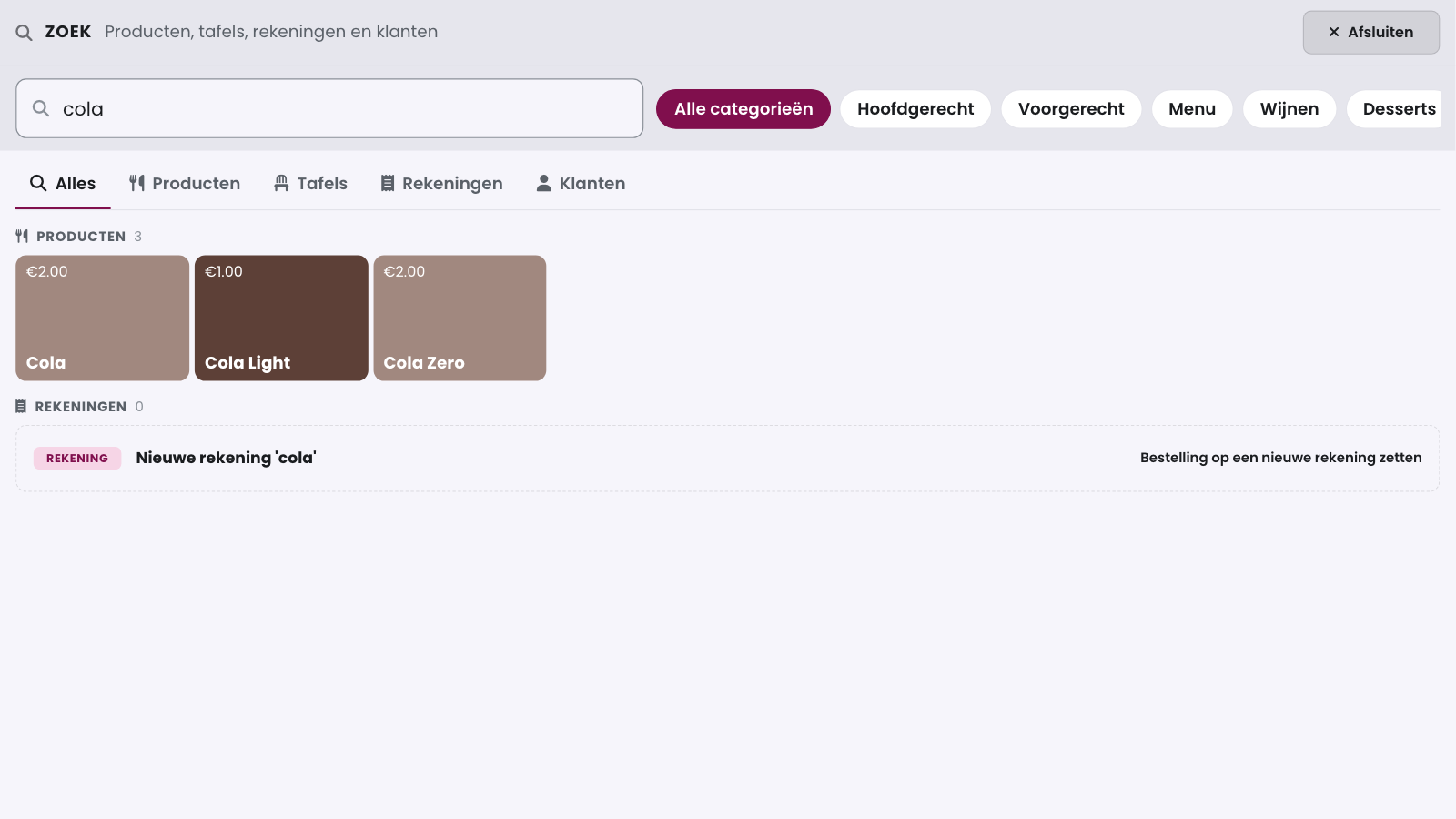
The POS ranks the results. A whole word ranks above a word that starts with your search, and that ranks above a piece of text in the middle of a word. A hit in the name counts double. If you type cola, Cola comes first, then Cola Light and Cola Zero.
Good to know
A typo is not a problem if nothing is found exactly: sabatnio finds Sabatino. The POS does not do this for numbers, barcodes and phone numbers.
Warning
With the scanner or with Enter, the POS only adds a product if exactly one product matches. A product that only matches because of a typo stays in the list: tap it yourself.
Searching for a customer#
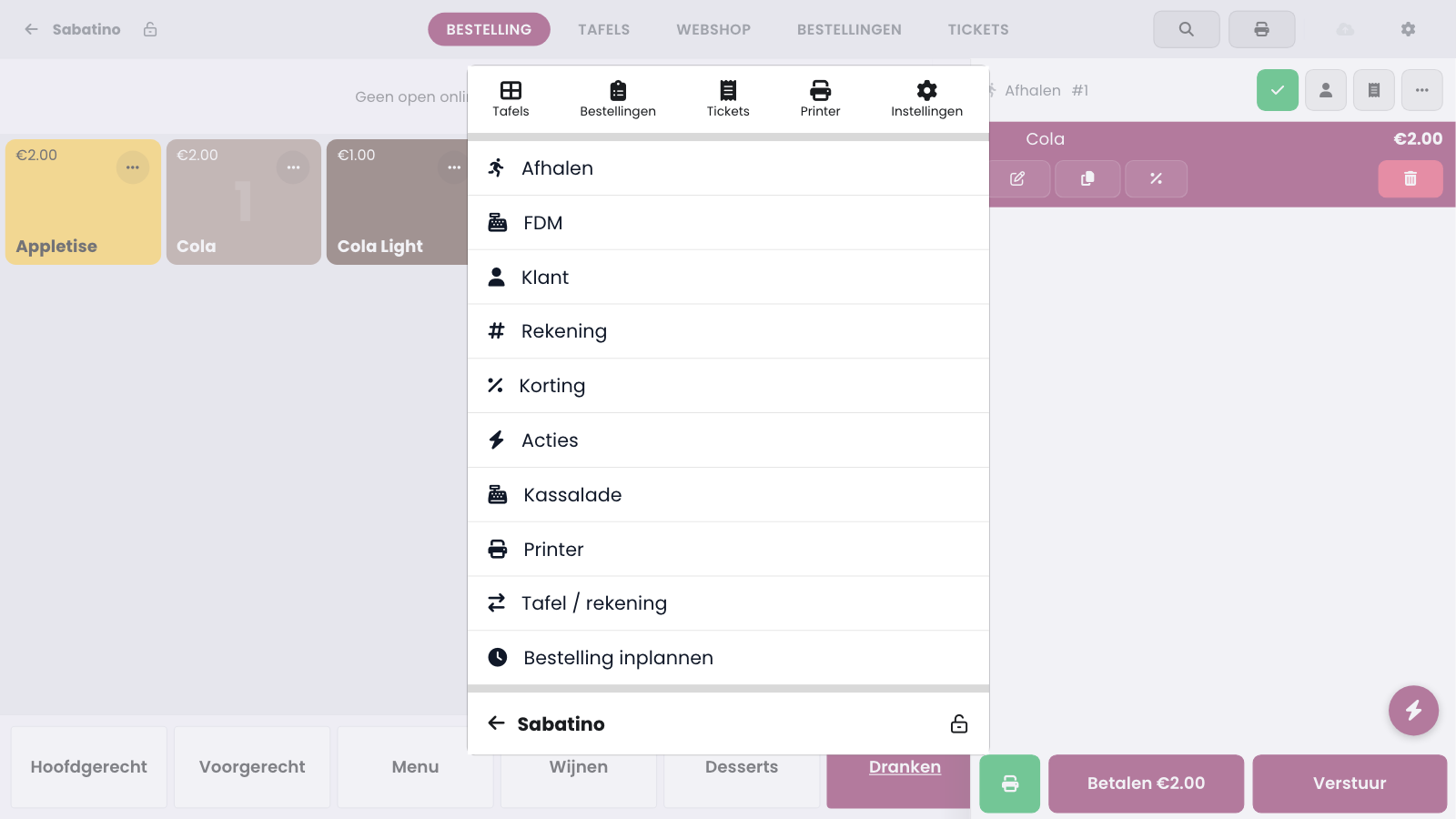
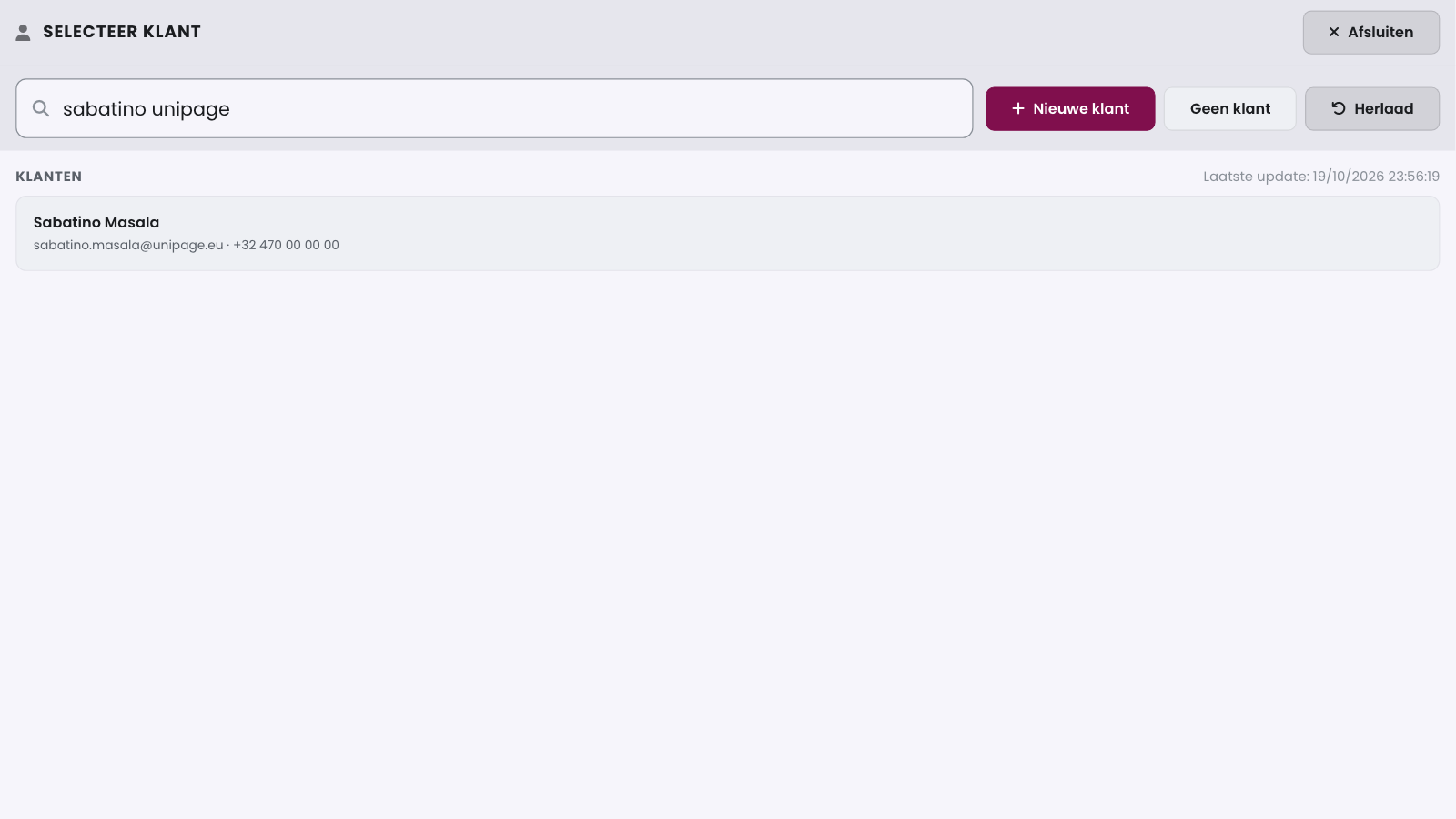
In the sales buffer, tap the customer button, or open the action menu (the three dots) of the order and tap Customer. Type part of the name, the e-mail address or the phone number. The POS searches the name, company name, e-mail address, phone number, NFC card or barcode and VAT number. Tap the customer to link them to the order. You can read more about customers on the POS in Customers.
Frequently asked questions
Do I have to type the name exactly?
No. Every word must match, but the order and the spaces don't matter. Sabatino M finds Sabatino Masala while you type.
Does searching work with accents too?
Yes. Café and cafe find each other.
Why is one customer above another?
The POS puts the best match first: a whole word, then the start of a word, then a piece in the middle. A hit in the name counts double.
Can I search by phone number?
Yes, with or without spaces: 0470123456 finds 0470 12 34 56.