A production centre is a display in your kitchen: the bar, the hot side, the pick-up counter. How to start a kitchen display and what you do with it is explained in Kitchen display (KDS). This page explains how orders flow over your displays: one after the other, or at the same time with a wait between them.
In the management page the labels of this screen are in Dutch; we quote them as they appear.
Setting it up#
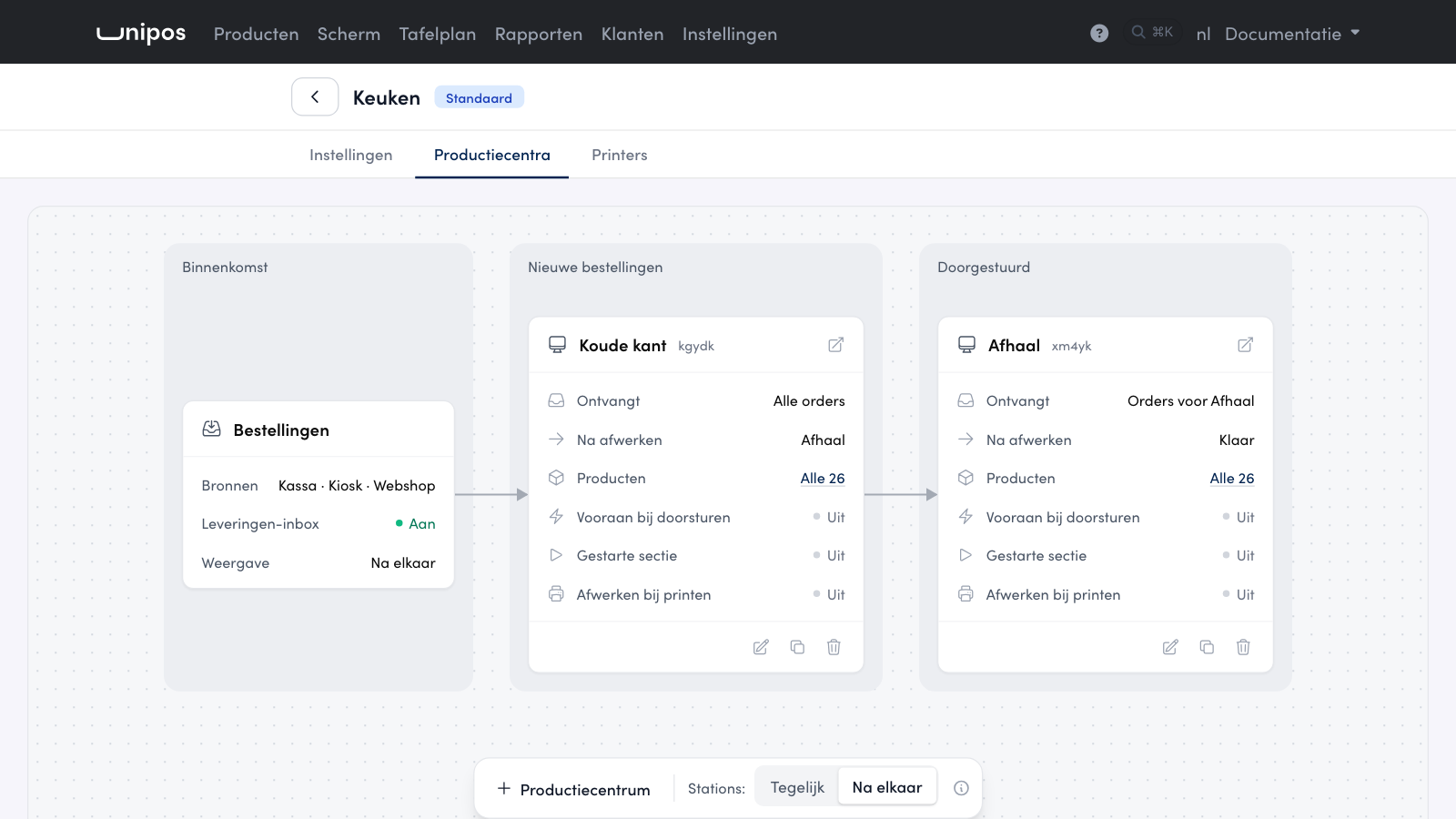
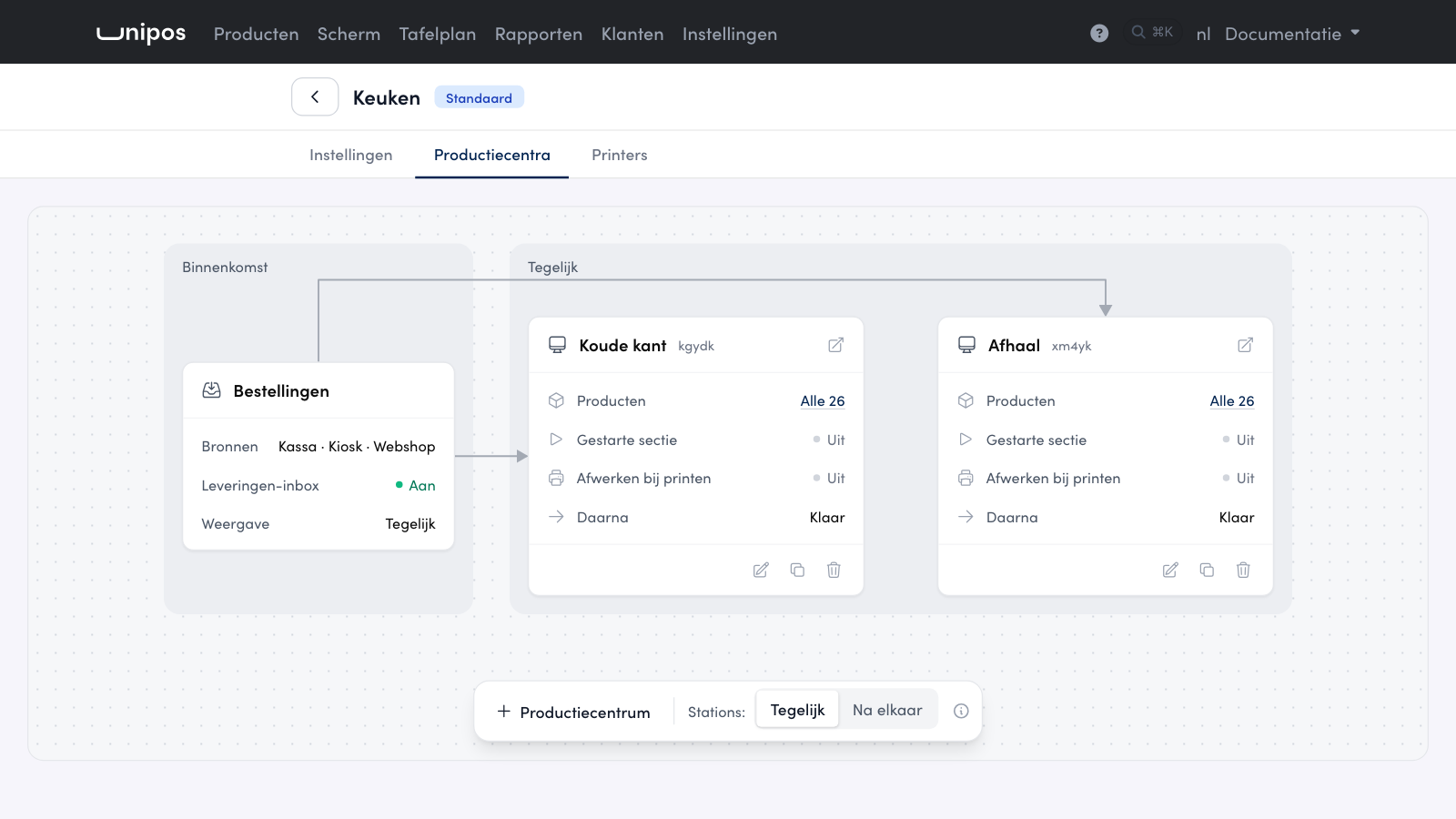
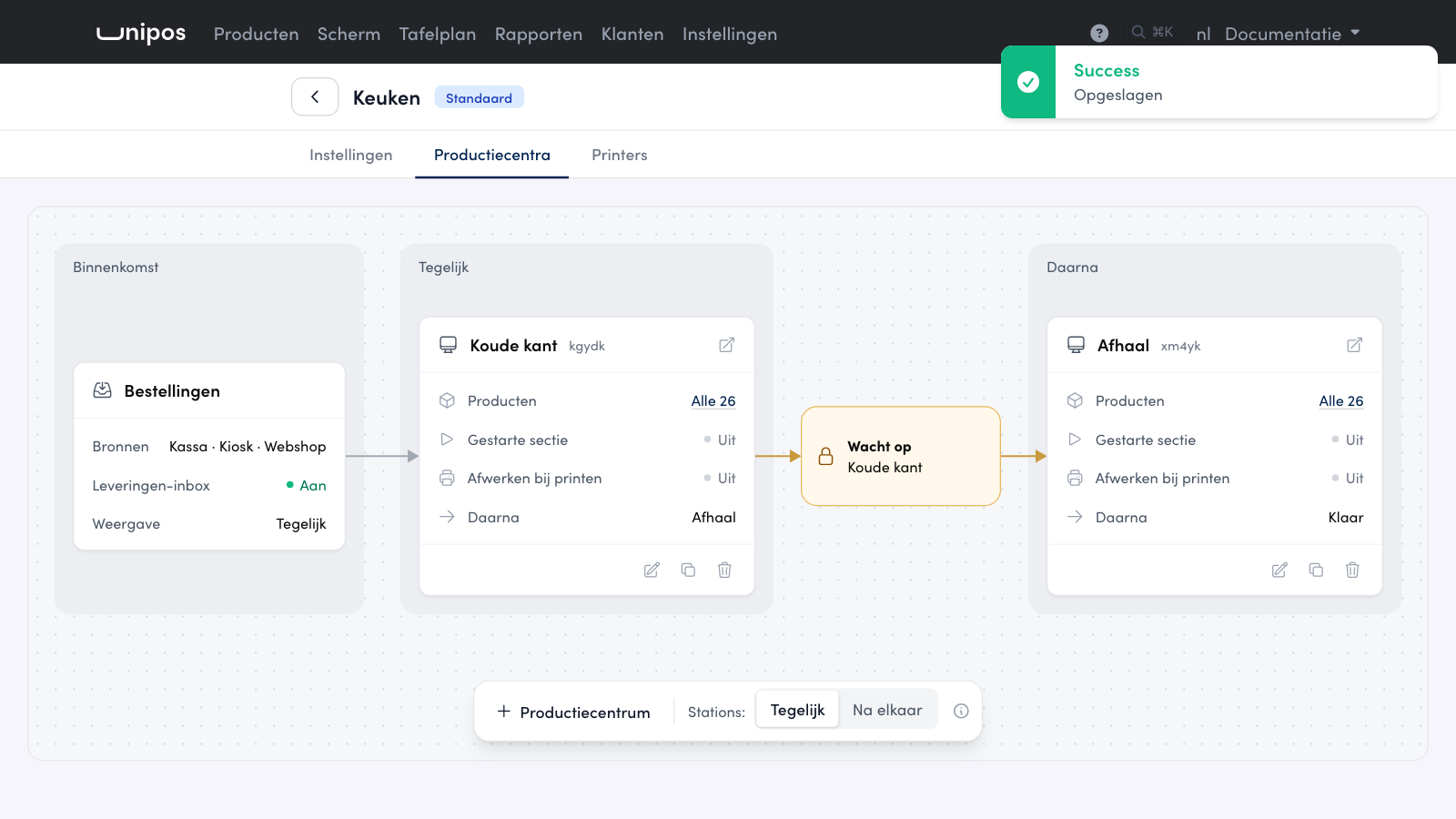
In the management page, go to Settings > Keukenschermen and open your configuration. Go to the Productiecentra tab. You see all your displays on a canvas, with the orders on the left.
In the toolbar at the bottom, choose the mode next to Stations::
Na elkaar (one after the other): an order goes from display to display. Per display you set this with Filter and Status na afwerken.
Tegelijk (at the same time): every display gets its own part of the order right away. With Wacht op you make a display wait until other displays are done.
The mode is saved as soon as you click it.
How a wait works#
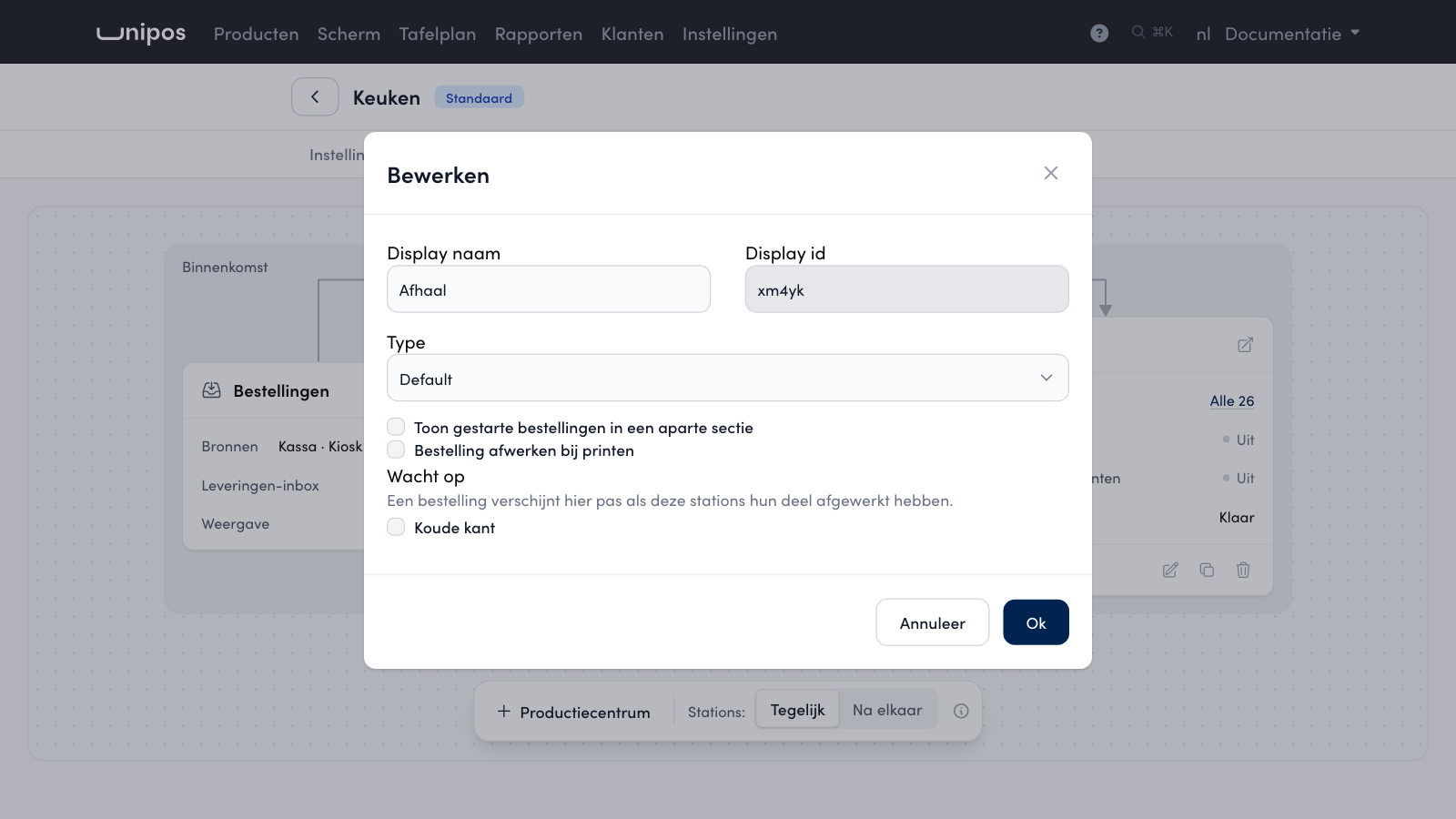
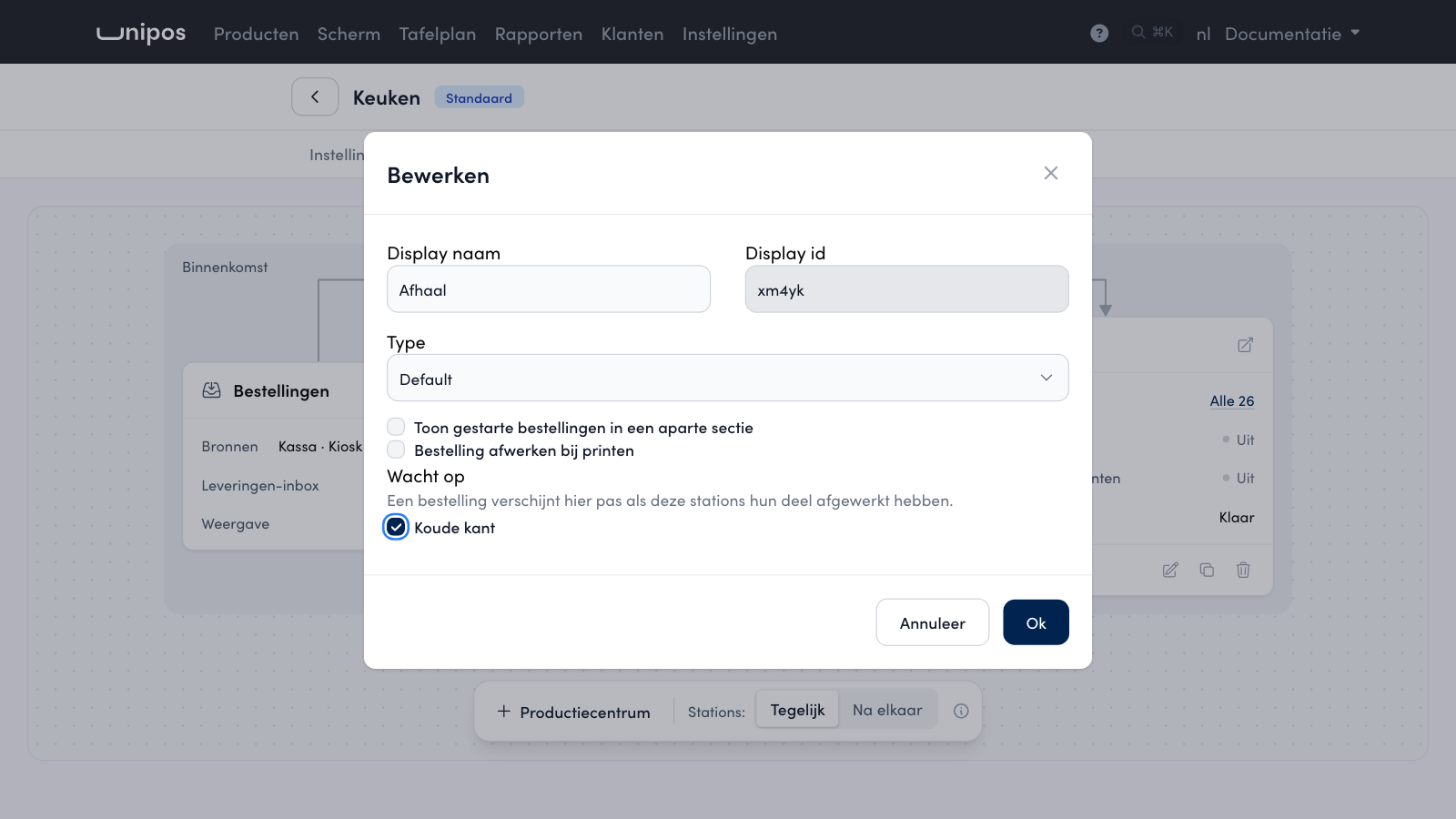
An example: you work with a cold side and a hot side, and everything comes together at the pick-up counter. Set the mode to Tegelijk and, for Afhaal, tick under Wacht op the displays it has to wait for, for example Koude kant and Warme kant. The salad and the steak then show up right away on their own display. Afhaal only gets the order once both sides have finished their part.
On the canvas, click the name of the display that has to wait, or the pencil at the bottom of its card. The Bewerken window opens.
Under Wacht op, tick the displays it has to wait for.
Click Ok.
The canvas shows the wait as a yellow card between the displays. In this mode every display also shows Daarna: the displays that wait for it, or Klaar.
Tip
Give the display behind the wait all products, so it sees the complete order. The displays before it only get their own products. How to set this up is explained in Turn products on or off per printer or kitchen display.
On the kitchen display#
At the top of the kitchen display, next to the name of a display behind a wait, you see how many orders are waiting for it, for example 1 in afwachting (1 waiting). As soon as the other displays finish their part, the order moves to that display by itself. You do not have to send anything on.
Complete on print#
Tick Bestelling afwerken bij printen for a display if printing the ticket should also complete the order. The display then completes the order as soon as the printer accepts the ticket. If a course is still on hold, the order stays and you see a notice.
Frequently asked questions
What happens if two displays wait for each other?
That is not possible: the management page never saves a loop. The wait that would close the loop is not saved.
Do I see a change on my kitchen displays right away?
A kitchen display reads its settings when it opens. Reload a display that is already open, and it sees a new display or a new wait.
Do my filter and status disappear when I choose Tegelijk?
No. Filter and Status na afwerken are only hidden and stay saved. Set the mode back to Na elkaar and they work as before again.