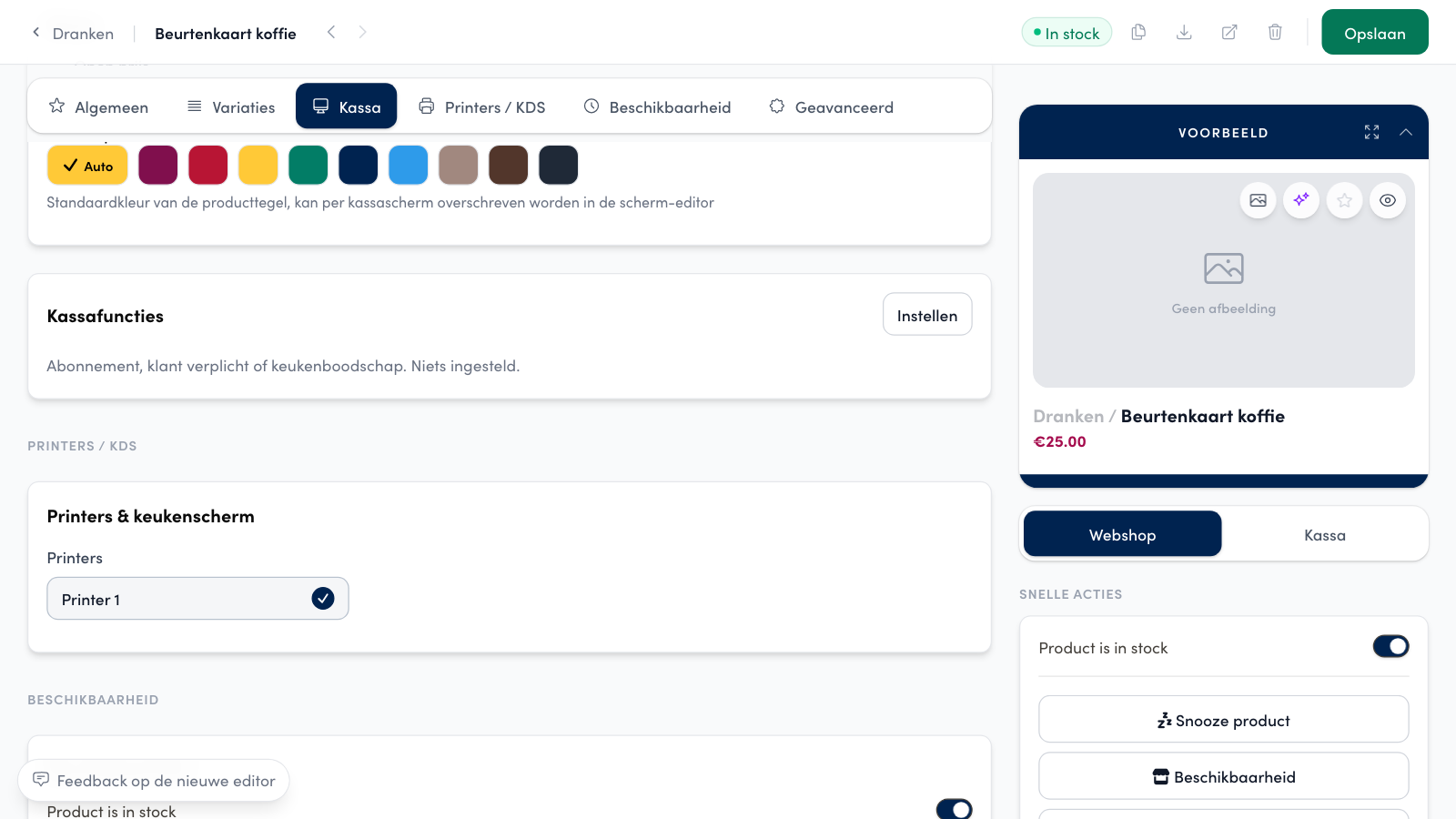
Till functions (Kassafuncties) are product properties that only the till uses. You set them per product, in the Kassa section of the product editor.
How it works#
In the management page, open the product overview and open the product.
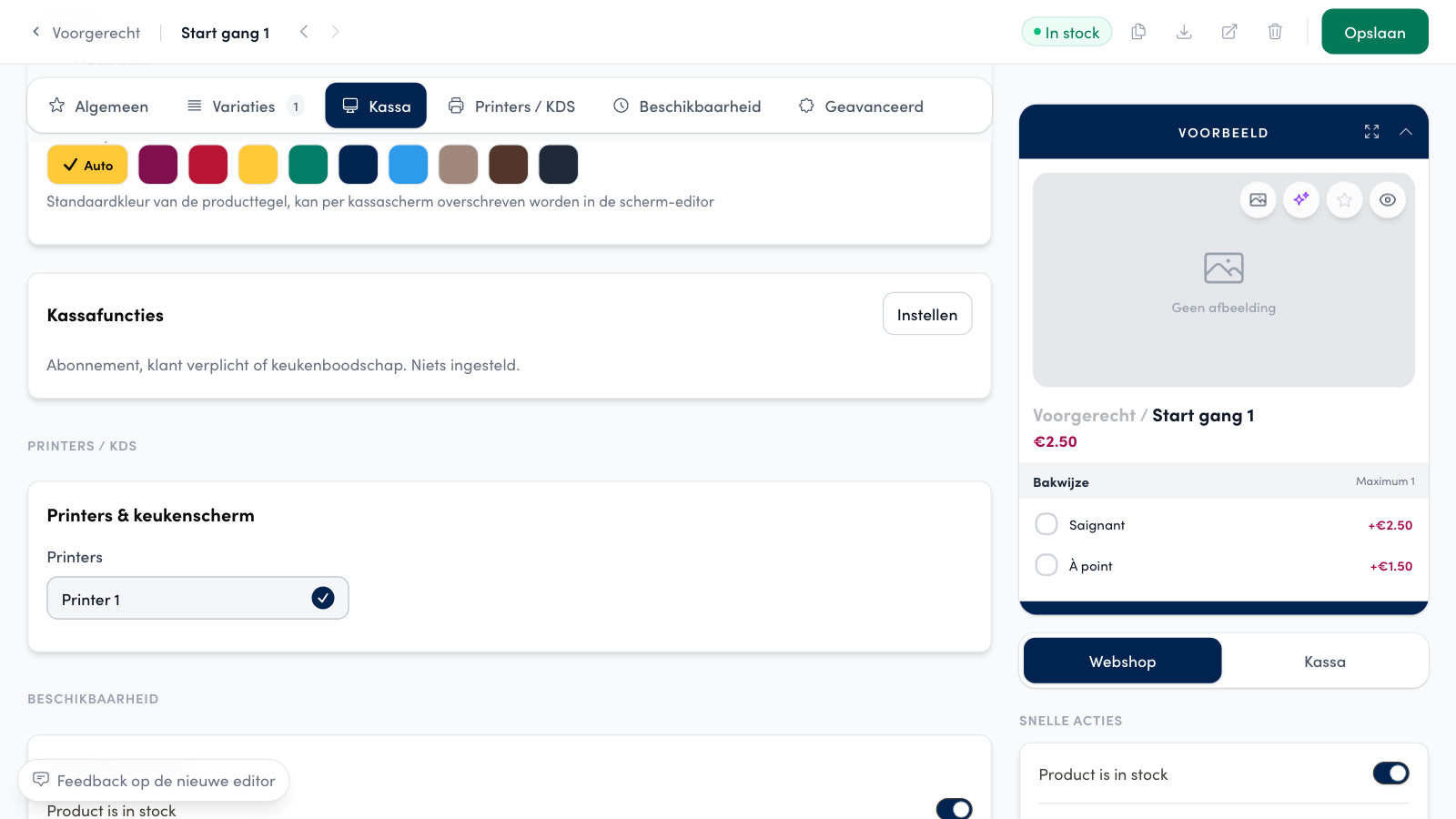
At the top of the editor, choose Kassa and, at Kassafuncties, click Instellen (set up).
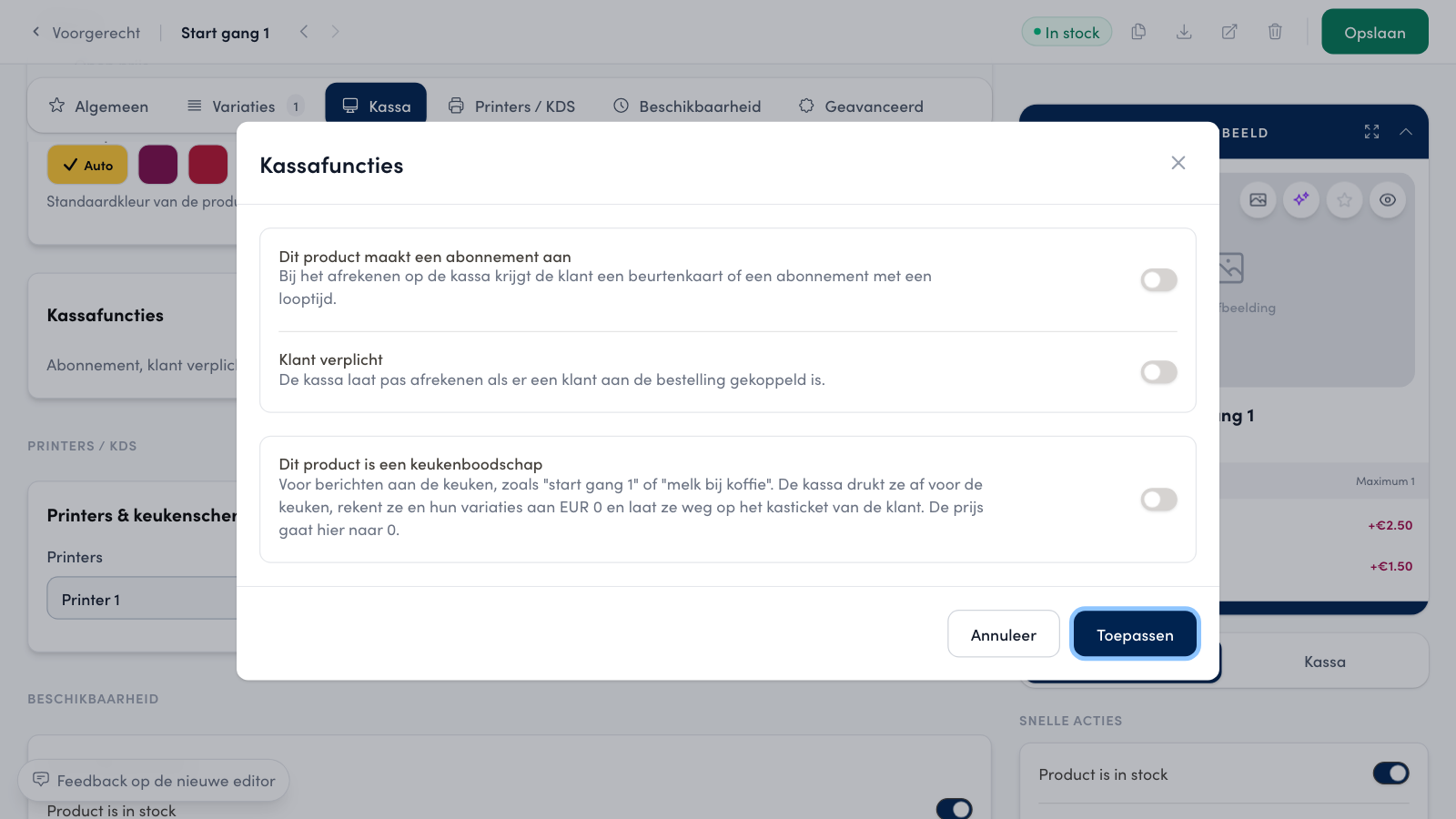
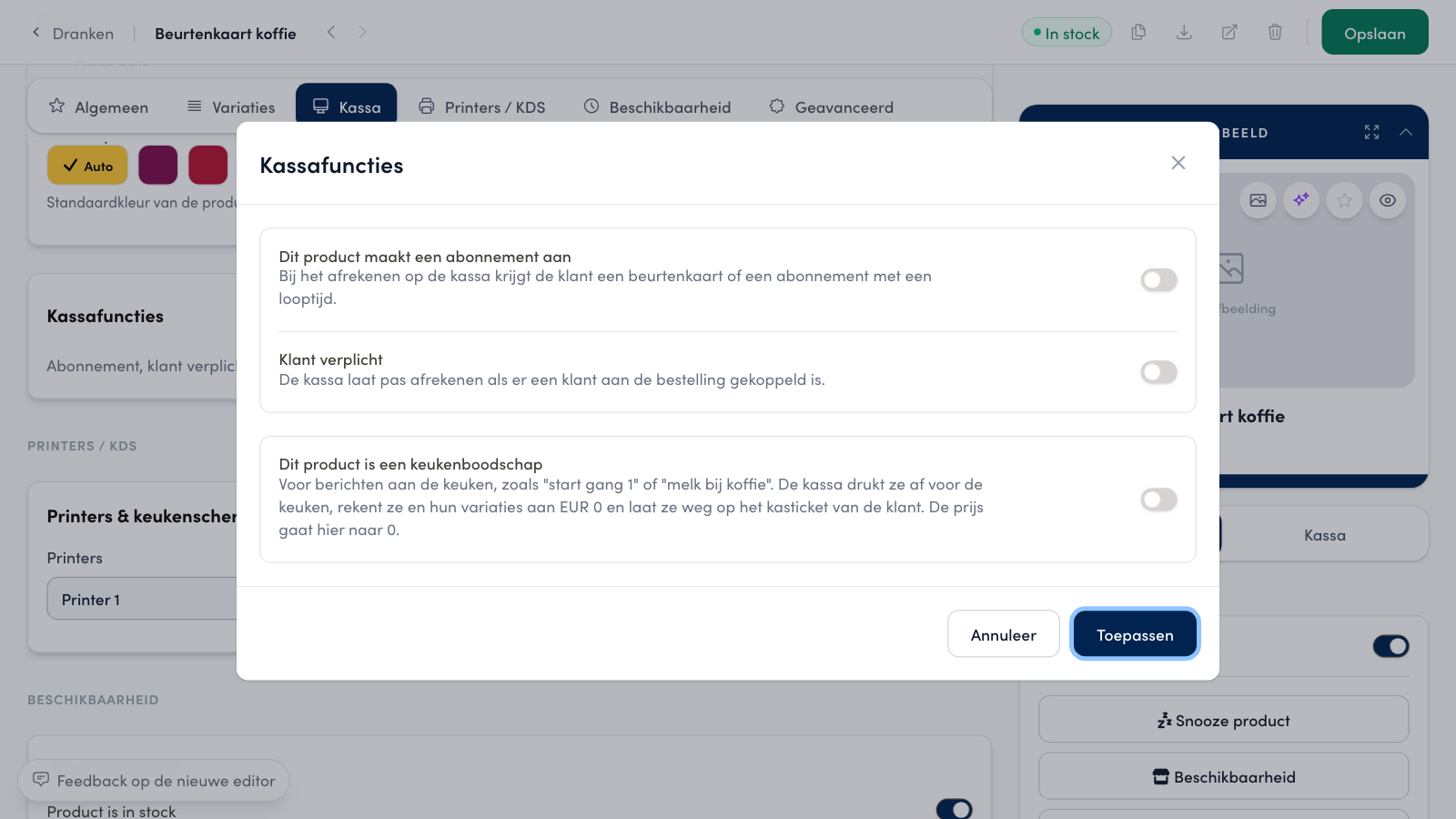
Turn on what you need and click Toepassen (apply).
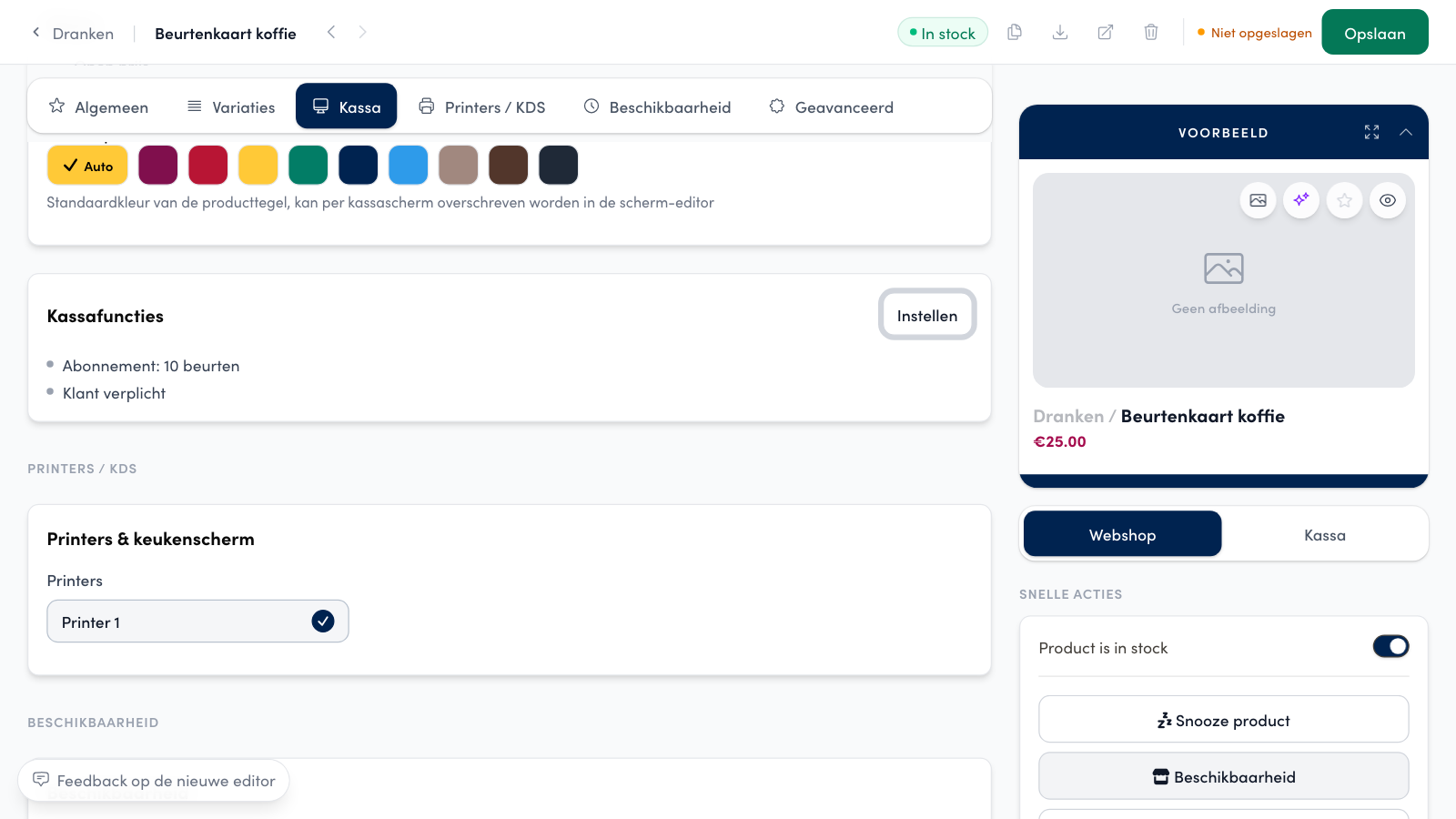
Click Save. The Kassafuncties card then lists what is set.
Setting up a kitchen message#
A kitchen message (keukenboodschap) is a product that only serves the kitchen, such as "start gang 1" (fire course 1) or "milk with the coffee". The till prints the line for the kitchen and charges it, with its variations, at 0 euro. The line does not appear on the customer's receipt.
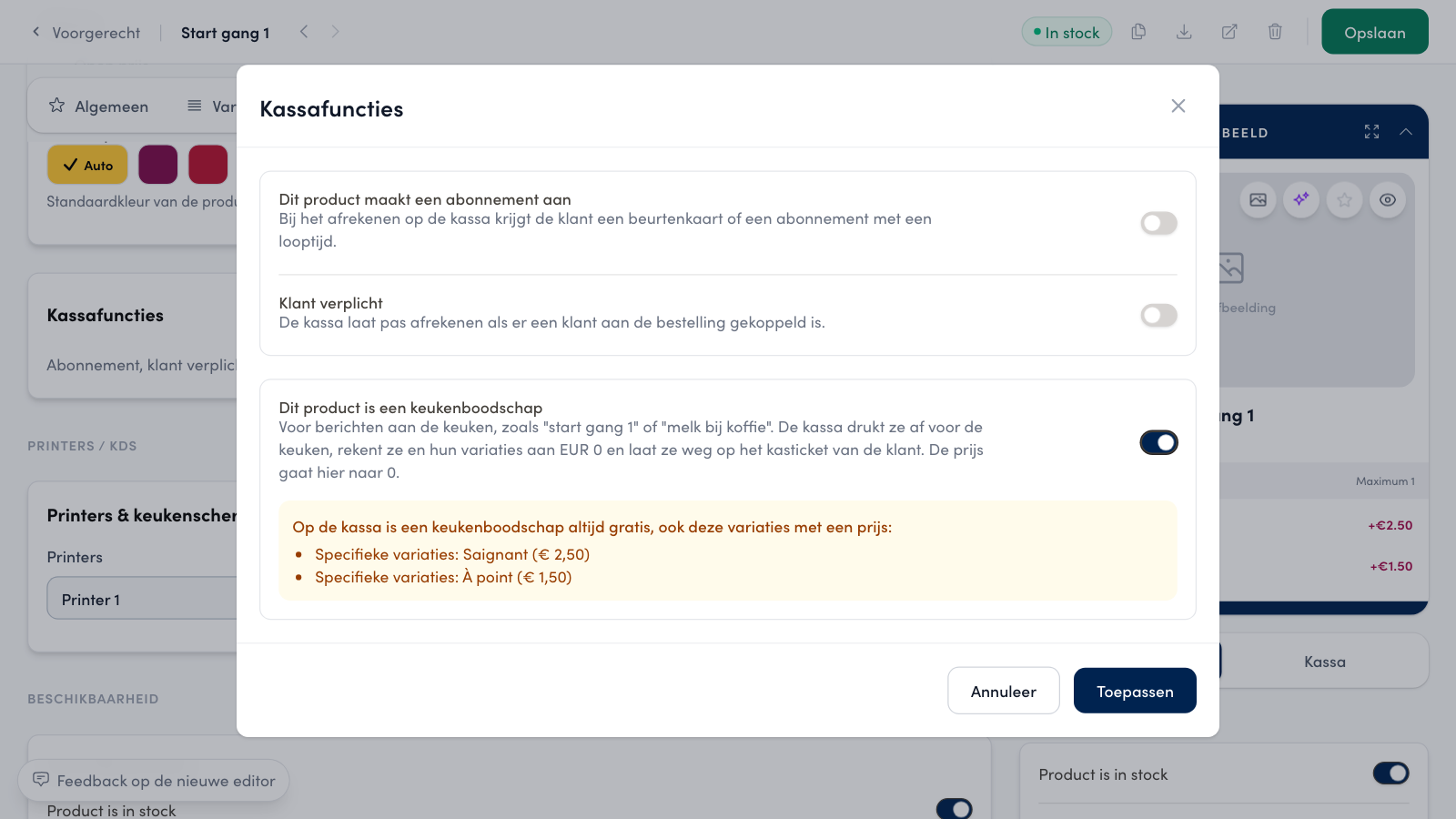
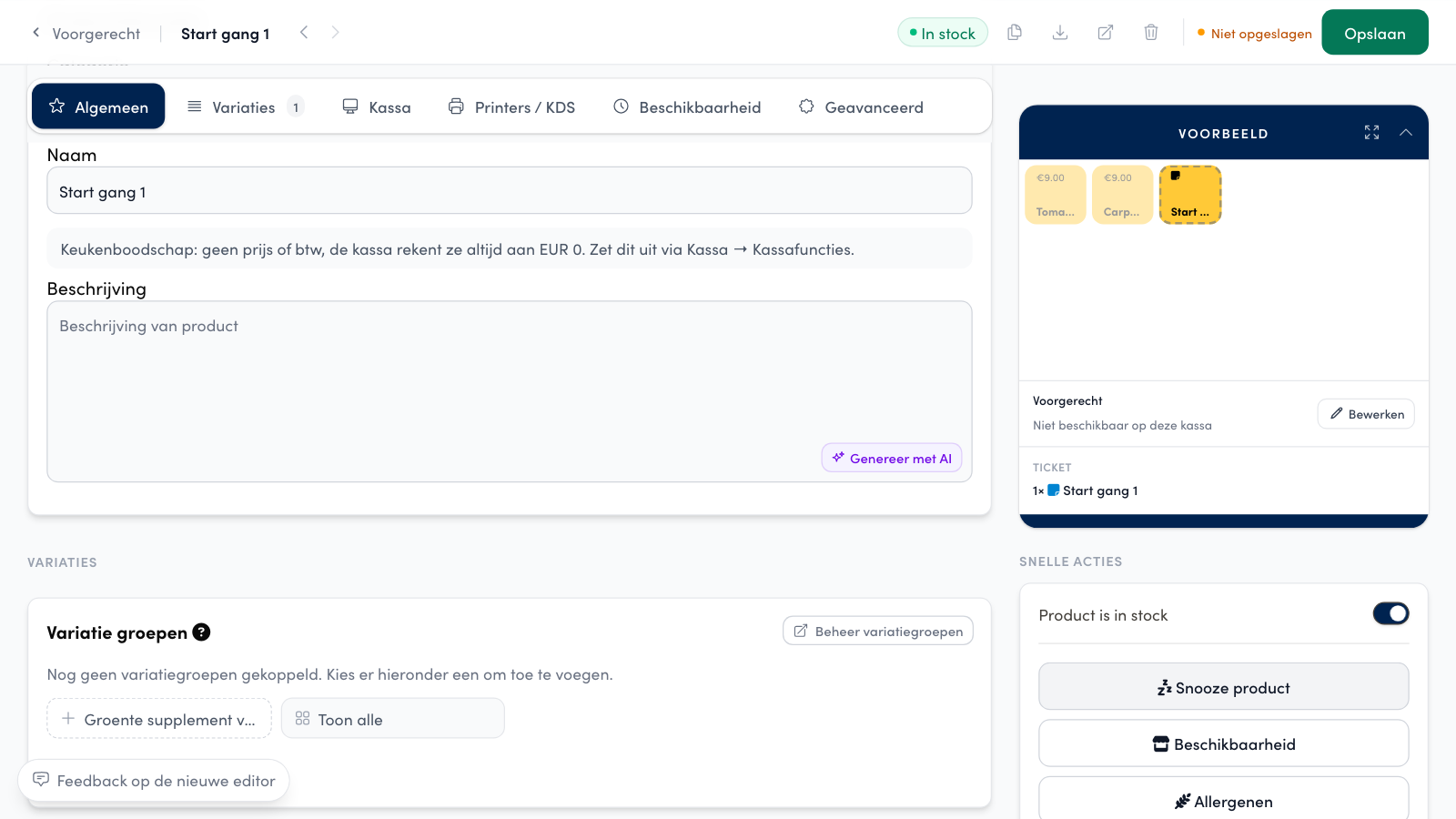
Turn on Dit product is een keukenboodschap (this product is a kitchen message) and click Toepassen. The price goes to 0 and the price and VAT fields disappear from the editor. Variations with a price remain, but they are free on the till for a kitchen message. The window lists them so you know which ones they are.
Warning
Do you also sell the product in the webshop or on the kiosk? They do not know kitchen messages: they charge the product and its variations as they are set up. A kitchen message belongs at the till.
Setting up a membership or punch card#
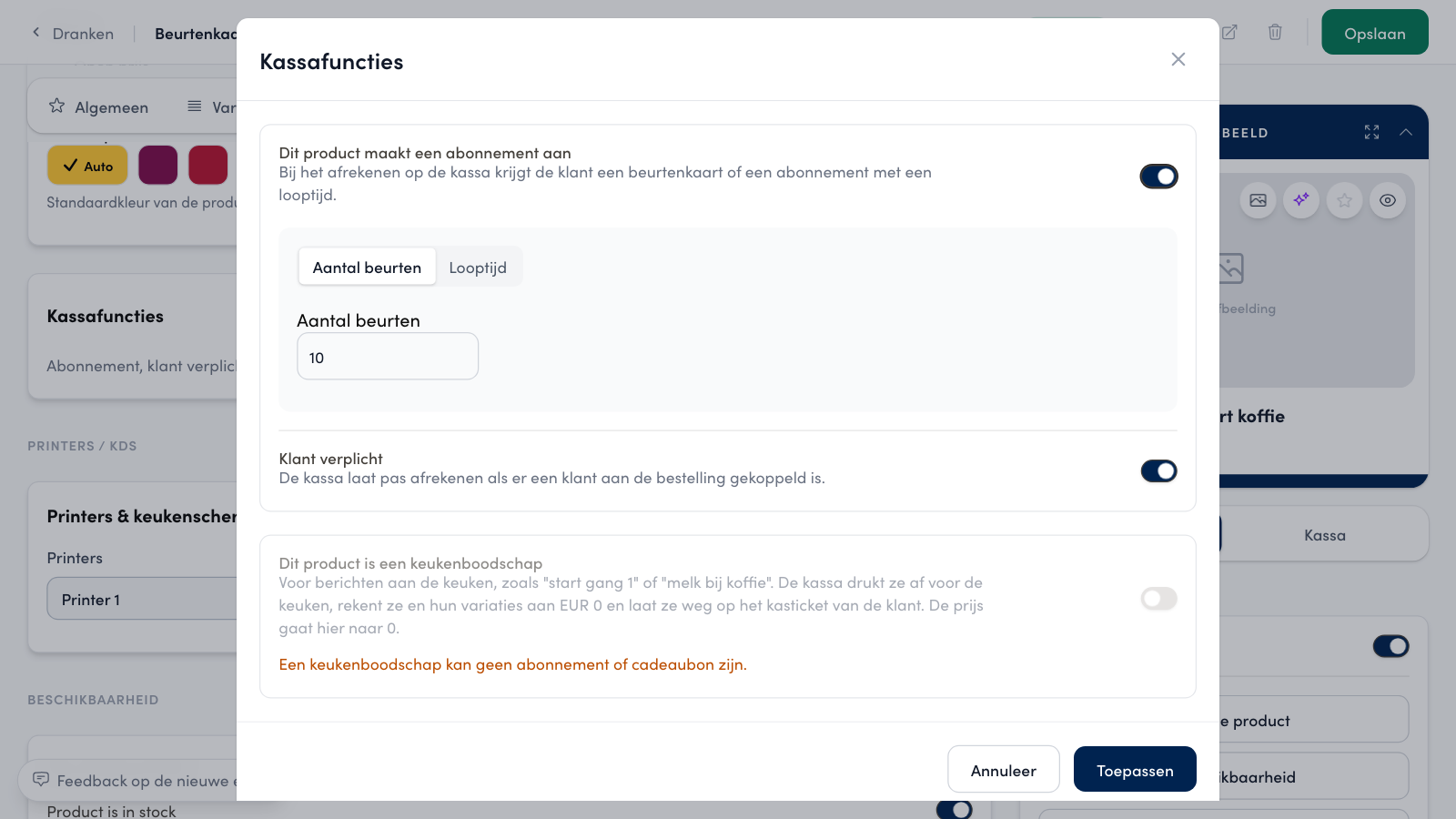
Turn on Dit product maakt een abonnement aan (this product creates a membership). Choose Aantal beurten (number of visits) and enter a whole number, or choose Looptijd (duration) and enter a number of days, weeks, months or years. If there is a customer on the order, the till creates the membership at checkout. How your customers then use their card is explained in Membership cards and subscriptions.
Klant verplicht (customer required) turns on with it, so the till only checks out when there is a customer on the order. If you turn it off, the till creates no membership without a customer: the product is then simply sold.
Customer required#
Turn on Klant verplicht to require a customer on the order before you can check out. This also works without a membership, for example for an order in a customer's name.
Frequently asked questions
Why can't I turn on the kitchen message?
A kitchen message cannot be a membership or a gift voucher. First turn off Dit product maakt een abonnement aan, or use another product.
The window shows an existing setting it does not recognise. What happens to it?
That setting stays unchanged until you choose a number of visits or a duration. So nothing changes in what the till does today.