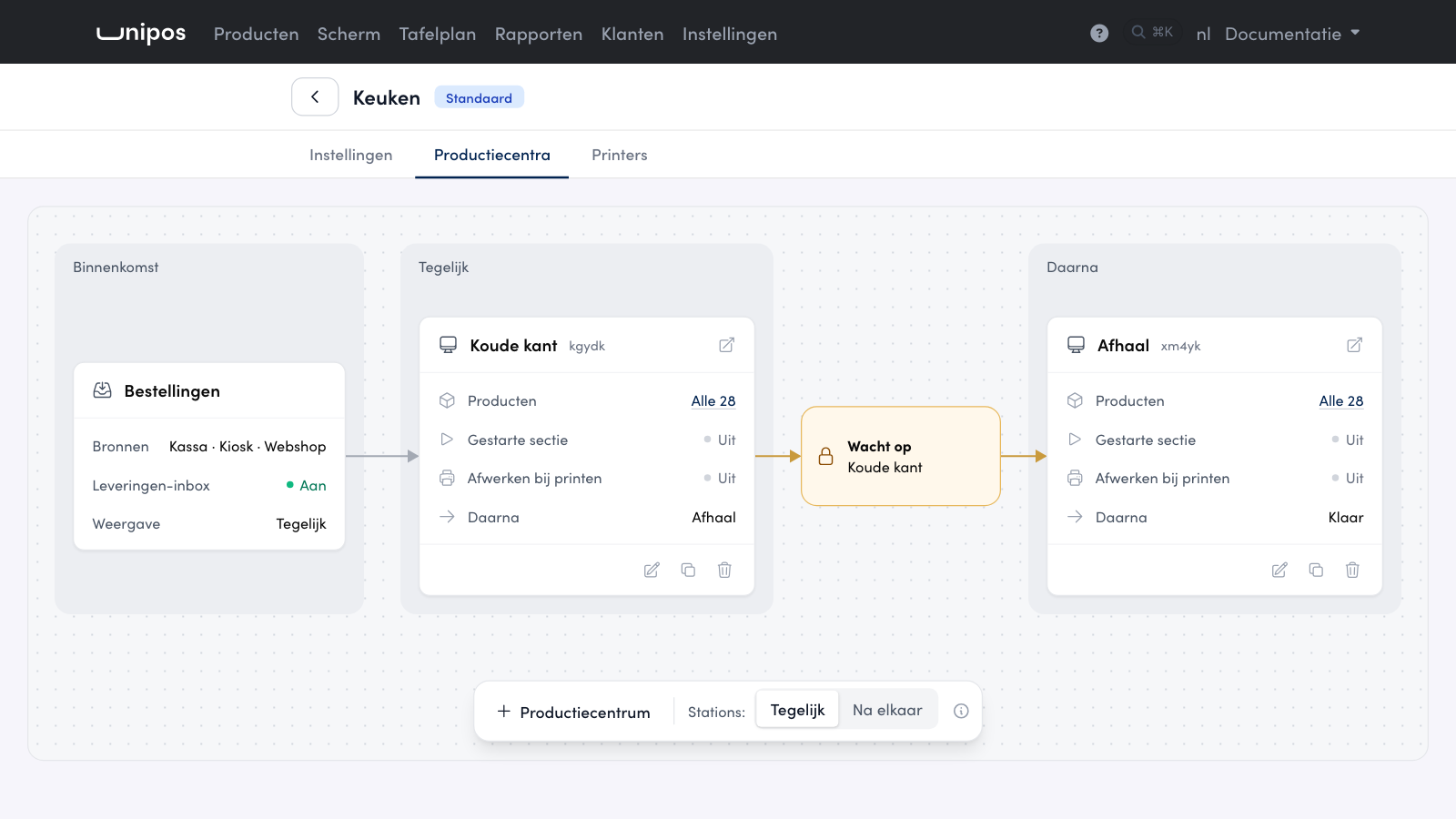
In the management page, open Instellingen > Keukenschermen (Settings > Kitchen displays) and click the configuration of your kitchen display. Go to the Productiecentra (production centres) tab. Every production centre has a Producten (products) row. It says Alle 28 (all 28) when the screen shows every product, or for example 7 van 28 (7 of 28) when you have hidden products. The number depends on your business.
How it works#
Click the number in the Producten row of the production centre.
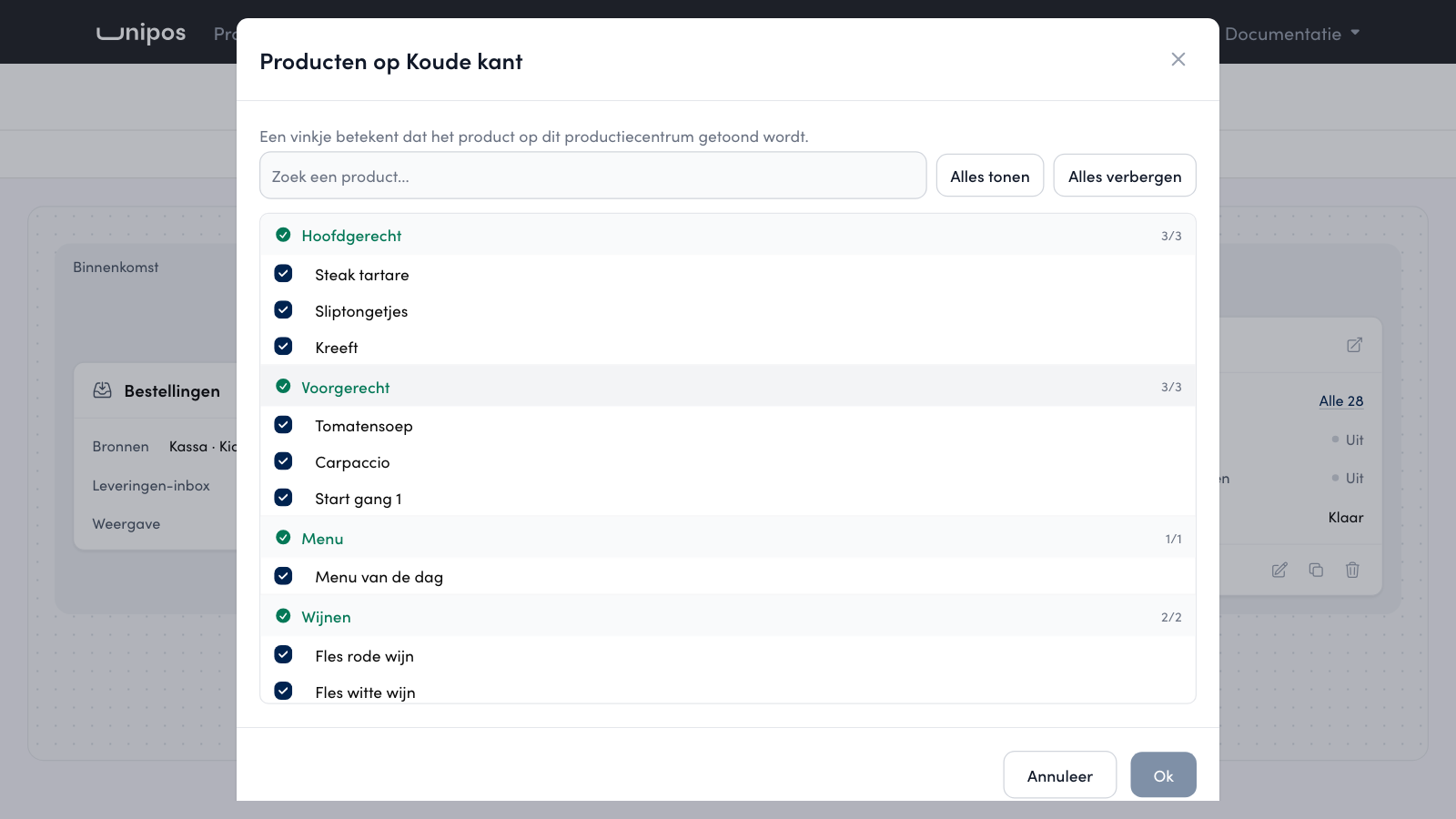
The window Producten op (products on) followed by the name of the production centre opens. Every product of the business is listed there, per category. A tick means the product appears on this production centre.
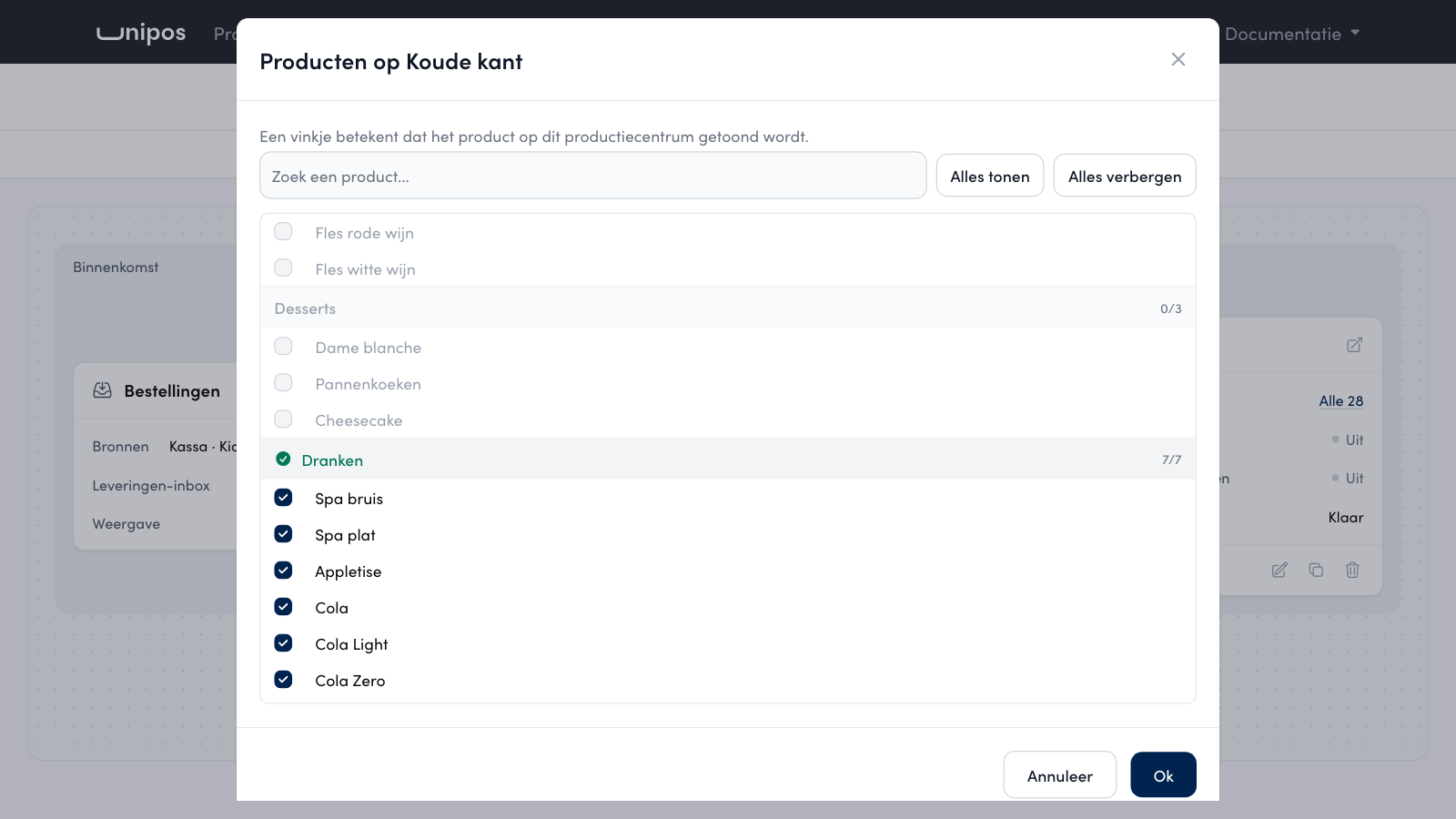
Tick what this production centre should show and untick what it should not show. Type in Zoek een product... (search a product) to find a product quickly.
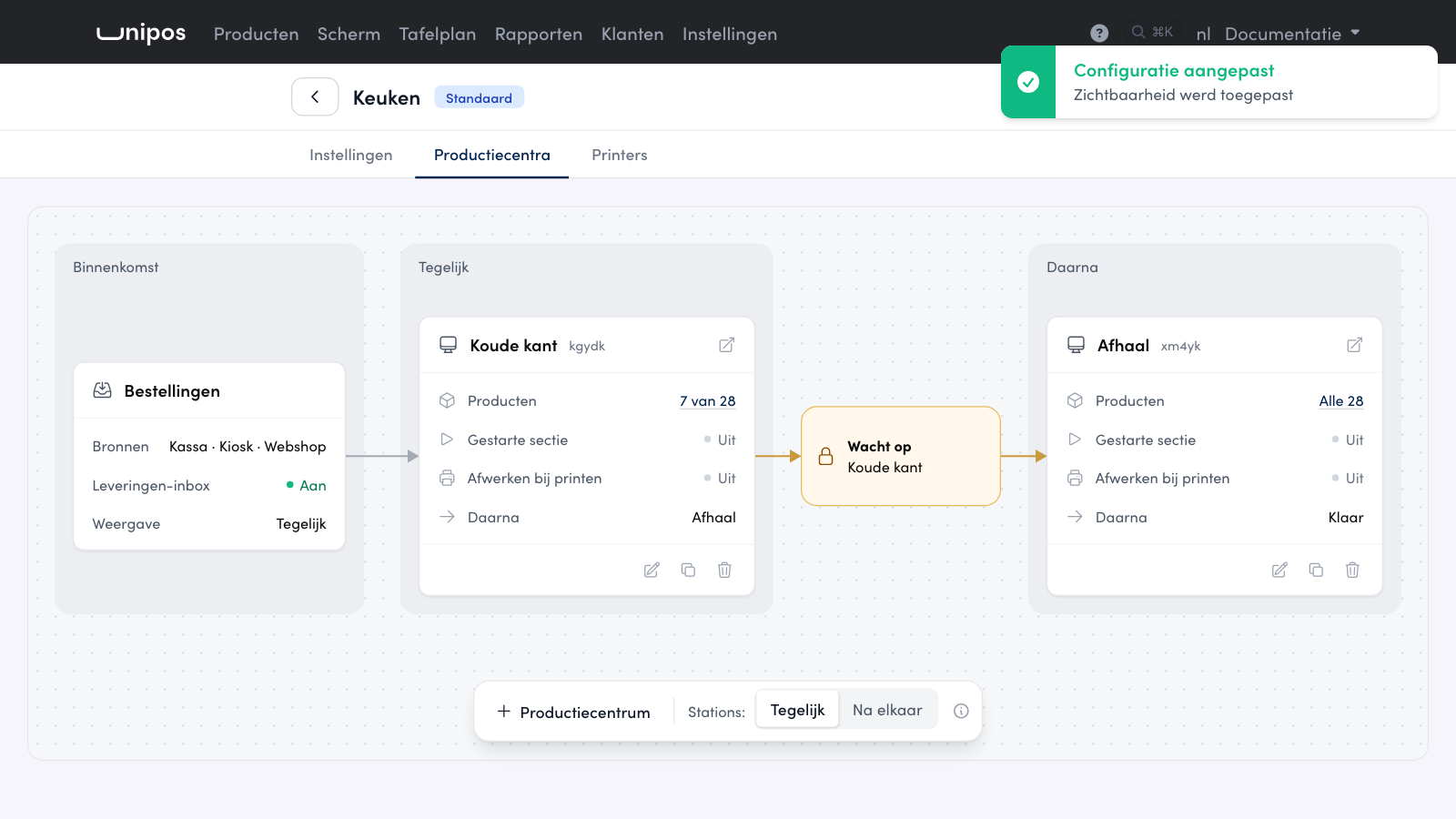
Click Ok. The count next to Producten updates straight away and you see the message Configuratie aangepast (configuration changed).
With Alles tonen (show all) and Alles verbergen (hide all) you switch every product on or off in one click. A click on the name of a category does the same for that category. Both work on what you see at that moment: if you search for cola first, Alles verbergen only affects the products found.
Tip
A product you untick here only disappears from this production centre. The other production centres keep showing it and you sell it at the till as usual.
Warning
An order that is already on the screen does not change. Your choice applies to the orders the till sends after that.
Frequently asked questions
Can I also set this per product?
Yes. In the product editor under Printers & keukenscherm (printers and kitchen display), or for several products at once from the product list. All three change the same setting.
What happens to a new product?
A new product appears on every production centre. Untick it here where it does not belong.
Can I set this for a status screen too?
Yes. Open the same window on the status screen. There, a tick means orders with that product are shown on the status screen.