
You can receive a payment right after entering the order, or after you reopen a table or bill. Tap the payment button next to the order total to go to the payment screen.
The payment screen#
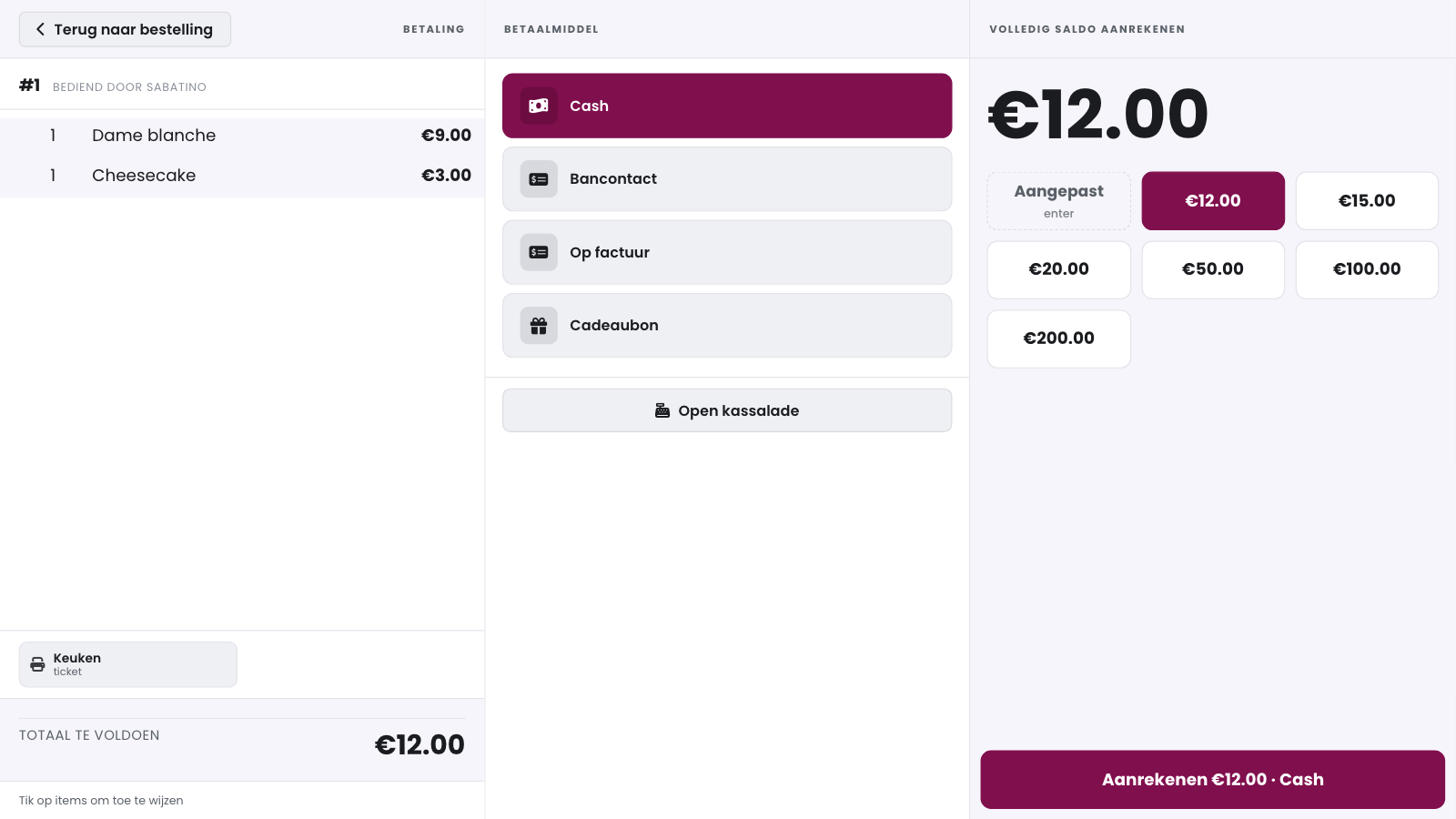
Choice of payment method: choose in advance how the customer pays, for example Cash, Bancontact or credit card. You set which payment methods appear in Payment methods.
Order overview (Overzicht bestelling): the order is shown again.
Pro forma: print an informative interim receipt with the details of the order, without registering a payment.
Total to be paid: the outstanding amount. For a partially paid order, this is the remaining amount.
Amount received: tap how much the customer pays. The POS suggests a few logical amounts itself. To enter a different amount, type it in via Custom.
 1Order overview2Choice of payment method3Total to be paid4Amount received: suggested amounts5Custom: type an amount yourselfCharge confirms the payment
Tip
Do you use one payment method almost all the time? Tap it twice and that choice is kept for the next payments. Tapping a different payment method removes the preference again.
Change and split payments#
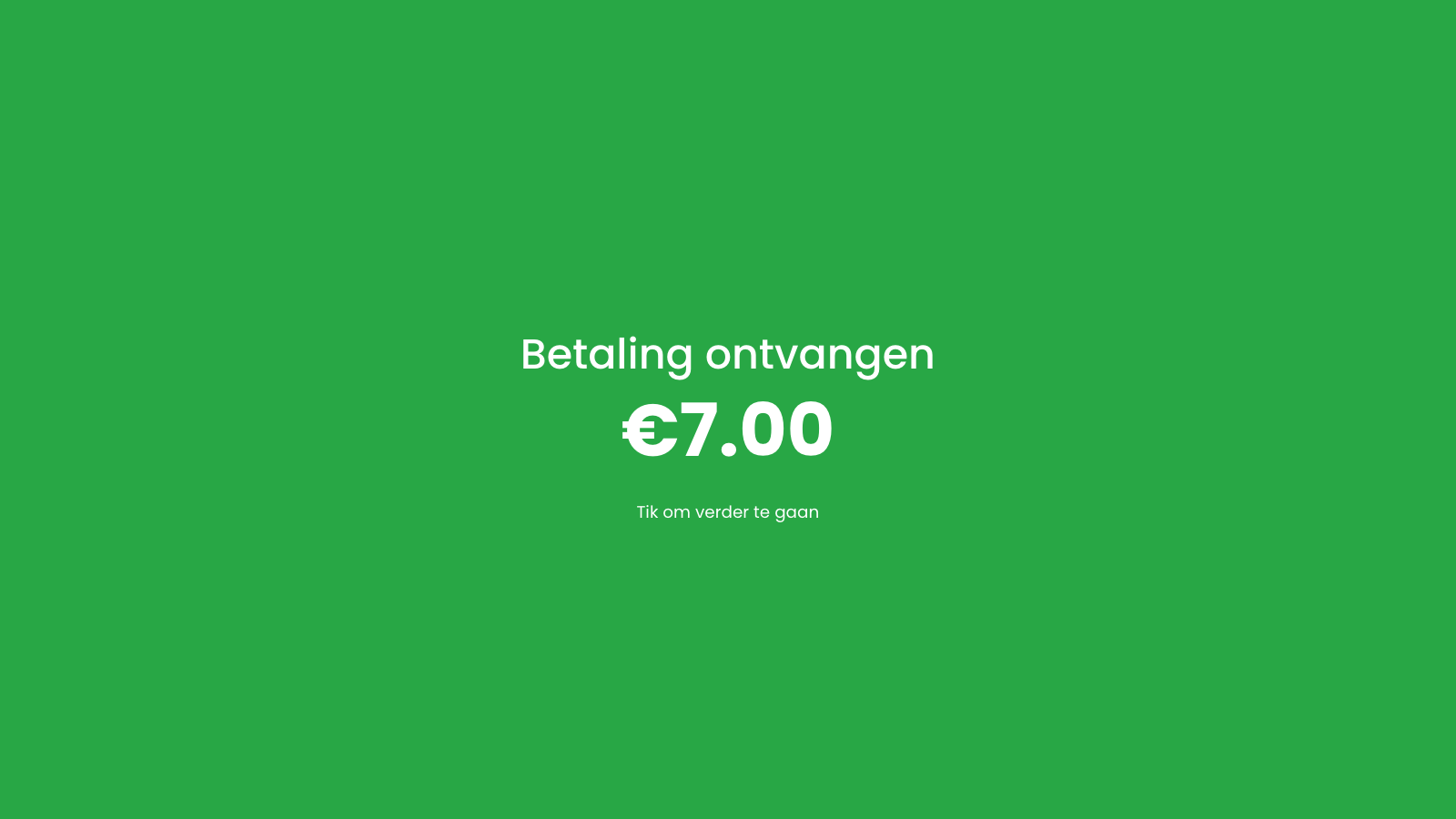
If the customer pays more than the total, the final screen shows the change to give back. Tap the green screen to close it.
Is the customer splitting the payment? First charge one part of the amount, then settle the remaining amount with the next payment method. The law sets the order: first meal vouchers and gift vouchers, then cash, and electronic payments such as Bancontact last.
If the customer pays (partly) in cash, the POS automatically rounds the cash amount to the nearest multiple of 5 cents, up or down. This is required by law. Electronic payments are not rounded.
Settling an order in two payments#
Does a customer pay part of the bill first, for example with a gift voucher or a card, and the rest in cash? The POS keeps the first payment on the order and only closes the sale once the full amount is in. Only then does it print the VAT receipt: one receipt with both payments on it.
Taking the first part#
Open the payment screen and choose the payment method for the first part.
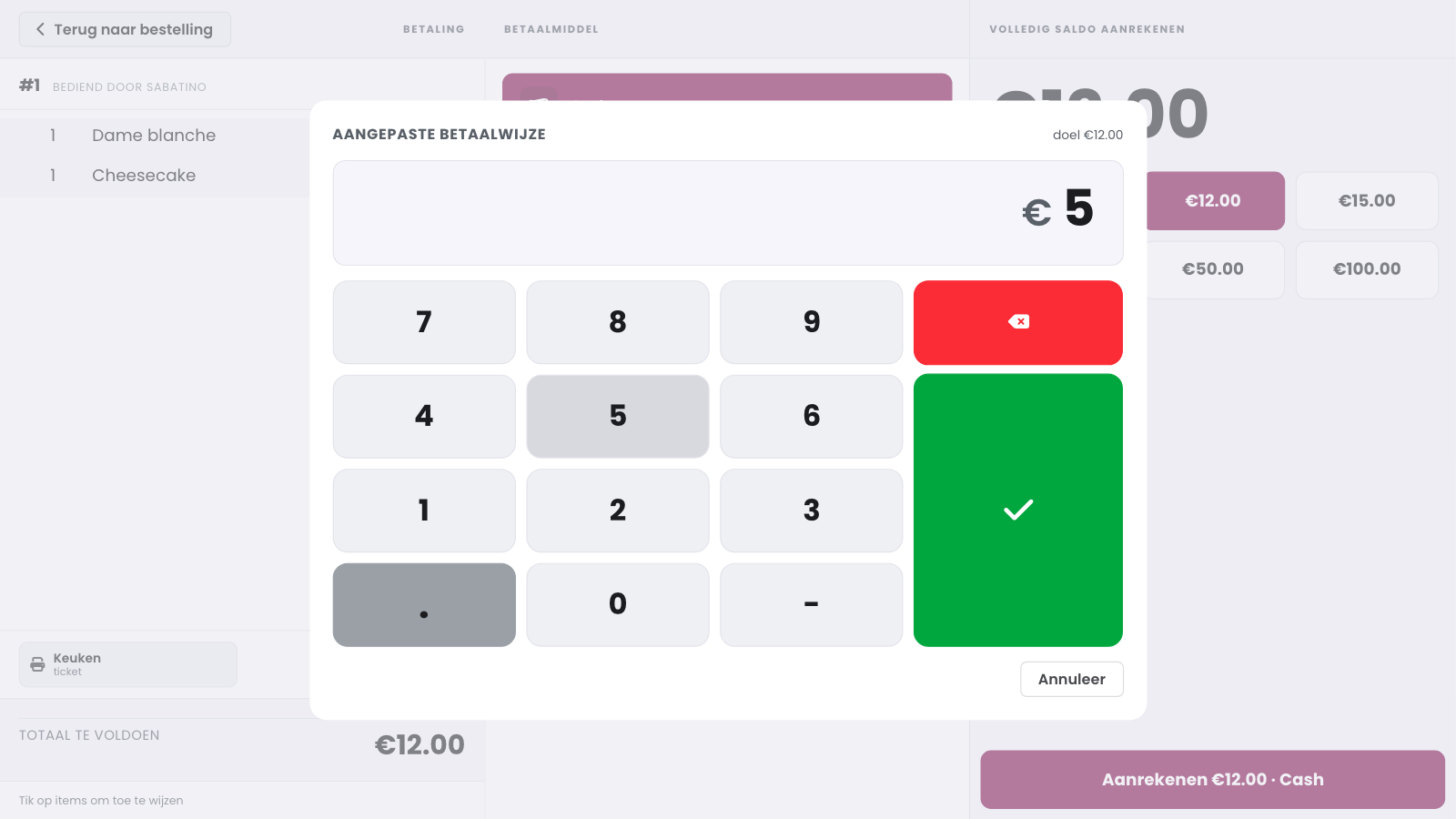
Tap Custom, type the amount the customer pays now and confirm with the green button.
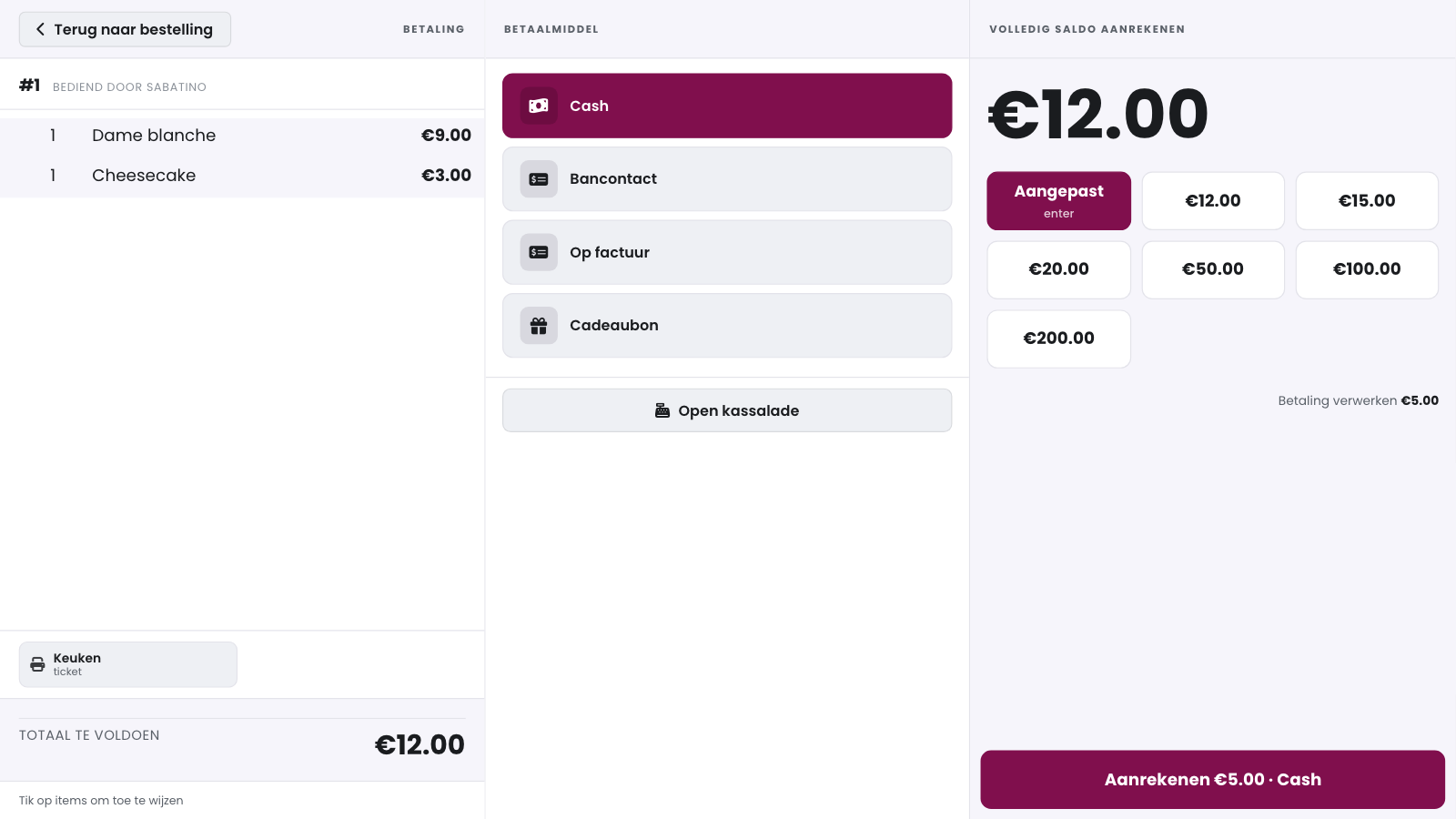
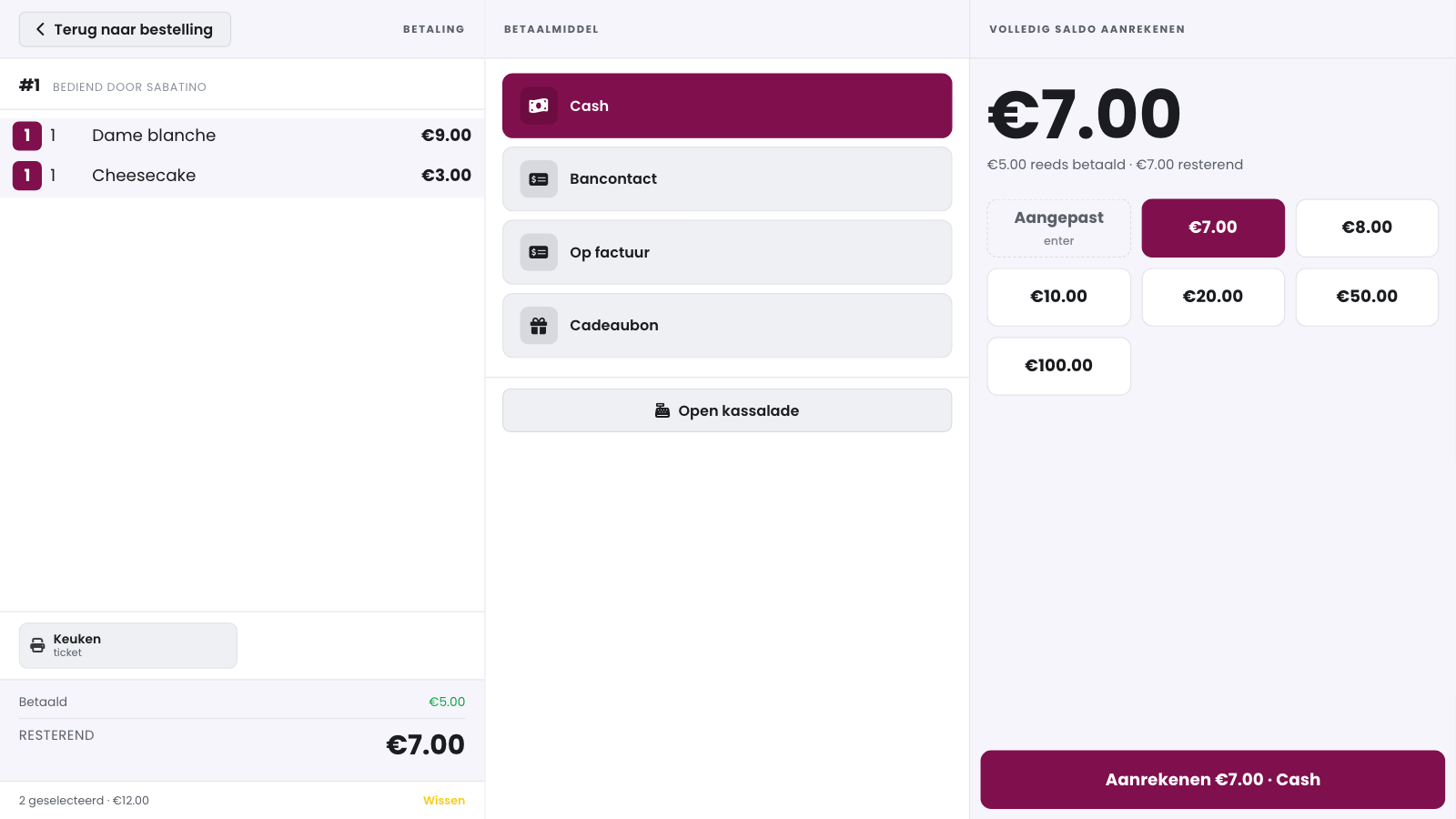
Tap Charge. The button shows the amount and the payment method, for example Charge €5.00 · Cash.
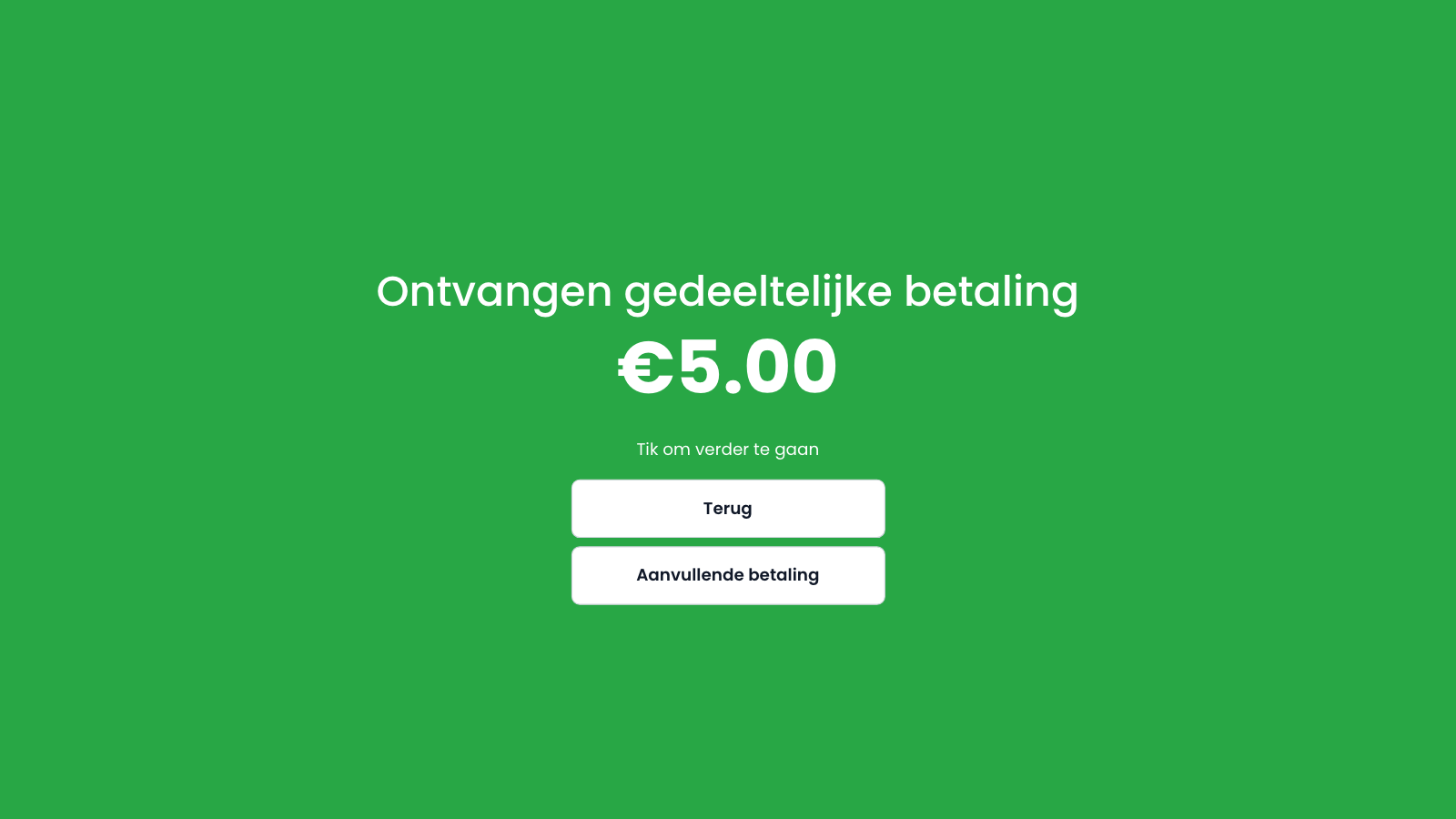
The green screen reads Received partial payment with the amount. The sale stays open and there is no VAT receipt yet. Tap Additional payment to take the rest right away. With Go back you leave the payment screen without taking the rest; the first payment stays on the order.
Taking the rest#
After Additional payment, the order shows Paid (what is already in) and Remaining (what is still due). On the right is the balance, with what has already been paid underneath. Choose the payment method for the rest and tap Charge. If you have not selected any lines, the POS charges the full balance (Charging full balance). As soon as everything is paid, it reads Received payment and prints the VAT receipt.
Selecting lines#
Want to show which products the second payment covers? Tap the lines in the order; every tap selects one more unit. At the bottom you see how many lines you selected and what they cost together, and Clear drops the selection. If the selection is worth less than the balance, the screen reads Charging selection and the customer pays for those products only. If it is worth the balance or more, the screen reads Charging full balance and the POS only charges what is still due. So nobody ever pays more than the bill.
If the customer pays less than the selected products cost, the POS books that amount on the order without marking any products as paid. The green screen says so.
Good to know
A partial cash payment also opens the cash drawer, if it opens automatically for cash (see Automatic cash drawer).
You decide yourself which payment buttons you see on the payment screen.
Setting up payment methods#
In the management page, go to Settings, Cash register configuration, open your configuration and click the Payment methods tab.
Add a means of payment and, in the Means of payment column, choose the type of receipt.
Give it a name as it should appear on the payment screen, and save.
The most commonly used payment methods are Cash and EFT (electronic fund transfer, for payment terminals that are not linked). For these payment methods, you enter the amount received yourself.
Good to know
For Online and Glory, the POS sends the amount to the terminal automatically via an API link. Contact us to set up this link.
Asking for a tip at checkout#
Your POS can ask your customer for a tip before you charge, your team registers tips on the payment screen or afterwards on a receipt, and pays them out of the cash drawer. How to set this up and follow it up is in Tips.
Automatic cash drawer#
If the customer pays in cash, the cash drawer can open automatically:
Connect the cash drawer physically to the printer that prints the receipt, and tick Cash drawer in the printer settings.
In the management page, on the Payment methods tab, switch on Open the cash drawer at checkout for each means of payment via the gear.
Cash drawer on a SUNMI#
A SUNMI has a built-in printer. If your cash drawer is connected to the RJ12 port of the device, or of the docking station of a SUNMI P3 MIX, Unipos PLUS opens the drawer through that printer. You do not need a network printer for it.
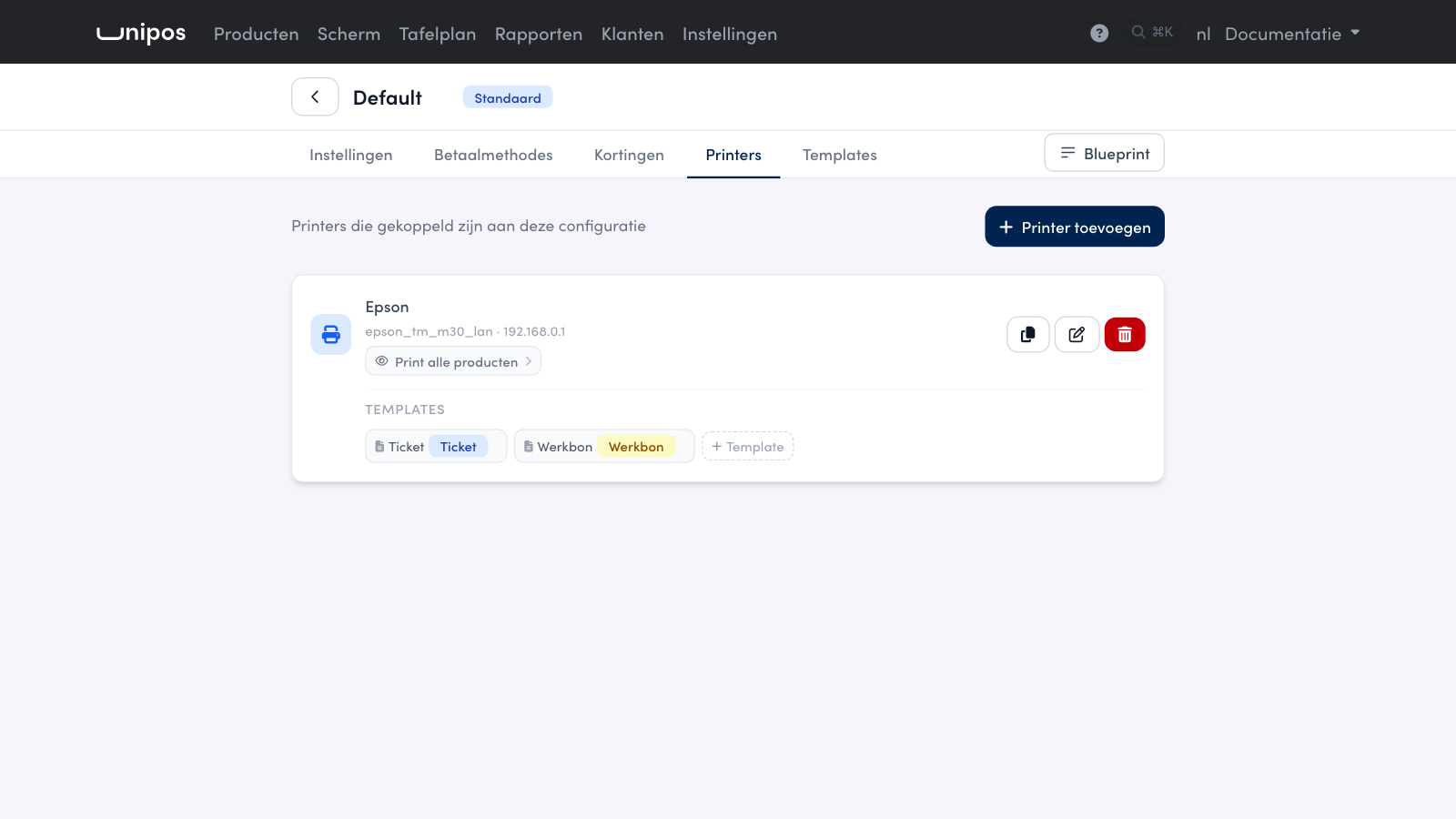
In the management page, open Settings > Cash register configuration (Instellingen > Kassa configuratie) and open your configuration.
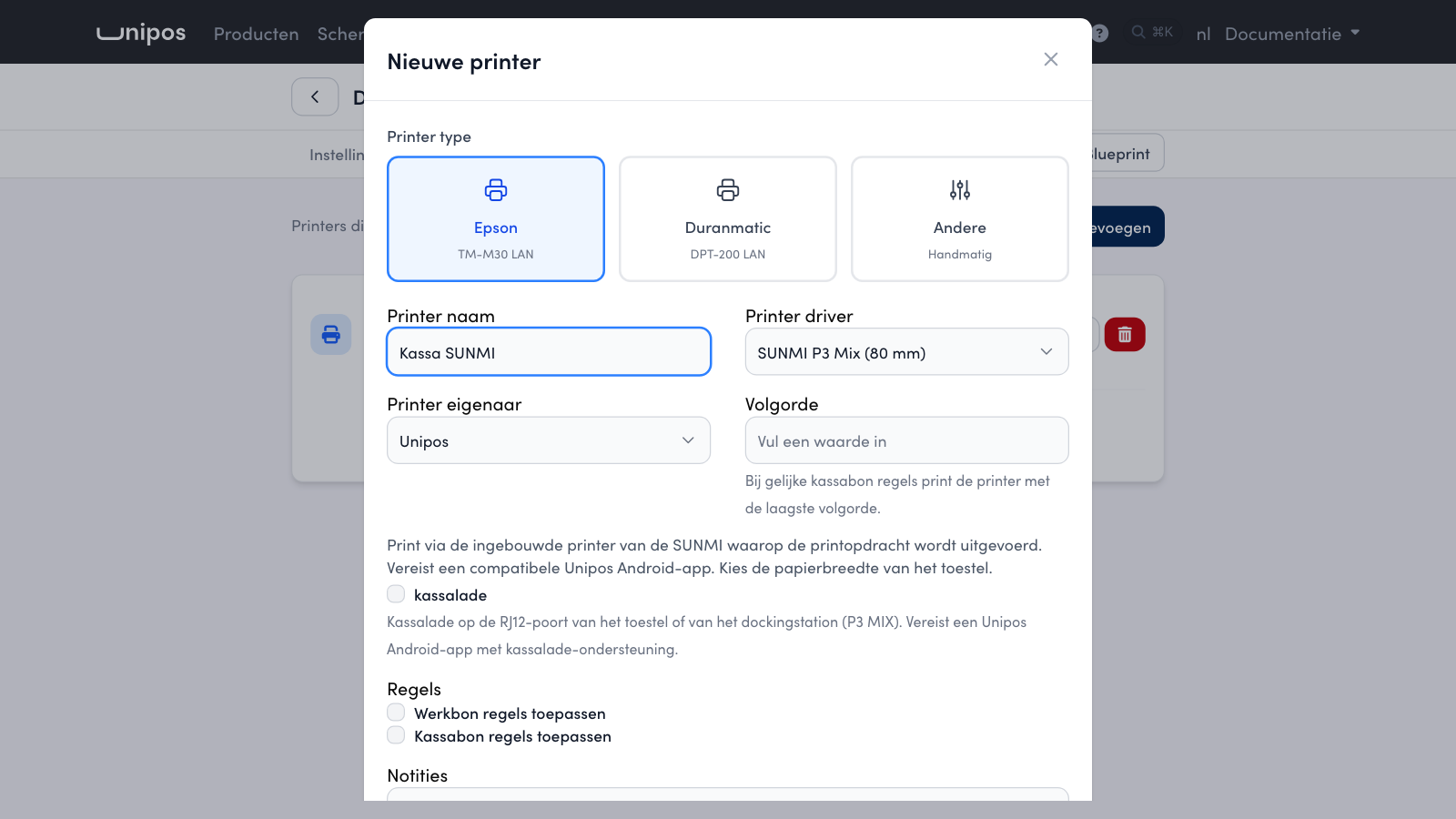
Open the Printers tab and click Add printer (Printer toevoegen). To edit an existing printer, click the pencil.
Under Printer driver, choose your model: SUNMI P3H (58 mm), SUNMI P3 Mix (80 mm) or SUNMI P3 Mix (58 mm).
Tick Cash drawer (kassalade).
Click Ok.
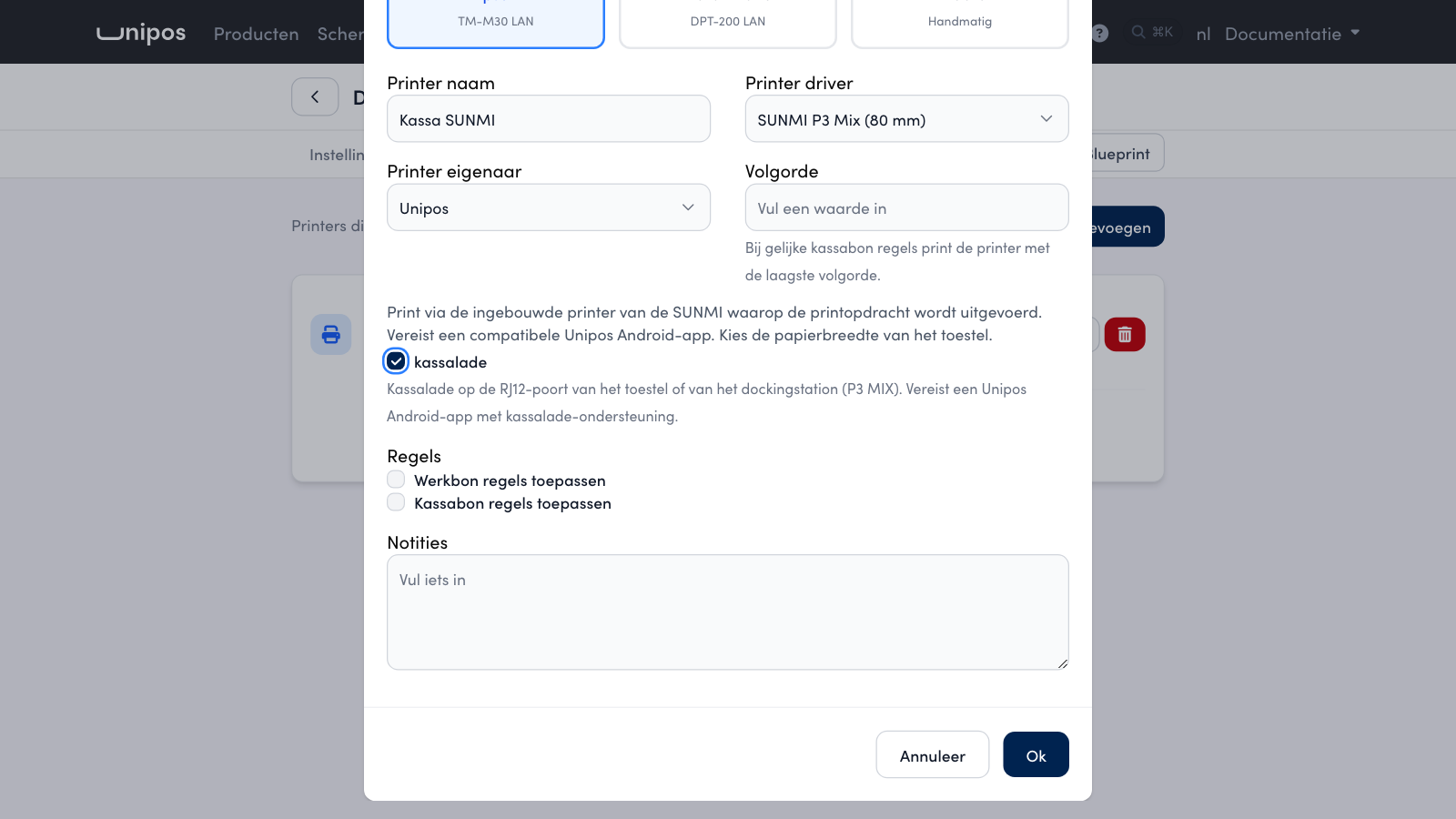
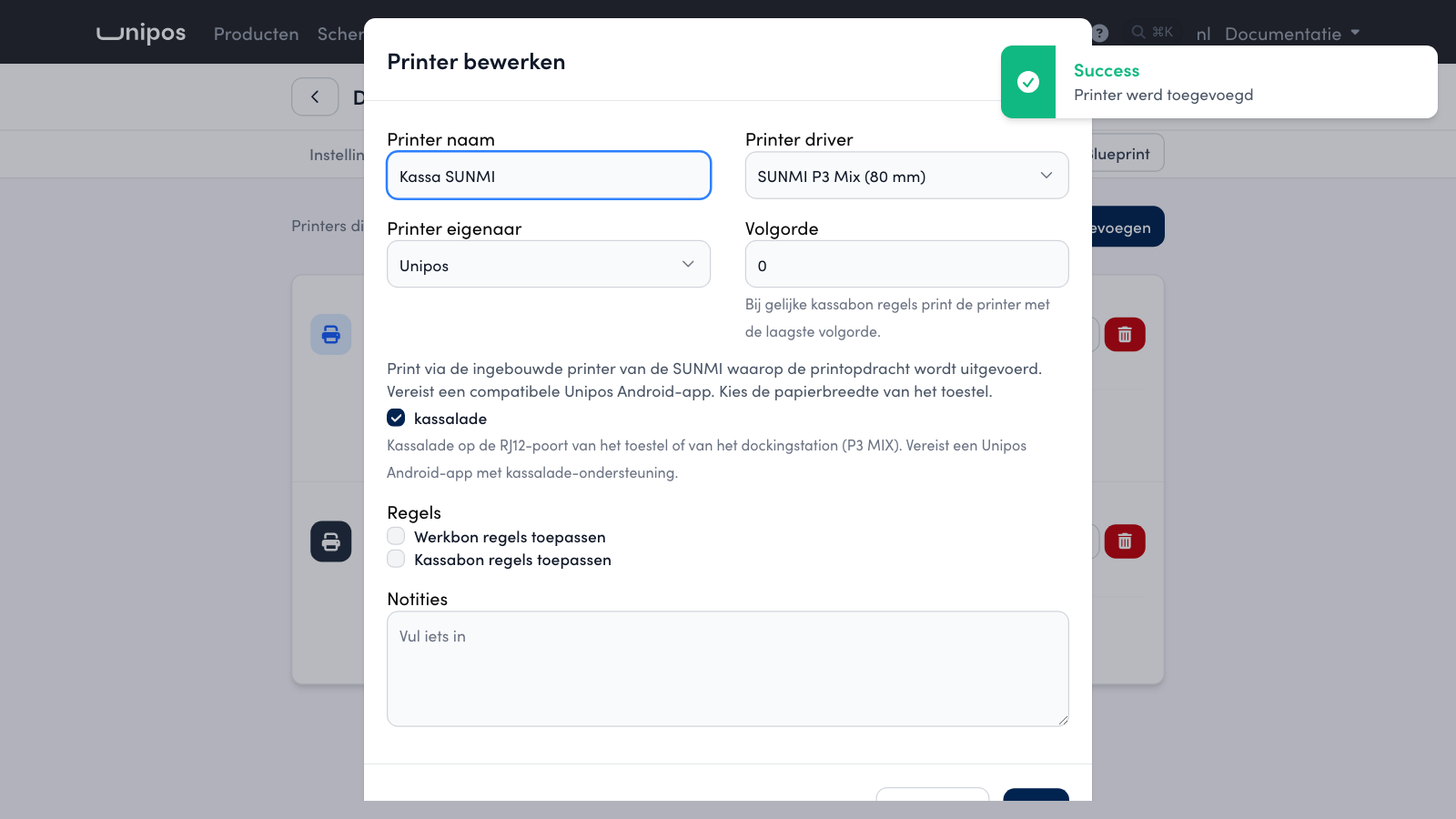
On a SUNMI you do not set Print upside down or cutting: the device handles those itself.
The drawer only opens in the Unipos Android app on the SUNMI device itself. On a payment it opens as set per payment method above. To open the drawer by hand, with Open cash drawer in the quick menu or on the payment screen, you need the permission May open the cash drawer.
To test it, open the gear on the till, go to Health and tap Open drawer next to the SUNMI printer. If the drawer does not open, read the message. More help is in Health.
Warning
Put the P3 MIX back on its docking station before you finish a cash payment. If the device is not on its docking station, the drawer stays closed. The payment still goes through.
Frequently asked questions
Can the customer pay the rest with a different payment method?
Yes. After Additional payment, simply choose another payment method. Every payment appears with its own payment method on the same VAT receipt.
Does the customer get one VAT receipt or two?
One. The POS only prints the VAT receipt once the full amount is paid, with every payment of that sale on it.