Orders from your Webshop, Unikiosk or delivery platforms come straight in on the POS. A fixed orders bar at the top of the home screen shows them (visible as soon as a webshop or kiosk is linked).
The orders bar#
New orders appear as cards in the bar and the webshop button flashes red.
Each card has a euro badge: red as long as the order is unpaid, green once it is paid.
Use the view button to switch between Open (only what you still need to handle) and All. The POS remembers your choice.
When the pickup or delivery time is getting close, the card starts to flash. No time right now? Tap it and the flashing pauses for a minute.
Tap a card to open its details straight away, without leaving the POS screen.
 1Card in the orders bar2Details in the sales buffer
The order overview#
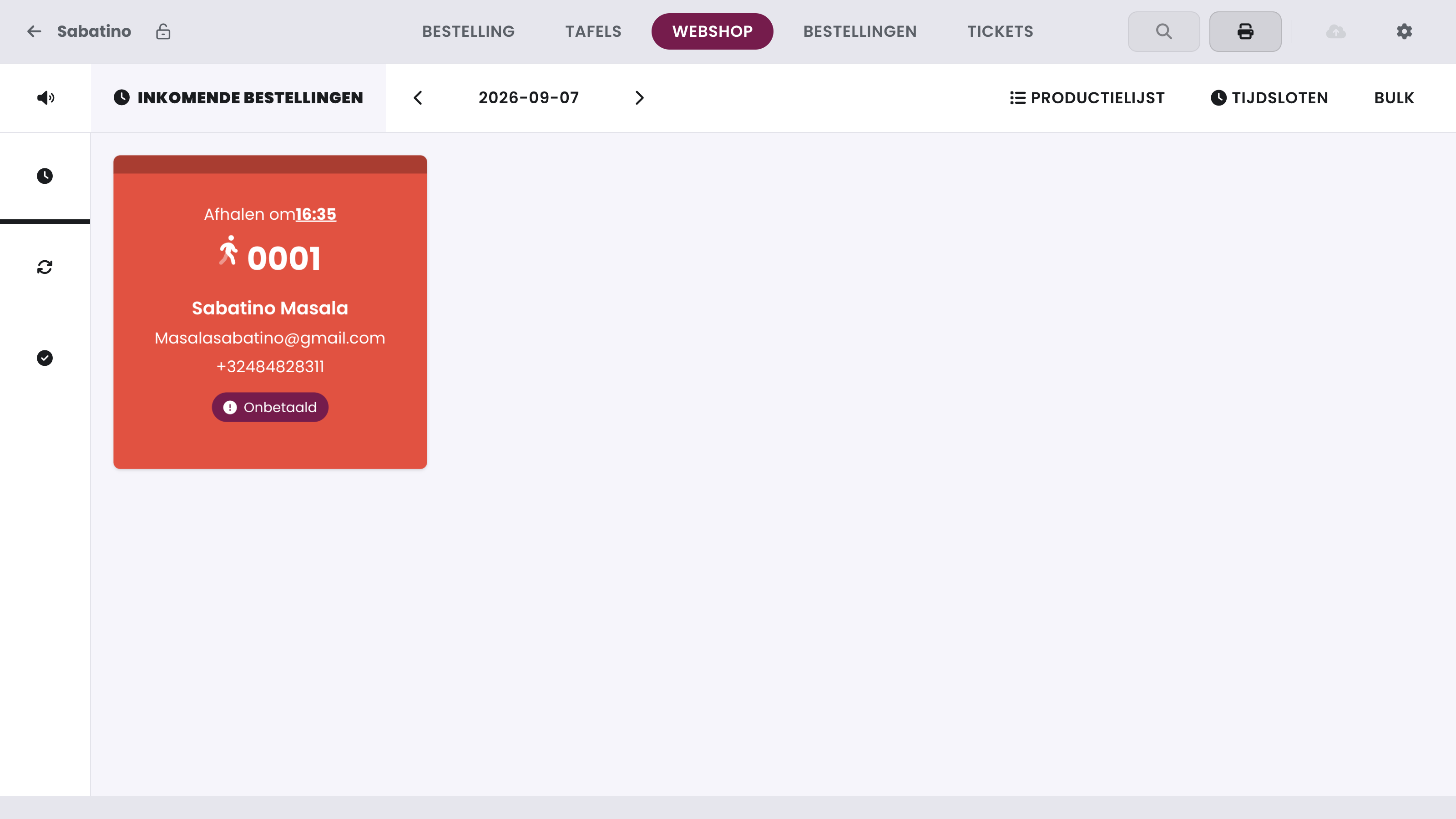
Tap the webshop button for the full overview. On the left, you switch between three lists: to handle, in progress and finished. At the top you see today's date, and you use the arrows to browse to other days.
Open an order to see its details and move it on to the next status. The card automatically moves to the right list.
If you set an order to started, your customer automatically gets a message by e-mail or SMS, exactly as described in When does your customer get a message?
 1To handle, in progress, finished2Choose day3Unpaid
With Timeslots, at the top right, you open the timeslot settings of your webshop straight from the POS.
Warning
An exclamation mark or red euro badge means the order has not been paid yet.
Bulk actions#
Tap Bulk at the top and the overview switches to bulk mode: the cards get checkboxes and you choose the action in the side panel. Tick the orders, apply the status change in one go, and the POS leaves bulk mode by itself. This way you can process a rush in seconds.
The actions for the ticked orders: Put back in queue, Mark as started, Mark as finished and Print kitchen ticket. Below those are Production list, for the selection only, and Print all tickets.
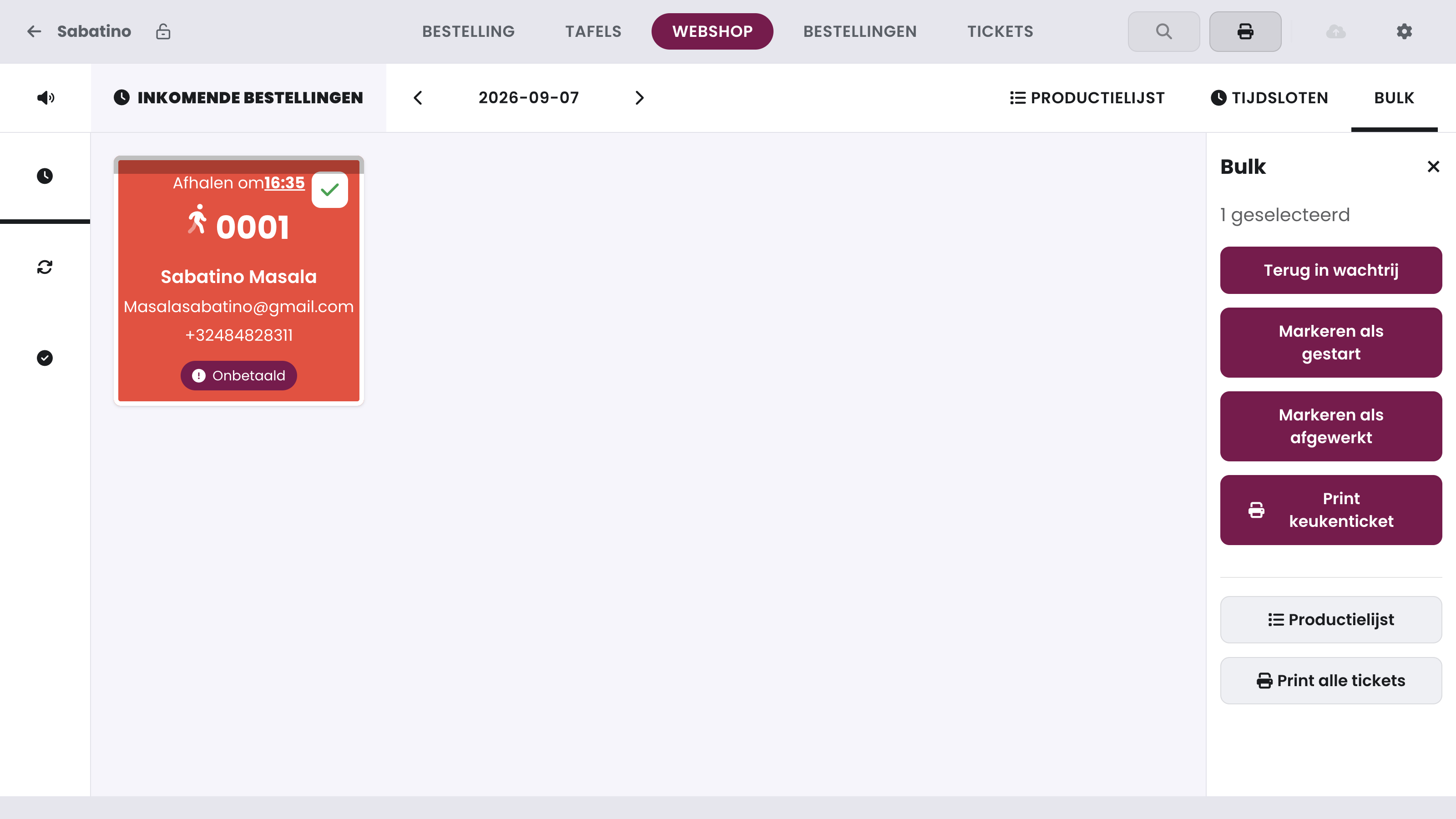 1Put back in queue, Mark as started, Mark as finished2Print kitchen ticket3Production list and Print all tickets
Production list#
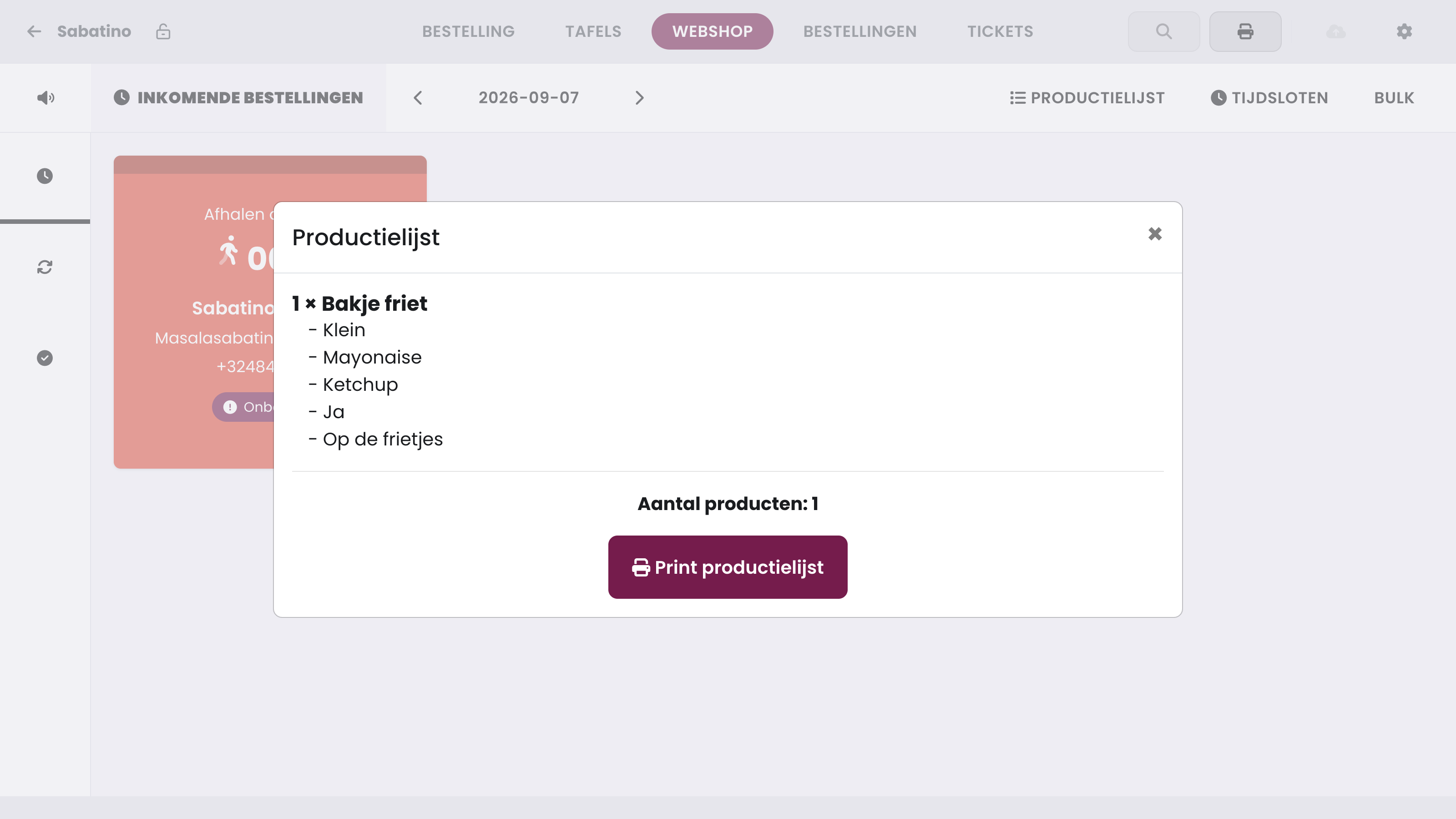
Does the kitchen want to know what to make in total that day? Tap Production list at the top: the POS adds up all products from the orders of the day shown, with their options, and you print that list with Print production list. In bulk mode, you get the same list for only the ticked orders.
Batch orders and postponement#
If you work with batch orders, orders from the same company are grouped per delivery round in a folder card. Tap it and you get the same to handle/in progress/finished overview within that round, plus an aggregated production list.
You can also postpone orders here by +15, +30 or +45 minutes. The postponement is informational, so the whole team can see it.