Useful for kitchen info that fits many products, such as "no lettuce" or "with egg" on all your sandwiches. You don't link the group to each product separately: you place one button next to your sandwiches.
Adding a variation button#
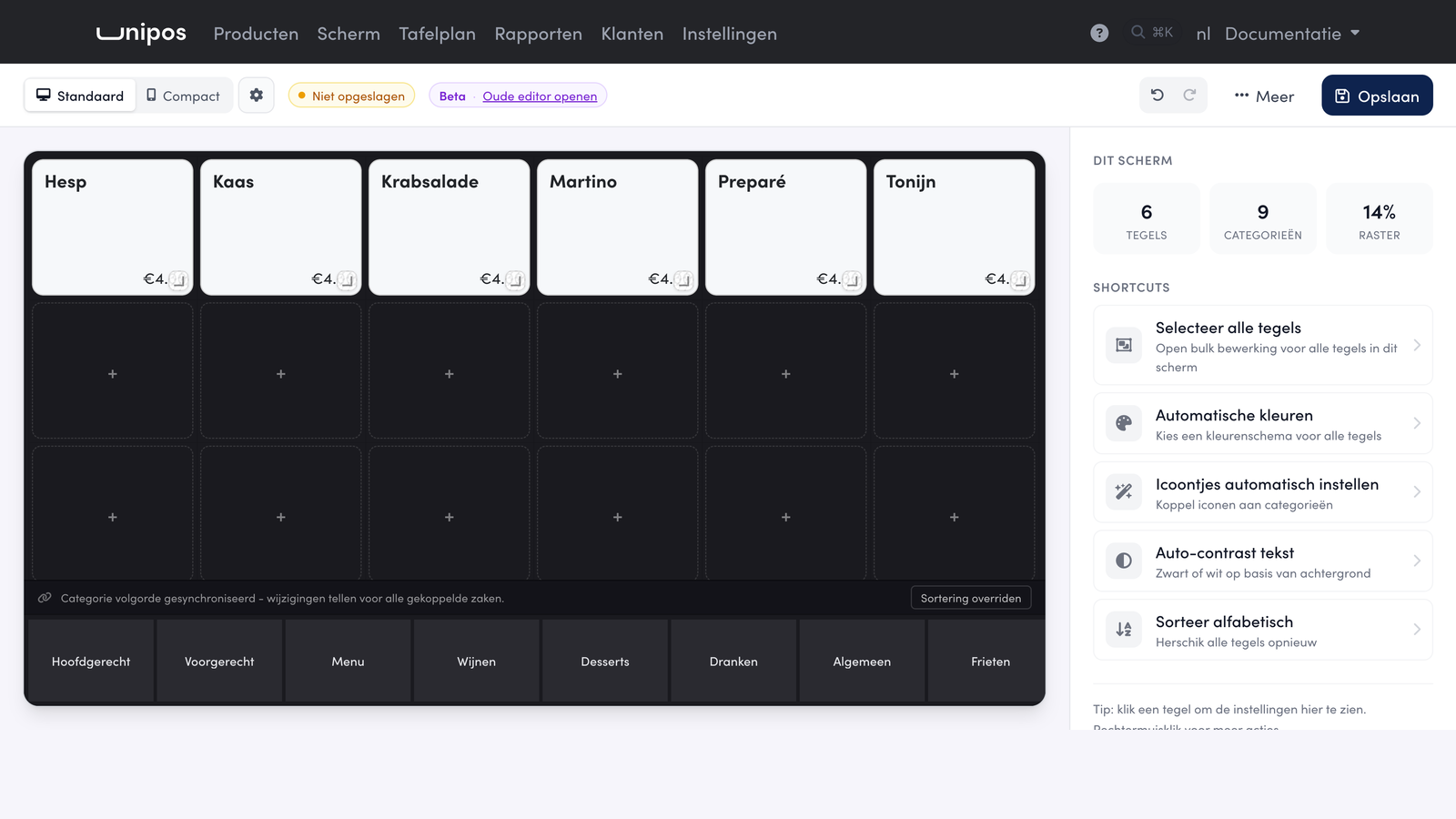
On the management page, go to Screen (Scherm).
Click an empty space, or Add tile (Tegel toevoegen).
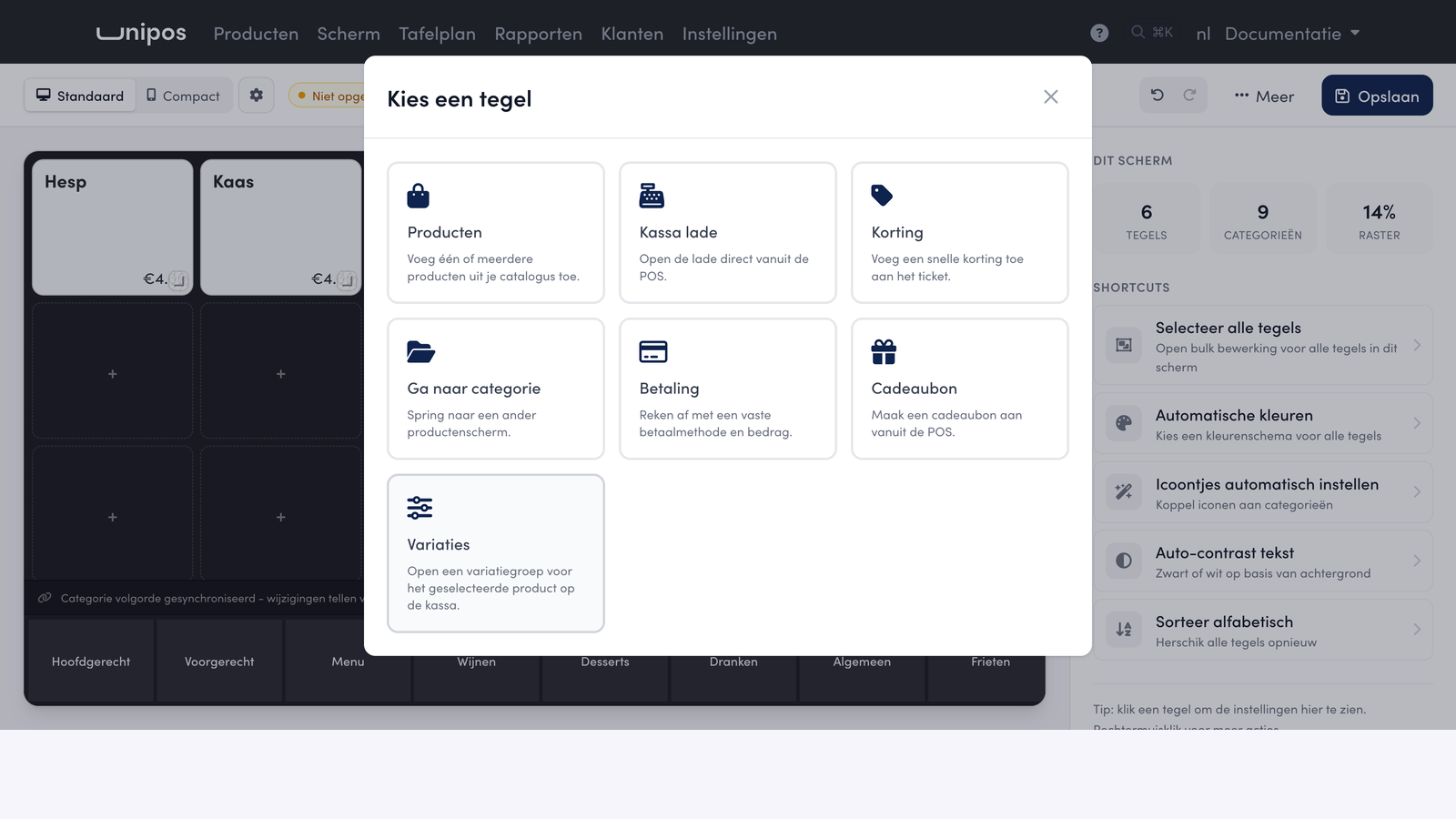
In Choose a tile (Kies een tegel), select Modifiers (Variaties).
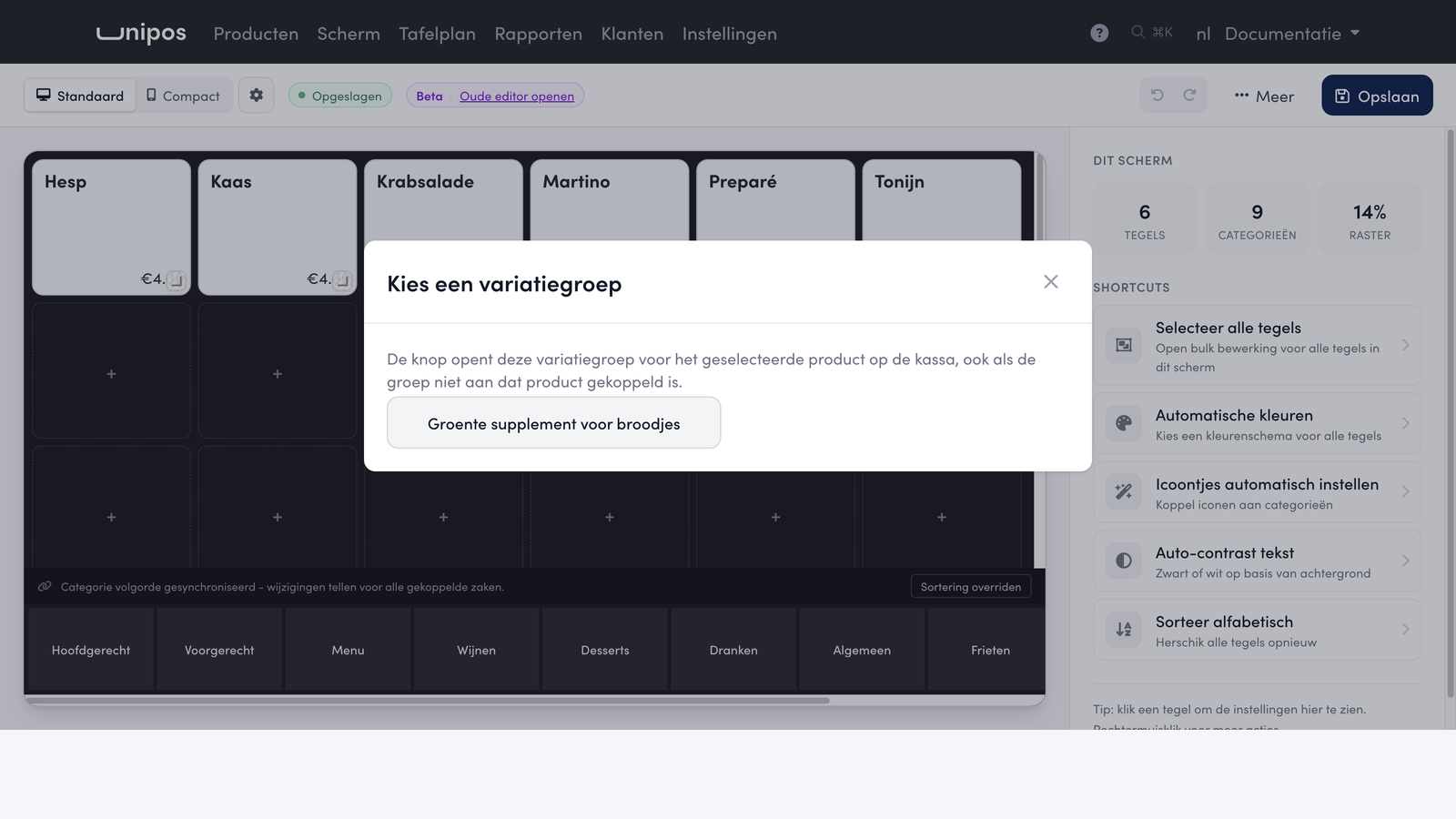
In Choose a variation group (Kies een variatiegroep), select the group that the button opens.
Click Save.
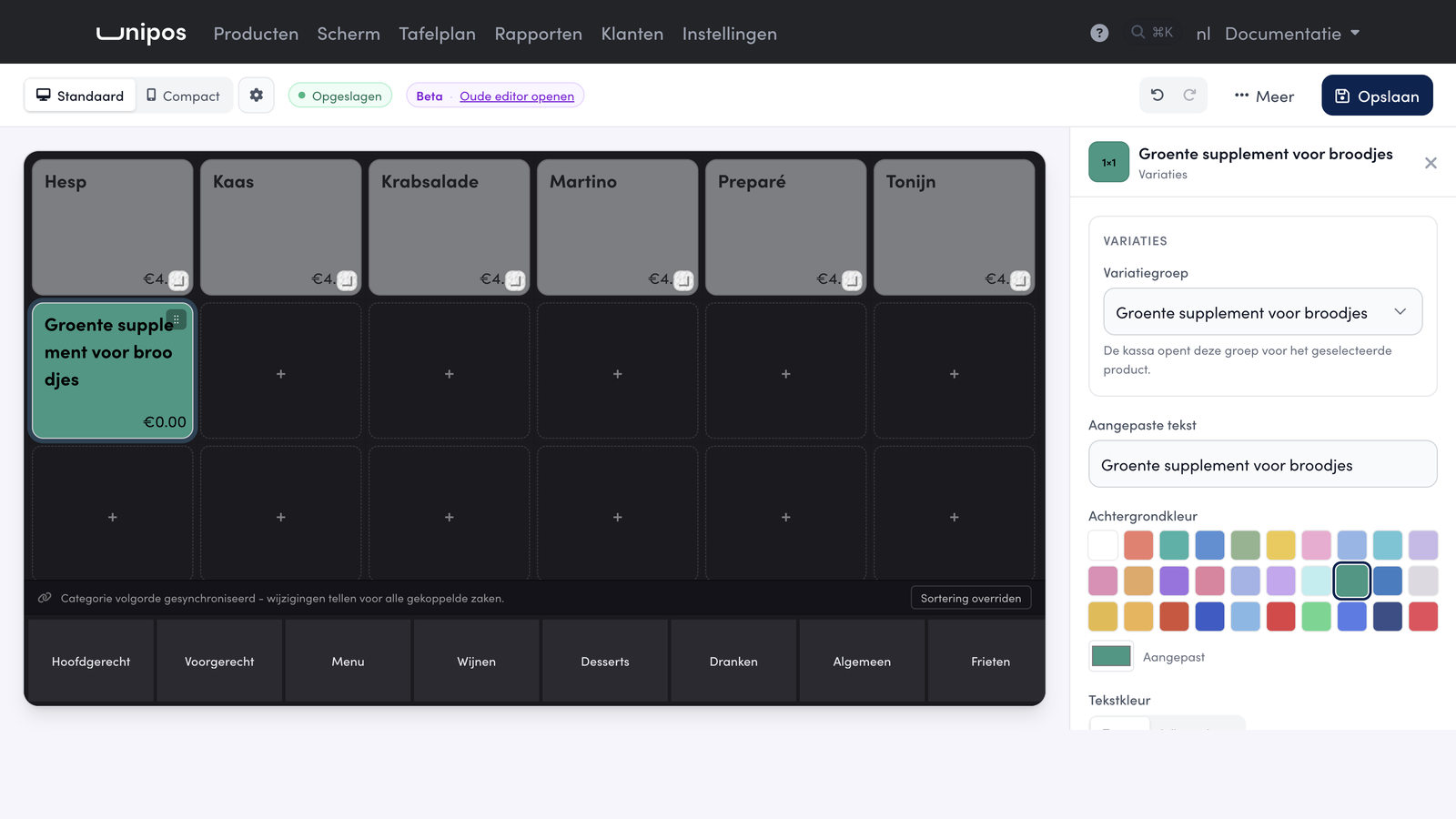
The button gets the name of the group. You can set a different text for the button in the panel on the right, under Custom text (Aangepaste tekst). There, under Variation group (Variatiegroep), you can also choose a different group for the button.
On the POS#
Ring up a product.
Tap the variation button. A window opens with the options of the group, with the name of the product above them.
Tap the options. Each tap goes straight onto the line in the sales buffer, and the window stays open: this way you can choose several options one after another.
Tap Close options when you are done.
The button works on the line you have selected in the sales buffer. If no line is selected, it uses the last line that can still be changed. This way you can also add an option afterwards to a sandwich that is a few lines higher up: select it and tap the button.
If you open the button and don't choose anything, the line stays as it was.
Good to know
You can no longer change a line that has already been sent to the kitchen. The POS then shows "The selected line can no longer be changed". If there is nothing in the sales buffer yet, the POS asks you to add a product first.
Tip
Should "no lettuce" appear on the kitchen receipt but not on the customer receipt? Set this up with the print rules of your options.