What prints where shows, for a given order, which printer prints a work order or the receipt, which products are on it and why a product does not print somewhere. The page reads the rules you already have: the templates linked to a printer, the printer's work order rules (Werkbon regels toepassen) and the hidden products and modifiers. You change the hidden products right there on the page.
Where to find the page#
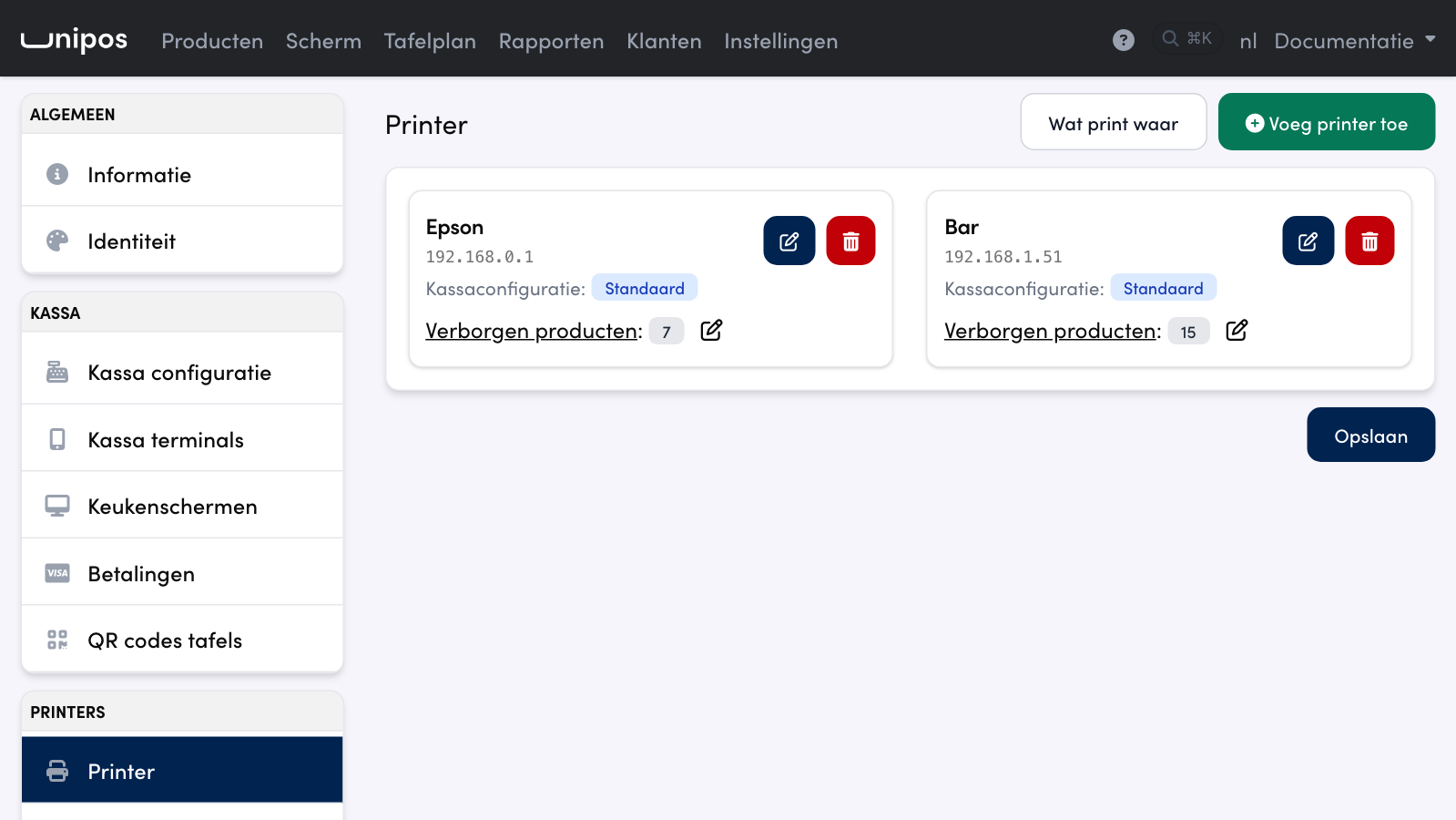
On the management page, open Settings. In the Printers group, What prints where sits between Printer and Print templates. You also get there through the What prints where button at the top right of the Printer page and on the Printers tab of your POS configuration. On a printer card, the Verborgen producten link opens the page with that printer's column highlighted, and in a product form, Where does this product print? (under Printers & keukenscherm) opens the page on that product.
Choosing the order#
At the top you choose which order the page is about. Under Order from you pick the source (BOX for the POS, Webshop, Kiosk or QR) and under Type the kind of order (On site, Takeaway or Delivery). You only get the choices your business really receives: a takeaway business with only a webshop sees just Webshop and Takeaway, a business with a POS also sees BOX and On site. If you have more than one POS configuration, you also choose on the right, under Cash register configuration, which configuration the question is about: a POS only prints on the printers of its own configuration.
The choice applies to both tabs, Products and Test order.

Where the choices come from#
Takeaway is always offered.
On site as soon as you accept eat-in orders, and always for BOX, Kiosk and QR.
Delivery if you deliver, or if you work with Uber Eats or Deliveroo.
BOX, Webshop, Kiosk and QR only if you use them.
When in doubt, the page keeps the choice: you never lose a warning about an order your business can really receive.
Products: what comes out on which printer#
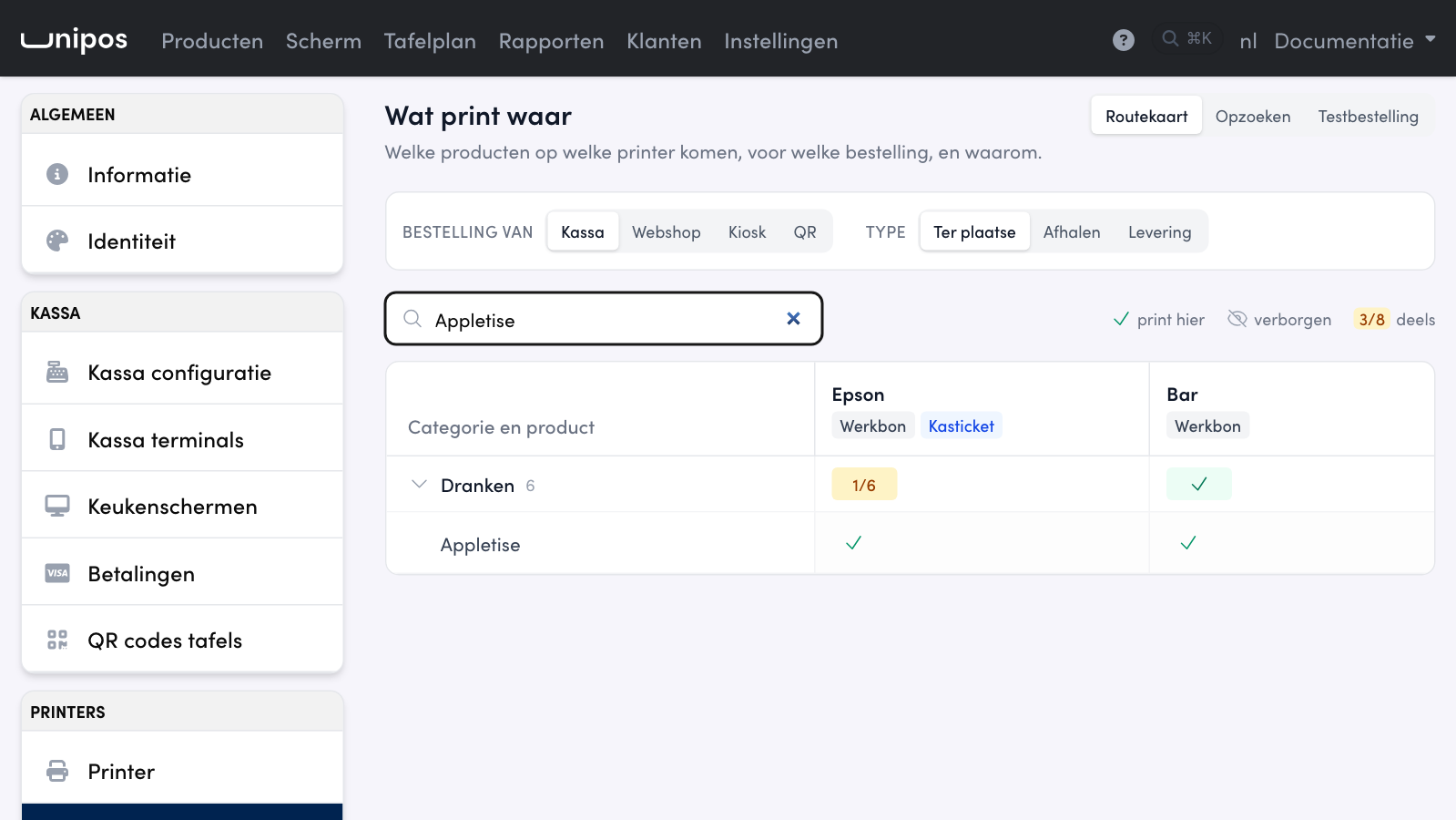
On the Products tab your categories are the rows and your printers the columns. Only printers that print work orders get a column: a receipt always lists every product. Above each printer you see what it does for this order: Work order, Work order x2 or Receipt. A printer that does not accept the order is greyed out, with the reason, for example "only accepts orders from Webshop and Kiosk".
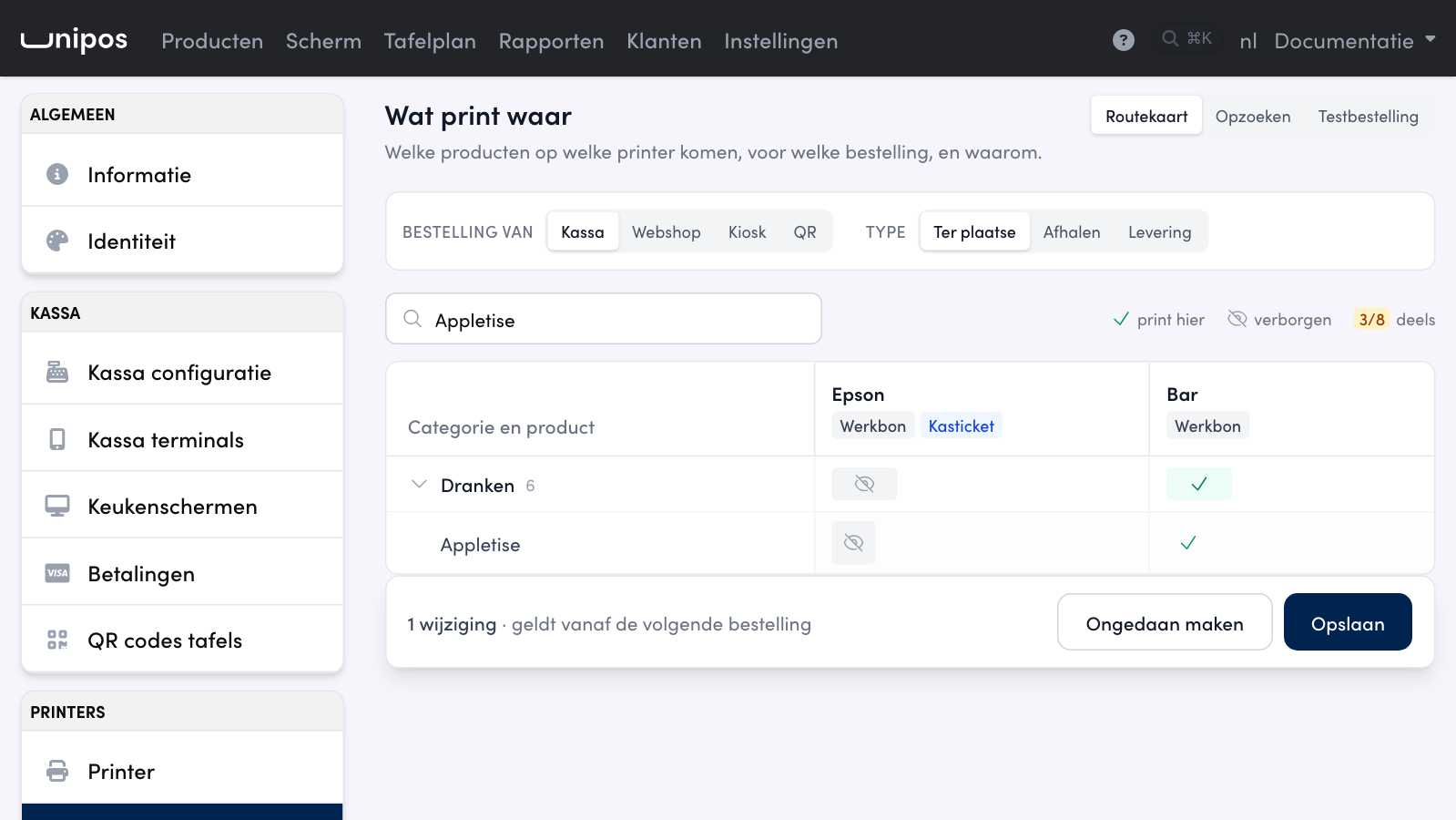
A cell shows a tick when everything in the category prints there, a crossed-out eye when nothing prints there, and a number such as 3/8 when part of it prints. Click the arrow in front of a category to show its products, then:
click a cell to hide or show one product or a whole category on that printer;
click a product's name to hide or show it on all printers at once;
click a printer's name to switch everything on that printer off or on in one go.
Hover over a cell for the reason, for example "Hidden on Bar" or "Prints 2 times on Keuken".
Your changes collect at the bottom (1 change · applies from the next order). Click Save or press Cmd+S (Ctrl+S on Windows), or revert with Undo. The message Printer rules saved confirms it.
Good to know
Hiding a category writes the rule on every product that is in it now. A product you add later prints everywhere until you hide it yourself: the cell then shows 7/8, for example, instead of a crossed-out eye.
Looking up a product#
To find out where one product prints, type its name in the Search a product or category field: the category unfolds and you see a tick or a crossed-out eye per printer right away. You reach the same row from other places: through Where does this product print? in the product form, through a product name in the things to check or under Not on this ticket in a test order. The page then switches to the Products tab, unfolds the category and highlights the row in blue. The arrow next to a product name opens the product form in a new tab.
A test order#
On the Test order tab you compose an order without anything being printed. On the left is your product overview per category: click a product to add it to the order. On the right is the order itself: remove a line with the cross and switch a product's options on or off. The page starts with a sample order.
Below, you see the ticket each printer would print: the receipt and every work order, with the products of your test order. If a printer prints two copies, a second ticket sits behind it marked 2 times. Under each ticket, Not on this ticket lists what was left out and why, for example "Cola: hidden for Epson". A printer that prints nothing for this order appears as a dashed card with the reason.
Good to know
A test order is not a test print. The page shows what the POS would decide, but it cannot see a printer that is off, got another IP address or is out of paper. If a printer really does not print, see Testing and finding printers in the Health article.
Things to check#
Below the order choice, a yellow bar appears as soon as something can go wrong: 1 thing to check or, say, 3 things to check. Click it to unfold or fold the list. It lists:
A product that, for the chosen order, comes out on no work order at all: it is hidden on every printer that accepts the order. Click the product name to jump to its row.
A printer that prints every work order twice, because two work order templates are linked to it.
A printer that prints two copies of every work order, because a template is set to more than one copy.
Two printers with the same address in one POS configuration: what is meant for both prints there twice.
A printer with a rule on Payment: the POS does not take it into account.
A kind of order without a receipt: no receipt printer accepts that order. This check only covers the orders your business really receives, so without a QR menu you get no warning about QR orders.
A template linked to a printer that is not linked to the POS configuration.
Warning
The Payment rule on a printer (Online betaald or Betaald aan de kassa) is not applied by the POS: it only looks at Bron (the source) and Type. So restrict a printer with Bron and Type under Werkbon regels toepassen, not with Payment.
Tip
The page keeps your question in the link: the tab, the product or printer and the chosen order. Feel free to send a colleague or our support the link of the page just as you see it: it opens straight on the same question.
Frequently asked questions
Why does a product I just added print on every printer?
A new product has no rule yet, and without a rule it prints everywhere. Hide it on the Products tab and click Save.
I hide a whole category, but one product keeps printing.
The category hides the products that are in it now. If the cell shows a number such as 7/8, one product has no rule yet. Unfold the category and hide that product separately.
I saved, but the POS still prints the same.
The rule applies from the next order. Also check that you chose the right Order from and Type, and that the printer is linked to the POS configuration your POS uses.
Under Order from I see a source my business does not use. How come?
Then you opened the page with a link that contains that order, for example a link you got from support. The page shows that choice anyway, so the link opens as intended. Just pick another source or type.