A customer orders at the counter and then decides to sit down? Move the sale you already rang up to a table or a tab. This works from a direct sale, not from a table or tab that is already open.
To a table#
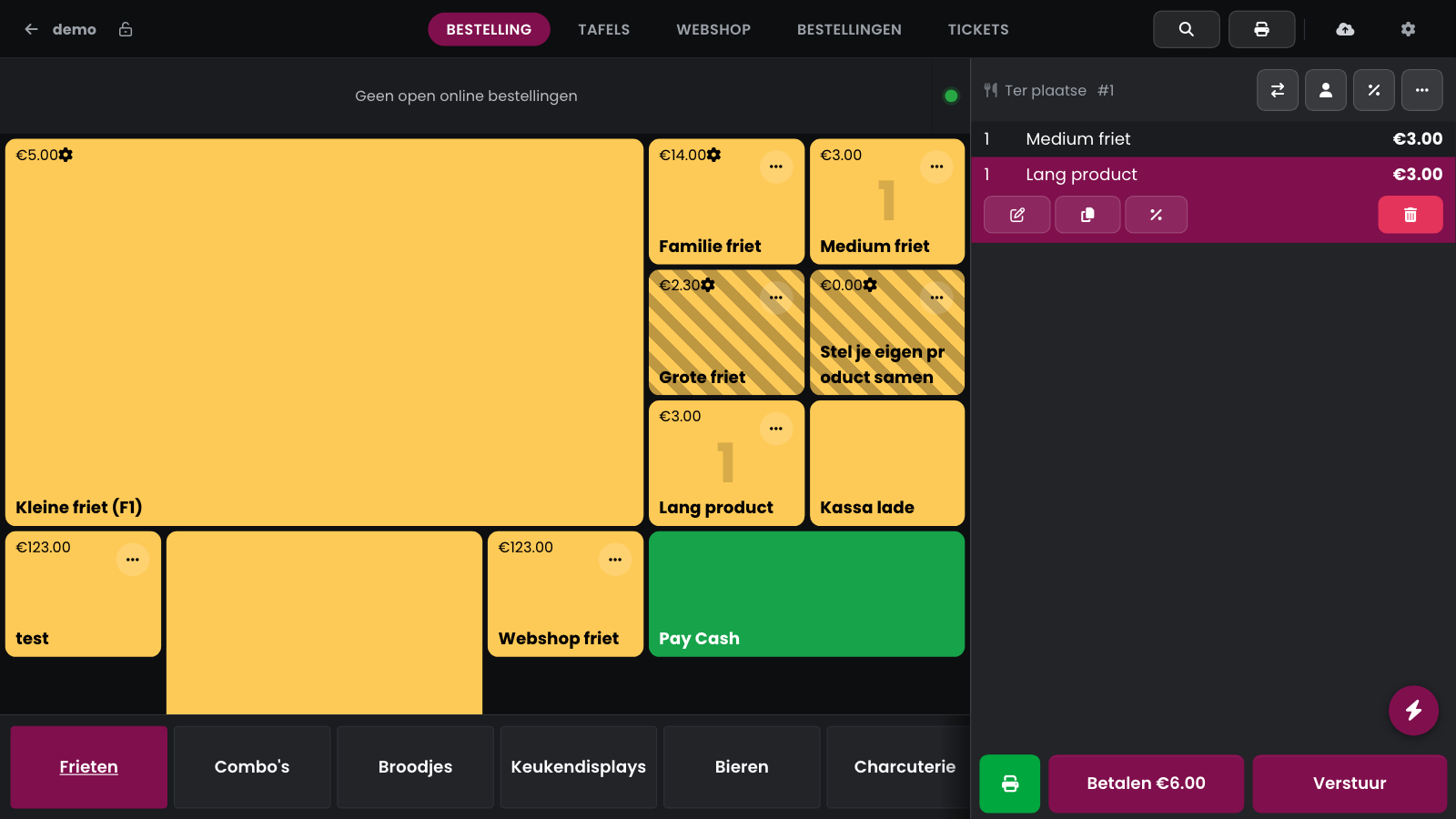
Ring up the products in the sales buffer.
At the top of the sales buffer, tap Table / tab (the icon with the two arrows). Don't see it? Look under the three dots.
The search window opens on Tables. Tap the table.
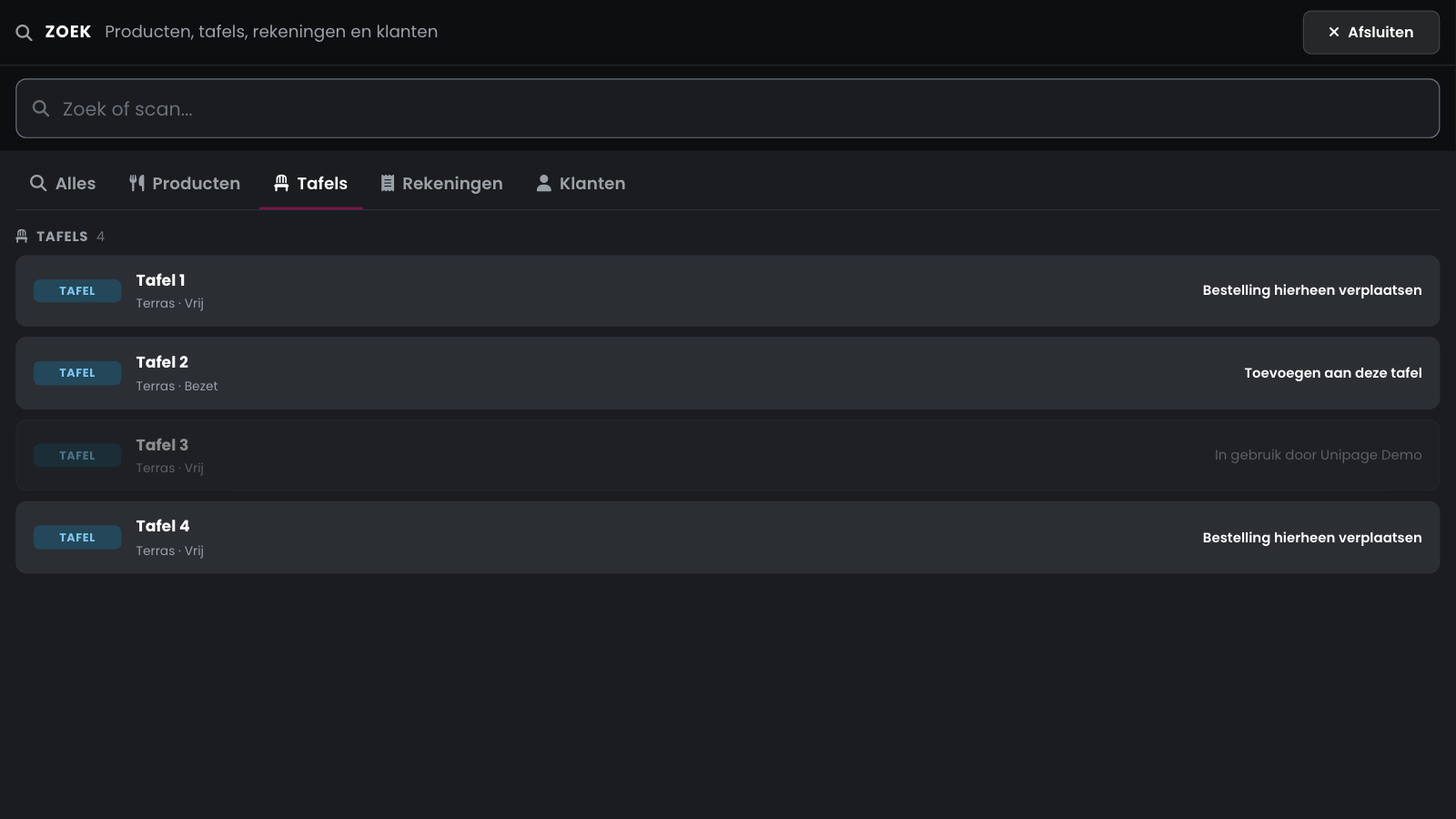
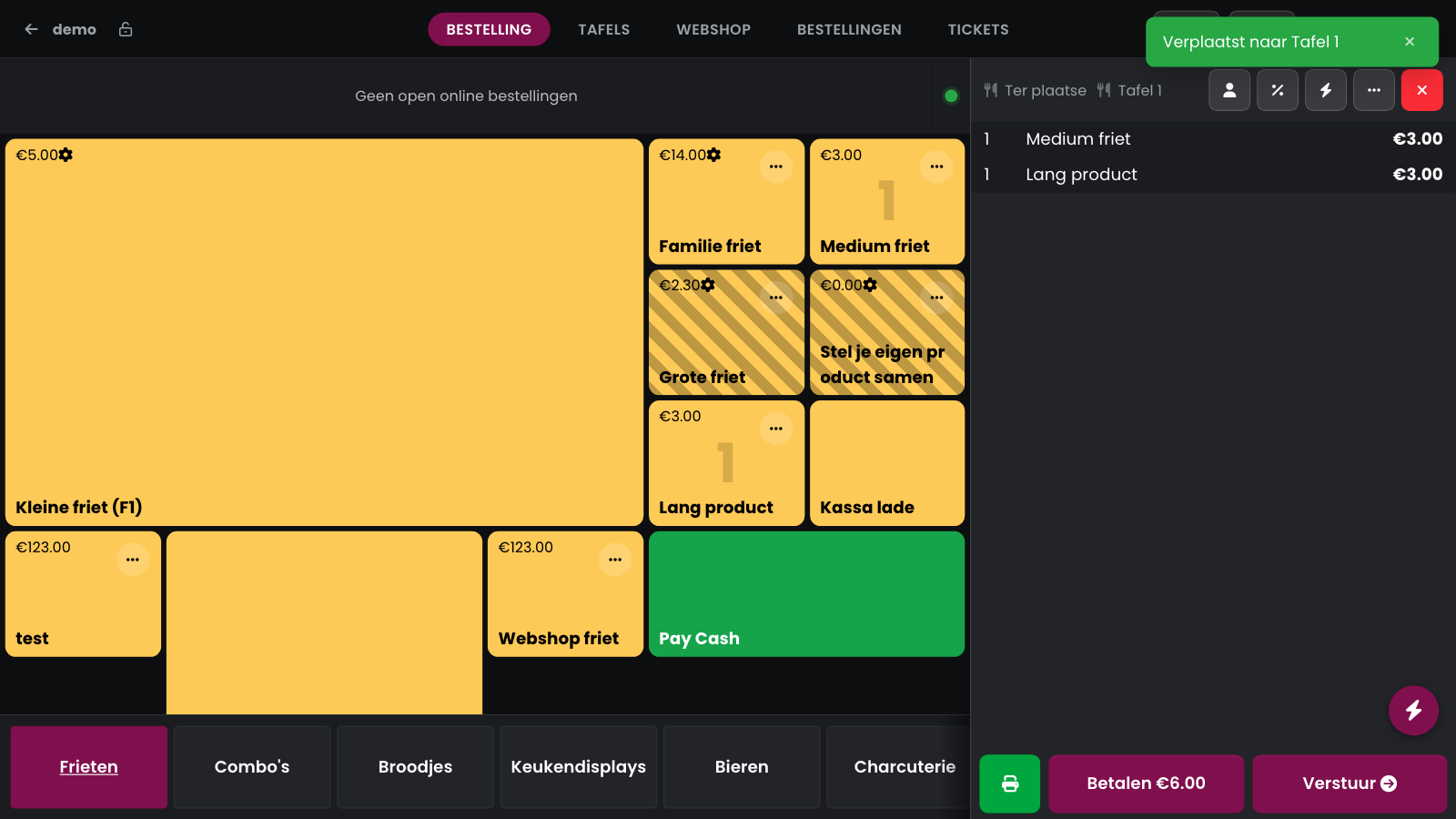
If the table is free, the whole sale moves to that table. If there is already an order on it, your products are added. The message Moved to Tafel 1 confirms it and you carry on working on the table. Products you already sent to the kitchen move along.
To a tab#
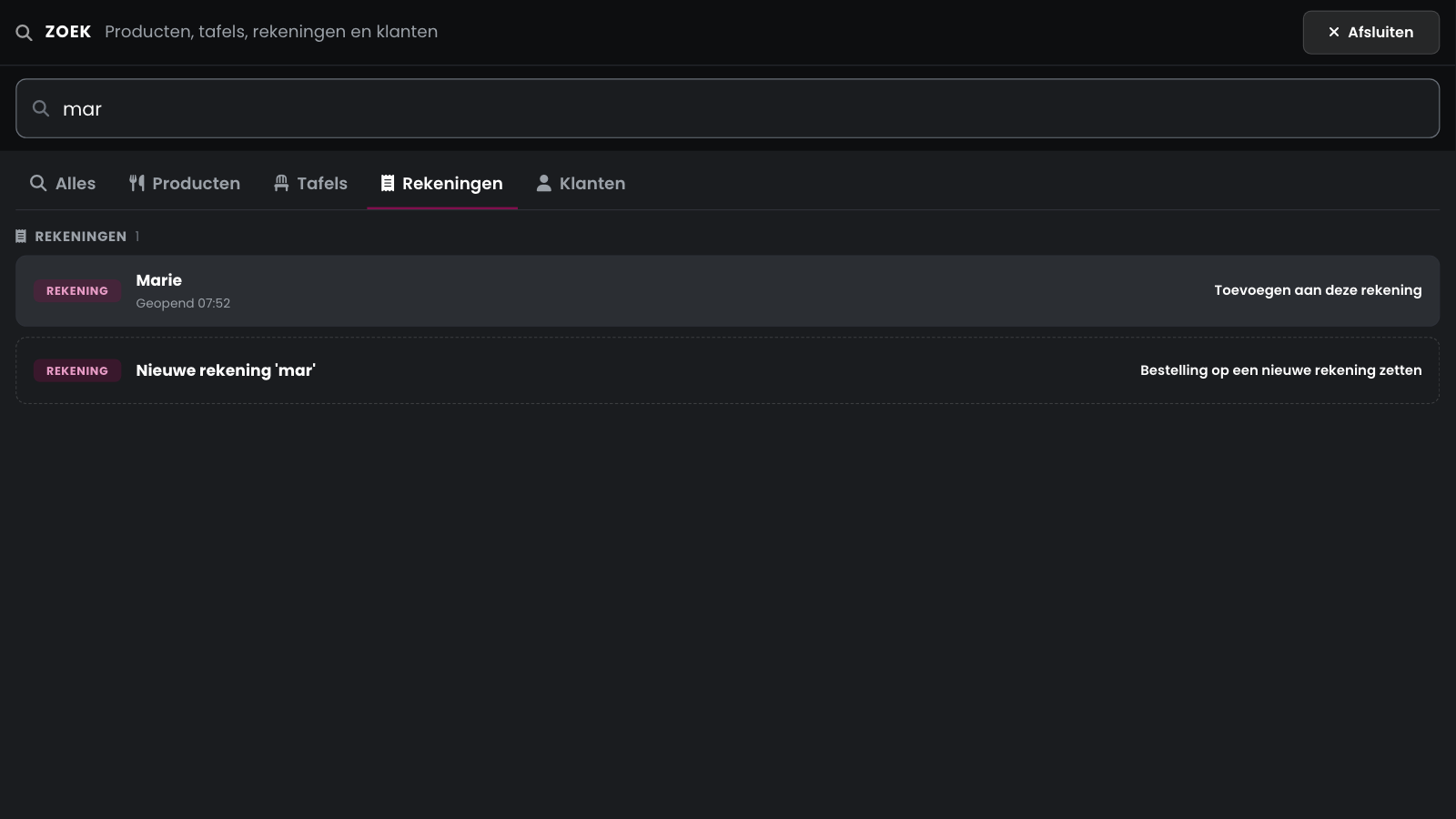
In the same search window, tap Tabs and type the name. Tap an open tab to add your products to it, or tap New tab at the bottom to create a tab straight away with the name you typed.
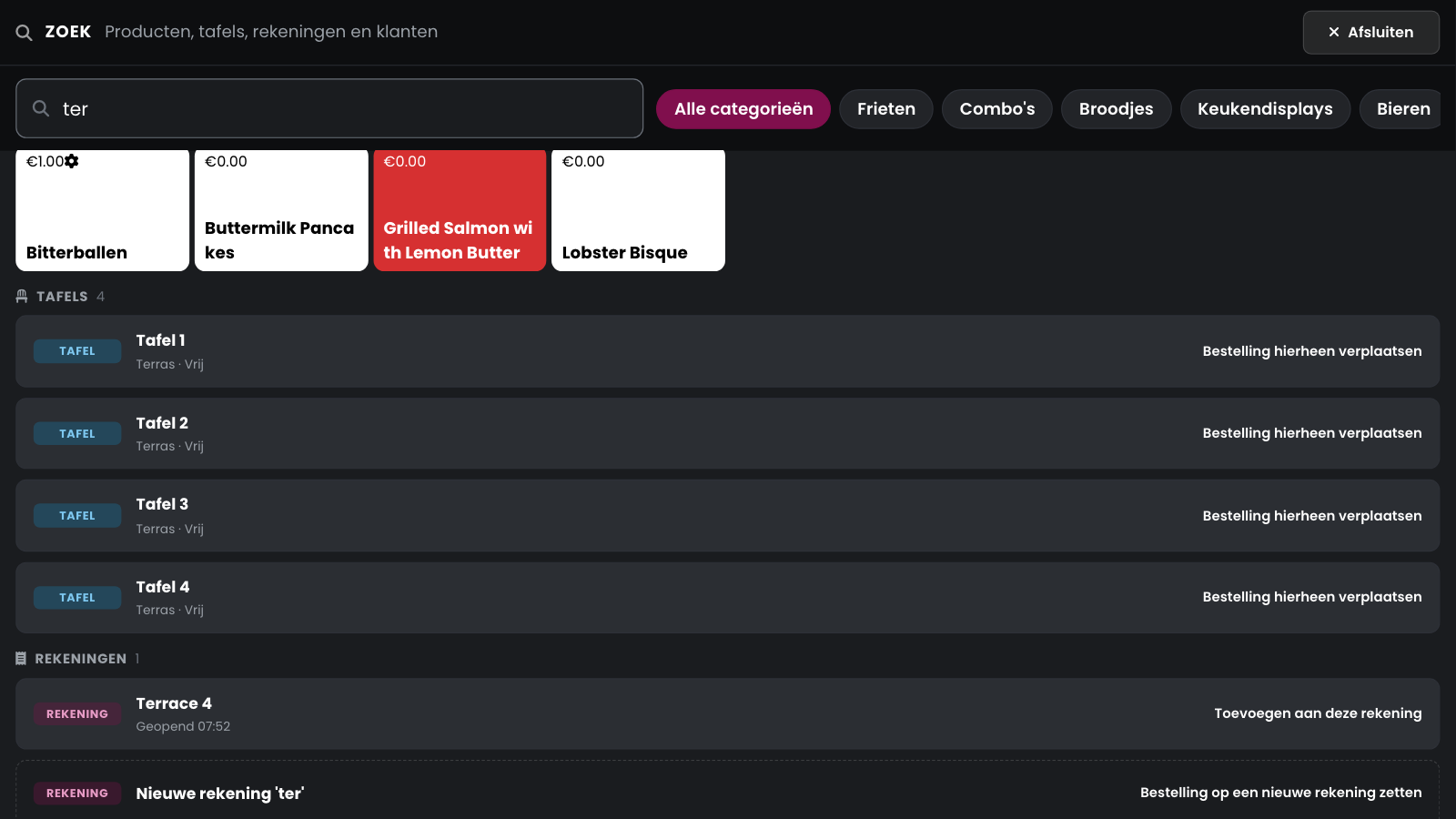
The magnifying glass in the navigation bar opens the same search window on All: products, tables, tabs and customers in one list. On the right of each row you see what a tap does, such as Move this order here or Add to this tab.
Good to know
A table or tab that is open on another device is greyed out with your colleague's name, for example In use by Unipage Demo. You can't pick it. If a move doesn't work, your sale stays as it was and the message tells you why.
A customer or loyalty reward only moves along if the table or tab doesn't have one yet. The message after the move tells you what didn't come along.